After updating my iPhone to the latest iOS version, I noticed my apps are using much more storage than before. I did not download anything major, so I am trying to understand what changed and how to free up space without deleting important data. Has anyone else had this issue after an iOS update?
# Why the iPhone 'Applications' number looks wrong
I ran into this on my own iPhone, and it drove me nuts for a couple days. You add up the apps in the list, see a bunch of 400MB, 900MB, 1.2GB entries, then the storage graph says Applications is eating 50GB. Looks fake. I thought iOS was counting phantom junk or flat-out reporting it wrong.
After poking through Settings > General > iPhone Storage, I found the top Applications total is wider than the app list makes it seem. It is not only the app itself.
Here’s what usually gets rolled into it:
## What sits inside 'Applications'
1. App binary
The installed app package. The code, the stuff pulled from the App Store.
2. Support files
Language packs, bundled assets, downloaded resources, local frameworks, stuff the app needs in order to run.
3. User data
Logins, saved preferences, local documents, downloaded chats, drafts, settings.
4. Cached files
Usually the big one. Feed thumbnails, streamed media chunks, game assets, temp files, old previews, junk apps keep around so they open faster next time.
That last part is where storage goes sideways.
## Why the math does not match the list
What tripped me up was this. iOS does not show the same storage breakdown the same way on every screen. You tap into an app and sometimes see part of its Documents & Data separated out. Then the top-level bar rolls a lot of it back into Applications anyway.
After an iOS update, it gets messier. I saw this right after updating. The phone seemed to be re-sorting storage in the background, and some temp update leftovers or stale caches looked like app storage for a while. Later it settled down a bit. Not fast though.
Apps with constant media loading are often the worst offenders:
- TikTok
- Instagram
- Telegram
- YouTube
- Games with downloadable assets
Those apps pile up cache fast. The list view does not always make it obvious.
## What low storage felt like on my phone
On my iPhone 13, the slowdown was not subtle. Camera lag. Random app closes. Keyboard delay. Touch felt off. I noticed it most when free space got low.
iPhones need working room. If storage is close to full, iOS has less space for temp files and memory management. Once I freed space, the phone stopped feeling sticky. So, from what I saw, the storage issue and the lag were tied together.
## Stuff I tried first
I went through the usual cleanup steps.
### Offload unused apps
This removed the app itself but kept my data. It helped a little. Not enough.
### Delete and reinstall the worst apps
This worked better for apps with bloated caches. Social apps were the main target. Annoying to do one by one, though.
### Wait after an iOS update
I gave it some time in case indexing was still running. That fixed part of the weird reporting, but not the whole thing.
## What turned out to be taking space
This was the part I missed. The giant Applications number was not only apps. My phone also had a pile of media I forgot about, and some of it was making the overall storage picture look worse than I thought.
A friend pointed me to Clever Cleaner. I do not trust most cleanup apps, so I expected nonsense. I was wrong on this one.
What I noticed:
## The part I liked
### Heavies
This was the useful tab for me. It sorted media by exact size. I found old screen recordings, giant 4K clips, and duplicate saves I forgot existed. A few files were multiple gigabytes on their own. No mystery there. My storage was getting wrecked by my own camera roll.
### Similars
This found near-duplicate photos. Same subject, same angle, five tries because my hand moved a little. I had tons of those. It was easier to clean up when I could see which copy was larger and keep the best one.
### On-device processing
I liked this part more than the AI label stuff. My photos were handled on the phone, not shipped off somewhere. For me, that matters.
## What changed after cleanup
I cleared around 20GB between old videos, duplicate shots, screenshots, and app junk. After that, the storage graph looked less absurd. The phone stopped stalling all the time too. Not magic, no. But it felt normal again.
So if your Applications total looks inflated, I would not assume iOS is lying, at least not fully. It is usually counting more than you think:
- app files
- user data
- support resources
- hidden caches
And if your phone feels slow, check your free space first. Mine got better only after I made room. Offloading apps helped a bit. Deleting and reinstalling some cache-heavy apps helped more. Finding the huge forgotten media files made the biggest dent, tbh.
iOS updates often rebuild stuff in the background. Spotlight index, photo library analysis, message attachments map, app asset cleanup. During that window, storage numbers look off. I disagree a bit with @mikeappsreviewer on one part though. It is not always hidden app junk. A lot of the jump comes from iOS reclassifying old data after the update.
What to check first.
1. Restart, then wait 24 to 48 hours.
2. Check Settings, General, iPhone Storage again.
3. Look at Messages, Photos, Downloads in Files, and Safari website data.
4. Open a few bloated apps. Some trim temp files only after launch.
Big one people miss, iMessage. Old videos and memes sit there forever. Safari offline reading list too. Podcast and Music downloads too.
If Photos is the real hog, Clever Cleaner is worth a look. It helps find large videos, duplicates, and similar shots fast. I found this review useful for seeing how it handles iPhone cleanup in practice, Fossbytes review of Clever Cleaner for free iPhone storage cleanup.
If the number stays inflated after 2 days, delete and reinstall the top 2 or 3 offenders. Annoying, but it works more often then people think. Also check if Apple Intelligence downloads or offline maps got added after the update. Those eat space fast.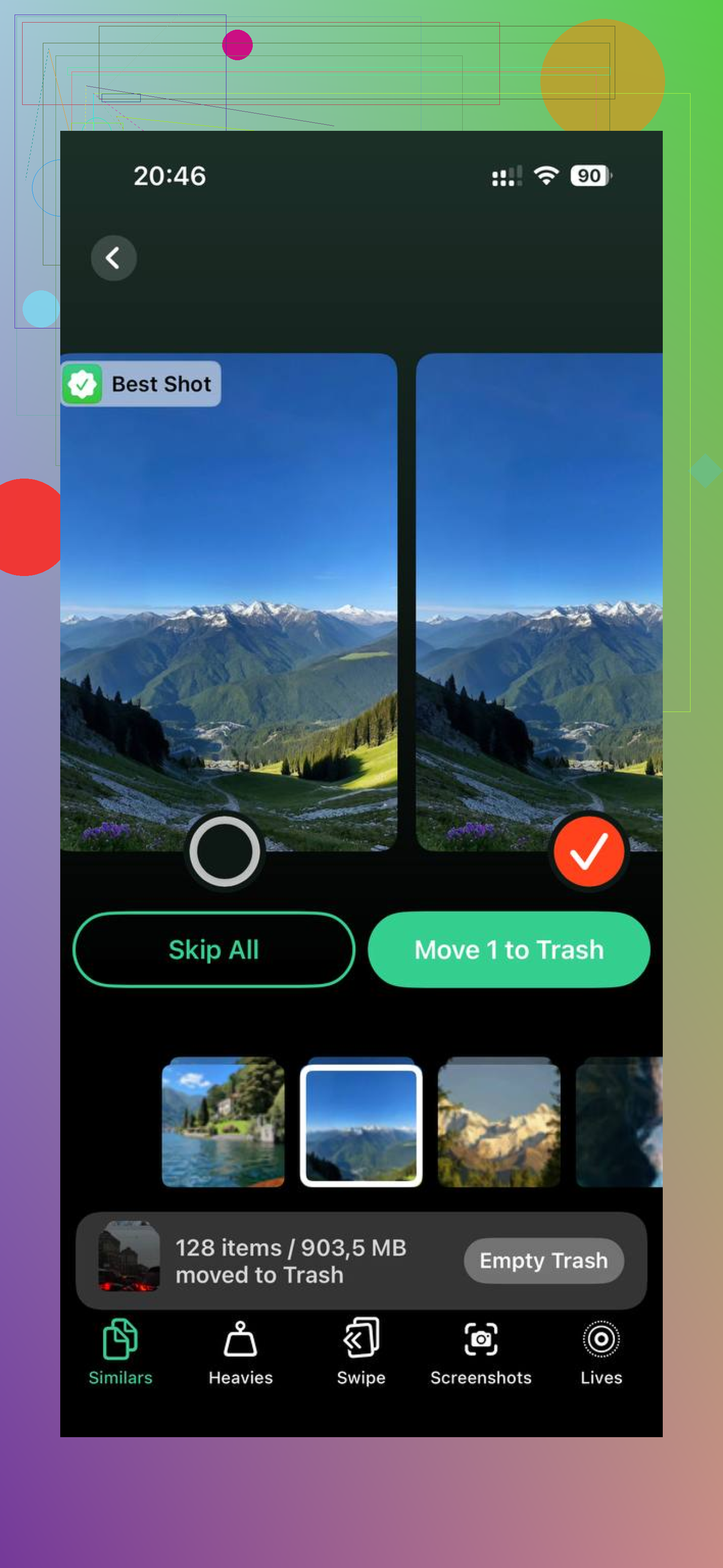
I’d push back a little on @mikeappsreviewer and @viajantedoceu here. Sometimes the jump after an iOS update is not really “new” storage at all, it’s iOS recalculating categories and making previously ignored app containers visible. So the number can look worse before anything is actually wrong.
What I’d check that they didn’t really focus on:
- App Store automatic downloads updated a bunch of apps in the background
- offline maps got re-downloaded
- Mail attachments got re-cached
- streamed music/video apps rebuilt local databases
- “System Data” and “Applications” can blur together for a bit
Also, if you use WhatsApp or Discord, check inside the app itself. Those apps can hoard media while iPhone Storage barely explains it. Same with Chrome. Safari gets blamed, Chrome sneaks off with the snacks lol.
If the number bugs you, compare app size vs data size one by one for the top 5 apps. If an app is absurdly large, offloading won’t always fix it. Full delete/reinstall usually does. Annoying, but yep.
For photo clutter, Clever Cleaner is actually useful because it helps surface huge videos and dupes faster than digging manually. This iPhone storage cleanup video guide explains the process pretty well too.
Short version: some of it is temporary misreporting, some of it is app data bloat, and some is just iOS being... iOS. Wait a day, then audit the worst offenders manualy.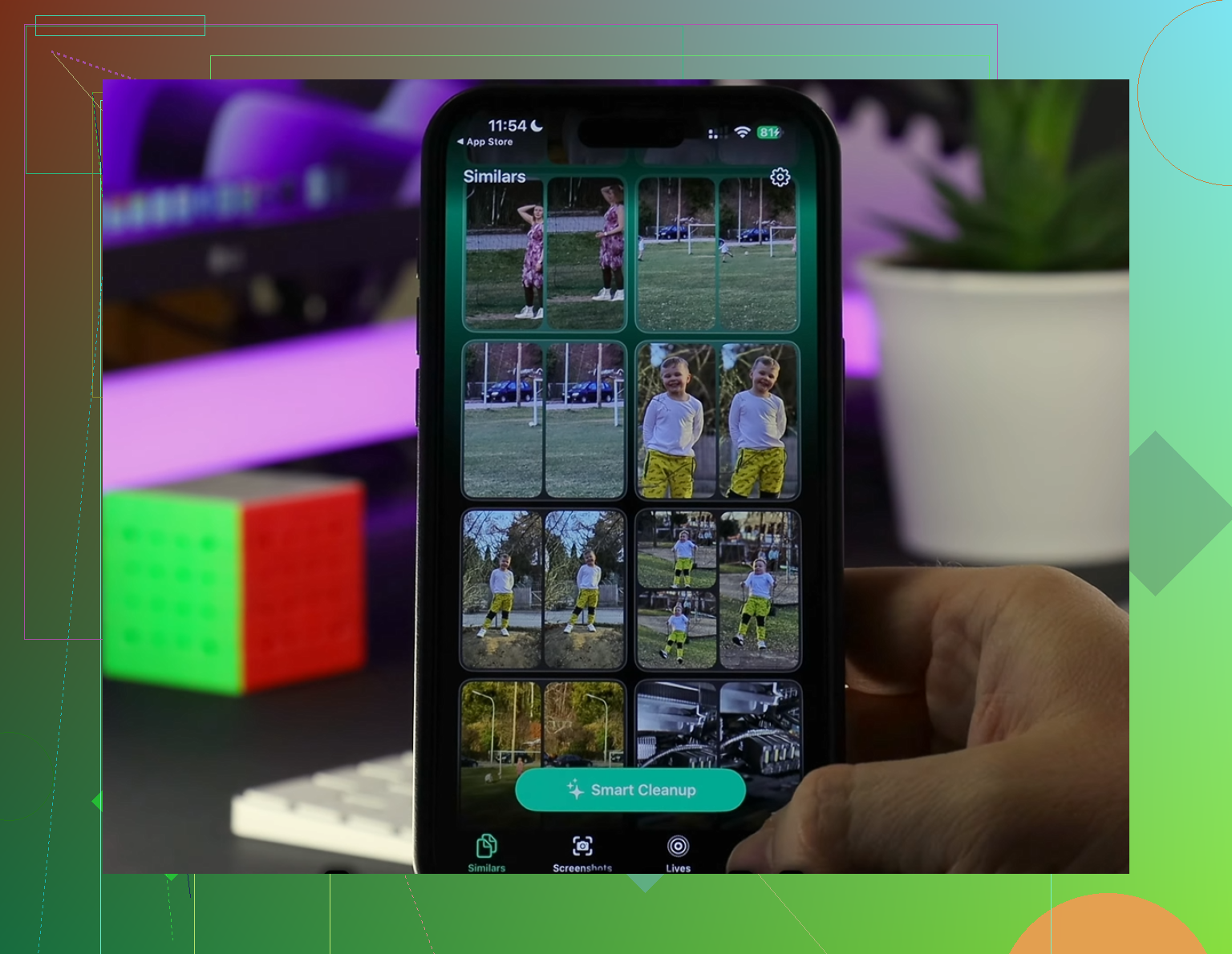
I’d add one angle the others only touched lightly: APFS snapshots. After a major iOS update, the phone can keep temporary rollback/update snapshots, and those sometimes get counted in weird buckets before iOS cleans house. So I slightly disagree with @mikeappsreviewer on blaming app junk first, and with @viajantedoceu and @codecrafter on waiting alone as the main fix. Sometimes the storage spike is neither your apps nor your photos. It is update residue that resolves only after the system decides it is safe to purge it.
A few things worth checking that are different from the usual app-cache cleanup:
- Settings > Privacy & Security > Analytics & Improvements > Analytics Data
If this area is huge, logs may be piling up after the update.
- Mail app
Re-synced attachments can swell storage without looking obvious.
- Voice Memos and GarageBand sound packs
Easy to forget, surprisingly large.
- Files app > On My iPhone
Update installers, exported videos, and app folders hide there.
If Photos really is part of the problem, Clever Cleaner is useful for surfacing big videos and duplicates fast.
Pros:
- simple scan
- good at finding large media
- useful duplicate detection
Cons:
- less helpful for non-photo app bloat
- cleanup suggestions still need manual review
- not a replacement for reinstalling broken apps
My take: if the storage jump survives a few charging cycles, it is usually one of three things: local media, app databases, or temporary system snapshots. Not always “Applications” in the literal sense.