My iPhone storage is almost full, and I’m getting alerts when trying to take photos, update apps, or install iOS updates. I’ve deleted a few apps and old pictures, but it didn’t help much. What are the best ways to increase iPhone storage, clear space, and manage photos, apps, messages, and iCloud without losing important data?
I looked into the whole “upgrade the iPhone storage chip” thing a while back after my phone ran out of space. At first it sounded kind of reasonable. People replace screens and batteries all the time, so I figured maybe swapping storage was just another repair job.
The repair shop I asked was pretty blunt about it, in a good way. They said it can be done, but they would not recommend it. It means replacing the NAND chip, which is micro-soldering work, then dealing with firmware/programming stuff, and there’s a real risk of killing the logic board. Even if the repair works, you’re basically making future Apple service harder and giving up any normal warranty path. That was enough for me to stop chasing it.
What actually helped was boring storage cleanup first.
Start with Settings > General > iPhone Storage. I thought I had simply outgrown the phone, but a lot of the space was just junk I had ignored. Offload Unused Apps was an easy win since it removes apps you barely use while keeping their documents and data, so reinstalling them later brings things back.
Messages were worse than I expected too. Old videos, photos, GIFs, and random attachments had piled up over years. Setting older conversations to delete automatically helped keep that from building up again.
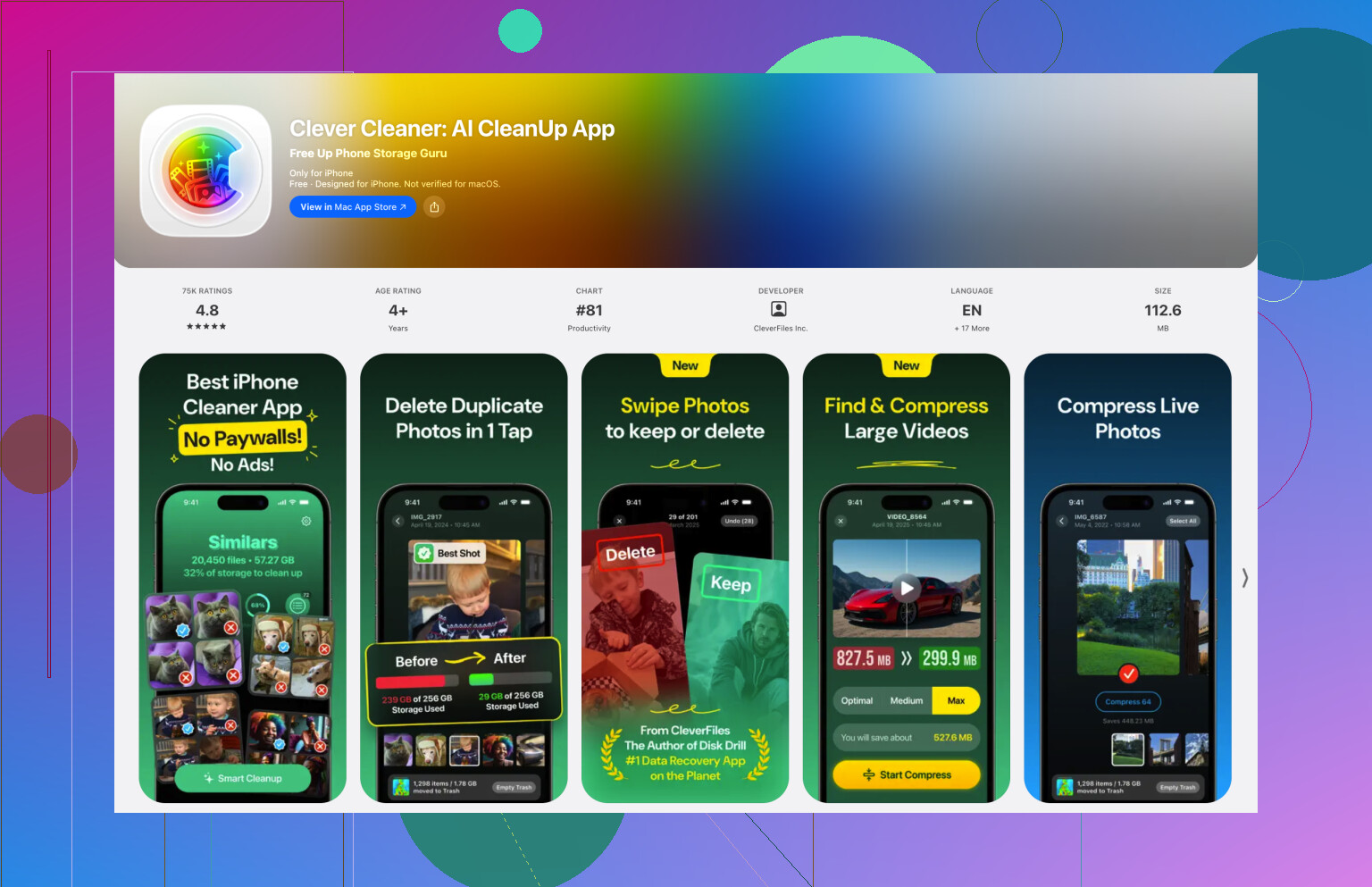
Photos was the main problem, though. Apple’s Duplicates album barely found anything for me because most of the clutter was not exact copies. It was similar shots, screenshots, Live Photos, and big videos. I ended up using Clever Cleaner for that because it was better suited to that mess. It grouped similar photos, picked suggested best shots, sorted videos by size, found old screenshots, and could turn Live Photos into normal still images when the motion part wasn’t needed. That alone freed up way more space than I expected.
After the obvious cleanup, iCloud Photos with Optimize iPhone Storage made the biggest difference. The full-size photos stay in iCloud, while your phone keeps smaller local versions until you open something. In normal use I barely noticed the change, but the photo library stopped eating so much local space. If you don’t want iCloud, Google Drive or Dropbox can work for moving files and videos off the phone, though you’ll have to manage more of it yourself.
External storage was the last step, not the first one. I bought a flash drive for older photos and videos I still wanted to keep, but didn’t need sitting on the phone every day. It’s especially easy with newer USB-C iPhones. Some drives also work with compatible apps that can record video straight to the external drive instead of filling the phone first. Just check that the drive is formatted in something the iPhone can read, like exFAT or APFS.
I’m glad I didn’t mess with the hardware. Cleaning the phone, pushing older stuff to the cloud, and keeping an external drive for long-term storage solved it without risking the whole device. I’d try all of that before even considering a storage chip swap.
7 Likes
The exact thing taking up space matters, because “System Data” and app caches won’t be fixed by deleting a few small apps. Mike’s photo advice is solid, but for a quick win I’d check big cache-heavy apps like Spotify, YouTube, TikTok, Instagram, Podcasts, and Maps, then delete downloads or reinstall the app if it has no clear cache button. After a big cleanup, restart the phone before judging the free space.
Whether your photos are in iCloud Photos or only stored locally changes what is safe to delete.
A lot of people get caught by this: if iCloud Photos is turned on, deleting a photo from the iPhone usually deletes it from iCloud too, and then from your other Apple devices. iCloud is not a separate “dump it there and erase my phone” folder unless you are using it that way through Files or another backup method. If your plan is to keep the photos, turn on Optimize iPhone Storage instead of manually deleting random stuff from Photos.
For the fastest cleanup, I’d go in this order:
Open Settings > General > iPhone Storage and look at the top few categories. Don’t guess. If Photos is huge, deal with Photos. If Messages is huge, delete attachments. If Apps is huge, check which apps are hoarding downloads.
Then empty the trash areas. Photos has Recently Deleted. Files can have Recently Deleted. Some apps have their own deleted-items folder. Until those are emptied, you may not get the space back right away.
Messages is worth checking even if you don’t text much. Go to iPhone Storage > Messages and look at large attachments, videos, and photos. A few old videos sent in chats can be bigger than a bunch of apps.
For apps, there’s a difference between Offload App and Delete App. Offload keeps the app’s documents and data, which is handy, but it may not solve the problem if the app’s data is the problem. For things like Netflix, Spotify, YouTube, podcast apps, offline maps, and games, deleting downloaded content inside the app is usually cleaner. If the app gives you no useful storage controls, delete and reinstall it.
I agree with the warning about not chasing a storage chip upgrade. That’s not really “increasing iPhone storage” in the normal consumer sense. It’s repair-shop surgery with risk attached. If the phone is already old enough that storage is painful every week, putting that money toward the next phone with more storage is usually the saner move.
A cleaner app can help with the photo mess, especially similar shots and screenshots, but I’d treat it as a sorting tool, not an autopilot. If you use something like Clever Cleaner, review the selections before deleting. Similar photos are not always duplicates. Sometimes the “bad” one is the one with the better face, better receipt angle, or the one you actually needed.
Another boring thing that helps: move big videos first. Videos are usually where the real space is. A 4K video, screen recording, or a pile of Live Photos can eat space much faster than regular pictures. Sort videos by size in Photos if your app supports it, or check the Videos section under iPhone Storage if it shows up.
For iOS updates, you need temporary breathing room. Freeing 1 GB may not be enough even if the update itself looks smaller. If you’re stuck updating because storage is full, connecting to a Mac or PC and updating through Finder or Apple Devices/iTunes can sometimes work with less free space on the phone because the computer handles more of the download process.
Be careful with “backup then delete” advice too. A proper backup should be confirmed before you remove anything important. If you copy photos to an external drive, open the drive and check that the files are really there. If you use Google Photos, Dropbox, OneDrive, or a computer import, make sure the upload or transfer finished before clearing the phone.
The realistic answer is that you can’t increase the internal storage in any normal way. You can only reduce what lives on the phone, keep more in cloud storage, move older files to external storage, or buy a higher-capacity iPhone next time. The best fix depends on what the iPhone Storage screen says, but photos/videos, message attachments, offline downloads, and app caches are the places I’d hit before deleting more small apps.
A failed iOS update can be part of the storage problem itself. Check Settings > General > iPhone Storage and see if an iOS update file is sitting there, then delete it and retry after clearing more space or update through a computer.