I’m trying to figure out how to stream videos from my MacBook to my Samsung TV but nothing seems to work. I’ve tried AirPlay and a few other apps, but my TV isn’t showing up or the stream fails. Does anyone have step-by-step instructions or know what settings I might be missing? I just want to easily watch stuff from my Mac on my TV.
Real Talk: Streaming from Mac to Samsung TV (2026 Update)
So, if you’re like me and hate wasting time fiddling with settings just to watch a movie on your nice, big Samsung screen, here’s what I’ve waded through—not all of it pretty, but someone’s gotta test these things.
If You’re Wondering “Shouldn’t This Be Easy?” … Sometimes It Is
So here’s the thing. You’ve got a Mac, you’ve got a Samsung TV, and you want them to actually talk to each other without hiring a wizard. That should be basic, right? Well, kind of.
Let’s Start With AirPlay, Apple’s Magic Trick (When It Works)
How I Set It Up (And Ran Into the Occasional Headache)
Picture this: You’re sitting on the couch, snacks ready, AirPods in for full immersion, ready to AirPlay that movie you “found legally.” All you need:
- Make absolutely sure both your Mac and Samsung TV are using the same Wi-Fi—if not, expect nothing but confusion.
- Look for the AirPlay icon on your Mac. Sometimes it’s up top on the menu bar, but some apps like QuickTime or Apple TV have it tucked inside the video controls.
- Click it, cross your fingers, then choose your Samsung from the list that pops up.
Easy! Except, well… not always. Some files just refuse to play, or suddenly everything’s out of sync. If things start getting glitchy, you might need to update Samsung Smart TV firmware to make sure it’s actually compatible with Apple’s latest whims. I get like a split-second lag or those “unsupported format” errors. I mean, look at this visual—this is supposed to be the easy way:
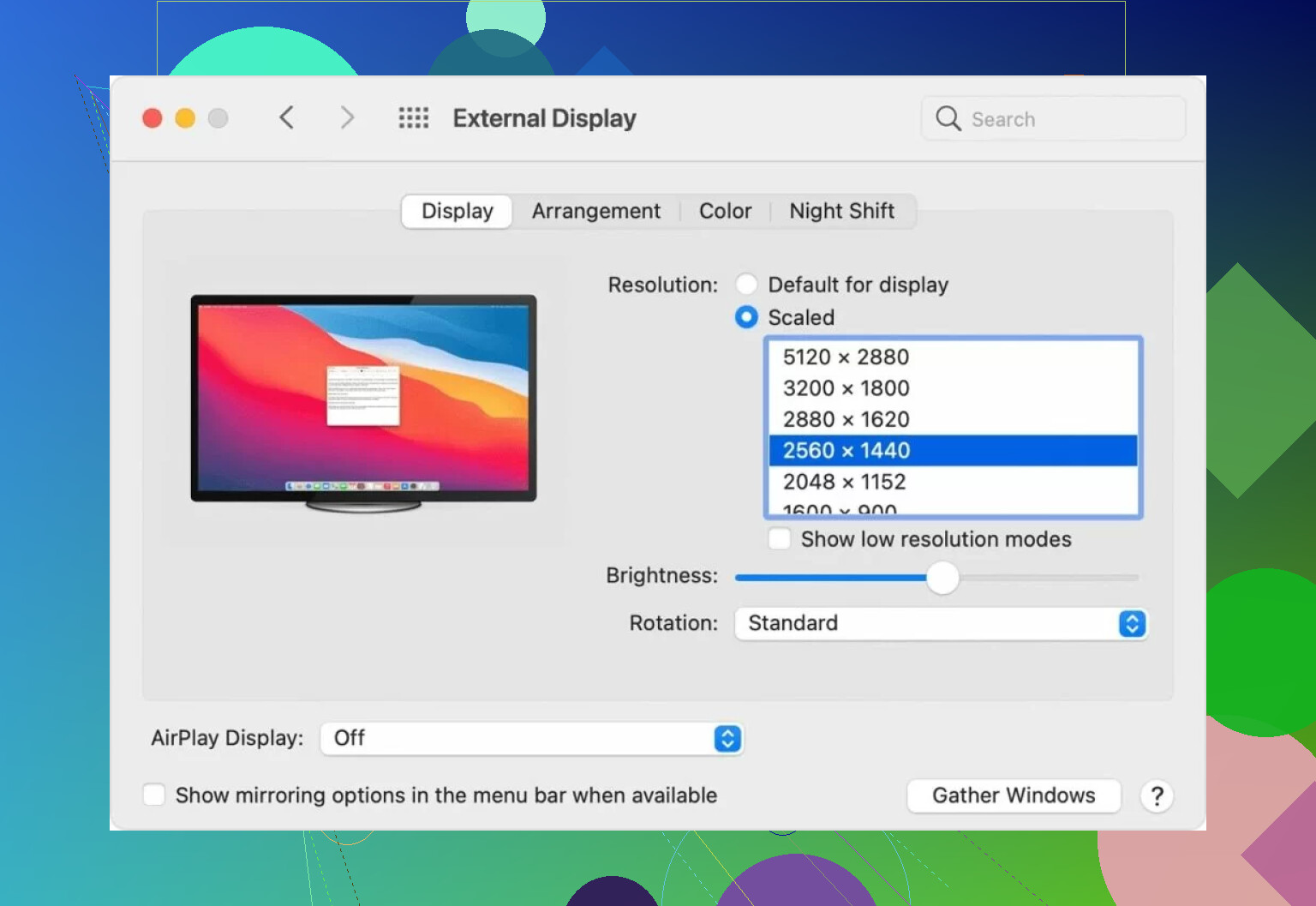
When it works, though, it’s all wireless, and you look like a tech genius to any nearby relatives.
Old School Still Wins: HDMI for the Win (and a Tangled Desk)
Been burned too many times by streaming gremlins? There’s always HDMI. Not fancy, not new, but boy, is it dependable.
The Setup, For Those Still Trying to Escape Cable Anxiety
- Plug the HDMI cable into your TV and your Mac. Modern MacBooks need a USB-C to HDMI adapter, by the way.
- Your TV should immediately show up as a second display. Then it’s just click-drag-drop your movie player over, maximize, and you’re golden.
Drawbacks? You’re literally tethered to the TV, and if you have a cat, good luck. But if you crave a zero-lag experience and don’t mind a little cable “decor,” this is the way to go.
Here’s a Pro Move: Third-Party Streaming Apps
So, I hit a wall. AirPlay’s moody, cables aren’t always convenient, and then someone on a forum dropped this tool: Elmedia Video Player.
How This Saved Me Many Nights of Grumbling
You download Elmedia, throw any file at it—even those weird formats from the “vintage internet”—and then just hit “Stream” to Samsung. Honest, here’s why this beat the other tricks:
- Zero conversion drama: MKV, AVI, FLAC, whatever—Elmedia handles it all, no silly popups.
- Streaming is smoother than AirPlay ever was for me—no choppy buffering, no “please wait” circles.
- Best part: My Mac doesn’t get locked into the movie. I can answer emails, doomscroll Twitter, even start another download, and my TV just keeps playing.
Obligatory proof of concept:
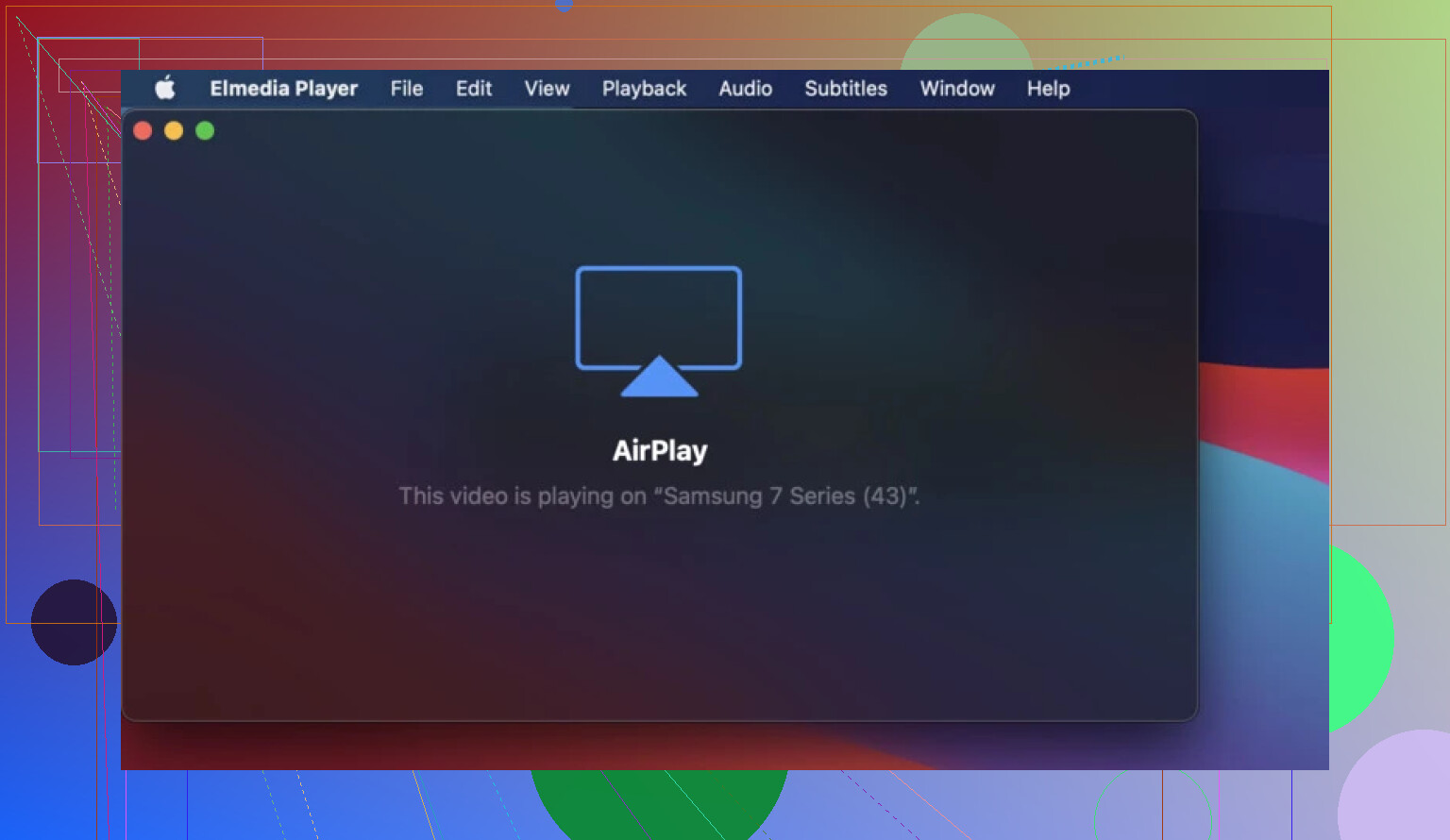
Barely takes a minute to set up, and once you start, you probably won’t go back. AirPlay’s fine… until it isn’t.
TL;DR: What Works, What’s Annoying
- If you’re lucky: AirPlay, for the Apple fans.
- If you’re old school: HDMI, for people who don’t move their laptops around much.
- If you want “it just works”: Elmedia Video Player blew the others out of the water for me.
If anyone else has a random trick I missed, let me know—but those are the methods that’ve survived my patience (or lack thereof).
14 Likes
Alright, so I see @mikeappsreviewer already went all in on the mainstream solutions—AirPlay (when the stars align), HDMI for the “let’s play tangle wars” crowd, and Elmedia Player for the plug-and-play folks. Frankly, I think AirPlay gets way more hype than it deserves. It’s like, half the time your TV is like “who dis?” and you just end up screaming at your devices in pure 2024 fashion.
Here’s where I slightly go off-script compared to Mike: have you tried using a dedicated DLNA server on your Mac? Built-in macOS sharing doesn’t cut it, but apps like Plex or Universal Media Server have saved my sanity more than once. Set up is fairly painless—install, select your media folder, and your Samsung TV’s “Source” > “Media Server” should show your Mac in the list. Playback usually works unless you throw some exotic codec at it and honestly, transcoding is better handled than mirroring anyway.
Also, since Mike didn’t touch on it, I’ve had weird firewall blips from macOS itself that kill network visibility. Double-check System Settings > Network > Firewall and either allow all incoming connections to your streaming app or just shut the thing off while testing. It’s boring, it’s basic, but sometimes that’s all it takes.
And, on the off chance your Samsung TV is acting special because of software bugs (these smart TVs sometimes seem allergic to their own updates), check your firmware version. Go to Settings > Support > Software Update on the TV. I had one update nuke all casting before a patch fixed it weeks later.
Not gonna lie, though—Elmedia Player is probably the easiest “does what it says” pick since it handles wireless streaming for a bunch of formats. Still, I get some weird artifacts with subtitles, so if that’s a must-have for you, Plex might be the way to go.
So, if the usual suspects are failing: firewall check, try a DLNA server, firmware update, AND lastly, well, maybe threaten your TV with replacement as a last resort. Sometimes, that’s all the motivation these “smart” appliances need. Anyone else get their TV working after a rant or is it just me?
Yo, so not gonna repeat the step-by-step AirPlay and HDMI gospel that @mikeappsreviewer already sang (honestly, HDMI in 2024 feels like plugging a rotary phone into my smart home, but whatever). And @himmelsjager is right—Samsung TVs throw tantrums over software updates like my old router after a power outage, but here’s the other thing: sometimes all wireless methods just suck on certain networks, period. Especially in apartments where router congestion turns your 5GHz into a 3-lane LA freeway at rush hour.
So here’s what I rarely see mentioned: forget streaming for a sec and try a plain-old USB drive. Yeah, old school, but hear me out—Samsung TVs (unless ancient) can read video files off USB. Copy your movie to a stick, plug it directly into the TV, and use the TV’s media browser. Limited by codec support, sure, but if you’re stuck, at least it’s consistent, and there’s literally zero network weirdness.
If you must get your Mac involved for live streaming, but hate Elmedia Player for whatever reason (maybe the interface feels like Windows XP skinning, idk), VLC does have a UPnP/DLNA option under the hood—clunky but can work if you have patience for fiddling. But IMO, Elmedia Player is honestly the least painful option of the bunch unless you go full-Plex home server nerd.
Final wild card: create a guest hotspot from your Mac and temporarily put the TV on that. Sometimes multi-router setups, mesh WiFi, or weird network isolation (thanks, Xfinity) can block your devices from “seeing” each other. Using your Mac as a host network for literally five minutes just to kickstart the handshake can get devices to display, then revert back to your main network—with refreshes, suddenly they’re pals again. Silly? Hell yeah. Works? Sometimes.
TL;DR: If you want dead simple, Elmedia Player gets my vote. But don’t sleep on USB direct play if you’re desperate to get through a movie night without rebooting half your apartment.