I accidentally damaged or deleted a GPT partition while working on my drive, and now Windows can’t access the data. I’m trying to figure out if data recovery software can safely recover a GPT partition table without making things worse, or if I should use a different recovery method.
Stop using that drive right away. That’s the big thing. If the missing partition is on your system disk, power down and boot from a live USB instead. If it’s an external or secondary drive, unmount it or disconnect it for now. The files may still be there, but every write to the disk can overwrite something you’re trying to recover.
Since this is a GPT disk, you may be in better shape than it feels like. GPT stores a backup partition header at the end of the drive, so if only the main partition table got damaged, there’s sometimes enough information left to rebuild from.
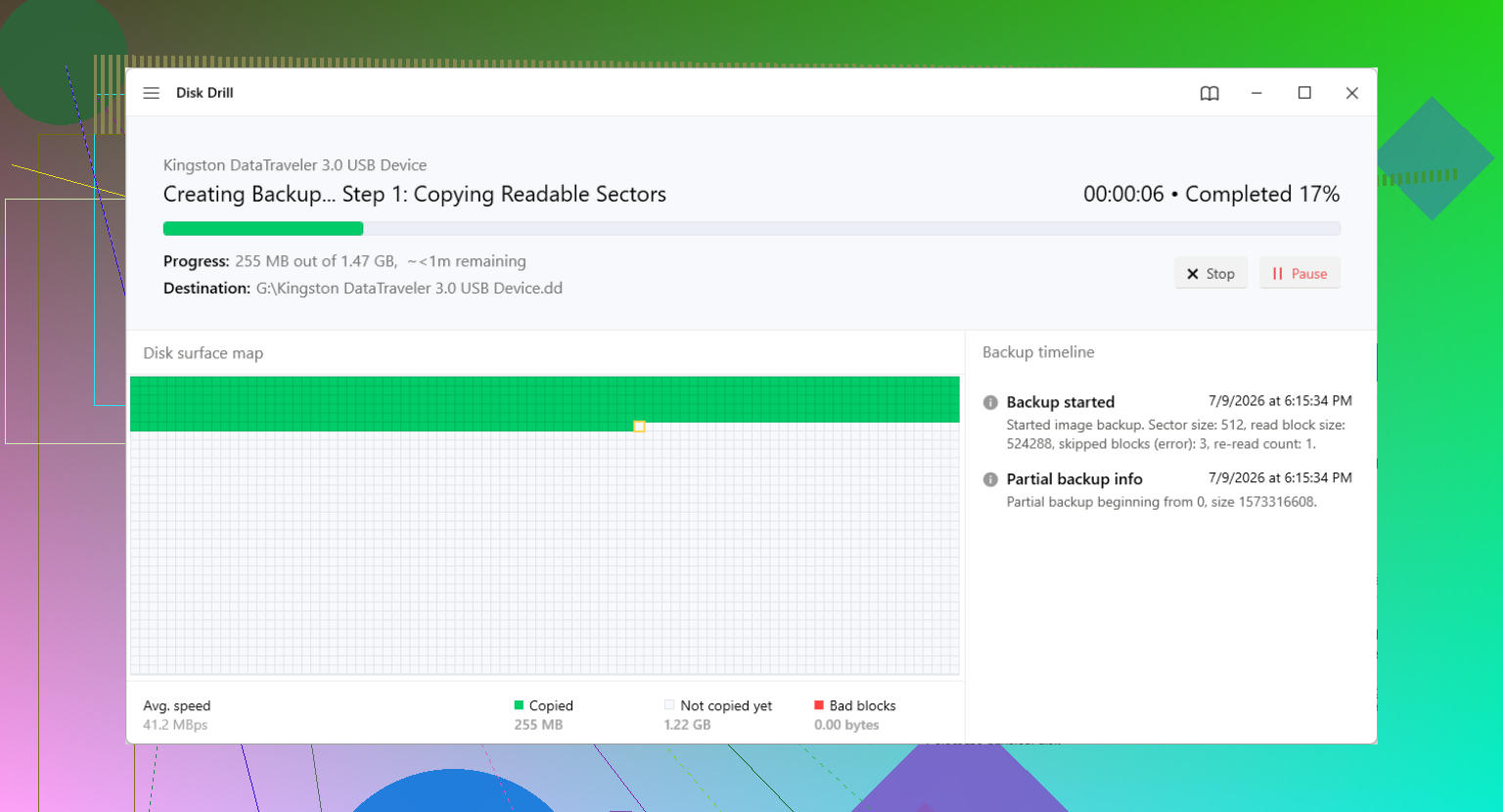
If you have another drive with enough free space, make a full sector-by-sector image before trying repairs. Use dd, ddrescue, or whatever imaging tool you’re comfortable with. The point is to work on a copy instead of poking at the only copy of the disk. If a tool makes things worse, you can go back to the image and try again.
For a more straightforward recovery, dedicated recovery software is usually the least painful route. A damaged partition table can make the OS act like the files are gone, even when the actual file data is still sitting on the drive.
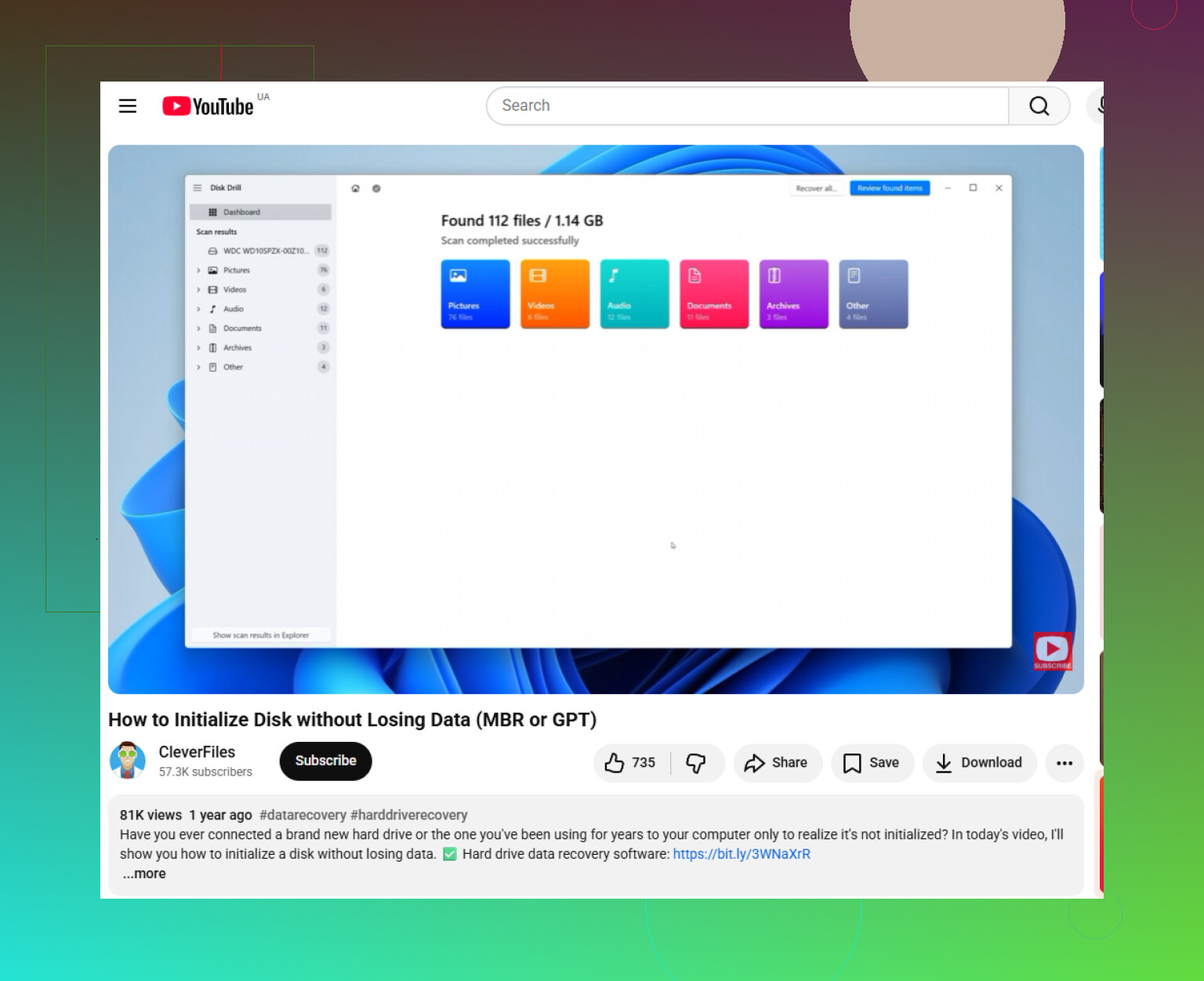
Disk Drill is one option that works well for this kind of case. It can scan the physical disk instead of relying on the broken partition entry, look for lost partitions and file system signatures, and let you preview files before recovering them. It also handles common file systems like NTFS, FAT32, and exFAT, and can scan drives that show up as RAW.
The basic workflow is:
- Choose the physical disk, not just a visible volume.
- Run the “Search for lost data” scan.
- Check the “Existing” and “Reconstructed” results.
- Recover anything important to a different drive.
If you want to try fixing the partition table itself, look at TestDisk or gdisk, but be careful. TestDisk can scan for old partition signatures and write the entries back if they look right. The scan part is safe enough, but once you choose “Write,” it changes the disk, so don’t guess.
gdisk can also help in some GPT-specific situations. Because GPT keeps that backup header at the end of the disk, gdisk’s recovery options can sometimes rebuild the main header from the backup. That’s especially useful when the start of the drive is what got corrupted.
One more thing: if Windows shows the disk as a “GPT Protective Partition,” don’t immediately run Diskpart “clean” or convert it to MBR. That label can show up after weird hardware changes, like moving a drive between a USB dock and an internal SATA port, or because of sector-size or driver issues. The “clean” command wipes partition table info, which is the opposite of what you want before recovery.
Recover the files first, preferably from an image, then worry about making the disk usable again.
7 Likes
Do not click “Initialize disk” in Windows Disk Management if it prompts you, because that writes new disk metadata and can turn a simple GPT repair into a worse recovery job. Recovery software can usually scan past the broken GPT entry and pull files out, but I would treat “restore the partition table” as the last step, not the first. Recover the data to another drive first, then experiment with rebuilding the GPT.
Expect the “proper” result to be file recovery, not necessarily a neat undo button that puts the GPT back exactly how it was.
A lot of recovery programs use the phrase “partition recovery” pretty loosely. Sometimes they mean “we found your old NTFS/exFAT volume and can copy files out of it.” Sometimes they mean “we can write a partition entry back to the disk.” Those are very different levels of risk. The first one is usually fine if you recover to another drive. The second one can be fine too, but only when the detected start/end sectors are clearly correct.
I agree with the earlier warnings about not initializing or cleaning the disk. Where I’d be a little more picky is this: don’t judge the disk by what Windows Explorer or Disk Management says. Windows is bad at being reassuring in this situation. It may say RAW, unallocated, inaccessible, needs formatting, or show the wrong capacity, while the actual file system is still mostly sitting there untouched.
A GPT disk has a primary GPT near the start and a backup GPT near the end, but that does not mean recovery is always automatic. If the partition entry was deleted, the backup may still help. If the beginning of the file system was overwritten too, then rebuilding the GPT entry alone may only give you a partition that still won’t mount. That’s why “restore partition table” can look successful and still leave you with a broken volume.
The thing people often forget is encryption. If the partition was BitLocker encrypted, recovery software may still find a big block of data, but it may not be able to make sense of the files unless the BitLocker metadata is intact and you have the recovery key. Same idea with VeraCrypt or other container/encrypted volume setups. In those cases, random file carving is usually disappointing because encrypted data does not look like normal files.
SSDs are another nasty edge case. If this happened on an internal SSD and Windows actually deleted the partition or formatted it, TRIM may have already told the drive some blocks are no longer needed. Once the SSD has acted on that, software cannot magically recover those trimmed blocks. If it was only the GPT metadata that got damaged and the file system contents were not trimmed or overwritten, then you still may have a good chance.
Disk Drill and similar tools are useful when you just need to get files out and don’t want to hand-edit partition entries. The practical reason to use something like that is previewing files before recovery, because it tells you whether the scan is finding real folder structure or just loose file fragments. The caveat is that the scan result looking good does not mean it is safe to “repair” the disk in place. If you’re deciding whether to pay for it, checking Disk Drill user reviews is reasonable, but the bigger factor is still whether it can preview your actual missing files from your actual disk.
For GPT repair specifically, I’d only write changes after you know three things:
- The old partition start sector is known or detected consistently.
- The size/end of the partition makes sense for the disk.
- The file system inside that range is recognizable.
If a tool finds five “lost partitions” with overlapping ranges, do not just pick the biggest one. That’s a common way to turn a recoverable mess into a more confusing mess. Old Windows installs, previous formats, recovery partitions, and reused drives can leave behind stale signatures that recovery software happily reports.
So yes, data recovery software can handle GPT-related recovery properly, but the safe workflow is conservative: scan the physical disk, confirm the files are actually there, copy them elsewhere, then think about repairing the partition map. If the data matters more than the drive, don’t make the drive bootable or “normal” your first goal. Make the files exist on a second disk first.
Do not run chkdsk or any “repair file system” prompt before you have copied the data somewhere else. GPT recovery tools can often find the old partition boundary, but chkdsk may “fix” a damaged NTFS volume by deleting records you actually needed, so use software like Disk Drill for read-only scanning and recovery first, then worry about making Windows happy.