My Windows PC suddenly shows “The parameter is incorrect” when I try to open my external hard drive. It has important photos and documents on it, and I’m worried about making the damage worse. What’s the safest way to recover files from an external hard drive with this error?
Don’t format it yet. That’s the big thing. Windows loves to suggest formatting when it can’t read the file system, but if you care about the data, formatting should wait until after recovery.
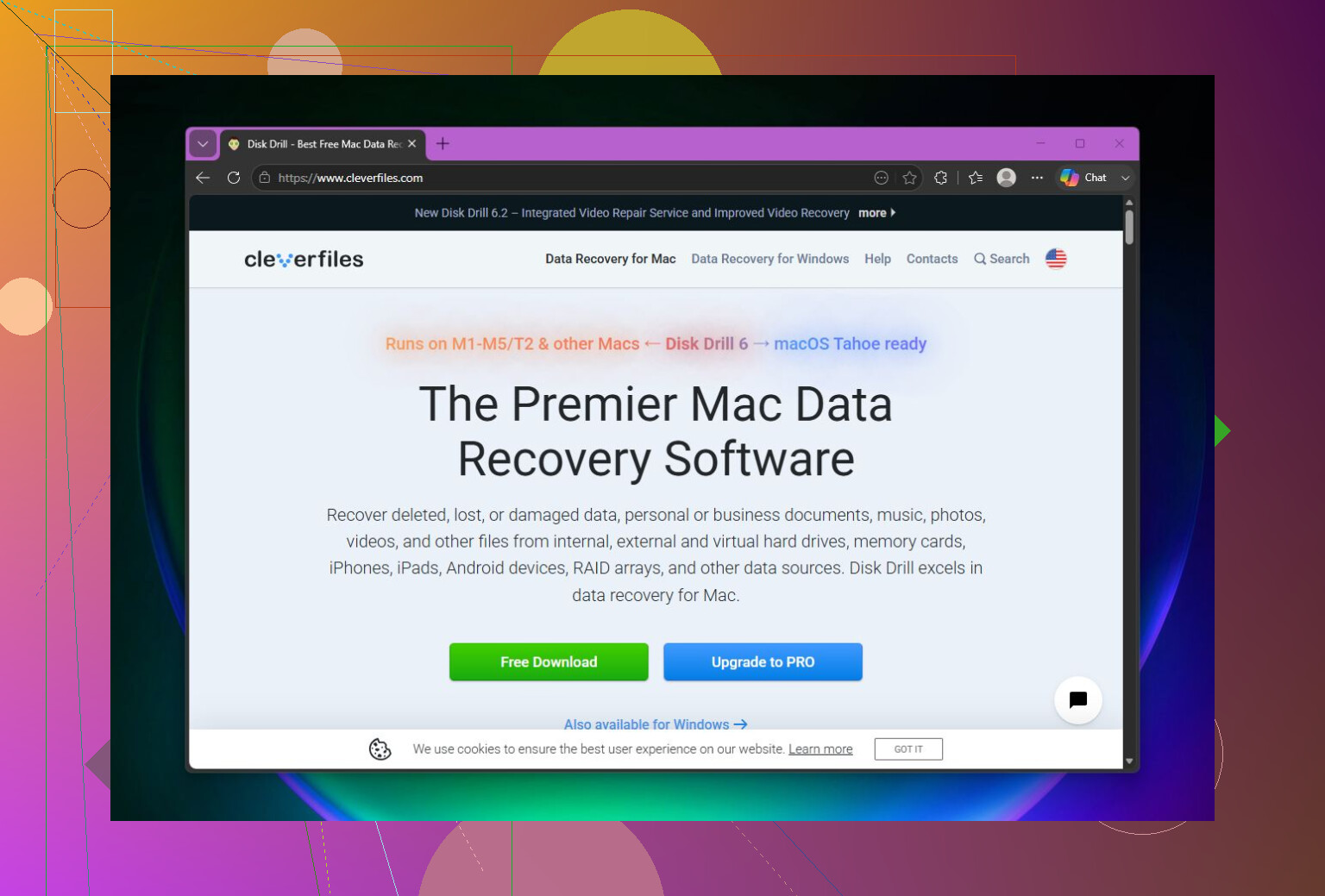
I ran into this with an older WD external drive and got the same 'The parameter is incorrect.' message. At first I assumed the drive was dead, but in my case the file system was corrupted and the files were still recoverable.
I’d start with the basic checks before doing anything that writes to the disk:
- Swap the USB cable.
- Try a different USB port.
- Plug it into another computer.
- Open Disk Management and check whether the drive shows up with the correct size.
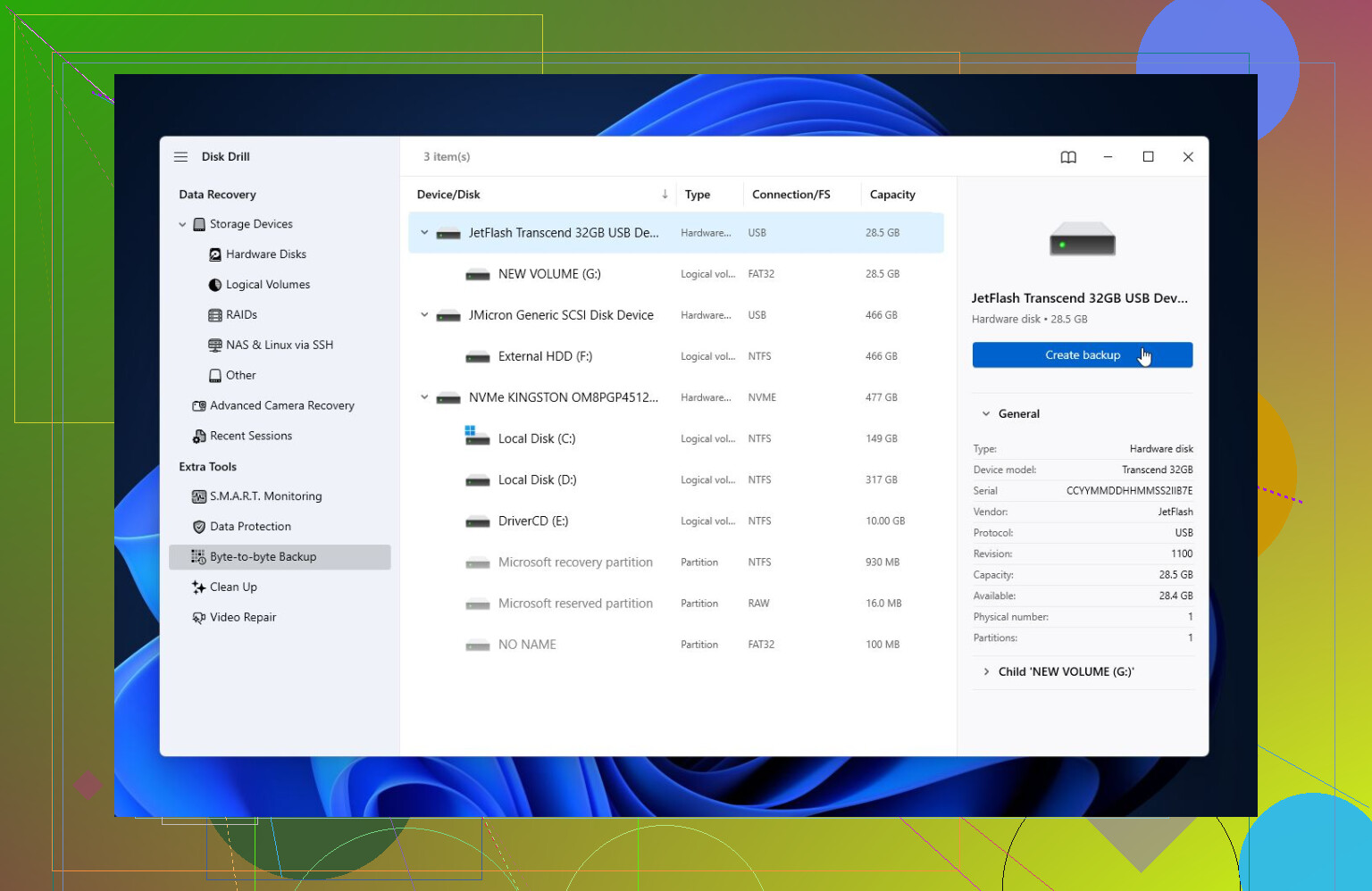
- Check SMART health with something like CrystalDiskInfo, or the SMART monitor built into Disk Drill.
If SMART shows a lot of reallocated sectors, pending sectors, or other serious warnings, treat the drive like it’s failing. Don’t keep poking at it more than you have to.
If the drive is still detected, I’d recover the files before trying repairs. I wouldn’t run CHKDSK right away unless you already have a backup. CHKDSK can fix some logical errors, but on a badly damaged file system it can also make recovery messier.
For recovery, Disk Drill is what I’ve had the best luck with. It can sometimes scan drives that Windows refuses to open because of that “parameter is incorrect” error. If the drive seems unstable, make a full disk image first, then scan the image instead of the original drive. That way you’re not putting as much stress on hardware that may already be on its way out.
After that, run a Universal Scan, preview the files, and recover them to a different drive. Don’t recover files back onto the same problem drive. The free Windows version lets you recover up to 100 MB, which is at least enough to confirm whether your files are showing up properly before paying for a license.
Once the important stuff is copied somewhere safe, then I’d look at repair options.
- If Windows still sees the file system, try CHKDSK with
chkdsk X: /r. - If the drive shows as RAW, or CHKDSK won’t run, try TestDisk. It’s not as beginner-friendly as Disk Drill, but it has saved damaged partitions for plenty of people.
If recovery is done and repairs don’t help, a quick format is usually the next thing to try. That rebuilds the file system and can clear the error if corruption was the cause. If the same problem comes back after formatting, I wouldn’t trust the drive anymore. At that point it’s more likely a hardware issue.
Also, if the drive clicks, drops connection randomly, vanishes from Disk Management, or SMART shows major health problems, I’d stop with the DIY attempts and contact a professional data recovery service. A physically failing drive can get worse every time it powers on.
This kind of thing is also a good reminder to keep at least two copies of anything important. External drives are useful, but they’re still hardware, and they can fail with very little warning.
6 Likes
You may be able to recover it, but treat the drive as “read only” until the important files are somewhere else. The worst move is trying a bunch of fixes because Windows keeps offering them. Formatting, CHKDSK, partition repair, and drive letter changes can all be reasonable later, but they are not first steps when the data matters.
I agree with @mikeappsreviewer about checking whether the disk is actually detected with the right size. The small caveat I’d add is that the problem is sometimes the USB enclosure or adapter, not the disk itself. If it’s a portable drive, try a short known-good cable and plug it directly into the PC, not through a hub. If it’s a desktop external drive with its own power brick, a weak power supply can cause weird read errors too. If the drive shows the correct capacity in Disk Management but won’t open, recovery software like Disk Drill may be worth scanning with, but save anything recovered to your internal drive or another external drive, never back to the broken one.
If the drive disappears, makes clicking noises, freezes Windows Explorer, or takes ages just to show up, I’d stop testing it. At that point a full scan can push a failing drive harder than you think. For really important photos and documents, the safest DIY path is to clone/image the disk first and scan the copy. If you don’t have another drive large enough for that, don’t improvise with repairs just because they are free. Either buy a spare drive for the image or consider a recovery shop before the disk gets worse.
A drive that spins up normally and shows the right capacity is a very different case from a drive that keeps vanishing, clicking, or making Explorer hang. Treat those as two separate problems, because the safe next move is not the same.
If it is the first case, I’d avoid doing anything that changes the disk and try to copy or recover the data first. If it is the second case, I’d stop trying random scans and repairs because every power-up can make a weak drive worse. That’s where @stellacadente’s “clone/image first” advice matters more than which recovery program you use.
The thing people often miss with this error is the Windows pop-up or Disk Management prompt. If Windows says the disk needs to be initialized, formatted, or scanned and repaired, cancel it. Initializing sounds harmless because it is not called “formatting,” but it still writes partition information. Same with “Scan and fix.” It may work on a drive that only has minor file system damage, but if the files are important, it is a gamble you don’t need to take yet.
I’d check Disk Management, but only as a look, not a fix:
- Does it show the correct total size?
- Does it show a normal partition, RAW, or unallocated?
- Does it ask to initialize the disk?
- Does the drive stay connected for several minutes without freezing the PC?
If the size is wrong, like a 2 TB drive showing as 0 bytes or some tiny nonsense size, software recovery is less promising. That can mean enclosure failure, controller trouble, or a drive that is not reading properly. If the size is right but the volume is RAW or inaccessible, the odds are usually better.
I agree with the warning about CHKDSK, and I’d be even more conservative with it. chkdsk /r is not a gentle command. It reads the whole volume and tries to deal with bad sectors. That can be fine after you have a backup or image, but it is a poor “let’s see what happens” move on the only copy of your photos.
A lower-effort thing to try, before paid recovery software, is a different operating system just for copying files. A Linux live USB sometimes reads a disk that Windows refuses to open, especially if the issue is with how Windows is handling the file system or the USB bridge. But that does not mean “repair it in Linux.” Mount it read-only if you know how, and copy the files to another disk. If the drive starts throwing read errors or disconnecting, stop.
If you use Disk Drill or a similar tool, the important part is not the brand name. The important part is the workflow: scan, preview, recover to a different drive. Never recover back onto the problem external drive. That mistake can overwrite file records or file contents that were still recoverable.
One more practical annoyance: make sure the destination drive has enough free space before you start. Recovery tools can find duplicates, old deleted files, partial files, and folder structures that are bigger than expected. People start a recovery to their laptop’s half-full C: drive, run out of space halfway through, and then have to redo the scan.
My safe order would be:
- Stop using the external drive for anything except recovery.
- Try another cable and a direct USB port.
- Look in Disk Management, but do not initialize, format, or repair.
- If the drive is stable and shows the right size, copy what you can or scan it with recovery software.
- If the data really matters, image/clone it first and scan the image.
- Only after the files are recovered should you try CHKDSK, TestDisk, formatting, or other repair steps.
If the photos and documents are irreplaceable, don’t let the price of another hard drive be the reason you take bigger risks. A spare drive for an image is cheaper than making a failing disk worse and then needing a lab.
A drive that is encrypted is a different problem from a drive that is simply corrupted. If you ever used BitLocker, WD Security, Seagate Toolkit, VeraCrypt, or the bundled password software that came with the external drive, don’t skip that detail. Recovery tools can scan the disk all day, but if they are looking at locked encrypted data, the results may look like junk or nothing useful.
That’s the caveat I don’t see mentioned much in these threads. Some external drives rely on the USB enclosure for encryption or translation. If you remove the bare drive from the case and connect it with a cheap SATA-to-USB adapter, the data may not appear normally even if the disk itself is fine. So before shucking the enclosure or swapping adapters, check whether the original enclosure still powers up and whether any password software is involved. With some models, the enclosure is part of the puzzle.
I’m with the others on avoiding CHKDSK and format prompts until the files are copied. But I’d be careful about “try another computer” too. It’s fine as a read test, but don’t let the second computer “fix” it either. Windows may pop the same scan/repair prompt there, and it can be tempting to click it because it looks like a normal maintenance message. Cancel that and only use the other computer to see whether the volume mounts or whether you can copy files off.
If the drive is stable, correct size, and not encrypted, then a recovery scan is reasonable. Disk Drill or similar software can be useful here, especially if it can preview the files before recovery. Preview matters because it tells you whether the program is actually finding usable photos and documents instead of just file names from a damaged directory. Save recovered files somewhere else, preferably to a drive with more free space than you think you need.
If the drive is encrypted and won’t unlock, the safest move is different: preserve the disk as-is, keep the recovery key/passwords, and avoid repair attempts that might change the partition layout. If the files are important enough for a lab, tell them about the encryption up front. A good recovery shop can often deal with logical damage, but they can’t magically guess a lost password or BitLocker key.