My iPhone storage suddenly filled up even though I did not add many apps, photos, or videos. I am trying to figure out if iCloud syncing, backups, or Photos could be causing my iPhone storage to increase without warning. I need help understanding what might trigger this and how to free up storage without losing important data.
People keep saying their iPhone 'ate' storage overnight. I’ve checked a bunch of phones like this, and most of the time it didn’t happen overnight at all. Space was getting chipped away for weeks. The alert only showed up once the free storage got low enough.
The first thing I’d do is open Settings > General > iPhone Storage. Don’t guess. Look at the bar and the category list. Usually one section, sometimes two, is doing most of the damage.
Photos are often the main problem
On a lot of phones I’ve looked at, Photos was the biggest chunk by far.
And it wasn’t only the pictures people meant to keep. The space was tied up in stuff like:
- near-identical shots from the same minute
- screenshots you forgot about
- screen recordings
- Live Photos
- long videos
- burst shots
I’ve seen someone come back from one trip with a few 4K clips and lose multiple gigabytes without noticing. Screenshots do this too. They pile up slow, then all at once you’re out of room.
Apps grow after you install them
This part trips people up. The App Store size is only the starting point. After install, a lot of apps keep hoarding data.
Social apps, chat apps, store apps, streaming apps, all of them tend to hang onto cached images, videos, previews, and temp files. Then there’s offline stuff, downloaded playlists, saved podcasts, movies, maps, whatever you grabbed once and forgot.
I saw one app listed around a few hundred megabytes in the store, but on the phone it had swollen into several gigabytes. If one app looks way out of line, deleting it and installing it again sometimes clears a lot of dead weight.
Messages and Downloads matter more than people think
Messages gets ignored all the time. It shouldn’t.
Every photo, video, GIF, voice note, and file sent in chats sticks around locally unless you remove it. Same issue with the Downloads folder in Files. Stuff lands there and then sits.
These categories don’t always top the chart, still I’ve seen them hold a few gigabytes on their own.
System Data is messy
If you already cleaned the obvious things and the phone still looks bloated, check System Data.
This bucket includes caches, logs, update leftovers, and other temporary iOS junk. Some amount is normal. Sometimes it gets bigger than it should. Apple doesn’t give you a clean button for it, which is annoyng, but at least you should know where the space is going.
If you want fast results, start with Photos
When Photos is the biggest category, I wouldn’t start by removing apps. Media cleanup usually gives the fastest return.
I’ve seen people use Clever Cleaner for this. Apple’s built-in duplicate detection is fine for exact copies, but it misses a lot of near-matches. Those near-matches are often where the wasted space sits.
Stuff people tend to use it for:
- finding similar photos in bulk
- surfacing the biggest photos and videos first
- grouping screenshots so you can wipe them fast
- turning Live Photos into regular photos
I’ve read reports from users who cleared 10 GB, 20 GB, even 30 GB after sorting out similar images, screenshots, and Live Photos. If your library is old and messy, the number gets big fast.
The order I’d follow
If your storage keeps shrinking, this is the order I’d use:
- open iPhone Storage and find the largest category
- clean similar photos, screenshots, and Live Photos
- check for huge videos
- remove downloaded media from apps
- look through message attachments and Files downloads
- inspect apps with unusually large storage use
Most of the time, the phone isn’t broken. It’s accumulated media, cached app junk, and old attachments. Once you spot the category doing it, you can usually free a decent amount of space without deleting the stuff you care about.
8 Likes
Yes, iCloud can make iPhone storage look like it filled up out of nowhere, but not in the way most people think.
iCloud itself does not store your full backup on the iPhone. Backups live in iCloud. So “iCloud Backup” is usually not the reason your local storage exploded.
The bigger issue is iCloud Photos syncing. If you have Download and Keep Originals on, your phone keeps full-res photos and videos locally. That eats space fast. Even with Optimize iPhone Storage on, iOS sometimes holds more local copies for a while during sync, restore, indexing, or after a big photo library change. That part catches people off gaurd.
I agree with @mikeappsreviewer on checking the storage categories first, but I’d push harder on this one point. Look at Photos settings, not only iPhone Storage. Go to Settings, Photos, then check whether Optimize iPhone Storage is enabled. If it is off, turn it on.
Also check for these less obvious iCloud-related causes:
- Files app downloads from iCloud Drive cached offline
- Shared album media saved locally
- Messages in iCloud re-syncing lots of attachments
- A recent device restore pulling data back down
- Stuck sync jobs creating temp storage
One more thing, iOS indexing after an update can inflate System Data for a bit. I’ve seen it settle after 24 to 72 hours.
If Photos is the culprit, Clever Cleaner is worth a look for clearing similar pics, large videos, and old screenshots fast. For a free iPhone cleaning app recommendation, this video is useful: best free iPhone cleaner app for clearing storage
So yes, iCloud sync can contribute, but it’s usually local photo caching or downloaded iCloud files, not the backup itself.
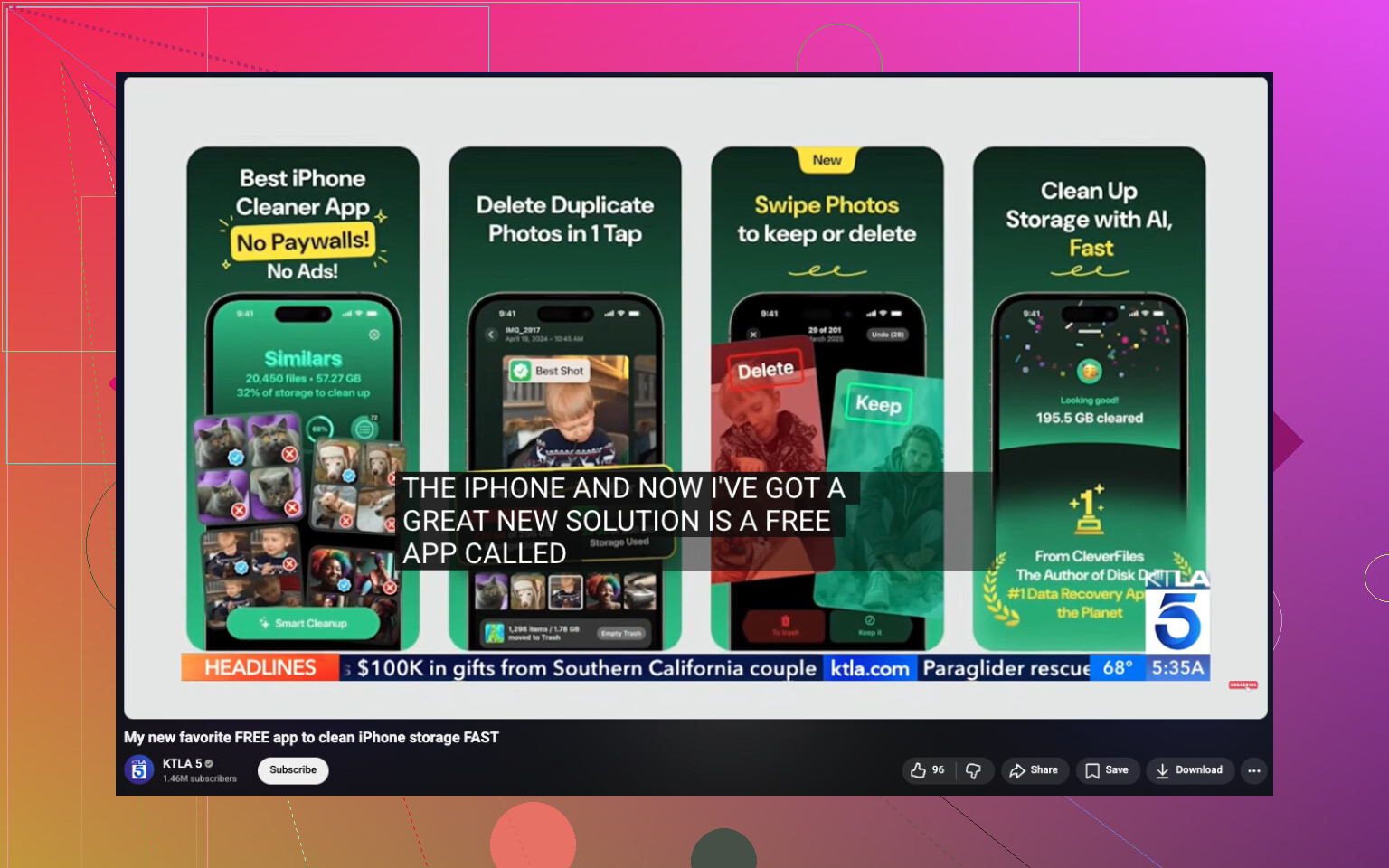
Yes, iCloud can be part of it, but I’d slightly disagree with how often people blame Photos first. Sometimes the real “surprise” hog is syncing behavior, not the library size itself.
A few things @mikeappsreviewer and @shizuka didn’t hit hard enough:
- Mail can balloon if you added/re-enabled an account and it re-cached attachments
- Notes can sync big scans/PDFs and store them localy
- Voice Memos synced through iCloud can quietly stack up
- Podcast and Music apps sometimes re-download stuff after updates or account hiccups
- Failed iOS updates can leave temporary storage junk behind longer than they should
Also, iCloud Backup itself usually does not fill the phone. That part lives in Apple’s cloud, not your device. The catch is all the data being synced with iCloud services can create local copies, caches, and temp files while the phone sorts itself out.
One thing I’d check is whether the storage jump happened after:
- an iOS update
- signing into a new/repaired device
- turning on Messages in iCloud
- reconnecting to Wi-Fi after a long time
- changing Photos settings
If the storage spike is recent, sometimes it settles after a reboot plus 1 to 3 days on Wi-Fi and power. If it does not, then it’s usually not “mystery storage,” it’s a category that has gone weird.
If Photos does end up being the issue, Clever Cleaner is honestly one of the easier ways to cut through the mess fast, especially for similar pics, large videos, and screenshot clutter. If you want a better breakdown, this Clever Cleaner review for freeing up iPhone storage explains it in plain english.
Short version: iCloud can trigger the problem, but it’s usually sync caches, downloaded files, or temporary local copies, not backups magically eating space for no reason.
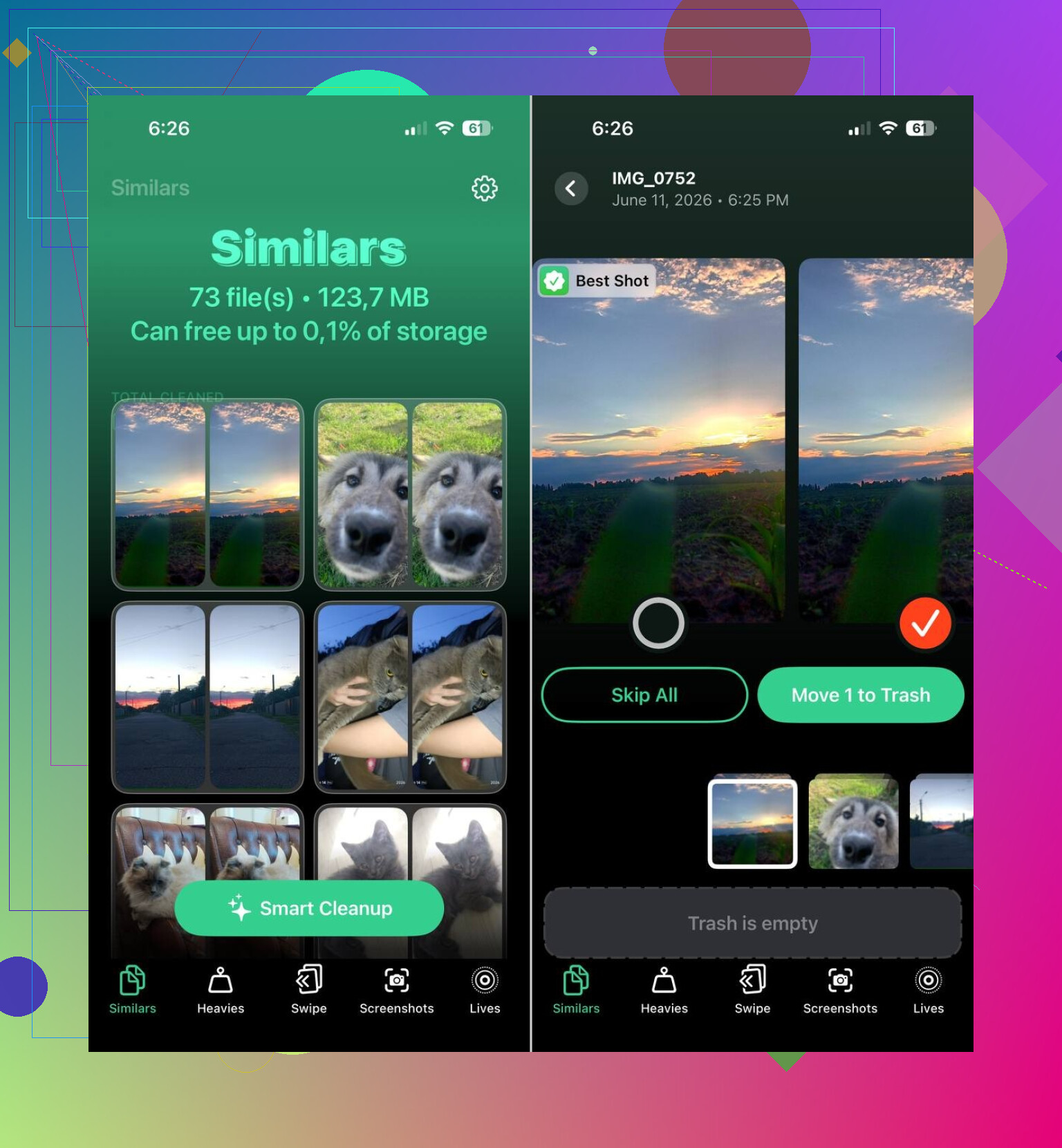
I mostly agree with @shizuka, @cacadordeestrelas, and @mikeappsreviewer that iCloud Backup itself is rarely the villain. Where I’d push back a bit is the phrase “for no reason.” There usually is a reason, but iOS hides it badly.
Two sneaky ones not emphasized enough:
- Safari website data can get absurdly large, especially if you stream a lot in browser tabs.
- On-device AI stuff like photo indexing, face recognition, and search catalogs can temporarily swell storage after updates or restores.
So yes, iCloud can indirectly trigger a spike, especially after syncing a big library, but I’d also check whether the jump is in System Data, Safari, Mail, or Messages attachments before blaming Photos alone.
If Photos is huge and messy, Clever Cleaner can help.
Pros:
- good at spotting similar shots
- fast for screenshots and big videos
- simpler than digging manually
Cons:
- you still need to review before deleting
- not every “similar” photo is safe to remove
- less useful if your storage issue is actually System Data or app caches
My take: iCloud is often the trigger, not the true storage owner.