My iPhone has a lot of duplicate photos after syncing and restoring from backup, and it’s taking up too much storage. I found the duplicate photos section, but I’m not sure how to safely merge them without losing anything important. Can someone explain the steps to merge duplicate photos on an iPhone and what to do if the option is missing?
If your issue is only exact duplicate photos, iPhone already has a built-in way to deal with it.
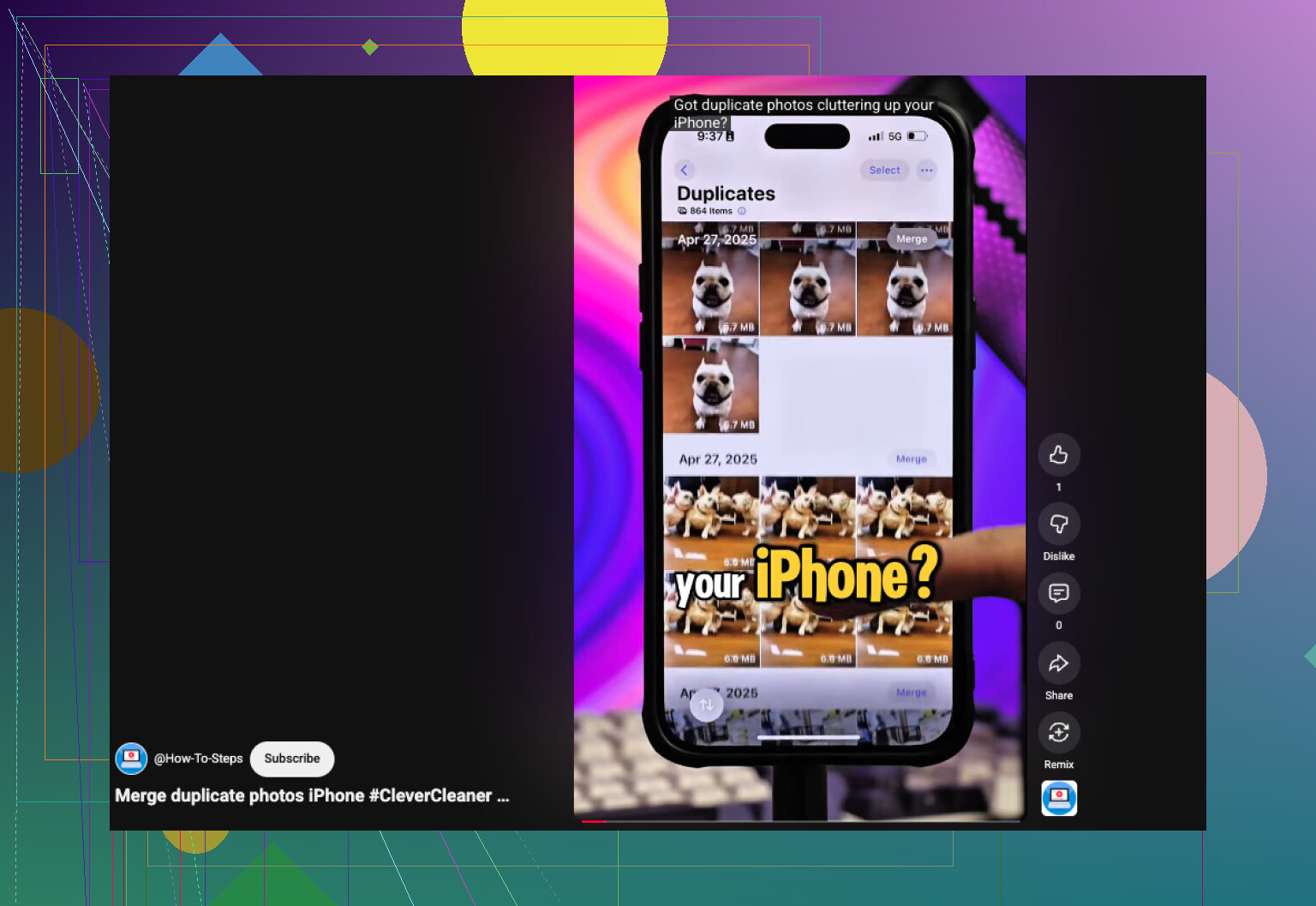
Open Photos, scroll to Utilities, or on newer iOS builds go through Collections > Utilities. Then open Duplicates, hit Select, then Select All, then Merge. iOS keeps one copy, rolls the available metadata into it, and sends the extras to Recently Deleted. One thing I ran into after a big import, the Duplicates section stayed half-empty for hours. My phone needed time to index everything, and in one case it took close to two days before all matches showed up.
Where it falls short is with near-duplicates. I had bursts of photos taken a second apart, a pile of selfies with tiny expression changes, and repeat shots from the same place. To my eyes, a lot of them were the same pic. Photos treated them as separate items, so none of those landed in the Duplicates album.
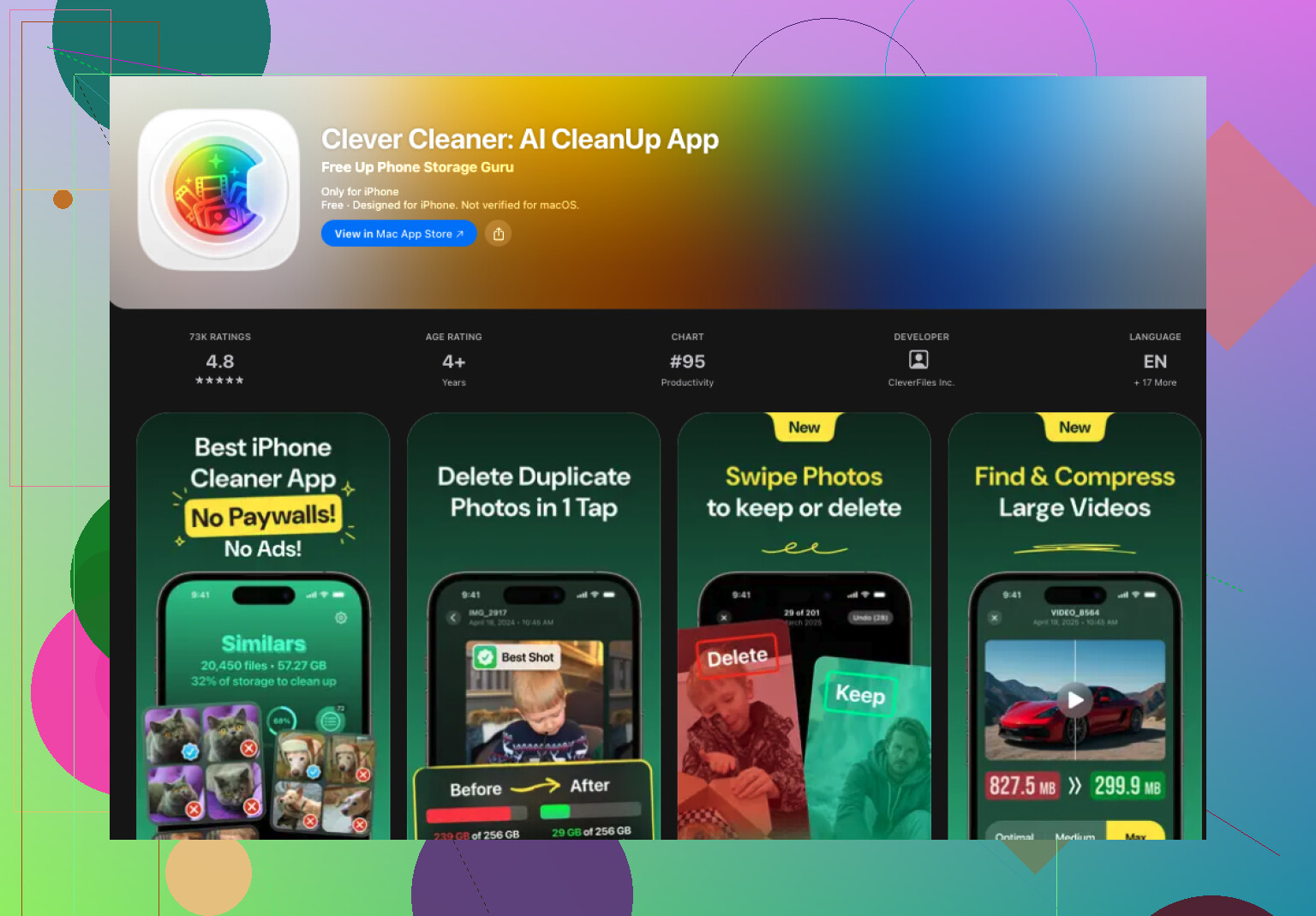
For stuff like that, I ended up using Clever Cleaner. My library is sitting around 30,000 images now, so I needed something less rigid than Apple’s built-in tool.
What worked for me was its ability to flag both duplicate files and lookalike shots. It groups photos by visual similarity instead of waiting for a perfect file match. Then it marks what it thinks is the best one to keep. I still check the groups myself, becasue I don’t trust any cleanup app blind, but the picks were better than I expected.
This is the flow I usually follow:
- Install Clever Cleaner from the App Store.
- Give it time to scan the photo library.
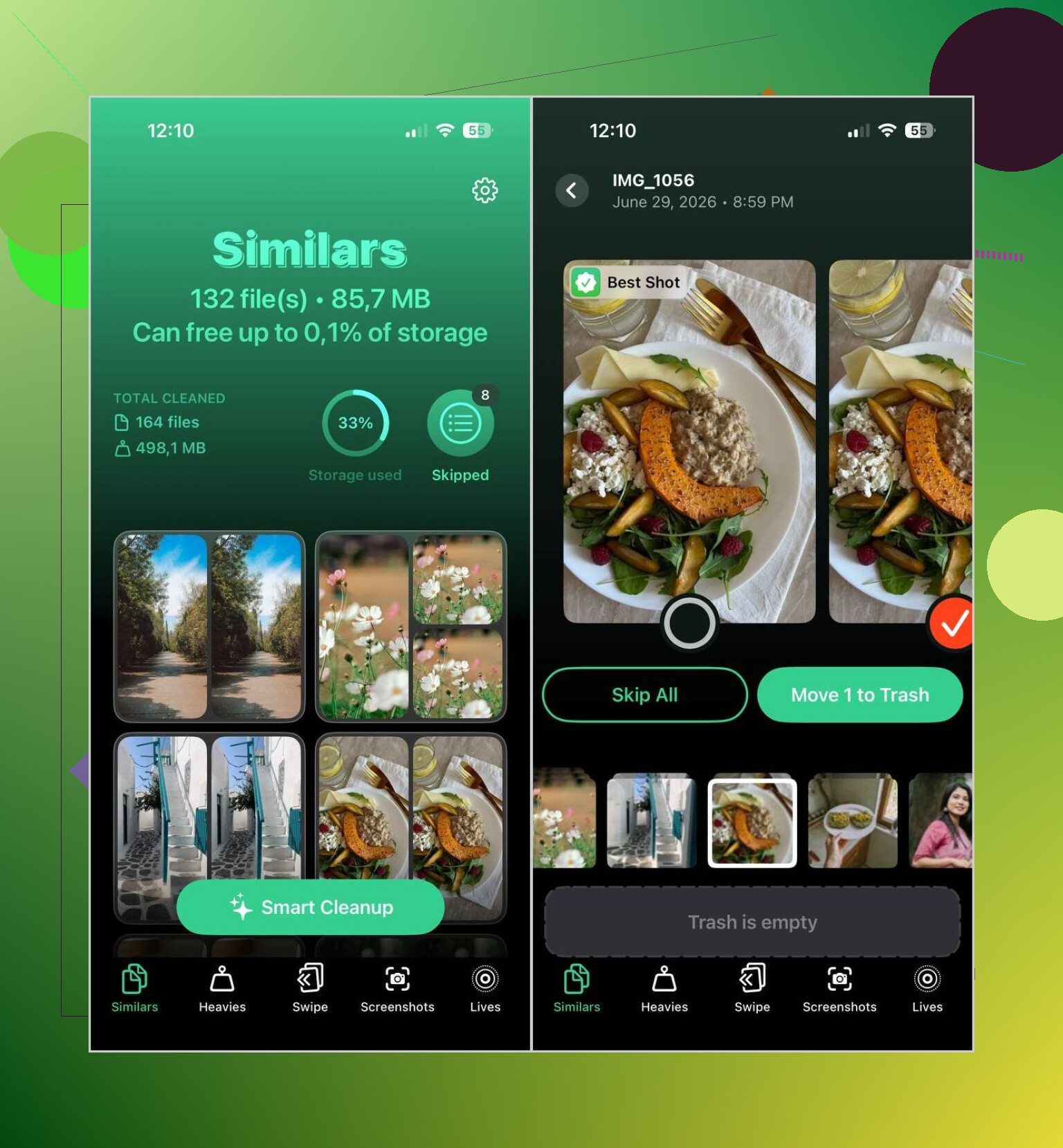
- Go to the Similars section.
- Use Smart Cleanup if you want the app to handle the bulk of it, or sort through each group yourself.
- It preselects what it sees as the highest-quality shot and marks the rest for removal.
- Unmark anything you want to keep.
- Finish the cleanup, then clear Recently Deleted in Photos if you want the storage back right away.
I also kept coming back to a few other sections:
- Heavies, for finding the biggest photos and videos first.
- Video Compression, for shrinking large videos instead of deleting them.
- Screenshots, for wiping old screenshot clutter fast.
- Lives, for turning Live Photos into standard stills and saving space.
- Swipe, for reviewing your library month by month with quick gestures.
So, if you only need to merge a few exact copies, Apple’s tool does the job fine. If your library is bloated with duplicate-looking shots, near-identical selfies, repeated vacation pics, and random clutter, a separate app makes more sense. That was my expereince, anyway. The built-in Photos cleanup is narrow. It misses the kind of overlap most people are trying to clean out.
6 Likes
Merging in Photos is safe if you want one clean copy and you do not want to sort file by file.
What iPhone does when you tap Merge:
- Keeps one version.
- Preserves the highest quality file if there is a difference.
- Combines metadata, like captions, keywords, and favorites.
- Moves the extra copies to Recently Deleted.
So you are not nuking them on the spot. If something looks off, open Recently Deleted and restore it.
One thing I’d add to what @mikeappsreviewer said, I would not hit Select All on a huge library right away after a restore. I’d do smaller batches first. Sync bugs are rare, but after restores I’ve seen odd grouping errors for a few hrs.
Before merging:
- Make sure iCloud Photos is fully synced.
- Keep your phone on power and Wi-Fi.
- Check your storage after a few mins, not instantly.
- Empty Recently Deleted only after you verify the results.
If your “duplicates” are near-matches, Apple won’t catch many of them. That’s where Clever Cleaner helps more than the stock tool, esp for similar shots and repeated imports. This guide is a decent quick visual if you want it: see how to merge duplicate photos on iPhone fast.
Short version, merge inside Photos for exact dupes. Use Clever Cleaner for lookalikes and clutter. That combo is the least annoyng way I’ve found.
I’d be a little more cautious than @mikeappsreviewer and @yozora on one part: I don’t love mass-merging right after a restore. iPhone photo libraries can act weird for a bit while indexing, and sometimes what looks like a duplicate set settles itself after sync finishes.
What I’d do first is verify a few merged groups manually. Open one duplicate pair, check if both versions have the same edits, Live Photo status, and date info. If that all looks normal, then merge more confidently. The built-in Photos tool is generally safe, but “safe” and “instant storage fix” are not always the same thing. Storage can lag, which is super anoying.
Also, if these duplicates came from backup + sync, check whether they’re actually duplicated in iCloud.com or just displayed oddly on the phone. That can save you from cleaning up a problem that’s partly visual/cache-related.
Where I do agree with them is Apple’s tool is only really good for exact matches. If your mess includes slightly different copies, resized saves from apps, edited versions, or burst-like lookalikes, the built-in merge won’t catch much. That’s where Clever Cleaner makes more sense, esp if you want to find similar photos without manually doom-scrolling through 20k images.
For extra reading, this thread has some useful user experiences: best Reddit tips for deleting duplicate photos on iPhone
Short version:
- wait for sync/indexing to fully finish
- test-merge a few groups first
- confirm originals are really in iCloud if you use it
- use Clever Cleaner if the problem is “similar” photos, not true duplicates
That’s the less panic-y way to do it.
I mostly agree with @yozora, @codecrafter, and @mikeappsreviewer, but I would push one extra check before you merge anything big: look at whether the duplicates are eating actual device storage or just appearing twice in Photos while indexing catches up. After restores, the library UI can look worse than the real problem.
A safer way to think about it:
- If the same photo appears in the Duplicates album, merging is usually fine.
- If photos only look repeated across different albums, wait.
- If you use Shared Library, edited versions and originals can be confusing, so inspect a few examples first.
One small disagreement with the “just use Select All” idea: that is fine eventually, but not my first move on a recently restored phone. I’d merge 20 to 50 groups, leave it for a bit, then confirm:
- favorites stayed
- captions stayed
- edits survived
- Live Photos still behave correctly
Also, screenshots, WhatsApp saves, and downloaded images often create “practical duplicates” that Apple will not merge because they are technically different files. That is where Clever Cleaner can help.
Pros of Clever Cleaner:
- finds similar photos, not just exact dupes
- faster for huge libraries
- useful for screenshots and bulky media cleanup too
Cons:
- you still need to review results manually
- similar-photo detection can group things you may want to keep
- third-party app access to your photo library is not everyone’s favorite
So my take is: use Apple Photos for true duplicates, use Clever Cleaner only for the mess Apple misses. That combo is more reliable than trying to force one tool to do everything.