I’ve been using Google Docs and Gmail for a while, but I’m still not totally clear on what Google Drive itself is really for or how I should be using it day-to-day. Is it mainly for backing up files, sharing documents, or organizing projects across devices? I don’t want to miss out on useful features, especially for storage, collaboration, and file management, so I’d appreciate a simple breakdown of the main ways people actually use Google Drive and any tips for getting started the right way.
If you’ve ever needed to grab a file from your laptop while sitting somewhere with just your phone, or send someone a folder without emailing huge attachments, that’s basically where Google Drive comes in. It’s where a lot of people keep documents, photos, PDFs, and work files so they can open them from anywhere and share them with a link. It also lets multiple people edit the same doc at the same time, which is why it shows up everywhere in school and office work.
Advantages
Honestly the biggest win is the free storage (15 GB is decent for most casual use) and how well it works with Google Docs, Google Sheets, and Google Slides. Sharing is dead simple – right-click, get a link, done. I also like that you can search inside PDFs and documents and it actually finds what you need most of the time. And since it works on basically any device, it’s hard to get locked out of your stuff.
Disadvantages
Some people aren’t thrilled about privacy and data scanning, even if it’s mostly automated. The free space fills up faster than you expect if you back up photos, and the desktop syncing can feel a bit confusing at first. Shared folders can also get messy with ownership and permissions if multiple people are involved.
The native desktop app
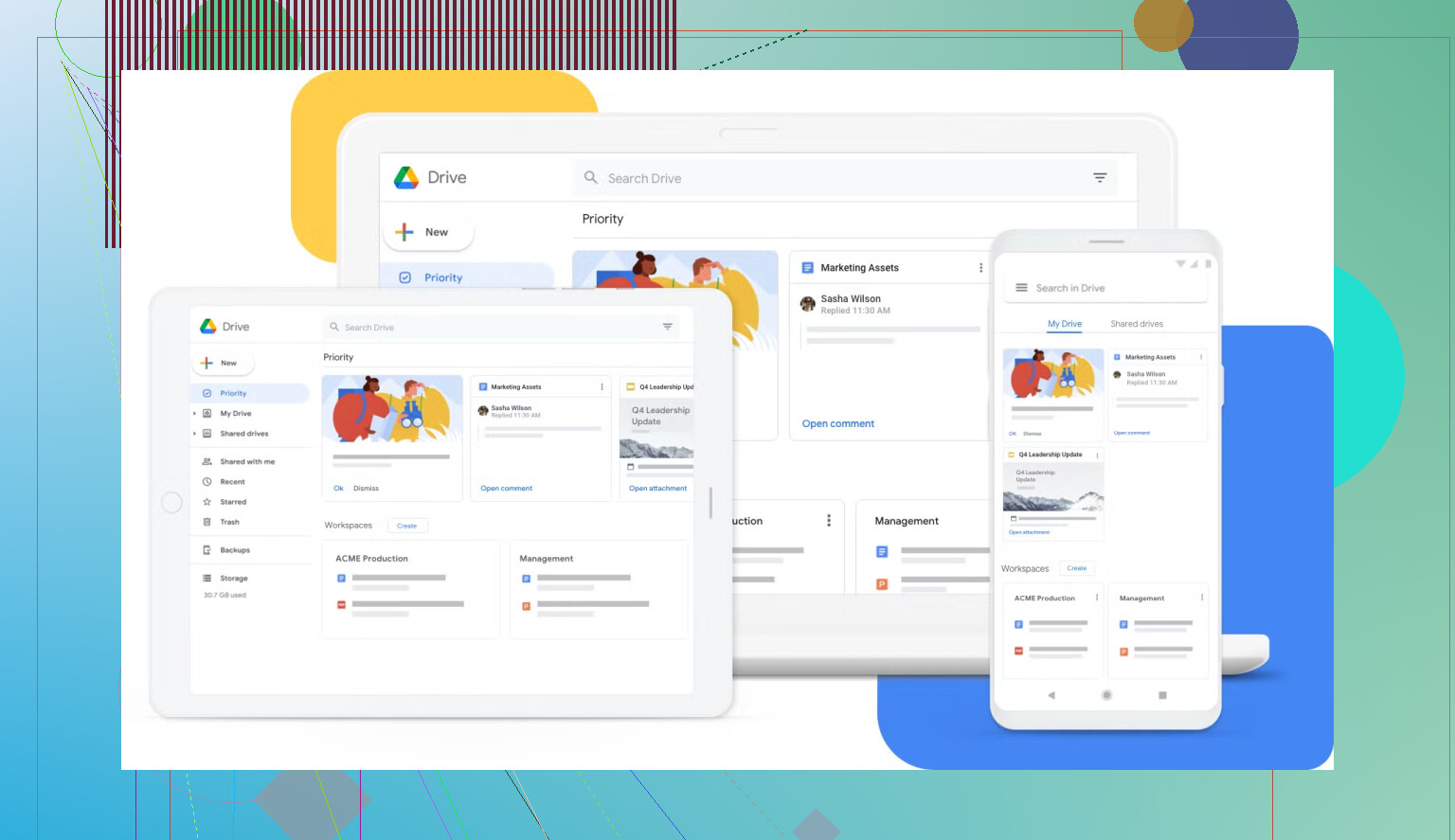
The Google Drive for desktop app basically connects your computer to your Drive account and shows your files inside File Explorer (Windows) or Finder (Mac). By default it streams files instead of downloading everything, which saves disk space but means you need the internet to open some stuff.
It works fine for basic use, but personally I wouldn’t call it a power user tool. It’s more of a simple bridge than a serious file manager.
Alternatives worth knowing about
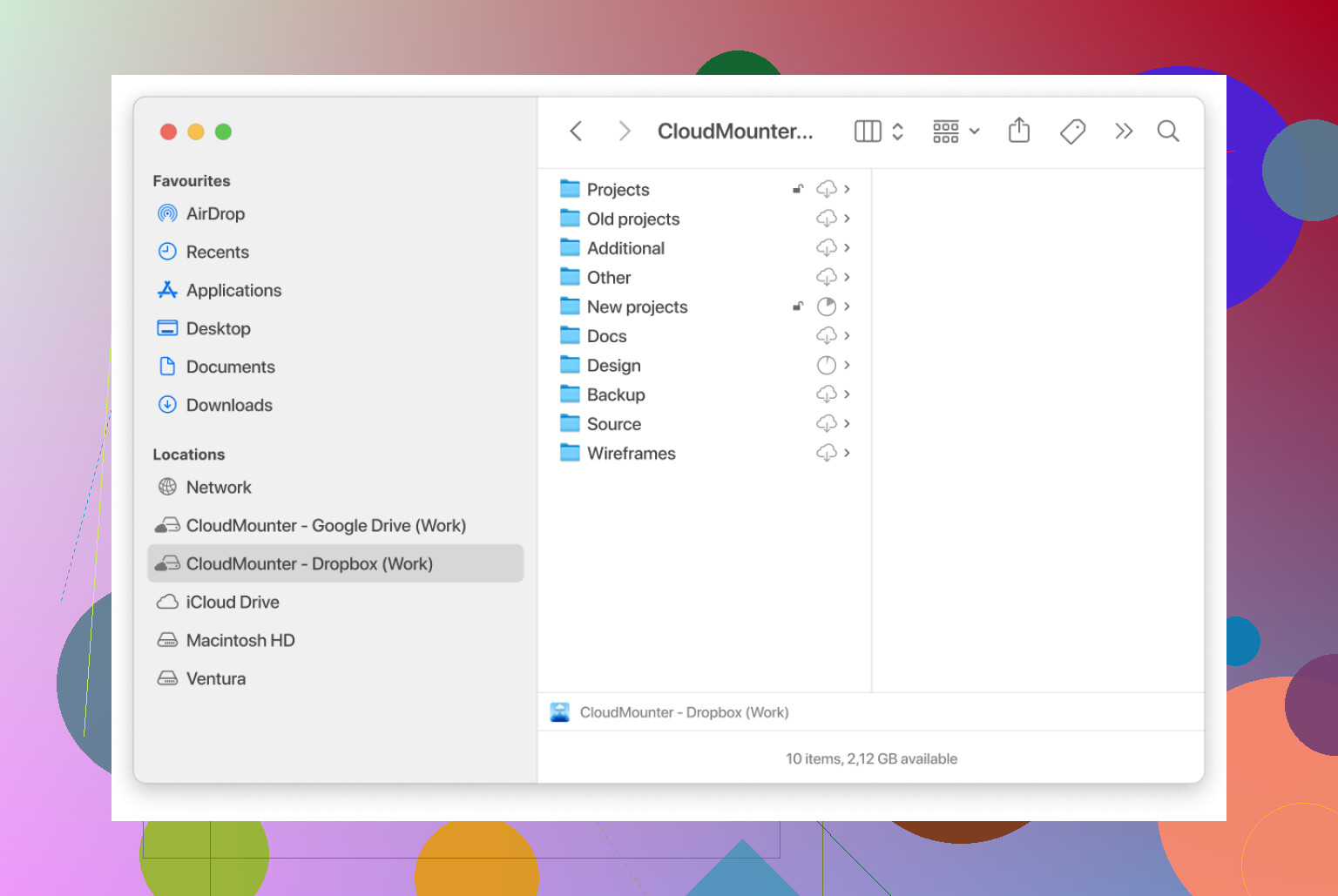
If you want something that feels more integrated with your system, CloudMounter is worth a look. Instead of another sync folder, it mounts Google Drive (and other services) like an external drive directly inside Explorer or Finder.
What’s nice about it:
It can connect multiple services like Google Drive, Dropbox, Microsoft OneDrive, and even S3 in one place. You can encrypt files before uploading if privacy matters to you. It’s pretty lightweight, and you just manage files like normal instead of jumping between cloud apps. Feels cleaner if you hate sync clutter.
MacBook users: go further with Commander One
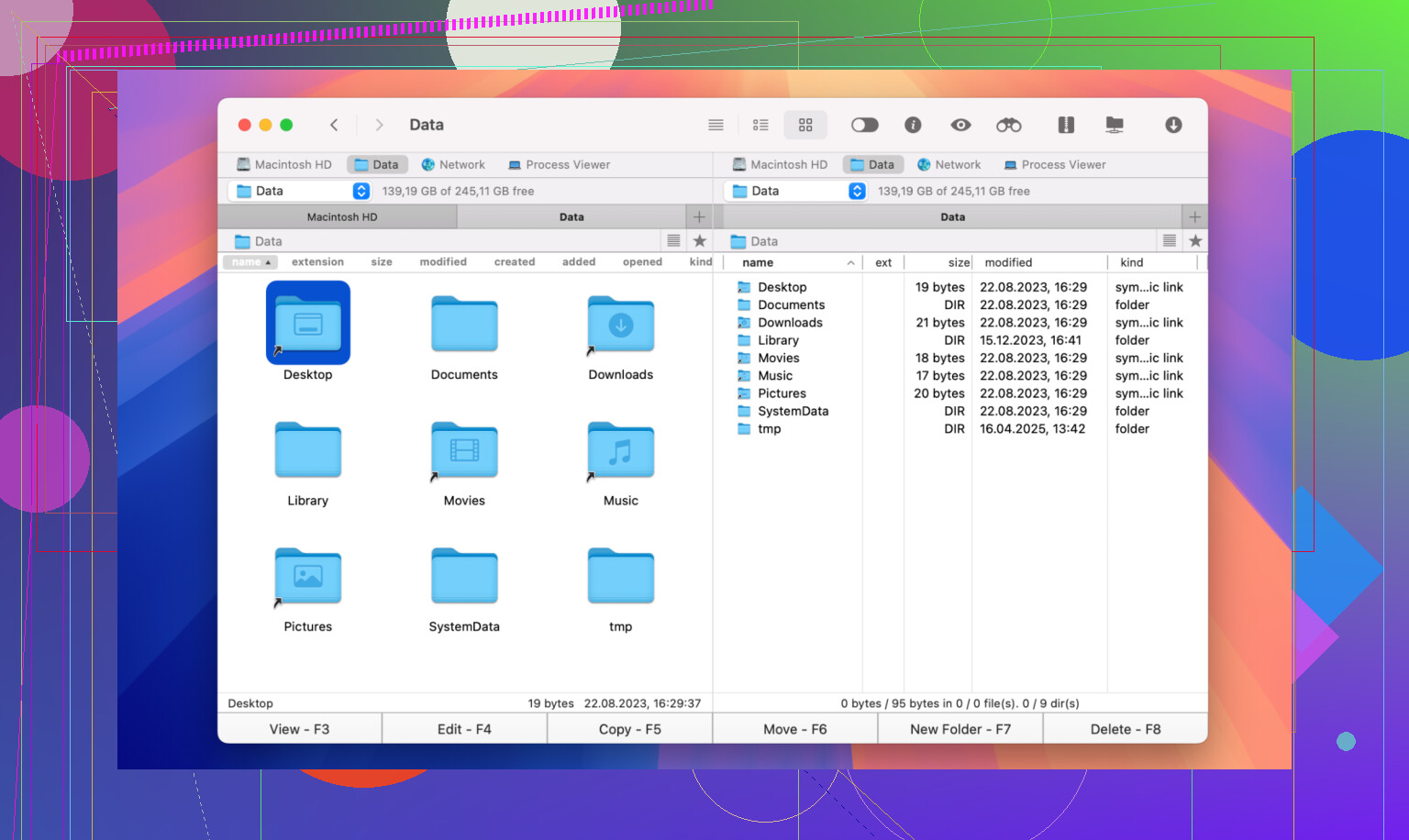
If you’re on macOS and deal with lots of files, Commander One is another interesting option. It’s basically Finder in “power user mode” with a dual-panel layout so you can drag stuff between folders way faster.
It also connects directly to cloud storage and servers (Google Drive, FTP, SFTP, etc.), can open and extract archives without extra apps, and has stuff like tabs, hotkeys, and batch renaming. There’s even root access if you know what you’re doing. If you move files around a lot, it can save you a surprising amount of time.
At the end of the day, Google Drive is popular because it’s simple and it just works for everyday file storage and sharing. If that’s all you need, it’s hard to go wrong. If you start caring more about how you manage those files, that’s when tools like CloudMounter or Commander One start to make more sense.
5 Likes
Think of Drive as “where all your Google stuff lives” plus “a generic cloud disk.”
You are already using part of it. Every Google Doc, Sheet, or Slide you create is a file in Drive. You see the pretty editor, but Drive is the storage behind it.
Here is how I’d use it day to day, beyond what @mikeappsreviewer covered:
- Central file hub across devices
- Put any file in Drive. PDFs, ZIPs, random .txt, not only Docs.
- Access the same folder on phone, work PC, home laptop.
Concrete example:
You download an invoice on your work PC, drop it in Drive, later you need it for taxes at home, you open Drive on your home computer and it is there.
- Simple “team folder” for small groups
- Create a folder, share the folder once, put all group files in it.
- Everyone sees new files instantly.
I use one shared folder per project. Docs, screenshots, exports from other tools, all in one place, instead of 20 email threads with attachments.
- Version history and “oops recovery”
For Google Docs / Sheets / Slides, Drive keeps versions.
- You mess up a doc.
- You click File → Version history → Restore an old one.
For non Google files you have less control, but if you edit a Doc or Sheet for work a lot, this saves you when someone overwrites a section.
- Quick sharing without email pain
Agreeing with @mikeappsreviewer here, but from a different angle.
If you send files to clients or friends a lot, use Drive links as your default.
- Upload large video.
- Right click → Get link.
- Give “Viewer” access.
They stream or download it. You avoid bounce errors from 25 MB limits in email.
- Lightweight backup for “important but not secret” stuff
Drive is fine for:
- School notes
- Non sensitive work docs
- Reference PDFs
I would not throw passport scans or medical info in plain form. If you need that, encrypt first or use something like CloudMounter with encryption so Drive only sees encrypted blobs. CloudMounter mounts Google Drive as a disk and handles encryption in a way that feels like a normal folder.
- Clearing junk from your computer
If your laptop storage is small, offload:
- Old project folders
- Raw exports you rarely touch
Move them to Drive, keep only what you use often on the laptop. Use Drive’s search when you need old stuff again. The search inside PDFs and Docs is the main value here.
- Organizing your Google Docs life
Many people live in “Recent” in Docs and never see the folder side.
Better pattern:
- Make top level folders like “Work”, “Personal”, “School”, “Finance”.
- Inside, make subfolders by year or project.
When you create a new Doc, move it into the folder right away. This way Drive starts feeling like a normal filesystem, not a random pile.
Where I slightly disagree with @mikeappsreviewer
The desktop Drive app is optional for a lot of people.
If your internet is stable and you work mostly in the browser, you do not need Drive for desktop at all. The web UI covers upload, download, rename, share. The desktop app helps only when you want Drive to behave like a local disk inside Explorer or Finder.
Practical setup I’d suggest for you
- Use web Drive as your main file browser.
- Create 3 to 5 core folders and move your active Docs into them.
- Upload non Google files you need across devices into those folders.
- Share folders for ongoing collaborations, not each file one by one.
- Keep truly sensitive stuff out of Drive or encrypt first, CloudMounter helps if you want encryption plus easier mounting.
If you do that, Drive becomes your central “work and life” disk in the cloud, not only a place where Docs mysteriously appear.
Short version: Drive is “your Google hard drive in the cloud,” not just a side-effect of using Docs.
@mikeappsreviewer and @boswandelaar already nailed the sharing + collaboration angle, so I’ll skip re-explaining that click‑Get‑link routine.
Here’s what I actually use Google Drive for day‑to‑day that isn’t just “backup” or “share a Doc”:
-
Home base for all the non‑Google stuff
Docs/Sheets live there by default, sure, but the real win is dumping:- .zip from a client
- design assets
- random software installers
- scanned receipts
It’s effectively your “Downloads” folder that follows you around on every device.
-
Project workspaces instead of random email chains
Instead of 14 emails with attachments titledfinal_v3_really_final.pdf, I just:- Make a project folder
- Throw everything in there: Docs, PDFs, screenshots, exports from other tools
- Share the folder once
Then the conversation can stay in email/Slack/whatever and the files stay in Drive. No hunting.
-
“Staging area” for sending and receiving big stuff
Slight disagreement with the “just use Drive web and you’re fine” idea.
If you move big files a lot (video, raw photos), Drive becomes:- A staging point: upload once from wherever it’s fastest
- Then grab from another machine or send a link
I routinely use it like a poor man’s file server between my desktop and laptop.
-
Lightweight archive / reference library
Not real backups, but:- Old tax PDFs
- Warranties & manuals
- University syllabi, reference papers, etc.
Stuff I might need again, but don’t want eating local disk. I personally treat Drive as “if I lose this, it’s annoying but not life‑ending,” and I keep true must‑never‑lose data in an actual backup system.
-
Searchable brain dump
The search angle everyone mentions is undersold. Where it’s actually useful:- Toss a bunch of unorganized PDFs into a folder
- Months later, type a phrase you vaguely remember
Drive digs it out from inside the PDF. It’s like having CTRL+F on your whole “paperwork” life.
-
“Semi‑offline” working if you set it up right
I’ll push back a bit on the idea that the desktop app is just for power users.
If you:- Work on a laptop
- Have iffy wifi sometimes (commuting, travel, sketchy cafe)
Streaming mode can bite you when you click a file and nothing happens because you’re offline.
Switching specific folders to “Available offline” or using mirror mode for just your active project area makes Drive behave much more like a real folder. That’s a big quality‑of‑life thing, not just a nerd feature.
-
Bridge between different cloud services
This is where the normal Drive UI gets clunky.
If you:- Have stuff in Dropbox, OneDrive, maybe an S3 bucket
- Need to move files between them or treat them all like local drives
Google’s own tooling is… meh.
This is exactly where something like CloudMounter actually earns its keep. It mounts Google Drive (and others) as if they were normal disks, so you can: - Open and save directly from Finder/Explorer
- Drag between Google Drive and Dropbox like two folders
- Optionally encrypt sensitive stuff locally so encrypted blobs go to Drive instead of plain files
If you start leaning on Drive as your central storage, CloudMounter makes it feel less “website” and more “part of your OS.”
-
Personal vs work separation that still feels connected
One underrated use:- Personal Google account Drive for your life stuff
- Work Google account Drive for company projects
On desktop or via tools like CloudMounter, you can have both mounted side by side and still keep boundaries: not accidentally dropping company docs into your personal space or vice versa.
So, to answer your “what is it actually for?” in practical terms:
- Not just backup
- Not just sharing
- It’s your central file system in the Google universe, plus a decent general cloud disk for anything that isn’t hypersensitive.
If you start thinking “anything I might want on my phone and my laptop and my work machine lives in Drive,” and maybe pair it with something like CloudMounter on desktop, it goes from “weird side panel next to Docs” to “main storage I interact with all day.”