I took several similar photos on my iPhone and need an easy way to view them side by side so I can pick the best one. I’ve been switching back and forth in the Photos app, but it’s too slow and makes it hard to spot small differences. Is there a quick built-in method or app that works well for comparing pictures on an iPhone?
Comparing lookalike photos on an iPhone sounds easy until you sit down and do it. I tried the usual back-and-forth thing in Photos, and it turned into a time drain fast. What worked for me split into two different jobs. One tool for making comparison images. Another for cutting down the pile.
The Shortcuts route works, but only for one specific job
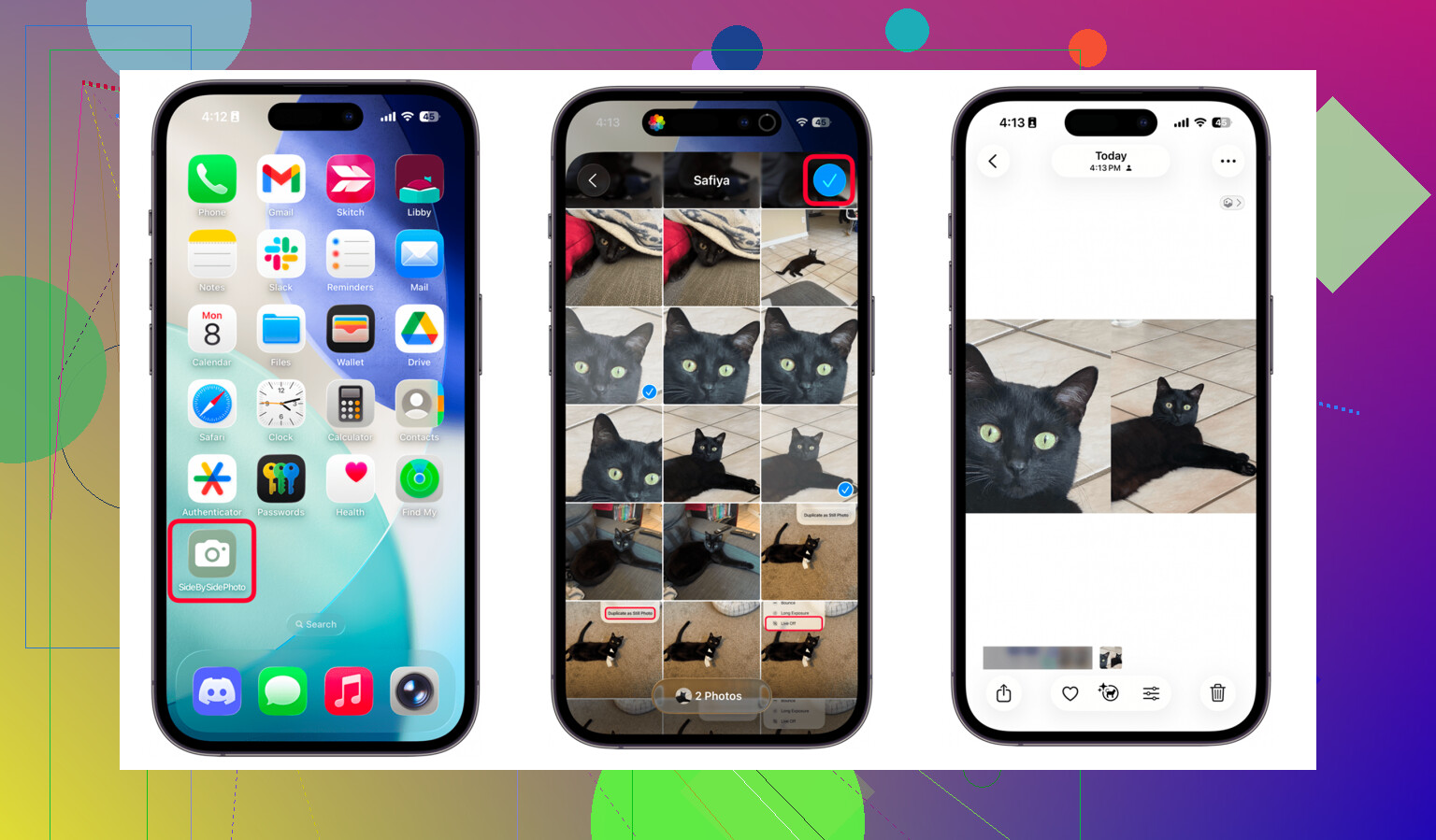
If you want a single image with two photos placed next to each other, like a before-and-after or something you want to text to someone, the Shortcuts app does the job fine. No extra app needed.
Steps:
- Open Shortcuts.
- Tap the plus icon.
- Add Select Photos, then turn on Select Multiple.
- Add Combine Images, then set it to Horizontally.
- Add Save to Photos.
- Name the shortcut and save it.
- Run it, pick two photos, and it saves the combined result to your library.
I used this a few times for sharing. It works. The catch is obvious once you do it more than once. You end up making a third file every time, so storage goes up, not down. If your goal is choosing the best shot and deleting the rest, this is the wrong move.
Why Photos on iPhone felt bad for this
I did try staying inside the native Photos app. It was annoying in a pretty specific way. You look at one shot, swipe, look at the next, then try to remember whether the last one had better focus or if someone blinked. That sounds manageable until you do it across hundreds of similar shots. My hit rate was bad.
For things like:
- slight blur
- different exposure
- one face looking off
- burst photos with 8 near-clones
Photos does not give you a clean way to judge them side by side. I noticed I kept saying, ‘eh, keep both,’ which is how a library grows into 15,000 photos and starts eating storage.
There was another annoyance. File sizes are hidden while browsing. If you want to see how big a video is, you have to open it and tap Info one by one. No sorting by size. No quick view of what is hogging space. So cleanup turns into guesswork.
What worked better for choosing one photo and dumping the rest
I had better luck with Clever Cleaner.
The useful part is the Similars tab. It scans the library and groups near-matching photos together. Stuff like the same subject from tiny angle changes, repeated shots in low light, burst sets, all of it.
This is how I used it:
- Open Clever Cleaner.
- Tap Similars.
- Let it scan the library. On a big photo library, this takes a few minutes.
- Review each group of matching shots.
- The app marks a Best Shot, based on things like blur and whether eyes are closed.
- Use Smart Cleanup if you want the fast route, or check each group yourself and decide manually.
- Deleted items go into the app’s trash first.
- Empty the trash only after you are sure.
That last part mattered to me. I do not like instant deletion for family photos. A buffer helps.
The part people skip, big files
Here’s what surprised me when I cleaned mine up. The space problem was not mostly selfies. It was old videos.
The Heavies tab sorts files from biggest to smallest and shows the exact size. That made cleanup less dumb. I found a couple old 4K clips near the top, and deleting one of them recovered more space than going through a giant stack of random photos.
A 2 GB video does more damage than a pile of ordinary pictures. I knew this in theory. Seeing it listed out made it hit harder.
Screenshots and swipe cleanup
The Screenshots tab was also more useful than the built-in album in Photos because it shows file sizes before you delete anything. I had a lot of junk in there. Boarding passes, memes, login codes, shopping comparisons, the usual mess.
There’s also a swipe mode. Photos get grouped by month, then you go one by one. Left to delete, right to keep. It sounds simple, and it is. The helpful bit is seeing file sizes while doing it, so you know what you’re freeing up as you go. Feels less blind.
Privacy part
Everything processes on the device. Nothing gets uploaded elsewhere. For personal photos, I cared about that more than I expected.
What I ended up doing
For making a side-by-side image to send someone, I used Shortcuts.
For deciding which near-duplicate photo stays, and for finding the files eating storage, I used Clever Cleaner.
That combo covered both jobs without costing me anything.
11 Likes
If your goal is live comparison, I would skip making a combined image first. I know @mikeappsreviewer mentioned Shortcuts, and it’s fine for sharing, but for picking the sharpest shot it feels clunky. You keep creating extra files. Kinda defeats the point.
Fastest no-frills option I’ve used is Split Screen on iPhone with a third-party photo app, or opening one image in Photos and the other in Files if you saved a copy there. Not elegant, but it works in a pinch. Zoom both. Check eyes, focus, and exposure. Done.
If you want a cleaner method, this guide for putting two pictures side by side on iPhone for easier photo comparison lays out the Shortcuts setup in a simple way.
For bulk cleanup, Clever Cleaner makes more sense. Its Similars section is faster for sorting near-duplicates than manual swiping in Photos. I’d use side-by-side only for the final 2 or 3 picks, not for your whole libray. That part gets old fast, trust me.
Honestly, I wouldn’t bother making side-by-side collages unless you actually need to send the comparison to someone. That part from @mikeappsreviewer and @yozora is fine, but for choosing the best shot it feels kinda backwards. You make extra images, then have more clutter to clean up later. Not ideal.
What’s faster on iPhone for me:
- Put the similar shots in an album first
- Open one photo, swipe up for info if needed
- Use zoom and flip between them quickly in the same sequence
- If they’re Live Photos, scrub them too, because sometimes the “best” frame looks worse once you check facial expression
One thing people forget is the burst selector. If these came from holding the shutter, open the burst stack and tap Select. iPhone already lets you mark favorites inside that burst, which is way better than manual bouncing around.
If you’ve got lots of near-duplicates across the library, that’s where Clever Cleaner makes more sense. Not really for true side-by-side viewing, but for narrowing 20 almost-identical shots down to 2 or 3 before you compare closely. That saves a ton of time tbh.
Also, if you want a visual walkthrough, this is solid: see Clever Cleaner compare and organize similar iPhone photos
So my take:
- Best built-in option: burst selection + album sorting
- Best cleanup helper: Clever Cleaner for similar photos
- Worst workflow: constantly creating combined images just to inspect focus
Native Photos is weirdly bad at this stuff for such an expensive phone, lol.
I’d slightly disagree with @yozora and @mikeappsreviewer on one thing: side-by-side is not always the fastest way to decide. It’s best for the final tie-breaker, not the whole sorting job.
Quickest built-in trick I use:
- Put the similar shots in Favorites temporarily
- Open the first photo
- Swipe up for date/time and lens info
- Zoom into the same spot on each photo
- Flip between them using the filmstrip instead of backing out
That filmstrip scrubbing at the bottom is usually faster than making a combined image.
If you want less manual work, Clever Cleaner is decent for pre-sorting near-duplicates before you do that final comparison.
Pros of Clever Cleaner
- groups similar photos well
- faster than hunting manually
- useful for bursts and repeated shots
- also helps find large files
Cons
- “best shot” guess is not always your favorite
- still need human review for important photos
- another app access permission situation
- not true live side-by-side viewing
So my take compared with @sterrenkijker’s angle: use native Photos for the final visual check, use Clever Cleaner to cut 40 lookalikes down to 3 first. That’s the least annoying workflow on iPhone right now.