My computer crashed unexpectedly, and now my hard drive seems corrupted. It either won’t open files properly or keeps showing errors, and I’m worried about losing important data. What are the safest ways to repair the corrupted drive and recover files without making things worse?
If the HDD still shows up in Disk Management and the capacity looks right, I wouldn’t assume it’s dead yet. A crash can mess up the file system or partition info without actually wiping the files. That usually means Windows can see the drive, but it doesn’t know how to open it properly.
The main thing is to stop trying “fixes” until the important data is copied somewhere safe. Don’t format it if Windows asks. Don’t run CHKDSK right away. Don’t copy anything new onto that drive, and don’t keep rebooting over and over hoping it suddenly mounts. Those repair attempts can change the file system, and if they go badly, recovery can get harder.
I’d handle it in this order:
- Check Disk Management and confirm the drive is detected with the correct size.
- If it’s an external HDD, try a different USB cable, USB port, or another computer first. That rules out the easy stuff.
- Recover the files you care about.
- Only after that, try to repair or reformat the drive.
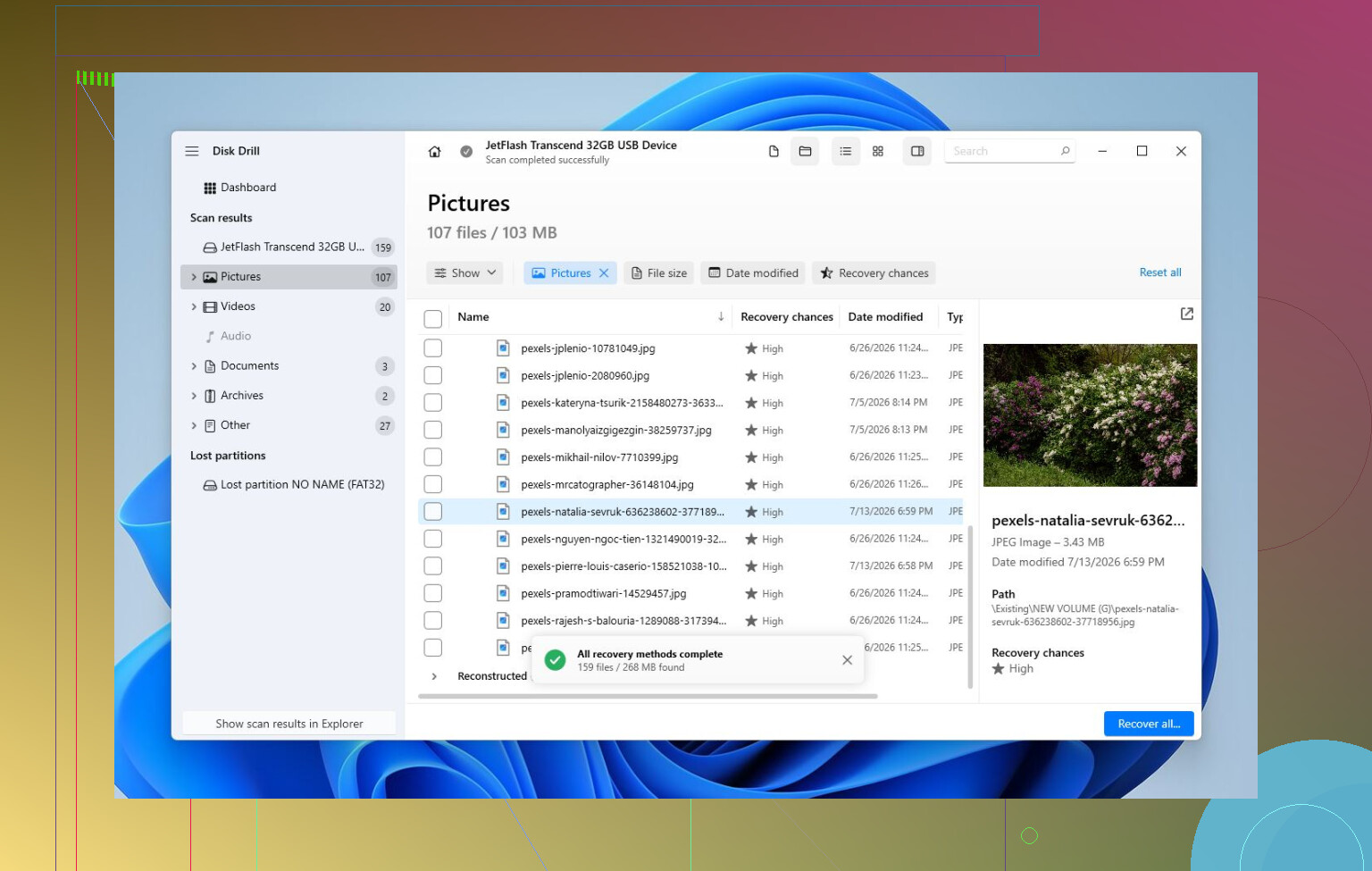
For the recovery part, Disk Drill is a reasonable choice. The useful part is that it can make a full image of the HDD and scan that image instead of hammering the original drive over and over. That matters if the drive is unstable.
The basic workflow would be:
- Install Disk Drill somewhere else, not on the corrupted HDD.
- Create a full image of the bad drive.
- Open the image in Disk Drill and run Universal Scan.
- Preview the files it finds.
- Recover the files to another healthy drive.
The preview step is worth doing because it tells you whether your photos, videos, documents, etc. are actually readable before you spend time recovering everything. Even without the paid version, scanning and previewing can give you a decent idea of whether the files are still recoverable.
After the data is safe, then I’d start with repairs. If the file system is still somewhat readable, CHKDSK may fix errors, but I’d only run it after recovery because it writes changes to the drive. If the partition is showing as RAW or the partition table looks damaged, TestDisk is another option and can sometimes restore access without formatting. If neither works, a quick format can create a fresh file system and clear up logical corruption. If it corrupts again after that, I’d replace the drive instead of trusting it.
Also watch how the HDD behaves. Clicking, vanishing from Disk Management, showing the wrong size, or slowing down badly points more toward physical failure. If you see that, stop scanning it and don’t keep experimenting. Every extra read can make things worse.
At that point, a professional recovery lab is the safer route. They can diagnose the hardware, stabilize the drive if needed, clone it with proper equipment, and recover files from the clone rather than from the failing disk itself. It costs more than software, but for physical damage it’s usually the best shot.
So no, I wouldn’t panic just because Windows won’t open it. If the drive is still detected correctly, there’s a fair chance the files are still there. Get the data off first, then worry about fixing the drive.
7 Likes
The hidden downside is that a “corrupted drive” can actually be a bad cable, flaky USB enclosure, or dying power supply making the disk look worse than it is. Before doing scans or repairs, I’d connect it directly with a known-good cable if possible, copy the most important files first, and only then let tools like CHKDSK touch it.
Do not run repair tools on the only copy.
A lot of people treat CHKDSK like a magic “fix disk” button, but it is more like a filing clerk with a shredder. If the file system is confused, it may clean things up. If the drive is actually failing, it can turn recoverable messy data into neatly deleted junk. That is why the advice above about copying or imaging first matters.
A useful split is this:
If the drive sounds normal, stays connected, shows the right size, and just has folder/file errors, you may be dealing with file system corruption.
If it clicks, drops offline, takes forever to open folders, shows the wrong size, or freezes the whole computer when plugged in, treat it like hardware failure.
Those two situations should not be handled the same way.
For a drive that is only slightly corrupted, I’d first copy the irreplaceable stuff manually if it still opens at all. Don’t try to copy the entire drive first if there are only a few folders you truly care about. Grab documents, photos, project files, tax stuff, password vaults, whatever you cannot replace. Movies and game installs can wait. The more you read from a weak disk, the more chances it has to get worse.
For a drive that is unstable, imaging is better than browsing around in Explorer. Disk Drill was mentioned already, and the image-first approach is the important part there, not the brand name. Install the recovery software on a different drive, save the image to a different healthy drive, then scan the image. Never recover files back onto the corrupted drive. That mistake is common and it can overwrite the very data you are trying to save.
A caveat: if the disk is making mechanical noises or repeatedly disconnecting, normal recovery apps may just beat it up. In that case, the safer DIY route is a cloning tool designed to skip bad spots and come back to them later, such as GNU ddrescue from a Linux live USB. That is less friendly than a Windows app, but it is built for failing media. You need another drive at least as large as the bad one. If the data is worth serious money, skip the home experiments and use a recovery lab.
If this is your Windows system drive, I would not keep booting from it. Pull the drive and attach it to another machine as a secondary drive, or boot the same computer from a USB stick. Windows automatic repair can make changes before you even get a say, and repeated failed boots are just extra wear on a questionable disk.
After the files are safe, then you can try repairs:
- Check the drive’s SMART status with a tool like CrystalDiskInfo.
- If SMART looks bad, replace the drive. Don’t “repair” it and keep using it.
- If SMART looks fine and the data is backed up, then CHKDSK is reasonable.
- If the partition is missing or RAW, use a partition recovery tool before formatting.
- If you end up formatting it, do a full test afterward before trusting it again.
The annoying truth is that “fixed” does not always mean “trustworthy.” A crash can corrupt the file system once and the drive may be fine afterward. But if errors come back, backups fail, SMART warnings appear, or the drive starts disappearing, retire it. Storage is cheaper than doing this twice.