I deleted photos, videos, apps, and other files from my iPhone, but the storage still shows almost full in Settings. I’ve emptied Recently Deleted and restarted it, but the used storage barely changed. What could be taking up space, and how can I fix iPhone storage not freeing up?
Yeah, this is one of the more annoying iPhone problems because it feels like you did the work and iOS just ignores it. You delete a pile of photos, remove apps, clear stuff out, then Settings still shows the same storage number. Usually it’s not a permanent bug, but iOS can be weirdly slow about actually freeing and recalculating space.
The first thing I’d check is Recently Deleted. Deleting photos doesn’t remove them right away. They sit there for up to 30 days and still count against your storage until you delete them for real. Go to Photos, open Albums, scroll down to Utilities, then Recently Deleted, and use Delete All if you’re sure you don’t need them. If you deleted files or documents too, check the Recently Deleted area in the Files app as well.
After that, restart the phone. Not just close apps, actually power it off and turn it back on. Sometimes the storage screen is just showing stale numbers, and a reboot forces iOS to rescan things. I’ve had available space jump after a restart even though I didn’t delete anything new.
Also, if you use iCloud Photos with “Optimize iPhone Storage,” the cleanup may not be as big as it looks. Your phone might already be storing smaller local versions while the full-size photos live in iCloud. So deleting a ton of images can feel like a huge purge, but on the phone itself it may only free a small amount.
If the phone is still full, look at System Data. That’s the old “Other” category, and it can get packed with caches, app leftovers, Safari data, streaming app junk, and failed update files. If it’s sitting above 20GB, something may be stuck. You can try offloading apps and clearing browser cache manually, but it can turn into a guessing game fast.
The thing that actually helped me clear out the hidden clutter was a third-party cleaner. I’m usually pretty skeptical of those because a lot of them are ad-heavy or push weird trial subscriptions, but Clever Cleaner was solid for this. It’s free, without ads, trial traps, or paywalls.
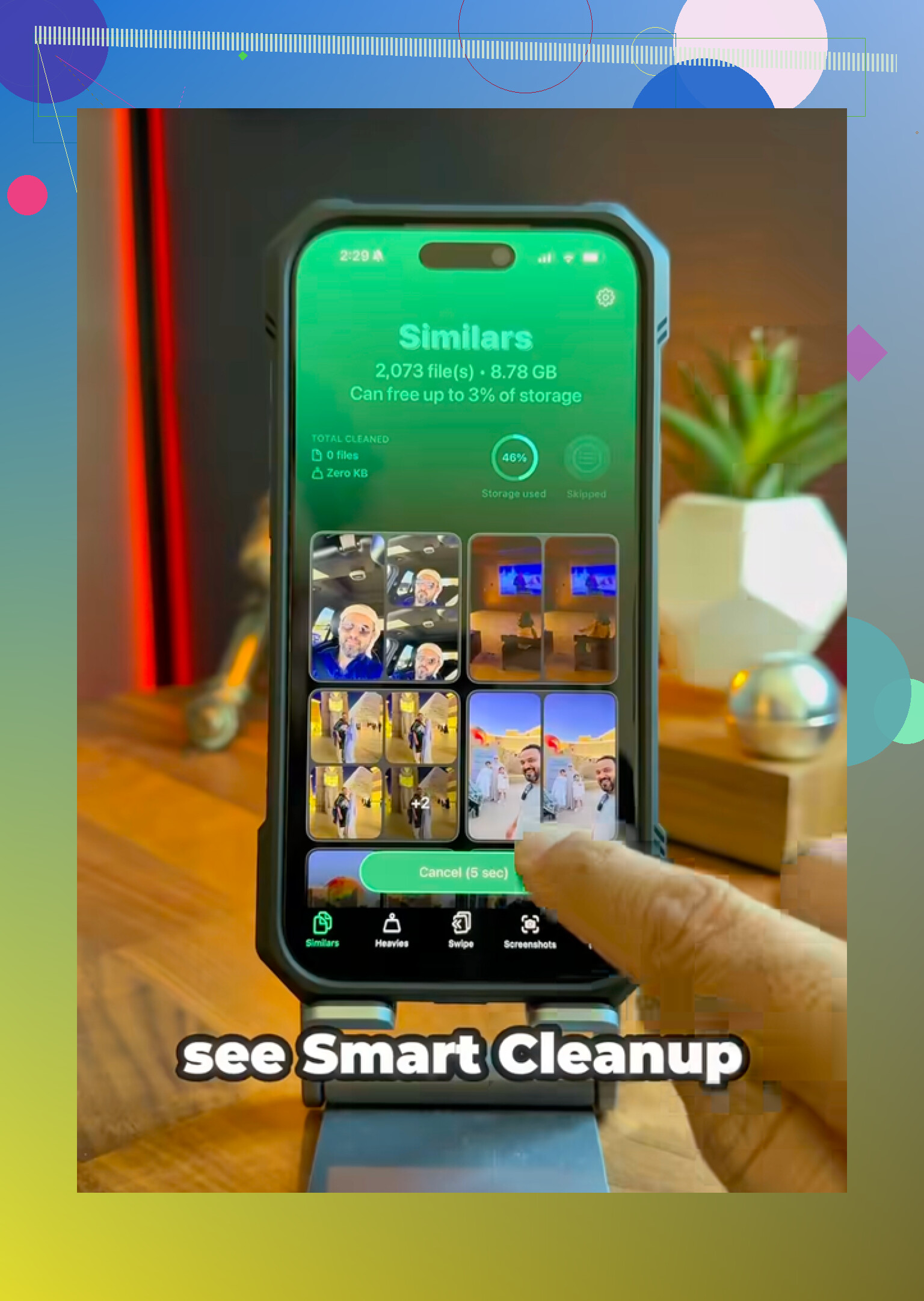
What made it useful is that it found stuff I wouldn’t have cleaned up manually. The Similars tab catches near-duplicate shots, like all those slightly different sunset or pet photos, and it suggests the best one to keep. The Heavies tab sorts media by file size, so the giant 4K videos are easy to spot. The Screenshots section was the eye-opener for me because it shows the size of each screenshot, and I realized I had a few GB of junk sitting there. It also processes everything on the device, so your photos aren’t being sent off somewhere random.
There’s also the weird date trick if deleted photos seem stuck. Go to Settings > General > Date & Time, turn off “Set Automatically,” then move the year back by about two years. After that, check Recently Deleted again. Sometimes old “ghost” photos show up and you can permanently remove them. Just make sure you switch the date and time back afterward, because a wrong system date can break apps, logins, and services.
If none of that works, the last option is a factory reset. Back up to a computer first, because if System Data is actually corrupted, a fresh iOS install may be the only clean way to wipe it out.
I’d start with Recently Deleted, then restart, then check whether similar photos or big videos are the real problem. Once the phone finally recalculates and that storage bar moves, it’s a huge relief.
5 Likes
Don’t start deleting random iCloud backups or shared albums just because the iPhone storage bar looks wrong. @mikeappsreviewer is right about Recently Deleted and System Data, but the boring place people miss is message attachments. Go to Settings > General > iPhone Storage and open Messages, WhatsApp, Mail, or whatever chat app you use. A phone can have barely any “photos” left in Photos but still be packed with videos, GIFs, voice notes, and forwarded junk inside chats. Delete from inside those apps, then leave the phone plugged in on Wi-Fi for a while so iOS can re-index. The storage screen is not instant, especially when the phone is almost out of breathing room.
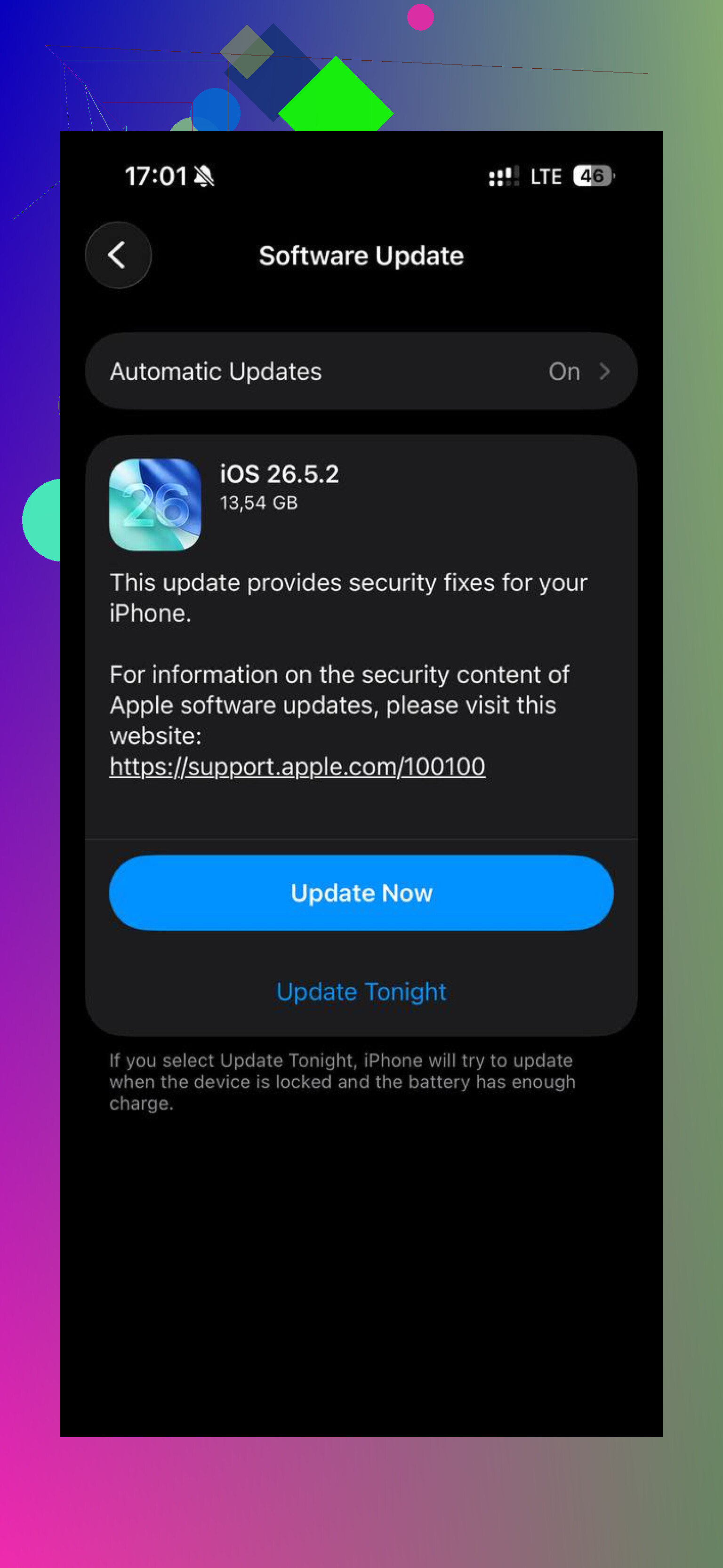
Check for downloaded media before chasing ghosts. Messages can be huge, sure, but I’ve seen iPhone Storage stay “full” because Podcasts, Music, Netflix/Disney/YouTube offline videos, Maps downloads, or an unfinished iOS update were sitting there and not showing up where people expect. Go down the actual app list in Settings > General > iPhone Storage and open the biggest apps one by one, not just Photos. If an app is bloated and doesn’t give you a clean delete option, offload it or delete/reinstall it. That often clears cache better than trying to micromanage System Data. Just leave yourself a few GB free afterward, because iOS gets terrible at cleaning itself when the phone is already jammed.
If you used Offload App instead of Delete App, you may have kept the app’s documents and data, which can be the bulky part. In Settings > General > iPhone Storage, tap the big apps and check whether it says Delete App, not just Offload App, especially for games, editors, chat apps, and streaming apps.