My iPhone storage is almost full, and system data and junk files seem to be taking up a lot of space. I need a safe way to clean up my iPhone without accidentally deleting photos or other important files.
On an iPhone, “junk cleaner” is a bit misleading. Third-party apps can’t dig through iOS system files or hidden caches, so anything promising a complete system cleanup is overselling it. Most of the space you can realistically recover is tied up in your own files, especially photos and videos.
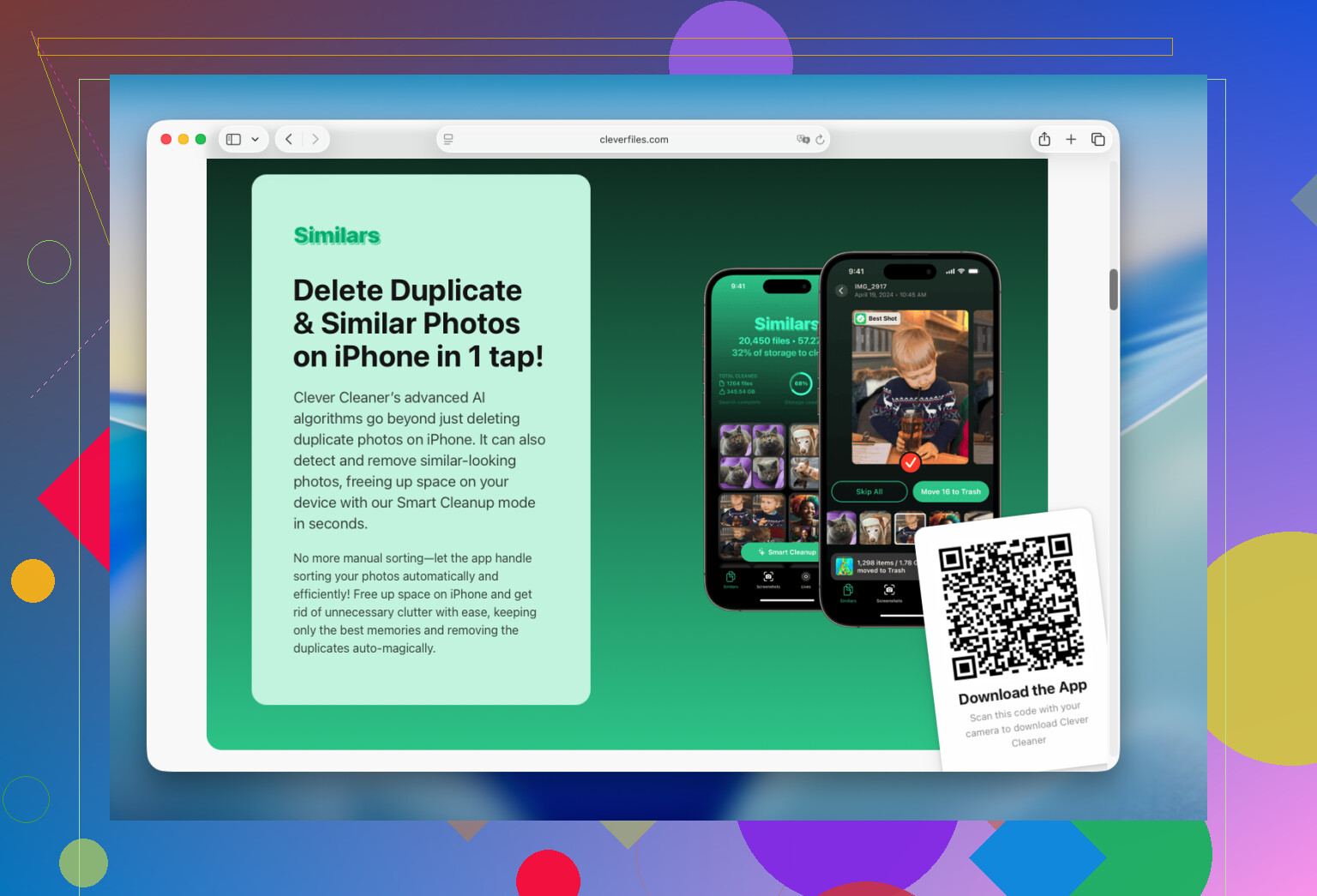
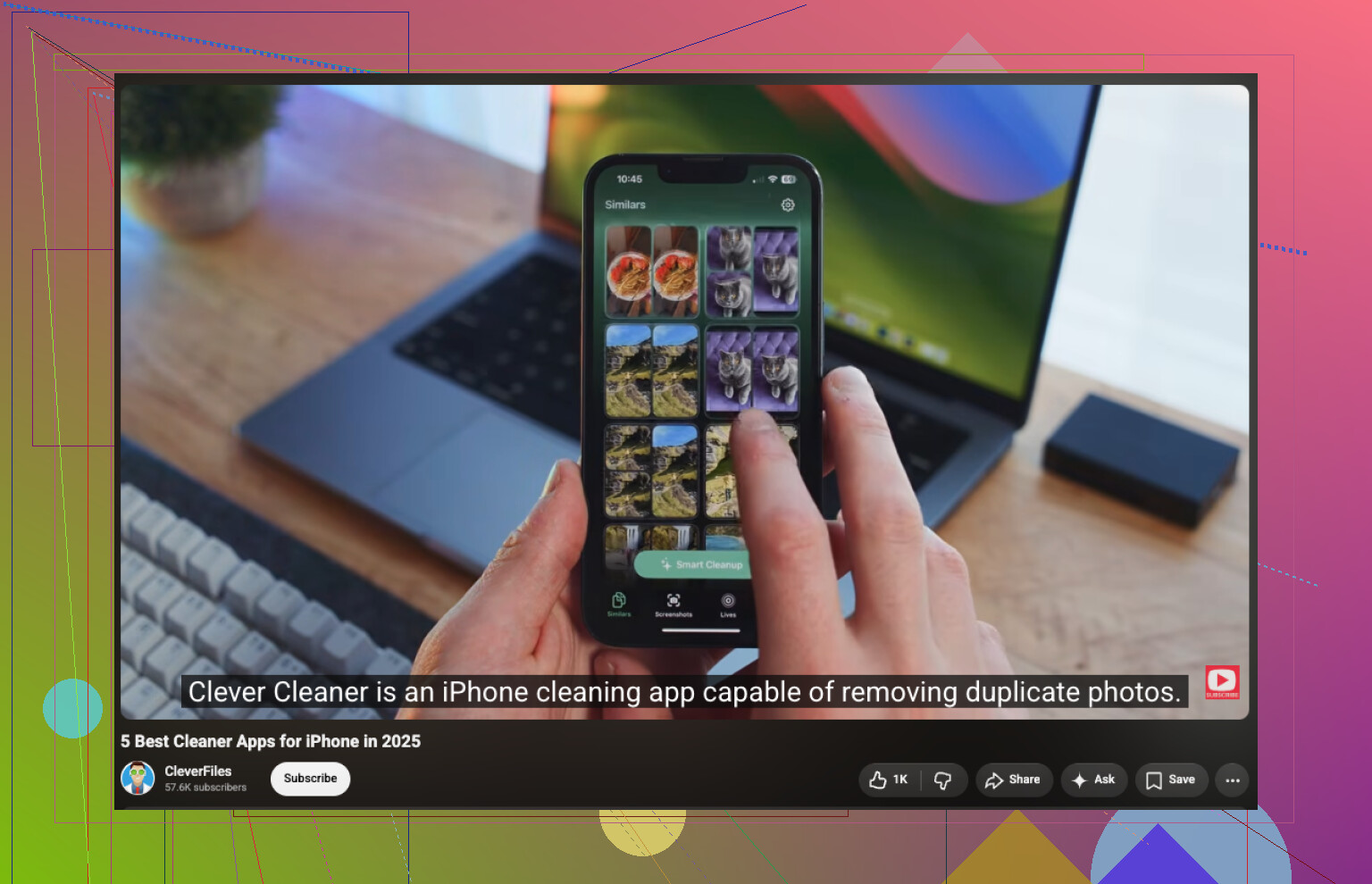
That’s where Clever Cleaner helped me the most. I installed it for duplicate photos, but it also picked up hundreds of similar shots, forgotten videos, screenshots, and Live Photos. Sorting through those with the app was much quicker than manually checking the entire library. It’s ad-free, processes the library on the device, and the free version is enough for routine cleanups.
I’d start with Similars. It groups duplicate and near-duplicate photos and suggests which one to keep. You can review and change its choices before deleting anything. After that, check Videos, Live Photos, and Screenshots, since those can take up more room than you’d expect.
If you want to handle several categories at once, there’s Smart Cleanup. The Swipe option is better if you’d rather make a decision on each photo individually.
The basic process looks like this:
- Install Clever Cleaner and give it access to your photo library.
- Review the groups under Similars and confirm which photos should be removed.
- Look through large or unwanted files under Videos.
- Clear out unnecessary Live Photos and Screenshots.
- Use Smart Cleanup or Swipe if either one fits how you prefer to sort things.
Don’t forget to open Photos > Recently Deleted afterward and empty that album. Deleted photos stay there for a while, and you won’t immediately get the storage back unless you remove them from there too.
Once the photo library is under control, go to Settings > General > iPhone Storage. That will show which apps are using the most space. You can delete or offload apps you rarely use, remove offline downloads from apps such as Spotify, Netflix, Telegram, or YouTube, and check the Files app for old downloads.
For me, cleaning up photos made a much bigger difference than deleting apps or clearing their caches. The whole review took around 15 minutes and recovered far more storage than the other cleanup steps.
6 Likes
If Photos is using most of the space, a cleaner can help; if System Data is the culprit, deleting pictures may barely change anything. I’d leave the photo library alone first, restart the phone, clear Safari website data, remove offline downloads and large Messages attachments, then offload unused apps rather than deleting them. @jackson is right that cleaner apps cannot directly purge iOS caches. If System Data stays unusually large, back up the iPhone and restore it, which is more work but often clears stubborn temporary files without sacrificing properly backed-up photos.
If iCloud Photos has finished syncing, enable Optimize iPhone Storage before deleting anything. Your full-resolution photos stay in iCloud while the phone keeps smaller local versions and removes downloaded originals as space is needed. Check that syncing is complete first, and keep a separate backup of anything irreplaceable. Deleting a photo while iCloud Photos is enabled deletes it from your other synced devices too.
For the exact goal here, I would not start with Clever Cleaner or any photo-cleaning app. @jackson’s suggestion makes sense when you are willing to remove duplicates and videos, but it does not solve the problem without deleting library items. Start with offline music and video downloads, podcast episodes, browser data, Mail attachments, and large files in Downloads. Offloading an app preserves its documents, while deleting and reinstalling it may remove local data, so check whether the app syncs first.
If System Data remains huge after a restart and an iOS update, give the phone some time while connected to power and Wi-Fi. That category can shrink after iOS finishes indexing and housekeeping. I’d treat @primeshifthq’s backup-and-restore option as the last step, not routine maintenance.

If the storage screen shows one app with a huge “Documents & Data” number, offloading it will not fix that part. Offloading removes the app itself but keeps its data, so the storage savings can be tiny. Open the app and look for its own Manage Storage, Downloads, or Clear Cache option first. Only delete and reinstall after confirming that its important data is synced or backed up.
Messages is another place people miss. Large videos and attachments can be removed without touching the Photos library, but deleted conversations and attachments may remain in Messages’ Recently Deleted folder for up to 30 days unless you permanently remove them. Check that folder after reviewing anything you actually want to keep.
Clever Cleaner is beside the point if you do not want to delete photos. It can help review the photo library, but it cannot clean another app’s private data or magically erase all of System Data. I’d use the iPhone Storage screen to target the biggest non-photo app rather than running a broad “cleanup.”
Chasing ‘System Data’ down to zero is a trap. That number breathes. It fills up with streaming caches, Safari data, and temporary files iOS parks there on purpose, and it refills the moment you use the phone again. So if your plan is to keep hammering it until it’s small, you’ll just annoy yourself. iOS treats that space as disposable and clears it when something else actually needs room.
@primeshifthq and @digital_circuit both landed on the right idea, which is to stop treating photos as the first target. That matches what the storage screen usually shows. On a lot of phones the real hogs are streaming apps holding offline content and Messages sitting on years of video attachments. Clearing those touches nothing in your Photos library.
Where I’d push back a little: the backup-and-restore trick gets recommended as a magic reset, and it does shrink System Data, but people forget an encrypted local backup is the only kind that keeps Health data, saved passwords, and some app logins. Restore from a plain iTunes backup or a partial iCloud one and you can lose things that never showed up as ‘storage’ at all. If you go that route, encrypt the backup and check it finished before you wipe anything.
On the tool from the first reply, it does what @jackson said. Clever Cleaner is fine for thinning out near-duplicate bursts and old screen recordings, and doing that on-device beats scrolling manually. Just be clear that it’s a photo tool. It won’t touch the System Data figure everyone in here is worried about, so use it for the photo pass and nothing more.
My actual order would be simpler than most of the thread:
- Settings, General, iPhone Storage. Read what’s really big before deleting a single thing.
- Kill offline downloads in whatever streaming apps you use. That’s usually the fastest win.
- Prune Messages attachments, then empty its Recently Deleted like @just_socket said.
- Only then bother with photos, and empty Recently Deleted in Photos after or the space won’t come back for 30 days.
One caveat on the iCloud Optimize suggestion. It works, but if your library is bigger than your iCloud plan, syncing stalls and Optimize can’t do its job, so check your iCloud storage isn’t already full before you rely on it. And yes, delete a synced photo and it’s gone from every device, so anything irreplaceable should sit in a second backup first.
If after all that you’re still short on space and System Data is genuinely enormous, restart, update iOS, then leave it on the charger overnight on Wi-Fi. Half the time it settles on its own once indexing finishes.