My USB drive suddenly stopped opening after I moved important work files and family photos onto it, and now my computer says it needs to be formatted. I really need help finding the best way to recover data from a corrupted USB drive without making things worse or losing everything.
I’ve been in this spot before, and it sucks. A USB stick looks harmless until one day it won’t open, or Windows throws the lovely “format this drive” message at you.
First thing, slow down. I would not format it yet. I would not run CHKDSK yet. I would not throw random “repair” apps at it. I did that once on an old flash drive full of photos and made the mess worse. If the files matter, your first job is getting data off it, not fixing the stick.
Corruption happens for boring reasons most of the time. I’ve seen it after yanking a drive mid-transfer. I’ve seen it after a power cut. Sometimes Windows reports the partition wrong. Sometimes the file system gets trashed. Sometimes the memory inside the stick is simply wearing out. Old flash media gets weird. One day it works, next day it starts throwing RAW errors and acting half-dead.
What you do next depends on what the USB is doing.
When I’d try software first
- The USB shows up in Disk Management.
- The size looks correct.
- Windows asks to format it.
- The file system shows as RAW, or the drive opens as inaccessible.
If you’re seeing those signs, I’d usually go with recovery software before trying repairs.
When I’d stop and send it out
- The drive is missing everywhere, not only File Explorer.
- It keeps disconnecting on its own.
- The USB connector is bent, cracked, or loose.
- The stick gets hot fast.
- Your files matter enough that one bad move would hurt.
At that point, I would skip home fixes. I’ve seen unstable drives get worse from repeated scans and reconnects.
What I’d use
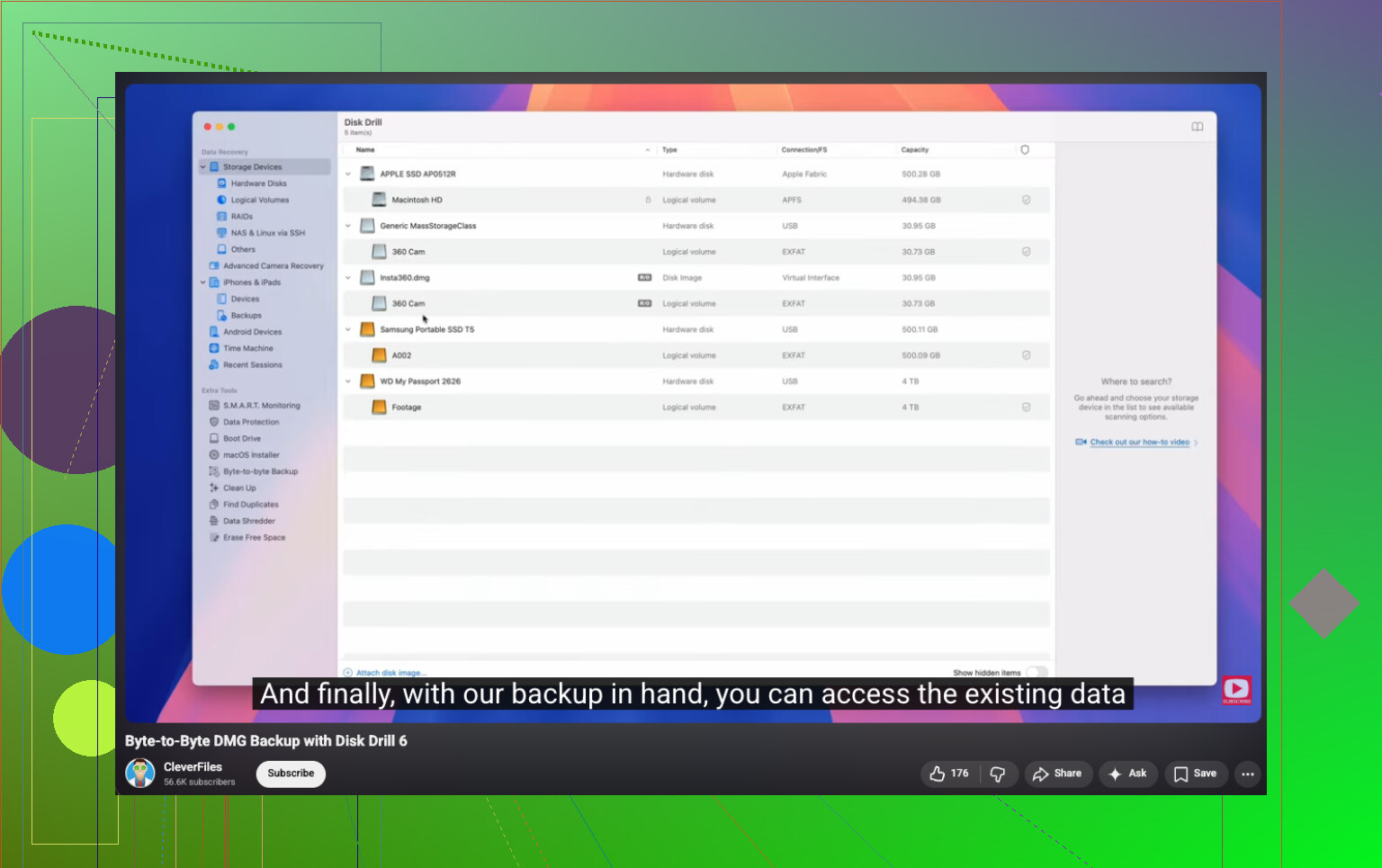
I’ve had decent results with Disk Drill. I used it on flash drives Windows refused to read, and on partitions which showed up as RAW. The part I like most is the option to make a full device image first. If the stick is flaky, working from an image is safer than hammering the original over and over.
Here’s the YouTube link for the byte-to-byte backup part:
The recovery flow I’d follow
- Install Disk Drill on your PC, not on the USB stick.
- Plug in the USB.
- Open the program and pick the USB device.
- If the drive looks unstable, make a byte-to-byte backup first.
- Run the full scan.
- Preview what it finds.
- Save recovered files to another drive.
Do not recover files back onto the same USB. I made tht mistake years ago. Bad idea.
After the files are safe
Only after recovery would I mess with repairs. Then I’d try the usual Windows stuff:
- Give it a new drive letter in Disk Management.
- Run CHKDSK if the file system looks damaged.
- Try Windows Error Checking.
- Remove and reinstall the USB device in Device Manager.
- Reformat it if corruption keeps hanging around.
My rule is simple. If a flash drive keeps acting up after a format, I stop trusting it. If files vanish, writes fail, it drops connection, or corruption comes back, I replace it. The stick is cheap. The lost data isn’t.
7 Likes
Do not format it yet. Your best shot is recovery first, repair later.
I agree with @mikeappsreviewer on one big point, stop writing anything to the USB. I differ a bit on CHKDSK. I would skip it at the start almost every time. CHKDSK is fine for a disk you do not care about. For recovery, it sometimes ‘fixes’ the file system by removing damaged entries, which means your files get harder to recover. I learned that the dumb way.
What to check first:
- Plug it into a different USB port.
- Try a second computer.
- Open Disk Management.
- See if the USB shows the correct size.
If the drive appears there with the right capacity, even if it says RAW or unallocated, that is a decent sign. It means the controller still talks to the PC.
My order would be:
- Make an image of the USB first if the drive disconnects, freezes, or reads slow.
- Scan the image or the USB with Disk Drill.
- Recover files to your internal drive or another external drive, never back to the same stick.
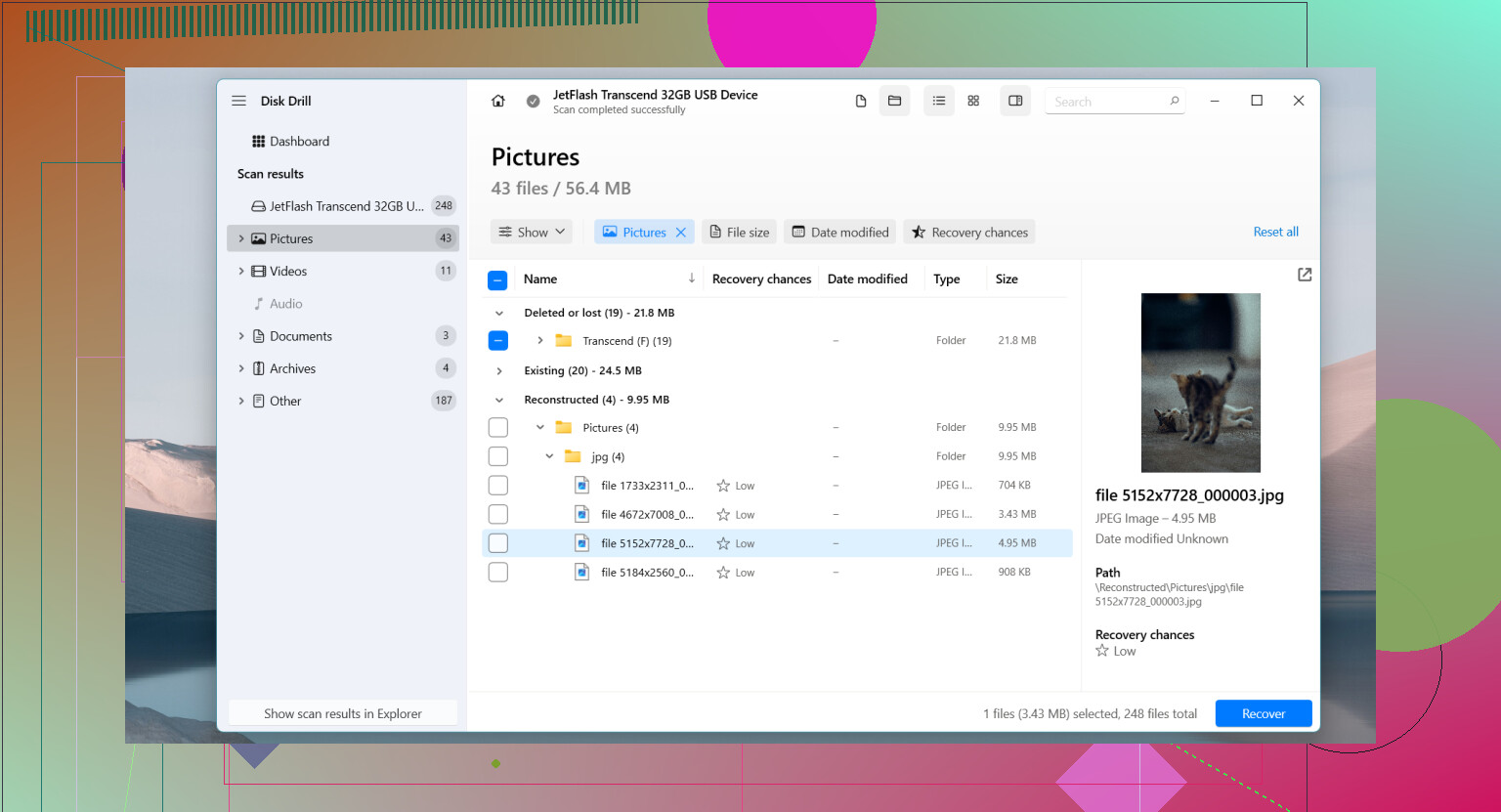
Disk Drill is one of the better options for corrupted USB drive recovery because it handles RAW partitions, lost files, and photo formats well. On flash media, I care a lot about preview support. If your JPG, DOCX, PDF, and XLSX files preview correctly, your odds are better. If all you get is broken filenames and zero previews, the damage is worse.
A useful walkthrough here:
step by step USB drive data recovery video guide
A few quick signs you should stop trying DIY stuff:
- The USB gets hot.
- It disconnects every few seconds.
- It shows 0 bytes.
- The connector feels loose or cracked.
If you see those, repeated scans are a bad bet. At taht point a pro lab is safer.
After recovery, format the USB and test it with a few junk files only. If it fails once more, toss it. Flash drives lie right before they die, and they do it with zero shame.
I’d add one thing that @mikeappsreviewer and @suenodelbosque only touched on lightly: check whether the problem is really the file system, or just Windows freaking out over the partition table.
If you open Disk Management and the USB shows the correct total size but says unallocated, I would not jump straight into repair tools. In that case, a partition recovery scan can sometimes rebuild the lost partition structure and let you copy files with original folders intact. That can be cleaner than pure file carving.
My rough order would be:
- Try another cable/port/computer if it applies.
- In Disk Management, note whether it shows RAW, unallocated, or healthy with no letter.
- If it has no letter, assign one first. Sounds dumb, but I’ve seen that fix it.
- If the partition looks broken but the drive size is correct, use a recovery tool that can scan the whole device, not just the visible volume.
Disk Drill is still a solid pick here because it can scan USB drives at the device level and sometimes recover both the files and the original directory structure. I would use that before doing any “fix” operation. Slight disagreement with the others: I do think a missing drive letter or messed-up mount point is worth checking before a full recovery session, because sometimes the drive isn’t really corrupted, it’s just mounted wrong. Super annyoing, but it happens.
Also, if you want extra reading on USB recovery tools, this thread is useful:
best flash drive recovery software recommendations from data recovery users
One more thing people skip: if this USB contained the only copy of work files and family photos, stop plugging it in over and over for testing. Every reconnect on a dying flash drive is a little gamble. If Disk Management starts showing weird capacity, 0 bytes, or the device drops out mid-read, stop the DIY stuff. That’s the point where home recovery can go from “maybe” to “welp, that was dumb.”
If you do recover everything, don’t trust that stick again. Maybe for throwaway files, sure. For photos and work? nope.
One small disagreement with @suenodelbosque, @waldgeist, and @mikeappsreviewer: before any big scan, check the USB in Linux if you can. A live Ubuntu USB sometimes mounts drives Windows labels as “needs formatting,” especially if the issue is Windows-side metadata confusion rather than real corruption.
If Linux sees it, copy everything off immediately. If not, then use Disk Drill.
Disk Drill pros:
- Good at RAW and deleted-file recovery
- Previews help judge file health
- Can scan the whole device, not just the broken volume
Cons:
- Deep scans can be slow
- Best results often require the paid version
- File names/folder structure are not always preserved in severe corruption
Also, if these are photos, check recovered JPEGs carefully. Flash corruption can produce files that open but are half-gray or truncated. Recovery success is not just “file found,” it is “file actually usable.”
And yeah, if the stick ever reports fake capacity or absurd free space numbers, I’d suspect counterfeit or failing flash, not just corruption. At that point, recover what you can and retire it.