I accidentally deleted important photos and videos from my SD card and realized I don’t have any backup copies. The card was used in my phone, and I’m worried that using it more could overwrite the deleted files. I need help figuring out the best way to recover deleted files from an SD card without making things worse.
I did this once with a trip folder and, yeah, it feels awful. The good part is deleted photos on an SD card are often still recoverable if you stop right now and handle the card carefully.
First step, remove the SD card from your phone or camera. Put it aside. Do not shoot more photos, do not copy music onto it, do not let your device keep using it.
The reason is simple. Deleting a file usually removes the file entry, not the photo data sitting on the card. Your device marks the space as free. The old image data often stays there until something new writes over it. If you keep using the card, you raise the odds of permanent loss. Once overwritten, it’s done.
If you want the best shot at recovery, this is the path I would take.
1. Use a real SD card reader. I would not connect the phone or camera with a USB cable and hope for the best. A lot of devices connect in MTP mode, which blocks low-level access and makes deep scanning worse or impossible. Put the card into your computer’s SD slot or use a USB card reader.
2. Scan it with recovery software. I’ve tried a few of these over time. The one I’d start with is Disk Drill. What I liked was the preview. You get to check whether photos open and whether videos are playable before restoring a pile of junk. If your card had camera video, its Advanced Camera Recovery mode is one of the few features I’ve seen do a decent job with split or fragmented clips from drones and mirrorless bodies. On Windows, the free tier lets you recover up to 100MB, so you get a small test run before paying.
3. Restore recovered files somewhere else. This part trips people up all the time. Do not save recovered photos back onto the same SD card. If you do, you risk overwriting the hidden data the software is still trying to read. Send the recovered files to your PC’s internal drive or to another external drive.
If you don’t want to use Disk Drill, here are a few other routes.
- R-Studio. I used this when dealing with RAW files like NEF and CR2. It’s strong, especially if you want to make a full image of the SD card first and work from the copy instead of stressing the card itself. Downside, the interface is not friendly and the trial has limits on file recovery.
- TestDisk. Old-school and free. Also open source. If the partition is damaged, it has a good rep for a reason. But it’s not pleasant if you want to sort through deleted photos one by one. No GUI, lots of command-line feel, easy to get lost if you’re new.
- DiskDigger. Lightweight, Windows-friendly, and it doesn’t need a full install. It recognizes a lot of photo and video signatures. The free version got on my nerves because it slows you down with manual confirmations, which is rough if you lost a few thousand shots. There’s an Android build too, though it works best on rooted phones.
One thing I would avoid, hard stop, is using repair tools like CHKDSK on Windows or First Aid on macOS if your goal is deleted photo recovery. Those tools try to repair the file system. They are not built for rescuing deleted images, and I’ve seen them clean up the exact leftovers you needed.
So the short version is this. Stop using the card. Use a card reader. Scan with proper recovery software. Save the restored files to a different drive. If you move carefully, your odds are still decent.
11 Likes
Pull the SD card out now. Keep it out of the phone. Your biggest risk is overwrite, not the delete itself.
I agree with @mikeappsreviewer on stopping use, but I’d add one thing first. Make an image of the SD card before you scan it. A byte-for-byte copy gives you a safer shot if the card starts failing or a scan goes wrong. On Linux or macOS, dd or ddrescue works. On Windows, USB Image Tool or R-Studio’s image feature does the job. Work from the image if you can.
If the card was in an Android phone, check your cloud apps before recovery. Google Photos, OneDrive, Dropbox, even WhatsApp media folders. A lot of people miss this and waste hours scanning.
For recovery, Disk Drill is a solid pick because it sorts photos and videos well and previews results fast. If you want a quick look at what it does, watch this Disk Drill SD card recovery walkthrough. Search terms like Disk Drill review and SD card photo recovery usually bring up useful comparisons too.
One more thing people skip. If your photos were on internal phone storage and only mirrored to SD, recovery odds drop a lot on newer phones due to encryption. But for a true removable SD card, recovery often works if you stop use fast. Save recovered files to your computer, not back to the card. Small typo but important, dont rush this.

One thing I’d push a bit harder than @mikeappsreviewer and @cacadordeestrelas is checking whether the files were really deleted from the card, or just hidden by Android’s media database being weird. I’ve seen SD photos “disappear” and then show up fine when the card is mounted on a PC.
So before doing anything fancy:
- Put the SD card in a reader on a computer.
- Enable viewing hidden files.
- Look for
DCIM,Pictures,Movies,WhatsApp, and aLOST.DIRfolder. - If you find weird files with no extension, copy them off first, then try renaming a few to
.jpgor.mp4.
If that turns up nothing, then yeah, actual recovery time.
Also, slight disagree with the “always image it first” advice. It’s ideal, but if the card is healthy and you’re not very technical, people can waste hours messing with imaging tools and make mistakes. For most normal users, a read-only scan with something like Disk Drill is the simpler move. If the card is acting flaky, disconnecting, or reading super slow, then definitely image it first.
Big thing: if your phone had adopted the SD card as internal storage, recovery gets ugly fast because of encryption. If it was just portable storage, your chances are way better.
If you want extra reading, this thread on recovering deleted files from an SD card has some useful real-world notes too.
And yeah, don’t run “fix” tools first. That’s how people turn “maybe recoverable” into “welp.” Been there, did the dumb thing myself lol.
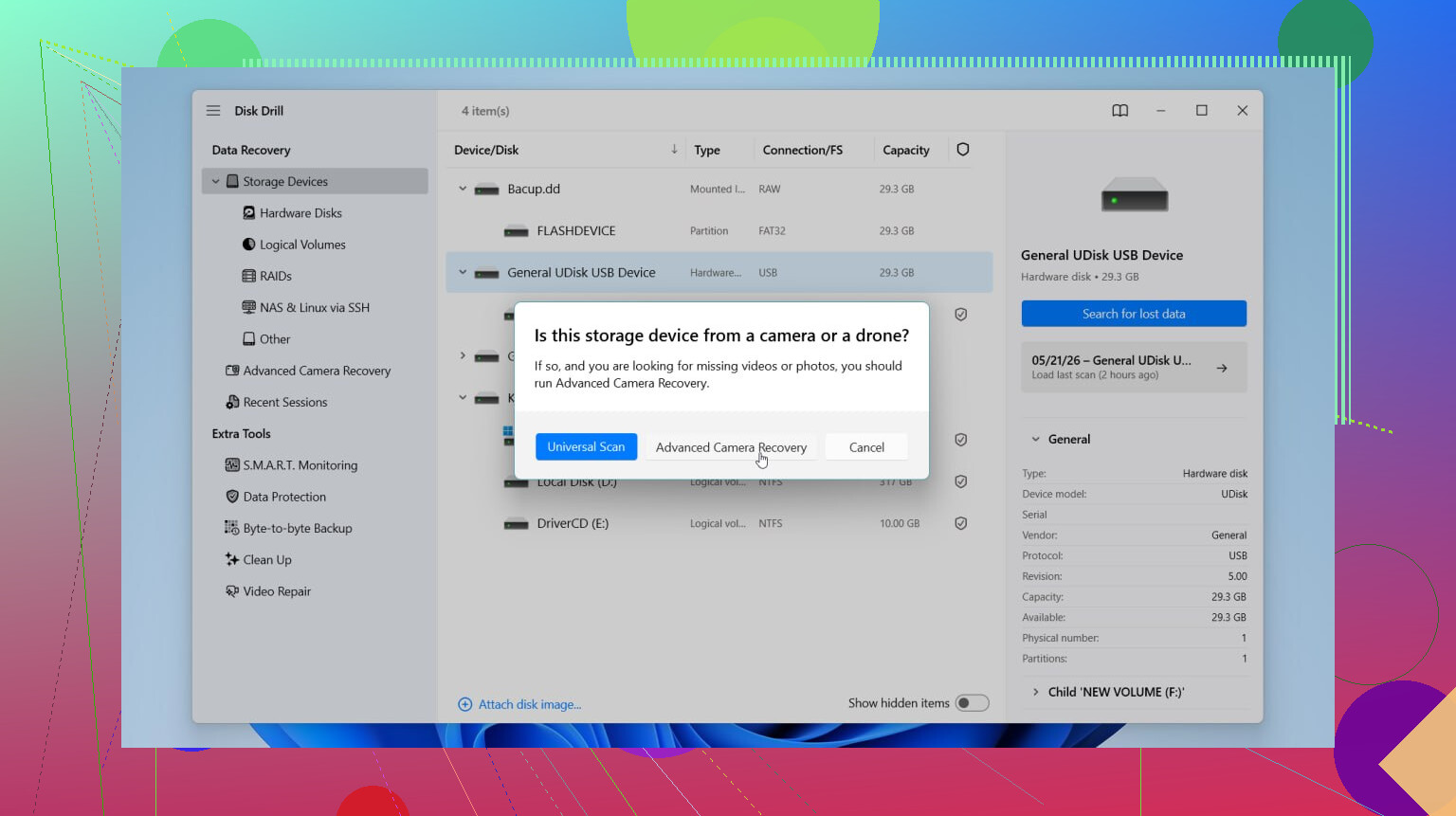
One angle not mentioned enough: check the card’s health before you do a long recovery run. If the SD card has bad sectors or starts disconnecting, repeated scans can make things worse. On Windows, even just watching if copy speed drops to zero or the card randomly remounts tells you a lot. If that happens, stop the deep scans and clone first.
I slightly disagree with the “scan immediately” camp for one case: if the card is physically unstable, every extra read is a gamble.
Also, if the files were deleted recently, sort recovered results by original file signatures and timestamps, not folder names. Deleted folder structure is often wrecked, but EXIF dates in photos and metadata in videos can still help rebuild your trip/event in order.
About Disk Drill since it came up:
- Pros: easy preview, good for mixed photo/video recovery, friendly interface, decent for non-technical users.
- Cons: free recovery limit on Windows is small, deep scans can return lots of junky duplicates, not the cheapest option if you only need one rescue.
Compared with what @cacadordeestrelas, @espritlibre, and @mikeappsreviewer were saying, I’d add this final rule: once you recover anything, verify a few files actually open fully before celebrating. A restored thumbnail is not the same as a usable video. Save everything to a different drive, then test.