I accidentally deleted important photos from my SD card while clearing space on my camera, and I need help figuring out the best way to recover them. These pictures include personal memories I haven’t backed up anywhere else, so I’m looking for safe SD card photo recovery steps or software that actually works without making things worse.
I ran into this a few times, and the main thing is simple. If you erased photos from an SD card and then stopped using it right away, your odds are still decent.
Deleting from an SD card usually removes the file table entry first. The image data often stays put until something else lands on those same blocks. So if this happened to you, stop using the card now. No new photos. No video. Don’t copy anything onto it. Don;t even leave it in the camera if you can avoid it.
I’d start with Disk Drill. I used it on camera cards, drone cards, a Switch microSD, and one dash cam card that looked dead but wasn’t. The reason I keep coming back to it is pretty plain. The workflow is easy, previews are useful, and it handles SD cards better than a lot of stripped down recovery apps I tried.
What stood out to me was this. It isn’t limited to files you deleted five minutes ago. It also works on cards showing up as corrupted, RAW, unreadable, or formatted by mistake. It recognizes normal photo types like JPG and PNG, plus camera RAW formats such as CR2, NEF, ARW, and DNG. I used it on Canon and Sony files myself. A friend used it on Fujifilm RAWs and got most of them back.
Video is where weaker tools tend to fall apart. SD cards from GoPros, drones, and mirrorless cameras often end up with fragmented clips. I’ve seen free tools recover the file name and size, then give back a broken video. Disk Drill did better for me on those cards, espescially with action cam footage.
If I were doing your recovery, I’d go in this order.
Pull the SD card out of the camera, phone, or console right away.
Use a dedicated card reader on your computer. I avoid connecting through the camera because some devices keep writing metadata in the background.
Install and launch Disk Drill.
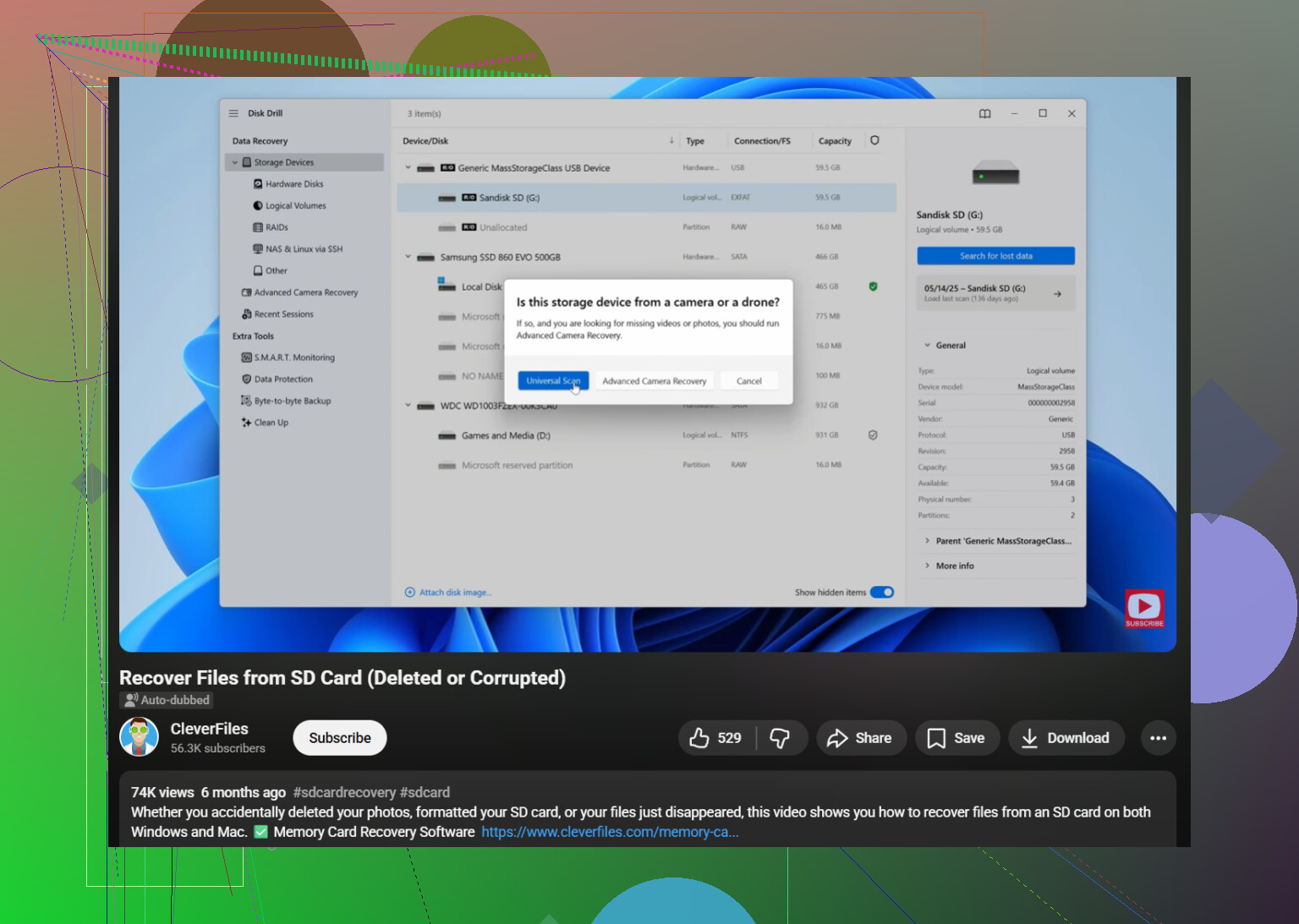
Pick the SD card from the drive list.
Click “Search for lost data” and run Universal Scan.
Wait for the scan to finish. Don’t stop halfway unless the card is failing and you already made an image.
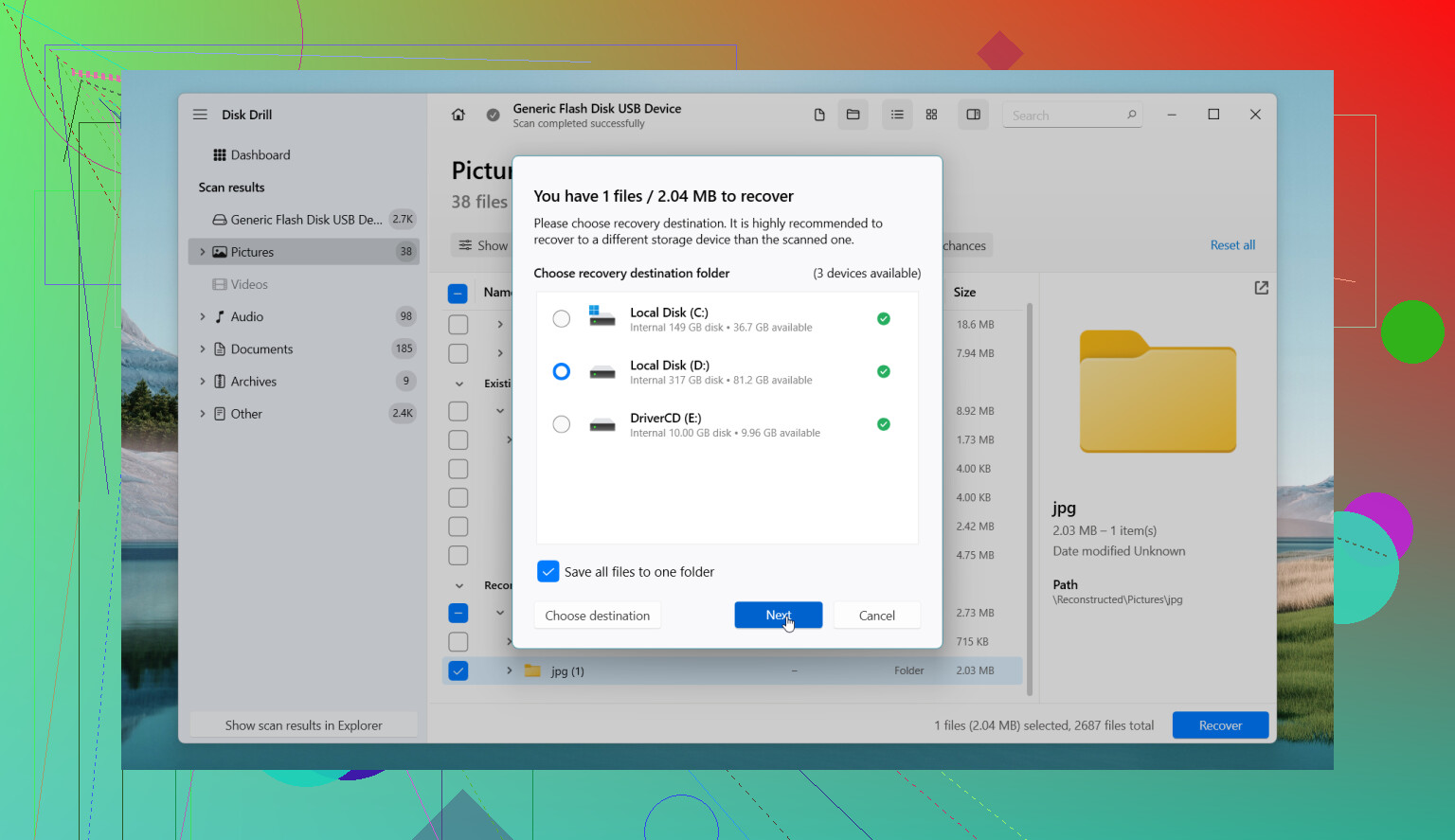
Open “Review found items” and check the Pictures section first.
Preview your files. If a photo opens in preview, that’s a good sign the file is intact.
Save recovered files somewhere else, never back onto the same SD card.
Even when the card looks empty or your computer asks you to format it, recovery still sometimes works. I’ve had cards show up as RAW after a camera error, but the photo data was still there. The file system was damaged. The images were not.
The free version is enough to scan and preview. On Windows, you get up to 100 MB of free recovery. On Mac, free use is mostly for previewing, so bigger restores usually mean paying. If the card starts disconnecting, freezing Explorer or Finder, or dropping off mid-scan, make a byte for byte image first and scan the image instead. I learned this one the hard way after a flaky microSD got worse during repeated scans.
If Disk Drill doesn’t get you where you need to go, I’d look at these next.
PhotoRec is free and hits hard. The tradeoff is the interface. It feels old school and blunt. Also, recovered files often come back with generic names and no original folders.
DiskGenius is good when the card has partition trouble or heavier file system damage. More technical. More knobs. Good tool if you know what you’re looking at.
DiskDigger helps in Android situations where the SD card is still in the phone and you don’t have a PC nearby. I wouldn’t rank it with desktop tools for deep recovery. Root access matters if you want better results.
One more thing from experience. If the SD card vanishes randomly, fails to mount, gets hot, or your computer won’t detect it at all, software may not do much. At that point I’d stop messing with it and look at a recovery lab. Repeated read attempts on a dying card can make a bad situation worse.
4 Likes
First thing, stop using the SD card. Don’t take more photos. Don’t format it. Don’t copy anything onto it. Deleted photos often stay on the card until new data overwrites them.
I agree with @mikeappsreviewer on one part, using a card reader is smarter than leaving the card in the camera. Where I differ is this, I would make an image backup of the SD card before doing any deep scan if the photos matter a lot. Recovery tools read the card over and over, and weak cards sometiems get worse fast.
My order would be:
- Lock the SD card if it has the tiny write switch.
- Connect it with a reader.
- Copy the full card as an image file first, if your software supports it.
- Scan the image, not the original card, when possible.
- Recover files to your computer or external drive, never back to the SD card.
Disk Drill is a solid pick for this because it handles deleted photos, formatted SD cards, and damaged file systems in one app. I like it more for sorting results by file type and previewing images before recovery. That saves time when you’re hunting for family photos instead of random cache junk.
If Disk Drill misses files, try a signature-based tool next. PhotoRec is ugly but strong at pulling JPG and RAW data from cards with broken file tables. Downside, filenames usually come back mangled, so expect a mess.
One more thing people skip. Check whether your camera made low-res previews or duplicate shots in a second folder like DCIM, PRIVATE, MISC, or vendor folders. I’ve seen people think a card was wiped when only the main folder entry was gone.
If you want a step by step video, this SD card photo recovery guide is decent:
SD card photo recovery walkthrough for deleted pictures
If the card disconnects, asks to format every time, or reads as 0 bytes, stop there. Software won’t fix failing hardware and you risk losing more.
Big thing I’d add to what @mikeappsreviewer and @waldgeist said: check whether the photos are actually deleted, or just hidden behind a messed-up folder structure. Cameras sometimes trash the index, but the files still sit there in weird places. Before doing a full recovery pass, open the card on a computer and look through every folder, including DCIM subfolders, PRIVATE, AVCHD, and anything the camera brand created. I’ve seen “lost” pics turn out to be sitting there the whole tiem.
If they’re really gone, yeah, Disk Drill is a solid option because the preview helps separate real recoverable images from junk fragments. I slightly disagree with doing endless rescans though. One clean scan is usually smarter than poking a questionable SD card to death.
Also, if your camera has Wi-Fi or app sync, check the phone/tablet that was paired with it. Some brands quietly cached downsized copies. Not ideal, but better than nothing.
And if you want more real-world cases on SD card photo recovery, this thread is worth skimming:
SD card photo recovery help from Reddit users
One hard truth: if you kept shooting after deletion, recovery odds drop fast. Not impossible, just way uglier.
One angle I’d add to what @waldgeist, @himmelsjager, and @mikeappsreviewer covered: check the card’s health before you commit to a long recovery session. If SMART-like info is available through your reader, or the card is crawling on simple reads, that changes the plan fast. A card that still mounts but throws read errors is where I’d be careful about deep carving, because brute-force scans can turn a barely-readable card into a dead one.
I also slightly disagree with the idea that you should always jump straight into full recovery software first. If these are standard JPGs from a normal camera and the deletion was recent, sometimes a lighter undelete pass is cleaner than a giant raw-signature scan that floods you with duplicates and partials. Deep scans are great, but they can create a sorting nightmare.
For Disk Drill specifically:
Pros
- Very easy to use compared with most recovery tools
- Good photo preview, which matters a lot for SD cards
- Handles deleted files plus damaged or reformatted cards
- Supports lots of RAW formats
Cons
- Free recovery limits can be restrictive
- Deep scans can return many extra files with bad names
- Not the tool I’d trust most if the card has serious hardware failure symptoms
My practical order would be:
- Test the card in a different reader first. Bad readers waste hours.
- See if the files are just hidden or the folder table is messed up.
- If the card reads normally, try Disk Drill and preview results before recovering anything.
- If results are messy, switch to a stricter photo-focused carve tool like PhotoRec.
- If the card is unstable, stop DIY and consider a lab.
Also worth checking: cloud sync from your phone, camera vendor apps, messaging apps, Lightroom imports, and old PC thumbnails. Weirdly often, the “lost” photo exists somewhere smaller but usable.