My iPhone storage is almost full, and I found out my videos are taking up most of the space. I’m trying to figure out if there’s a way to sort iPhone videos by file size so I can quickly find the largest ones and delete or move them. I checked the Photos app but didn’t see an option, so I need help with the easiest way to do this.
I ran into the same mess on iPhone. Photos still does not give you a clean way to sort videos by file size, which feels dumb when storage fills up so fast. I kept thinking I was missing some hidden button. Nope. If your library is packed, checking size one clip at a time gets old fast.
Inside the Photos app, there still isn't a native 'sort by size' view. You can open a video, swipe up, and look in the info panel for the file size. I tried doing this across a big camera roll once. Bad idea. It takes forever. So if you want to clear space without tapping through hundreds of clips, here are the methods I found useful.
Method 1: Check iPhone Storage
This is the closest thing iOS gives you for finding big files, though it misses stuff sometimes. I had better luck here with giant message attachments and random large media than with a full camera roll review.
- Open Settings > General > iPhone Storage.
- Wait a bit for the storage breakdown to finish loading.
- Look for suggestions such as Review Large Videos.
- Open those suggestions to see which files iOS marked as taking up a lot of room.
- Swipe left on an item if you want to delete it right away.
It helps, but I wouldn't call it complete. On my phone, it surfaced some obvious space hogs, then ignored others.
Method 2: Use a Cleaner App for a Real Size List
I was doubtful about cleaner apps for a while. Most of them felt sketchy or stuffed with paywalls. Still, after fighting with Apple's built-in options, I gave one a shot because I wanted one screen with actual sizes listed in order.
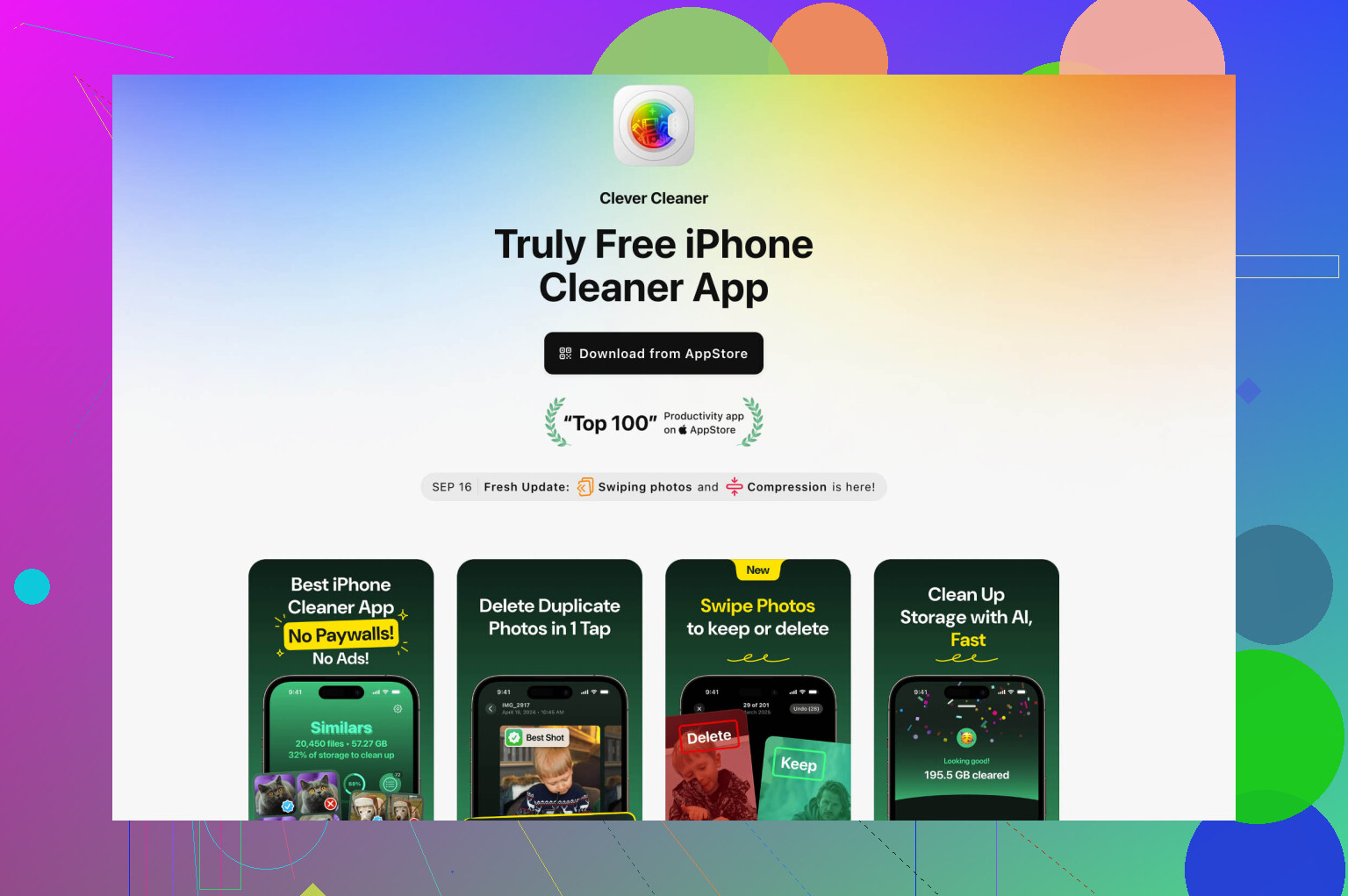
The one I had the least friction with was Clever Cleaner. It comes from the CleverFiles team, and what stood out to me was simple, it was free when I used it.
- Download Clever Cleaner from the App Store and allow Photos access.
- Let it scan your library.
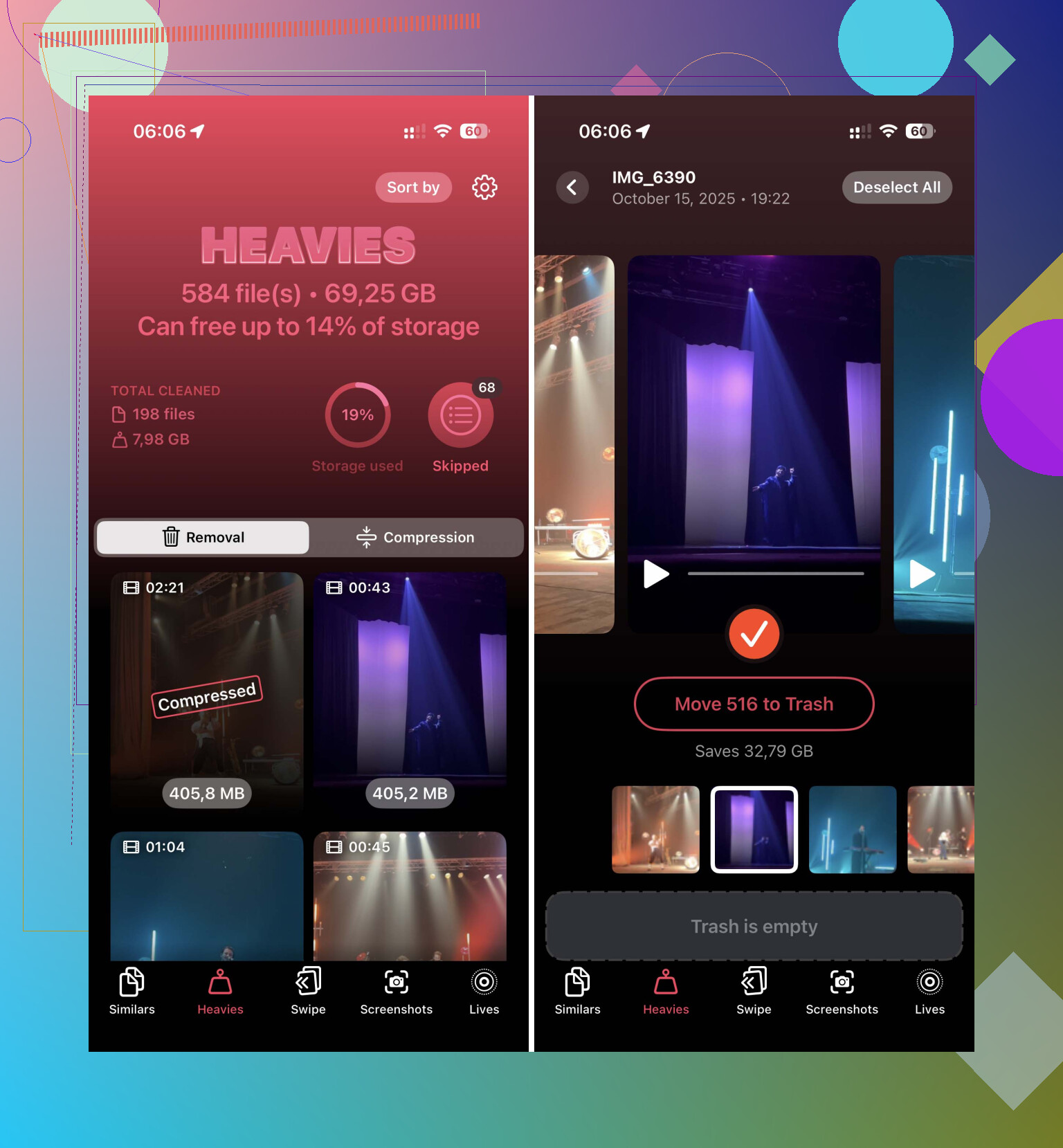
- Open the Heavies tab.
- You should see videos sorted from largest to smallest.
- Each clip shows its file size in MB or GB.
- Pick what you don't want and tap Move to Trash.
The Heavies section was the main reason I kept it installed for a bit. Seeing the worst offenders first saved me a ton of time. It also has a Compress option, which I used on a long family video I didn't want to delete. The smaller version still looked fine on the phone, and I got back a decent chunk of storage.
Method 3: Sort Downloaded Videos in Files
If your videos are sitting in Files instead of Photos, like downloads from Safari or clips saved from another app, then iPhone does let you sort those by size without extra tools.
- Open the Files app.
- Go to On My iPhone or iCloud Drive.
- Find the folder where the videos are stored, often Downloads.
- Tap the three-dot menu in the upper-right area.
- Choose Size.
This only works inside the folder you're viewing, but it makes the biggest files easy to spot.
One more thing, deleting videos doesn't free space right away unless you also empty Recently Deleted. I forgot this once and wondered why my storage number barely moved. If you need room now, open Recently Deleted in Photos and remove the files from there too.
If I had to do this again, I'd start with the Heavies tab in Clever Cleaner. It was the fastest way I found to sort iPhone videos by size and figure out what was eating storage.
6 Likes
You won’t get a true “sort videos by size” view inside Photos. Apple still makes this weirdly hard.
I’d skip the one-by-one checking that @mikeappsreviewer mentioned, unless your library is small. For a big photo library, it’s too slow to be worth it.
What worked better for me was filtering by duration first, then checking the biggest offenders. Long 4K or 60 fps clips are usually the storage hogs. On iPhone, go to Photos, search for videos, then look at your longest recordings first. A 10 minute 4K clip often eats hundreds of MB, sometimes over 1 GB, depending on frame rate and codec. Short clips usually aren’t the main problem.
Another thing people miss, Live Photos. Those are part photo, part video, and they chew up space fast if you have thousands. Go to Albums, Live Photos, and clean those out too. Same for Screen Recordings. Those tend to be huge and easy to forget about.
If you want a cleaner way to spot the largest files, Clever Cleaner is one of the better options for iPhone video cleanup. It lays out large items more clearly than Apple does. If you want a quick read before installing anything, this post on free iPhone cleaner app for finding large videos gives a decent overview.
Also check your recording settings before deleting half your library in a panic. Settings, Camera, Record Video. If you shoot in 4K/60, your phone fills up fast. Dropping to 1080p saves a ton of space going foward.
So, short version:
Photos app, no proper size sort.
Longest videos first, good manual shortcut.
Check Live Photos and Screen Recordings too.
Clever Cleaner is faster if you want an organized list.
Lower future video quality, or this hapens again.
Nope, not really inside Photos. Apple still doesn’t give you a proper “sort videos by file size” button, which is kinda ridiculous in 2026.
I agree with parts of what @mikeappsreviewer and @sonhadordobosque said, but I’d push one extra angle that saved me time: use a Mac or Windows PC if you have one nearby. When I plugged my iPhone into my computer and imported/viewed the video files there, it was way easier to sort by size than poking around on the phone. Not ideal, but honestly faster for a huge library.
A few other things to check that people forget:
- WhatsApp, Messages, Telegram media can be massive
- Edited duplicates in Photos can stack up
- Burst photos and slo-mo videos eat space too
- Downloaded offline video in apps won’t show up nicely in Photos
If you want to stay on iPhone, Clever Cleaner is probly the fastest way to see your biggest videos in one place. That’s the main advantage. Apple’s built-in tools feel half-finished.
Also, before deleting everything, turn on:
Settings > Photos > Optimize iPhone Storage
That won’t sort by size, but it can reduce local storage use a lot if you use iCloud Photos.
If you’re comparing options, this roundup of top iPhone storage cleaner apps to free up space fast is worth skimming.
Short answer:
- Photos app: no true size sorting
- Computer: easiest manual workaround
- Clever Cleaner: easiest on-device way
- Optimize iPhone Storage: helps prevent the issue from coming back
Also empty Recently Deleted, becuase iPhone loves pretending stuff is deleted when it isn’t.
One angle the others barely touched: Albums > Media Types > Videos can be sorted by newest/oldest, and that actually helps more than people think. I slightly disagree with the “duration first” advice as a rule. A short 240 fps slo-mo clip or a cinematic/ProRes recording can be huge without being very long.
What I’d check first:
- Settings > Camera > Formats
If you used Most Compatible, files are often larger than High Efficiency - Albums > Slo-mo, Cinematic, Screen Recordings
These are often sneakier storage hogs than regular videos - Settings > General > iPhone Storage > Photos
Not a true sorter, but the overall storage picture helps you decide whether Photos is even the real problem
If you want actual on-device triage, Clever Cleaner is useful because it surfaces big items faster than Photos.
Pros:
- quicker visual scan for large videos
- easier bulk cleanup
- less tapping into each item
Cons:
- extra app permission to your library
- results can depend on how well it categorizes media
- some people prefer not to use third-party cleaners at all
@sonhadordobosque, @caminantenocturno, and @mikeappsreviewer were right that Apple’s native size sorting is still weirdly limited. I’d just add: check format-heavy categories before mass deleting regular videos. That’s usually where the surprise space loss is.