I need to move a large number of files from an old FTP server to my current Google Drive account, but I’m not sure about the best way to do it without downloading everything to my computer first. Is there an easy tool or method to directly transfer FTP files to Google Drive? Any advice or step-by-step guides would be really helpful.
So here’s the thing: if you’re staring down a pile of files stranded on some FTP server, and you want to get them into Google Drive, there’s a couple of different playbooks you can run. Let’s break down exactly how you can pull this off, based on how often you want to do it and how big the haul is.
If You’re Only Doing This Once (or Just Hate Installing Stuff)
Alright, I’ll level with you—sometimes you just want to get it done with what you already have. You can use Windows’ own File Explorer, which, let’s be real, is about as exciting as dry toast but totally gets the job done for a quickie. Here’s how I tackled it:
- Crack open File Explorer.
- Up top where it says “Quick access” or whatever, just type in your FTP address (like ftp://[yourftpurl.com]), then punch in your login info.
- You’ll see all your FTP files in a sort of janky file view.
- Now, drag what you need onto your desktop or another folder that’s got enough space—warning: if you’re going all GigaChad with enormous files, be prepared for the wait while it downloads.
- Time for the Google Drive shuffle:
- Either hop into Google Drive on your browser and click that big blue “New” button to upload your stash
- Or if you’re fancy, install Google Drive for Desktop. It sticks a Google Drive location right in File Explorer. Just drop your files in there like you would any other folder.
Pro tips:
- Zero dollars spent. Nada. No extra apps to wrangle.
- Absolutely requires you to have enough free space locally for the files, and for big jobs it’s as slow as molasses in January.
Want to Skip the Local Download? Here’s How I Save Time
Okay, now for folks who are moving a whole lot of data (think: entire photo libraries, multi-gig archives, just… huge stuff). I stopped torturing my SSD by using CloudMounter for direct cloud-to-cloud shuffling. Here’s what that actually looks like in practice:
- Download and install CloudMounter (Mac or Windows, but check the pricing—nothing in life is truly free besides maybe existential dread).
- Fire it up. Hit “New Drive” > “FTP”, fill in those boring FTP details, then connect.
- Set up your Google Drive in the same way (it’ll ask for your Google login too).
- Like magic, you will now see both your FTP server and Google Drive show up as drives in your File Explorer or Finder, depending on your OS.
- Drag, drop, done. The files never hit your local storage—your computer is basically just telling the two cloud gods to play catch.
Why’s this worth considering?
- No need to stash everything locally. Especially good for underpowered laptops or those SSDs you’re still babying.
- It’s so much faster, particularly if you’re dealing with elephant-sized files.
- Not free past the basic version. But if you’re doing this kind of thing a lot, it’s less of a headache.
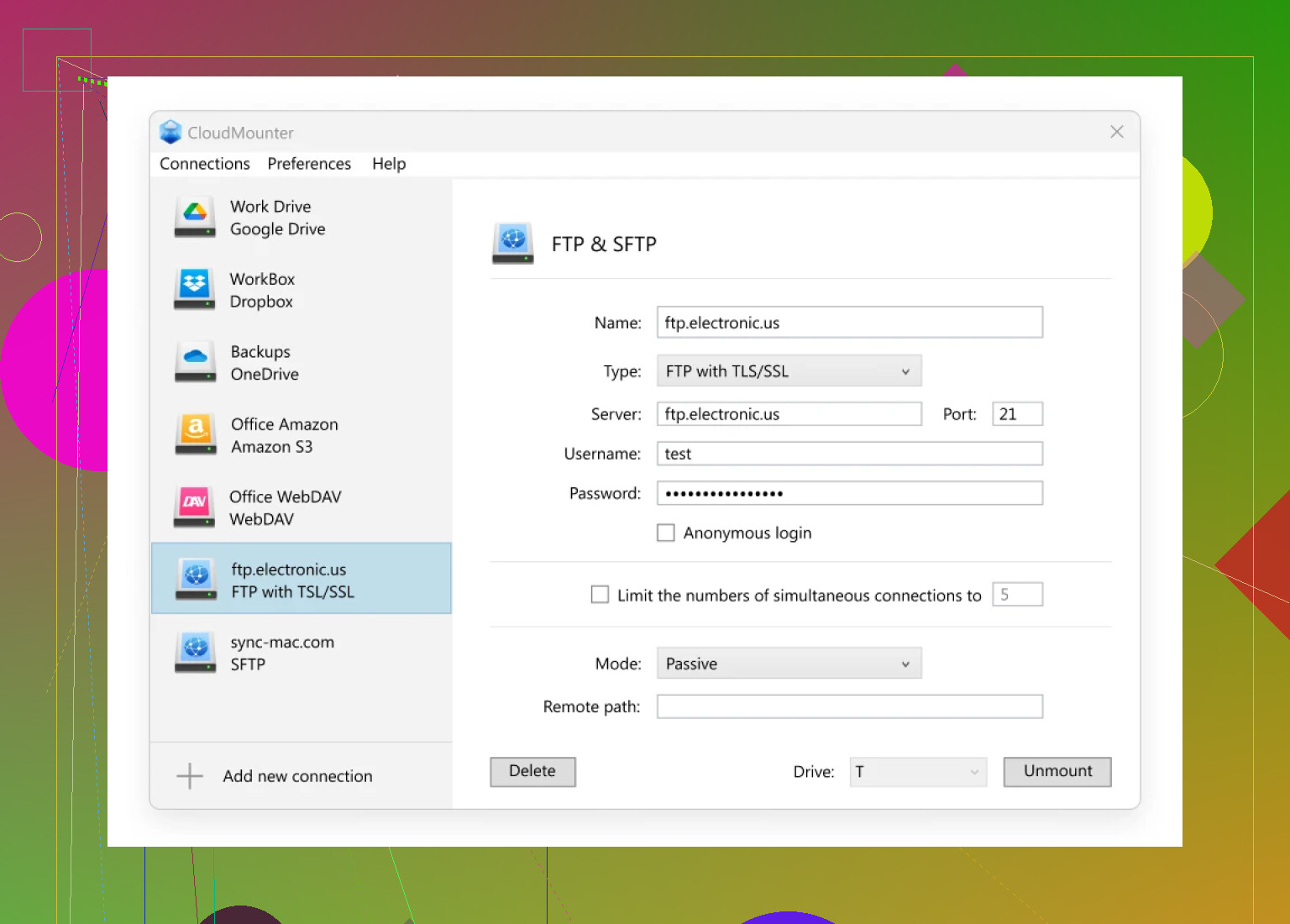
If you want actual step-by-step visuals (I’ve screenshotted my setups so many times for friends), just shout. I can dig up some guides that walk through each screen, if you like. Anyone else found a more streamlined way? Always curious if there’s a toolbox trick I missed.
9 Likes
Before you run screaming to the App Store, let’s be slightly contrarian to @mikeappsreviewer and the drag-and-drop masses: there are, believe it or not, cloud-based “middleman” services that save you from ever seeing those files touchdown on your poor drive, no matter its girth.
Options like MultCloud or Cloudsfer are specifically built for this “cloud-to-cloud” shuttle—just add FTP and Google Drive, set up a transfer job, maybe schedule it to run at 2am so your home internet isn’t sobbing, and it’ll chug away. No, they aren’t usually 100% free if you push heavy gigs, but for supermassive file sets or recurring tasks, I’ve found it far less annoying than juggling desktop mounts or single-use copy jobs. (Free tiers sometimes cover a few GB if you just want to test.)
Unlike CloudMounter (which is decent for direct control in Explorer/Finder—I’ve used it plenty), these web services don’t care if your laptop decides to reboot for Windows updates halfway through, and they usually e-mail when the job’s done. Downside? You’re stuck trusting a 3rd party with your credentials, so be smart: change those passwords after.
TL;DR—If you’re mega-averse to ever seeing the bytes hit your disk or you want to automate/schedule/log/fancify, peep the cloud-to-cloud services. If you demand total control or have privacy qualms, CloudMounter’s the local hero. Just stay away from those “one weird trick” Chrome extensions—lost a week to one of those and got nowhere except massive downloads.
Alternatively, anyone ever hacked this together with rclone? Curious if the CLI crowd has smoother tricks for FTP→GDrive syncs, or if I’m missing a lighter-weight approach.
So, I’m just going to be brutally honest here: if you’re dealing with a mountain of files from that crusty FTP server and you want them on Google Drive, but can’t be bothered with that download-upload dance, your options aren’t as magical as some would like you to believe. Sure, @mikeappsreviewer and @kakeru already mapped out the “free” and “cloud-to-cloud SaaS” universe, but let’s not forget scripting and self-hosted methods, because not everyone loves giving another service your precious passwords.
Let’s say you’re feeling brave and prefer control. Enter rclone. It’s not “easy” in the sense of big blue buttons, but for anyone a little comfortable with terminals, it’s way more powerful than any drag-and-drop or click-fest tool out there (and doesn’t charge you per gigabyte). Basically:
- Install rclone (it’s free and cross-platform)
- Use rclone config to set up both your FTP and Google Drive connections. Yup, you’ll have to do some OAuth jazz for Google.
- Fire off this bad boy:
rclone copy ftp_remote:path drive_remote:path --transfers 8 --checkers 16 --progress
Boom. Direct transfer. No files touch your PC, it just streams through. Set up union remotes if you want to go full nerd and sync folders bidirectionally, automate in cron jobs, whatever. Downsides? You have to install stuff, and if you fat-finger a command you might erase or duplicate a bunch of stuff (ask me how I know). Plus, Google API limits can throttle you, but at least you’re not waiting for a clunky mount to finish, praying your desktop app doesn’t freeze.
CloudMounter? Yeah, it’s super convenient, especially for non-coders and folks who want it “just works” in Explorer/Finder. It also doesn’t hand your credentials to some random web app, which is a plus for my paranoid friends. But you’re still at the mercy of yet another app layer that can get weird on huge file trees, and beyond the free tier, the price stacks up if you use it regularly.
MultCloud, Cloudsfer, etc., as mentioned, are fine if you absolutely refuse to run anything locally, but honestly, why trust a 3rd-party black box with your company’s (or your personal) data if you’ve got other options?
Anyway, I would probably pick CloudMounter for a one-off big transfer where I want that nice familiar desktop integration, and rclone when I feel like scripting or automating (or not paying per job). Just please, don’t use browser-based FTP plugins for bulk ops—utter pain, constant disconnects, and zero error recovery. Not even worth the nostalgia points.
Alright, let’s put it all on the table with a data-driven breakdown—since @kakeru, @mike34, and @mikeappsreviewer pretty much ran the gamut from brute-force local download to terminal ninja scripts like rclone.
Numbers matter when hauling heavy data. If you’ve got, say, 500GB on that FTP, downloading then uploading through your home pipe could take days (assuming 50 Mbps download/upload, that’s around 23 hours each way, not counting hiccups). Rclone? Awesome for the automation crowd, less so if you hate command lines or can’t be bothered with OAuth or API juggling. An accidental flag can nuke your stuff if you don’t double-check.
Now, for those who want drag-and-drop (without melting your SSD), CloudMounter sits in the sweet spot. Drag from FTP, drop to Google Drive—no data sits on your PC, which means even a 128GB laptop can handle outrageous transfers. The pro? Integration into explorer/finder, supports FTP/SFTP/WebDAV and more, and Google Drive just looks like another folder. Con? Free tier’s limited—plan to pay up, especially if speed/unlimited connections matter to you. Also: not as nerdy-flexible as rclone if you’re after fine-tuned automation/scheduling, and it runs as an app in the background (some people just hate more tray icons).
Competitors? There’s stuff like MultCloud and Cloudsfer, but—like was said—they’re SaaS and lock you into their interfaces, plus sometimes need cloud access credentials, which for some is a hard pass.
Bottom line: for massive FTP-to-Google Drive transfers with minimal local hassle, CloudMounter’s as close as you get to painless—just budget for it if more than one or two gigs are in play. For free and ultimate flexibility, rclone eats everything else, but brings terminal risk. Decide based on your patience for software installs, risk of mess-ups, and whether paying for simplicity is worth more than babysitting a long file parade in File Explorer.