My iPhone says there isn’t enough storage to install the latest iOS update, and I’ve already deleted photos, apps, and files without freeing up enough space. I need help figuring out the best way to update it without losing important data, because I need the update for security fixes and app compatibility.
I hit this wall a bunch of times. The phone says you still have free space, then iOS throws the same storage error and refuses to move.
The annoying part is this. The update size listed in Settings is not the full space your iPhone needs. If the update package says 2 GB, iOS often needs a lot more room while it downloads the file, unpacks it, and swaps files during install. On bigger jumps, like moving to iOS 26, I’d want 20 GB to 30 GB free or I’d expect trouble.
Before deleting random stuff, check what is eating storage:
- Open Settings.
- Tap General.
- Tap iPhone Storage.
- Wait a bit for the graph and app list to fill in.
- Look at your free space, then look at the biggest storage users.
What worked for me depended on where the bloat was hiding. Here’s the stuff worth checking first.
Start with the big junk
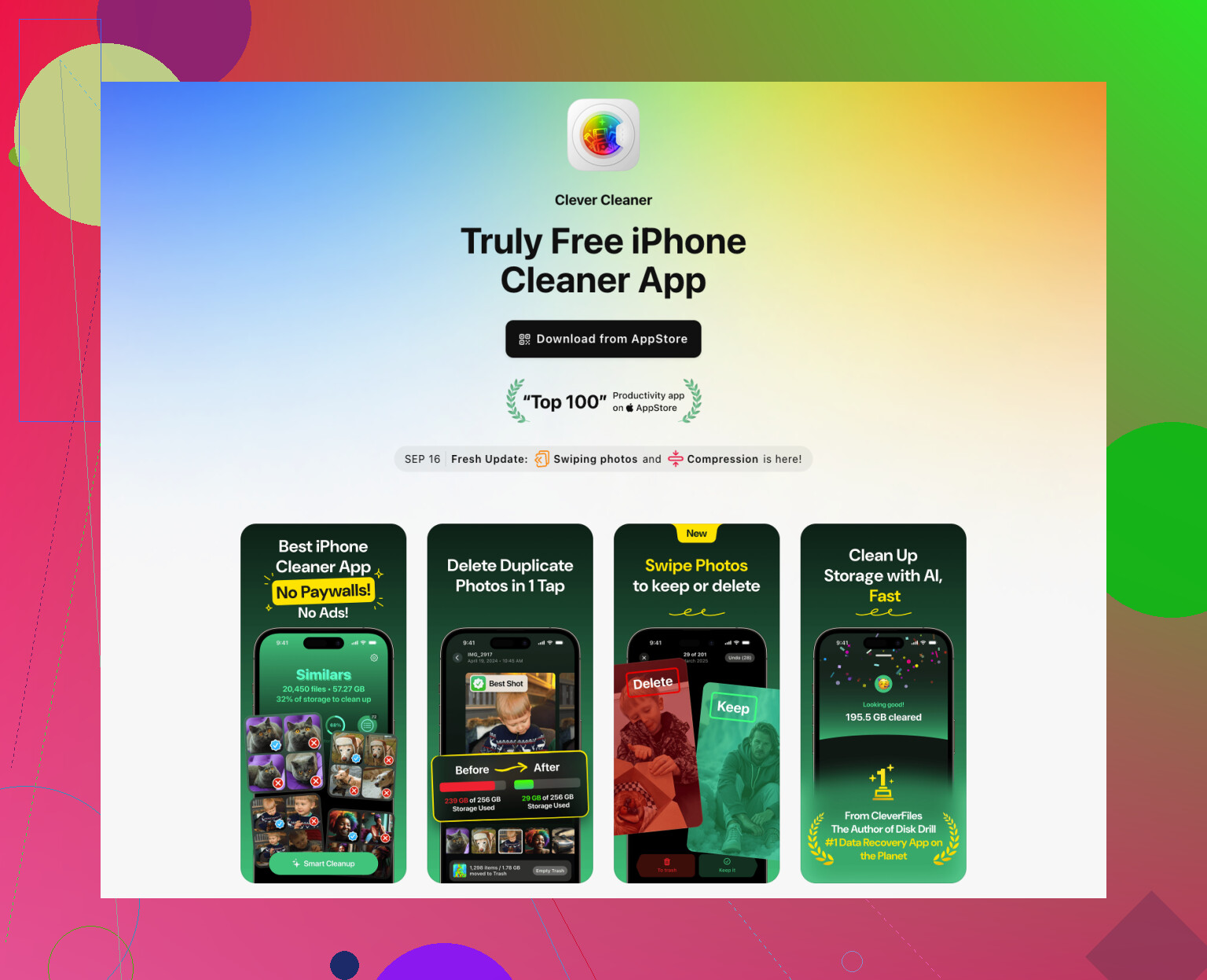
I wasted way too much time scrolling through Photos by hand. If you want the fast route, use a cleanup app and let it surface the worst offenders. I had decent results with Clever Cleaner. It’s simple, and it gets you to the oversized files fast.
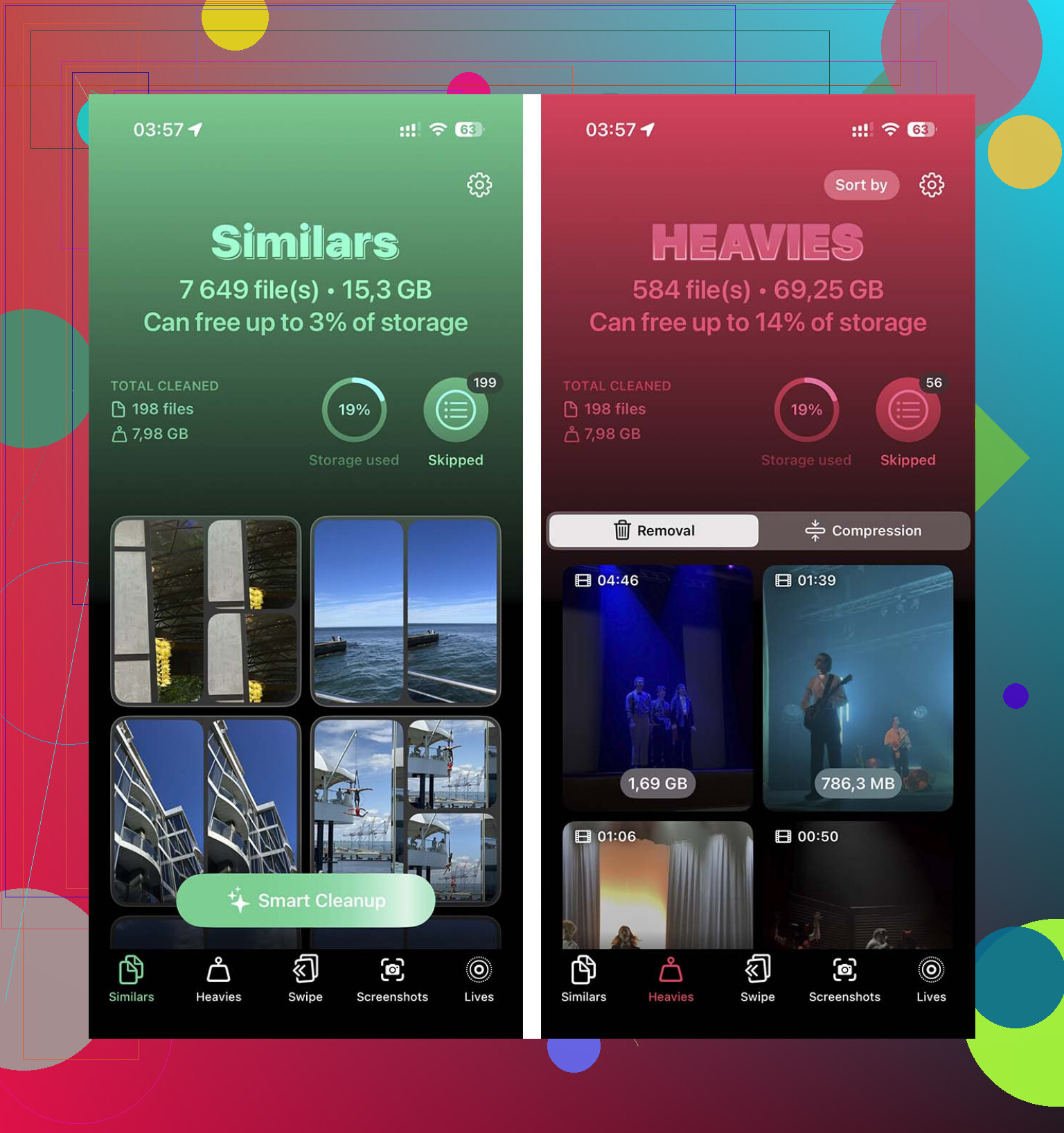
The useful part for me was the section for large videos. One forgotten 4K clip from a concert or vacation can eat multiple gigabytes. Delete two of those and you might be done. It also groups similar photos, which helps when your camera roll has eight near-identical shots of the same receipt, pet, or parking sign.
- Open the cleaner app.
- Check the large video section first.
- Delete clips you do not need anymore.
- Then review similar or duplicate photos.
- Open Photos.
- Go to Recently Deleted.
- Delete everything there so the space is freed now, not later.
I missed this once and thought the app was broken. Photos sitting in Recently Deleted still count until you empty it.
Remove apps with bloated data
This is where I usually find the sneaky space hogs. Social apps, video apps, and games pile up cached junk over time. The app itself might look small, then Documents & Data is huge. Deleting the app wipes all of it in one shot.
- Open Settings.
- Tap General.
- Tap iPhone Storage.
- Scroll through the apps.
- Open one you barely use.
- Tap Delete App.
- Repeat for other large apps you do not care about.
I’d check streaming apps first, then social media, then games. Those three categories are usualy the messiest.
Check the places people forget
The Files app is one of those spots nobody looks at until storage gets ugly. Open “On My iPhone” and then “Downloads.” Old PDFs, zip archives, email attachments, random forms, installer files, all of it sits there until you clear it.
- Open Files.
- Tap Browse.
- Open On My iPhone.
- Open Downloads.
- Delete what you do not need.
Messages is another one. I found ancient videos and giant attachments from group chats I forgot existed. Those add up fast.
- Open Settings.
- Tap General.
- Tap iPhone Storage.
- Open Messages.
- Look through documents and attachments.
- Delete big videos, photos, GIFs, and other junk.
- Check Recently Deleted in Messages too and clear it.
Safari data is smaller, though it still matters when you’re short by a few hundred megabytes.
- Open Settings.
- Go to Apps.
- Tap Safari.
- Tap Clear History and Website Data.
- Confirm.
Update from a computer if the phone keeps refusing
This saved me once when I was out of easy stuff to delete. If you update through Finder on a Mac or iTunes on Windows, the computer handles the download and unpacking part. Your iPhone still needs space for the install, but the requirement is lower than doing the whole thing on the phone.
- Connect the iPhone to your Mac or PC.
- Open Finder on Mac, or iTunes on Windows.
- Select the iPhone.
- Click Check for Update.
- Follow the prompts.
If none of it works
I only do this when everything else fails. Back up the phone to iCloud, erase it, install the update on the cleaned-out device, then restore your backup. It takes longer, and it’s a bit of a pain, but it gets past the storage wall when nothing else does.
2 Likes
I’d skip more random deleting. If you already cleared obvious stuff and iOS still says no, the fastest path is a backup, then an update through a computer. I know @mikeappsreviewer mentioned Finder and iTunes, and I agree with that part. I do disagree with needing 20 GB to 30 GB free every time. For most updates, a computer update works with less, if your phone is not packed with “System Data” junk.
What I’d check first is System Data and old update files:
Settings > General > iPhone Storage.
If you see an old iOS update file listed, delete it.
If System Data is huge, restart the phone. Weirdly, this frees some temp storage more often than people think.
Then do this:
- Back up to iCloud or your computer.
- Turn off Low Power Mode.
- Plug iPhone into a Mac or PC.
- Update from Finder or iTunes.
- If update still fails, use encrypted backup, erase iPhone, update, then restore.
Encrypted backup matters. It saves more stuff, like Health data and saved passwords. People skip this and regret it later.
One more thing. Sync errors in Photos and Messages leave trash behind. A cleanup pass with Clever Cleaner helps spot large videos and duplicate junk fast. This full Clever Cleaner features review for iPhone storage cleanup shows what it does.
If nothing works, erase-and-restore is the cleanest fix. Annoying, yep. But it works way more often then people want to admit.
I mostly agree with @mikeappsreviewer and @byteguru on using a computer update, but I think one thing gets overlooked a lot: the update can fail because the downloaded iOS file itself is stuck/corrupted, not just because you’re truly out of space.
Try this first before more deleting:
- Settings
- General
- iPhone Storage
- Look for an item called iOS Update or the version number
- Delete that file
- Restart the phone
- Try updating again, preferably from a computer
Also check whether Automatic Updates already downloaded part of the update in the background. I’ve seen that eat space and then block the install. Super annoying.
Another thing I’d do is temporarily turn off stuff that can rebuild caches during the update:
- Photos syncing
- Podcast downloads
- Music downloads
- App Store automatic downloads
Not forever, just long enough to stop the phone from filling itself back up while you’re trying to fix it. iOS loves doing that at the worst posible time.
If storage is still weird, sync the important stuff off the device first, then remove offline content instead of personal data. Downloaded Netflix, Spotify, YouTube, podcast episodes, map data, that junk can be several GB and is easy to get back later.
And yeah, if you want a faster way to spot giant videos/duplicates, Clever Cleaner is actually useful for that. Not magic, just quicker than digging manually. I’d use it for finding hidden space hogs, then do the update by Finder/iTunes.
If you want extra iPhone storage cleanup ideas, this has some decent tips: best iPhone storage cleanup tips
My order would be:
- delete old iOS update file
- reboot
- pause syncing/downloads
- remove offline media
- update from computer
- only then consider erase/restore
Erase and restore works, sure, but I wouldn’t jump to the nuclear option unless the simpler fixes fail.