My iPhone is almost full, and I started getting storage warnings when I tried to update iOS and take photos. I need help figuring out how to check what’s using the most storage and the fastest ways to clear space without deleting anything important. Looking for simple steps to manage iPhone storage and free up memory.
I keep running into this with iPhones. Everything feels fine, then you try to record a video or pull down a huge app update, and there it is, ‘Storage Almost Full.’ After a while I stopped treating it like a small warning. When free space gets low, the phone starts acting weird in ways you feel before you measure them.
If you want to check storage without opening Settings, I had the best luck with a computer.
On a Mac, connect the iPhone and open Finder. Pick the phone from the sidebar. On Windows, use Apple Devices or iTunes. At the bottom, you should see the storage bar with the category breakdown.
I trust this view more when I need a quick read before installing something big. The phone’s own storage page sometimes sits there recalculating. The computer view tends to give a cleaner number, and from what I saw, the sync step often clears temporary cache first, so the available space looks closer to what you have right now.
If the phone will not even boot, or you are checking an older device before selling it, the total capacity is still possible to verify through an IMEI lookup. I had to do this once with an old phone from a drawer.
You can usually find the IMEI here:
- On the SIM tray, on many newer iPhones
- On the back panel, on older models like iPhone 6
- On the original box
- On your carrier account page, often under device management
The part people trip over most is System Data, which used to show up as Other. If you see a giant block there, I would not freak out yet. It is the catch-all bucket.
It usually includes:
- App caches
- System logs
- Siri voices
- Fonts
- Local dictionaries
- Temporary media from streaming apps
So if you stream a lot of music or video, your phone stores bits of it for faster loading later. iOS is supposed to clear some of this when space gets tight. In my expereince, it does, but slower than I want.
Low free space also hits performance harder than some people expect. I saw this on an iPhone 13 a few months back. Apps opened slowly. The camera hesitated. Scrolling felt rough. Turned out I had around 2 GB left. After clearing space, the phone felt normal again.
Apple’s built-in recommendations help a little. Offload unused apps. Review large attachments. Fine. But if your photo library is the real problem, those tools feel thin.
What worked better for me was sorting media by size and duplicates first. The app I ended up sticking with was Clever Cleaner.
Why I kept it:
- Free use, no ads in my testing
- No fake trial nonsense
- Focuses on photos and videos, which is where most storage went on my phone
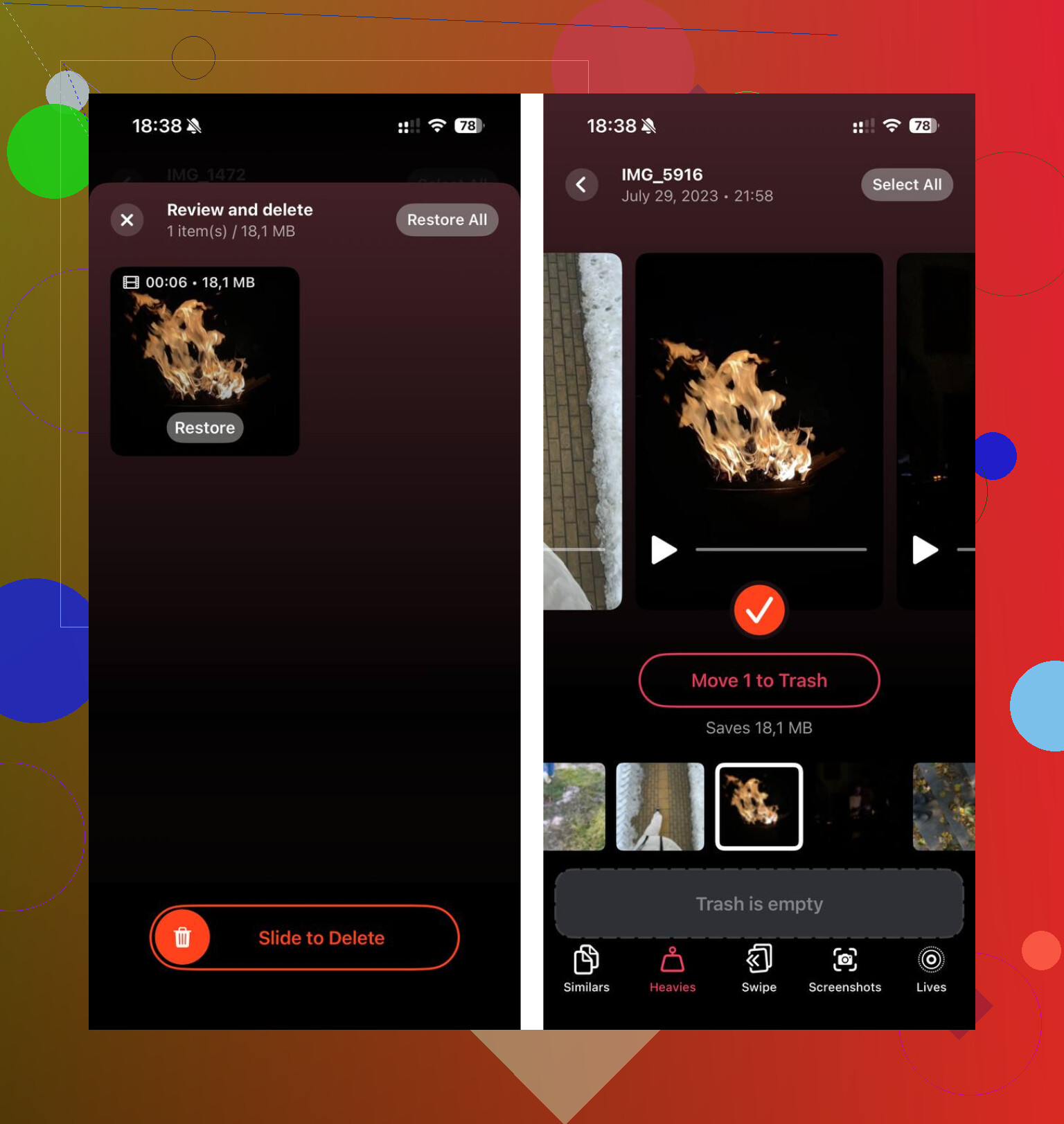
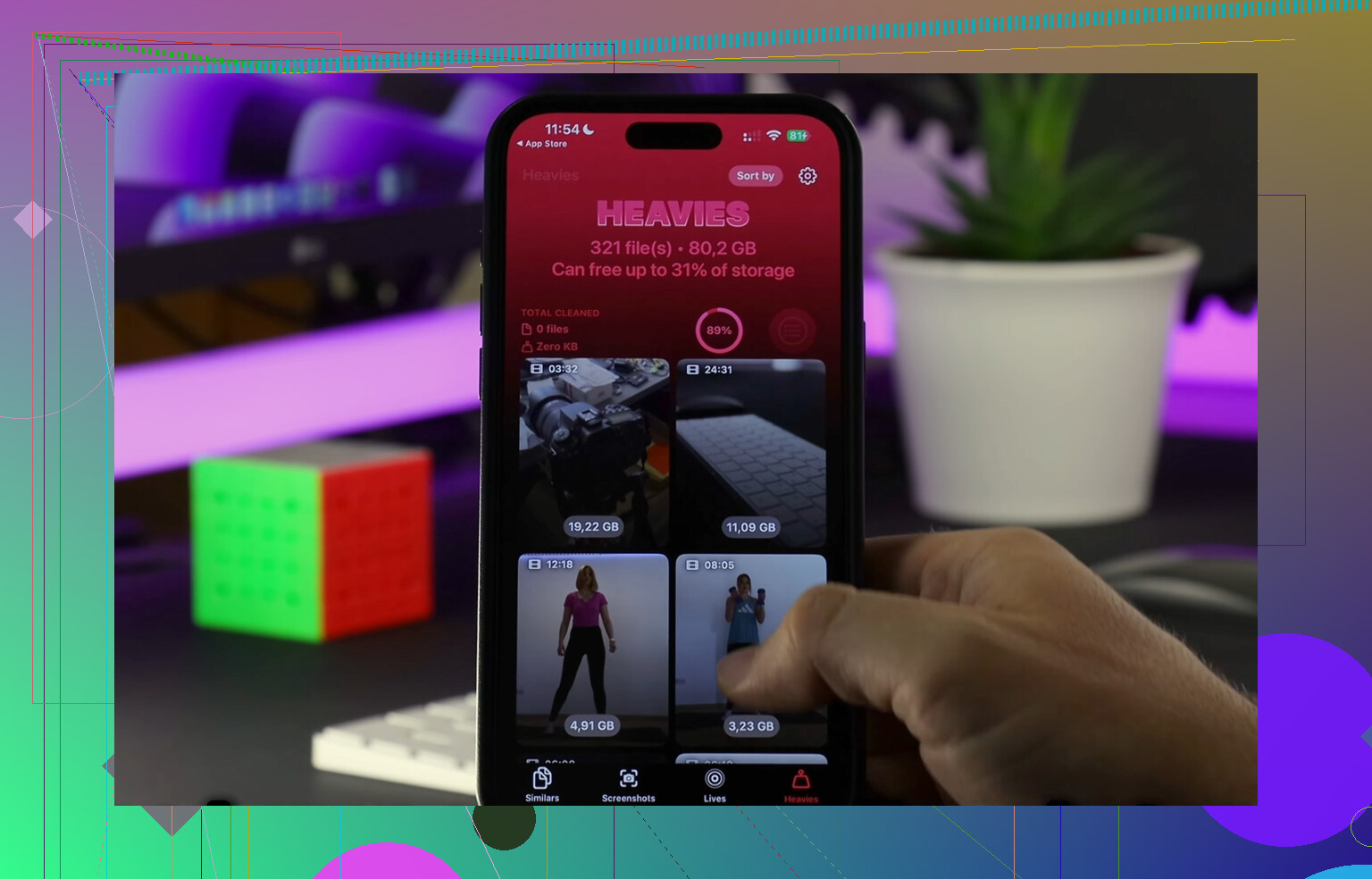
- Shows large files fast through the Heavies section
- Finds similar shots through the Similars section
- Processes on the device, which mattered to me for privacy
The Heavies view made the biggest difference. You see the oversized clips first, including old 4K videos eating 1 GB or 2 GB each. No guessing. No endless scrolling through the full library.
The similar-photo scan was useful too. I take multiple shots of the same thing all the time and forget about them. It grouped those together so I could keep one and dump the rest. I also liked seeing exact file sizes for screenshots, since it made the cleanup feel measurable instead of vague.
If your iPhone feels slow, I would check available storage before doing anything else. If you are close to full, clearing large videos and duplicate photos often fixes the lag fast. For me, deleting random apps was the wrong move. Media was the real space hog.
6 Likes
Open Settings, then General, then iPhone Storage. That page does two jobs at once. It shows what is eating space, and it gives cleanup options right under the graph.
Fastest wins first.
-
Tap Enable next to Optimize Photos, if you use iCloud Photos.
This keeps smaller versions on the phone. Big saver for people with tons of pics. -
Review Downloaded Media.
Music, Netflix, Spotify, YouTube, Podcasts. Offline files pile up fast. I freeed 8 GB once from podcast downloads alone. -
Delete old Messages attachments.
In iPhone Storage, tap Messages. Review Photos, Videos, GIFs, Stickers. Large group chats are sneaky storage hogs. -
Clear Safari website data.
Settings, Safari, Clear History and Website Data. Not huge, but it helps when you’re desperate for 1 or 2 GB. -
Check app size vs Documents and Data.
If an app is 200 MB but Documents and Data is 5 GB, delete and reinstall it. Social apps do this a lot. I slightly disagree with @mikeappsreviewer on relying on a computer first. The phone’s storage page is better for cleanup because it links straight into the worst offenders. -
Set auto-delete for messages.
Settings, Apps, Messages, Keep Messages. Switch from Forever to 1 Year or 30 Days if you do’nt need old threads. -
Empty Recently Deleted.
Photos and Files both keep deleted stuff around. If you skip this, space does not come back right away.
If photos and videos are the main issue, Clever Cleaner is worth a look. It makes duplicate and large video cleanup faster than Apple’s built-in view.
Also, if you need an example walkthrough, this Facebook video on freeing up iPhone storage is easy to follow.
I’d skip the computer-first route unless your iPhone storage screen is totally frozen. @mikeappsreviewer is right that Finder/iTunes gives a clean overview, but for actually fixing the problem fast, the phone itself is more useful.
What I’d do that hasn’t been said yet:
- Go to Settings > Camera > Formats and switch to High Efficiency if it’s on Most Compatible. Future photos/videos take less space.
- In Settings > Camera > Record Video, drop from 4K to 1080p unless you really need 4K. This stops the problem from coming right back.
- Check Voice Memos. Weirdly overlooked, and long recordings can eat gigs.
- Open Files app > On My iPhone and sort by size. A lot of people forget downloaded ZIPs, PDFs, video edits, etc.
- Look at GarageBand, iMovie, CapCut, Lightroom, TikTok drafts if you use them. Draft/export caches are brutal.
For a quick “check + clean” combo, I’d still use Settings > General > iPhone Storage first, then target media. That’s where apps like Clever Cleaner help more than Apple’s built-in tools, especially for duplicate pics and giant videos. If your library is the main offender, this guide on the top-rated iPhone cleaner for freeing up storage fast is probly worth a look.
Also, restart the phone after deleting a bunch of stuff. iOS sometimes acts like it “freed” space but doesn’t fully show it right away. Annoying, but yup, that happens.
One thing I’d add that the others barely touched: check what will grow again tomorrow, not just what is big today.
In Settings > Cellular you can see which apps are constantly downloading or syncing. Apps like WhatsApp, Instagram, TikTok, Telegram, and cloud drives quietly refill storage after every cleanup. I actually disagree a bit with the “clear Safari data” priority. It helps, sure, but if your phone is nearly full, recurring media caches and chat downloads are usually the real leak.
A few useful checks that complement what @andarilhonoturno, @cacadordeestrelas, and @mikeappsreviewer already covered:
- Mail app: huge attachments and offline mailboxes can take a surprising amount.
- Books and PDF apps: downloaded textbooks, manuals, comics, audiobooks.
- Maps: offline maps in Apple Maps or Google Maps.
- Streaming app settings: many apps auto-download “smart” content in the background.
- Third-party chat apps: some have their own storage manager inside the app, which is better than deleting the whole app.
If photos are the main issue, Clever Cleaner is one of the better shortcuts for trimming duplicates and giant videos.
Pros
- Fast visual scan
- Good for duplicate/similar photos
- Helps spot huge videos quickly
Cons
- Best mainly for photo/video cleanup
- You still need manual cleanup for app caches, downloads, and messages
- Similar-photo tools always need a quick human review before deleting
My order would be:
- iPhone Storage page
- Message/chat media
- Downloads and offline media
- Photo/video cleanup with Clever Cleaner if library is the culprit
- Restart and recheck free space
Also, leave at least 5 to 10 GB free afterward. If you only free 1 GB, the warning usually comes right back.