My iPhone’s storage keeps filling up and apps like Safari and Chrome are getting really slow. I’ve tried deleting photos and unused apps but it barely helps. I’ve heard clearing cache and cookies can free space and fix performance issues, but I’m not sure where to find the right settings on iOS or what exactly I should clear without losing important data. Can someone walk me through the safest way to clear cache and cookies on an iPhone, step by step?
Safari and Chrome both hoard a lot of junk on iPhone, but iOS hides most of it. Here is what you can do, step by step.
-
Clear Safari history, cache, cookies
- Open Settings
- Scroll to Safari
- Tap “Clear History and Website Data”
- Confirm
This wipes browsing history, cookies, and cached files for Safari.
You will get logged out of sites. It frees some space, usually a few hundred MB if you browse a lot.If you want to keep history but remove site data only:
- Settings → Safari
- Tap “Advanced” at bottom
- Tap “Website Data”
- Tap “Remove All Website Data”
-
Clear Chrome data on iPhone
There is no direct “cache size” panel like on Android, so you do it inside Chrome.- Open Chrome
- Tap the three dots at bottom or top right
- Go to History
- Tap “Clear Browsing Data”
- Select “Cached Images and Files” and “Cookies, Site Data”
- Pick time range “All Time”
- Tap “Clear Browsing Data”
That speeds Chrome up if it feels laggy. Space gain is often smaller than Safari, but still helps.
-
Check which apps eat storage first
- Settings → General → iPhone Storage
- Wait a bit for it to load
- Look at the list of apps sorted by size
Tap an app and look at “App Size” vs “Documents & Data”.
If “Documents & Data” is huge, the app stores a lot of cache or offline files. Social apps, Spotify, TikTok, Instagram, Telegram and messaging apps often go into multiple GB over time.Fix options:
• For streaming apps, delete downloaded videos or songs inside the app.
• For social apps, clear cache from in-app settings if they have it.
• If the app has no clear-cache button, offload or reinstall. -
Offload and reinstall apps to wipe hidden cache
iOS counts cache as “Documents & Data”, so sometimes you only free it by reinstalling.Offload:
- Settings → General → iPhone Storage
- Tap the app
- Tap “Offload App”
iOS removes the app binary but keeps documents. This does not always clear cache well.
Hard reset for big space:
- On the same screen, tap “Delete App”
- Go to App Store
- Download it again
You lose app cache and some local data, but logins usually restore from the cloud.
I had Instagram go from 5 GB to under 500 MB after a delete and reinstall. -
Clear system junk and message attachments
In iPhone Storage, check:
• Photos
• Messages
• “System Data”System Data grows from logs, caches, Siri stuff, etc. iOS does not let you wipe it directly, but you can reduce related data.
Messages:
- Settings → Messages → Keep Messages
- Set to 1 Year or 30 Days
- In Settings → iPhone Storage → Messages, review “Photos”, “Videos”, “GIFs and Stickers” and delete old stuff
For Photos:
• Turn on iCloud Photos and “Optimize iPhone Storage” if you use iCloud
• Empty “Recently Deleted” album to free space -
Use a cleaning app when manual stuff feels annoying
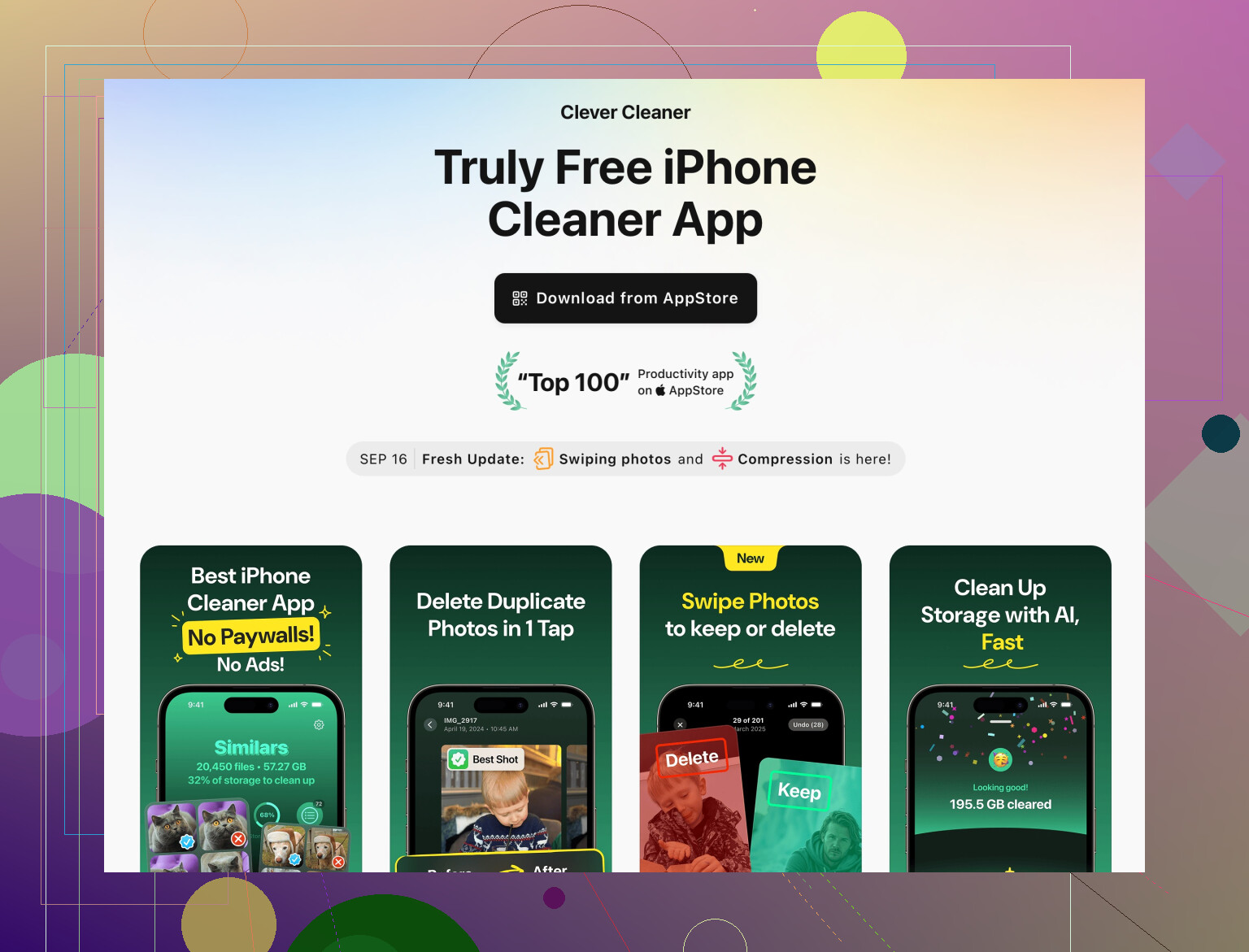
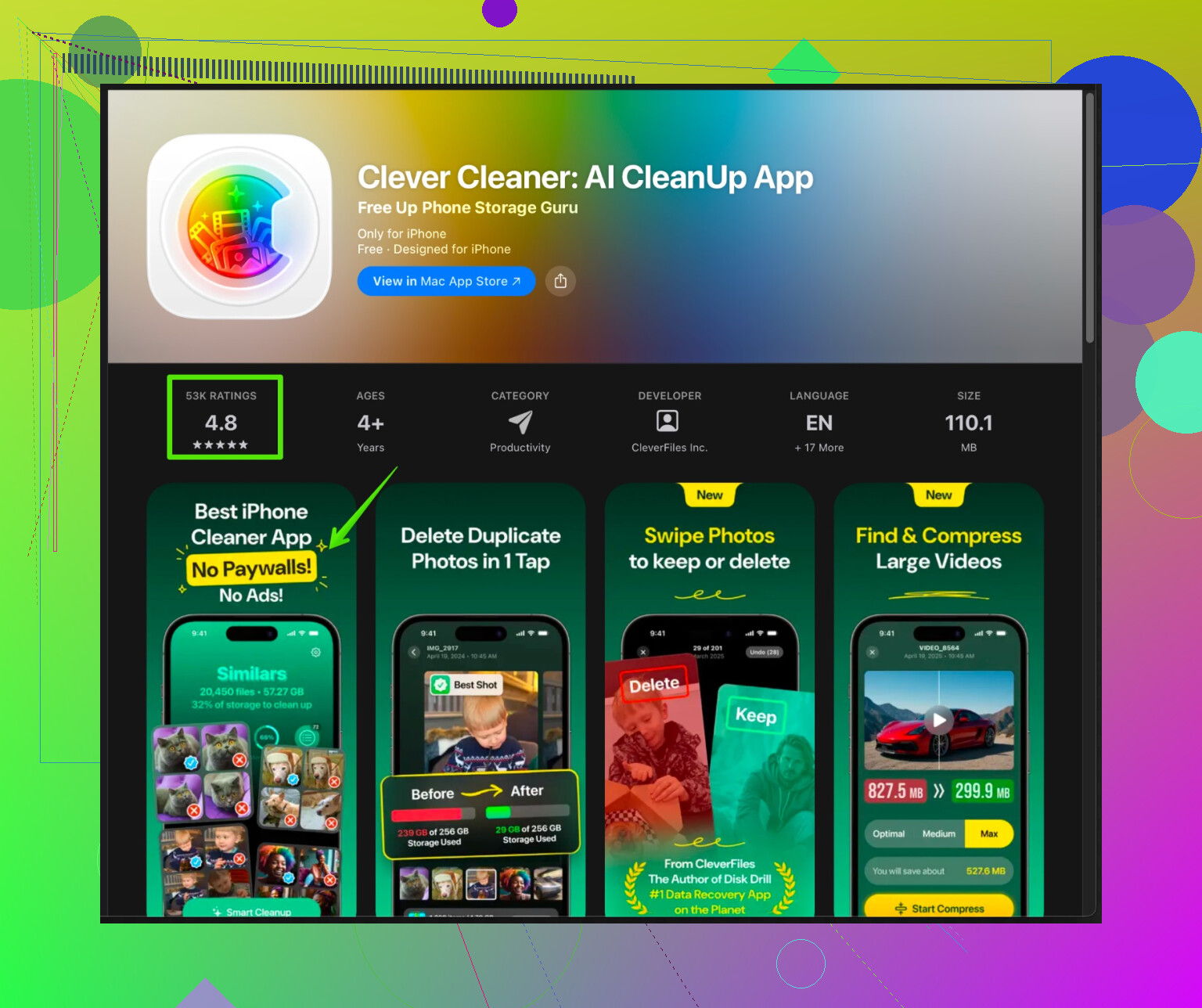
If you have a lot of duplicate photos, similar shots, old screenshots, or large video files, a dedicated cleaner helps.
The Clever Cleaner App for iPhone focuses on:
• Finding duplicate and similar photos
• Grouping screenshots and screen recordings
• Spotting large and old videos
• Organizing contacts with duplicate detectionThat kind of tool is useful if you hate going through thousands of photos by hand.
You can check it here:
smart cleanup for your iPhone storage -
Big reset option if storage is totally messed up
If “System Data” is many GB and you tried everything, the nuclear fix is:- Backup your iPhone to iCloud or a computer
- Go to Settings → General → Transfer or Reset iPhone → Erase All Content and Settings
- Set up iPhone as new, then restore from backup
This takes time but often recovers multiple GB from corrupt or bloated system cache.
Realistic expectations
• Clearing Safari and Chrome alone usually frees a few hundred MB to 1 GB.
• Big wins often come from apps with huge “Documents & Data”, old messages, and media.
• Keep at least 5 to 10 GB free if possible, or iOS and apps start to feel slow and glitchy.
Try Safari and Chrome cleanup first, then check iPhone Storage and target the worst offenders. The browser stuff helps some, but the big gains usually come from photos, videos, and chat apps.
13 Likes
Safari & Chrome are only part of the problem, tbh. Clearing their cache helps, but if your storage is “mysteriously” filling up, iOS itself and other apps are usually the real hoarders.
@hoshikuzu already covered the standard clears, so here’s some different stuff to try that actually moves the needle:
1. Stop iOS from re-bloating so fast
Safari and Chrome will just fill cache again if iOS is starved for space. Try this:
A. Turn off junky website permissions
- Settings → Safari
- Under “Settings for Websites,” set:
- Camera / Microphone / Location to “Ask”
- Turn off “Preload Top Hit”
- Disable “Background App Refresh” for Chrome and other browsers in Settings → General → Background App Refresh
This reduces how aggressively pages pre-load and sit in memory.
B. Limit tab hoarding
If you are a “120 open tabs” person, Safari will keep a lot of cached data:
- Settings → Safari → Close Tabs → set to “After One Week” or “After One Day”
Tabs auto-closing = less long term junk.
2. Hit the “invisible” storage hogs that act like cache
Instead of only thinking “cache,” look for stuff that behaves like it:
A. Mail & attachments
Mail can store gigabytes of cached attachments without showing clearly.
- Settings → Mail → Accounts
- Temporarily remove and re-add your main mail account (IMAP/Exchange accounts re-download only what they need).
This can quietly free a lot of space.
B. WhatsApp / Messenger / Telegram / social apps
Not repeating steps, but one thing people miss:
- Inside those apps, change “Media auto-download” or “Save to Camera Roll” to OFF or “Wi‑Fi only.”
This stops new junk from building up after you clean once.
3. Deal with “System Data” bloat the smarter way
If you go to Settings → General → iPhone Storage and “System Data” is huge:
Instead of immediately nuking the phone like some folks suggest, do this first:
- Restart the iPhone (not joking, iOS sometimes purges temp data only after a clean reboot).
- Leave at least 3–5 GB free for a bit. iOS cleans more aggressively when it has breathing room.
- Plug into Wi‑Fi and power for a while. Background cleanup and indexing actually need time and power.
If that does nothing and System Data stays absurd, then a backup + erase-all + restore is worth it. But that’s a last resort, not step one.
4. Photos cleanup that isn’t just “delete photos”
You already deleted photos, but two gotchas:
- Empty Recently Deleted in the Photos app manually. Until you do, they still use space.
- In Messages: big images and videos live inside conversations.
- Settings → iPhone Storage → Messages
- Go into Photos / Videos there and bulk remove large attachments without losing the entire chats.
That often saves more than wiping browser cache.
5. Let a cleaner app do the boring work
If your camera roll is a mess (duplicates, bursts, 30 similar selfies, massive old screen recordings), manual cleanup is torture.
An actually useful tool here is the Clever Cleaner App. It specializes in:
- Finding and removing duplicate / similar photos
- Grouping screenshots and screen recordings so you can mass-delete
- Spotting huge or old videos you forgot existed
- Cleaning up messy contact lists
If that sounds like exactly the annoying stuff you don’t want to do by hand, check this out:
smart iPhone storage cleanup with Clever Cleaner App
That will reduce how quickly your storage fills, which in turn keeps Safari and Chrome from grinding so badly over time.
6. Reality check on “clearing cache & cookies”
Bit of a disagreement with how people often talk about this:
- Clearing browser cache & cookies usually frees hundreds of MB, not tens of GB.
- The real monsters are media-heavy apps, messaging apps, and system data.
- Think of cache cleaning as “maintenance,” not a miracle cure.
So: do the Safari / Chrome clears once, then focus on message attachments, media settings, and a proper photos cleanup (possibly with something like Clever Cleaner App). That’s where the big space and speed gains actually show up.