I deleted photos from the Hidden album on my iPhone and cleared Recently Deleted, but some keep reappearing after iCloud sync. I need help figuring out if this is an iCloud Photos issue, a shared album, or a backup restoring them, and how to remove them for good.
The Hidden album can be weirdly annoying, especially after an iOS update when Apple moves small things around. The photos usually are not gone. The album is just either hidden from view, locked behind Face ID, or both.
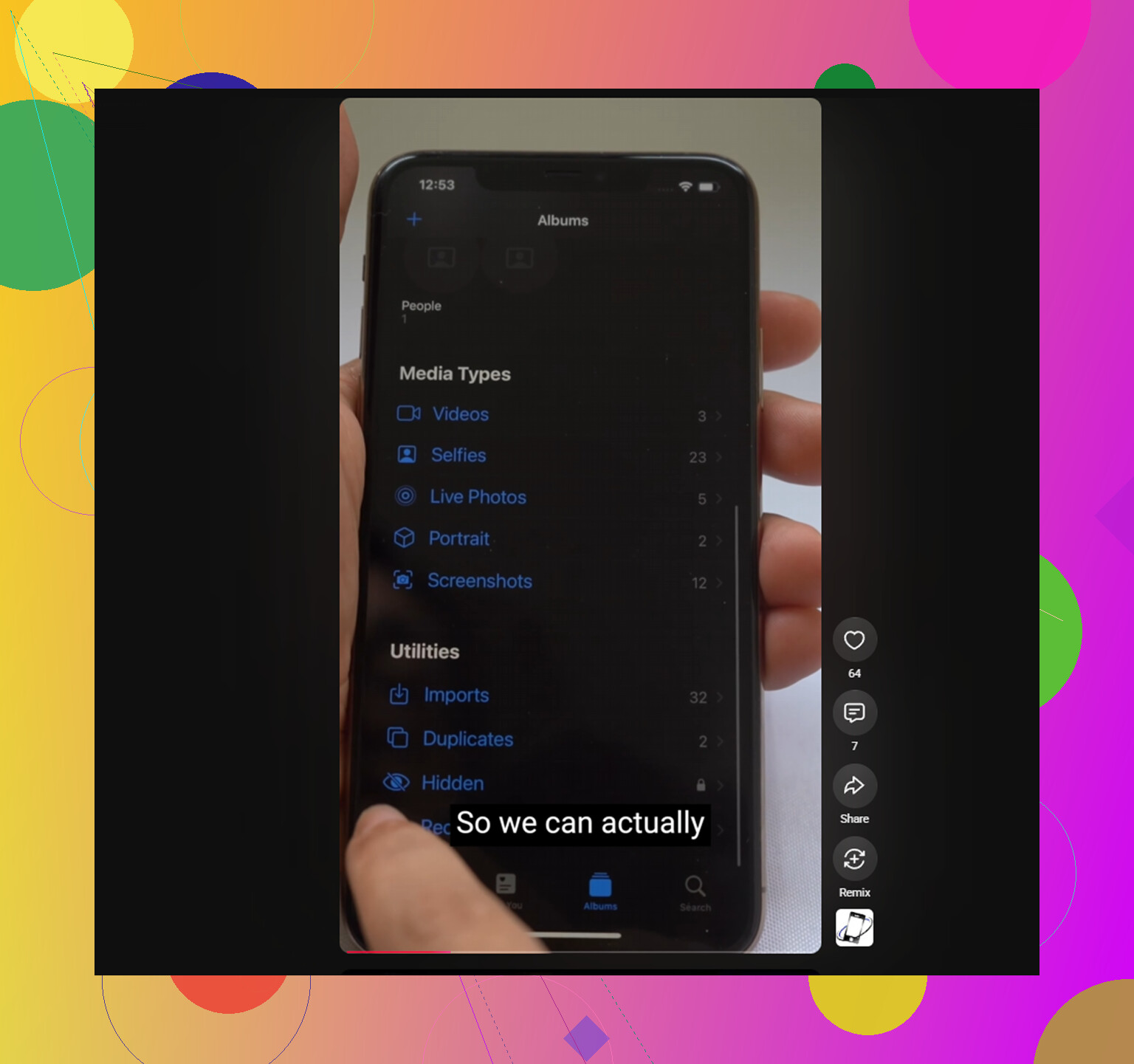
First thing to check: go to Settings, then Photos, and turn on Show Hidden Album. If that switch is off, the Hidden album will not show up in Photos at all. Once it is enabled, you should see it near the bottom of the Albums tab under Utilities.
If the album shows up but Face ID never pops up, restart the iPhone. Since iOS 16, the Hidden album is protected with biometrics, and Photos does not give you a built-in way around that lock. A hard restart usually clears the bug when the prompt gets stuck.
Once you are inside, you do not have to delete everything one picture at a time. Tap Select in the upper-right corner, then drag your finger across the photo grid to select a bunch at once. After that, tap the trash icon.
The part people often miss is that this does not free storage yet. Deleted photos go into Recently Deleted, also under Utilities, and they still take up the same space for 30 days. If you want the storage back now, open Recently Deleted after you clear Hidden and use Delete All.
And yes, if iCloud Photos is on, those deletions sync everywhere. The Hidden album is not some separate local vault. It is still part of the same iCloud photo library. Deleting something from Hidden on your iPhone removes it from the other devices using that Apple ID too. If items keep showing back up, it is probably a sync issue. Toggling iCloud Photos off and back on in Settings can force the library to re-index and usually fixes that loop.
Clearing Hidden may help, but it often points to a bigger problem: the main library is probably messy too. Old screenshots, repeated burst shots, near-duplicate photos, and huge videos tend to pile up quietly. When storage gets close to full, iOS has less room to work, and the whole phone can start feeling slow: camera launch, app switching, typing, all of it.
For the Hidden album itself, the cleanup has to be manual. Clever Cleaner cannot access Hidden because Apple blocks third-party apps from reading that folder.
For the rest of the Photos library, though, it can be useful. It is free, with no ads, subscription, or paywalled cleanup features.
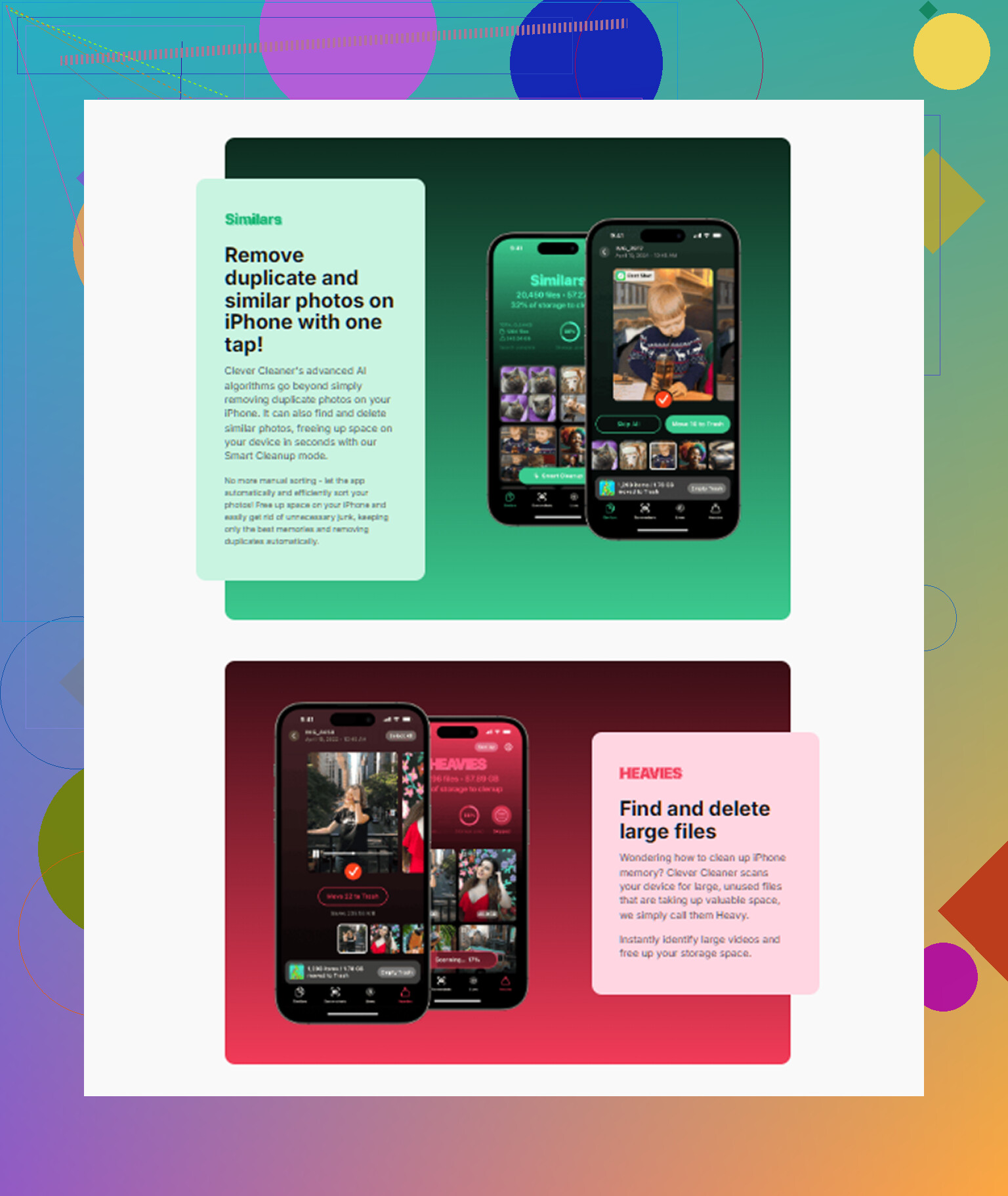
The Similars tab looks for groups of nearly identical photos across your normal library. It clusters them together, picks the sharpest one as the keeper, and lets you delete the extras in one tap.
The Heavies tab is also handy because it sorts files by actual size. Instead of hunting through years of videos, the biggest storage hogs show up right at the top.
Screenshots show their file size before you delete anything, which makes bulk cleanup easier to judge. The scan and cleanup also stay on the phone, so the library is processed locally rather than uploaded somewhere.
8 Likes
If the exact same photo returns after you delete it, that’s different from a fresh copy being re-added by another device. I’d check iCloud.com first, because that shows what iCloud Photos thinks is the real library. Delete one problem photo there, clear Recently Deleted there too, then watch whether it reappears before touching the iPhone again. If it comes back, look for another iPad, Mac, old phone, or Windows iCloud Photos setup still signed in and syncing an old local library. A shared album is less likely unless you saved the picture from it into your library again. A backup restore is usually only the cause if you recently erased/restored the phone, not from normal iCloud Photos syncing. I’d be careful with toggling iCloud Photos off and on until you know which device is reintroducing them, because that can turn a small sync loop into a long “syncing forever” mess.
Don’t restore anything until you know whether it’s the same asset.
@caminantenocturno is right that iCloud.com is the best place to judge what the library actually contains. The extra check I’d make before deleting is the photo info: filename, date, source device if shown, and whether you’re using iCloud Shared Photo Library. Shared Photo Library is different from a regular Shared Album, and another participant or another signed-in device can make this look like “deleted photos came back” when they were really reintroduced.
I’d push back a bit on toggling iCloud Photos off/on as an early fix. That can help sometimes, but if one Mac, iPad, old iPhone, or Windows iCloud client still has stale photos waiting to upload, flipping switches may just make the sync mess harder to read. First put every other device in airplane mode or sign it out of Photos temporarily, then delete one test photo from iCloud.com and clear Recently Deleted there. Wait a bit. If it stays gone, reconnect devices one at a time and you’ll usually catch the one feeding them back in.
A backup restore is probably a red herring unless you recently erased the phone. If iCloud Photos is enabled, the photos are syncing as a library, not behaving like normal backup contents. Hidden is only a label on the photo, not a separate vault, so focus on which device or shared library is adding the file back rather than the Hidden album itself.
Pick one photo that keeps coming back and unhide it temporarily before testing deletion. That sounds backwards, but it makes the troubleshooting cleaner because you can see whether it is returning to the main library first and then getting hidden again, or whether the Hidden flag itself is syncing back from somewhere.
I agree with the others that iCloud.com is the right place to test, but I would not assume “same picture” just because it looks identical. If the photo has a new “added” date, a slightly different filename, or shows up in Imports, then something is saving a new copy. That points away from iCloud Photos being broken and more toward another source feeding your library again.
The boring places to check are often the ones people miss: Messages attachments you saved, Files app folders, a Mac Photos library that was opened after being offline, iCloud for Windows, or an old iPad sitting in a drawer on Wi-Fi. A shared album usually will not force itself back into your personal library unless someone saves from it again, but an iCloud Shared Photo Library can be more confusing because another participant can affect what you see depending on where the item lives.
I would avoid restoring a backup for this. If iCloud Photos is on, restoring the phone mostly just reconnects you to the same cloud library, so you can waste hours and end up in the same spot. The cleaner test is: disconnect every other device from the network, delete the test photo from iCloud.com, empty Recently Deleted there, wait, then bring devices back one at a time. The device that makes it reappear is the suspect.
Clever Cleaner or any normal photo cleaner is not going to fix the Hidden album itself because third-party apps do not get normal access to that locked area. It can still be useful later for clearing duplicates and big videos from the regular library, but for this specific problem the job is finding the device, shared library, or app that is reintroducing the file. Otherwise you are just deleting the same mess over and over.
Check Settings, then Photos, and see if there’s a Shared Library section at all. People keep saying ‘it might be a Shared Photo Library’ but nobody’s told you how to confirm it in ten seconds. If that section exists and you’re a participant, deletions get weird fast, because moving a photo between Personal and Shared can look exactly like a delete that didn’t stick. If there’s no Shared Library entry, you can drop that whole theory and stop worrying about other participants.
The bit I’d push back on slightly is the heavy focus on other devices reuploading. That’s real, but there’s a quieter culprit: Recently Deleted syncs too, and it’s not always in the same state everywhere. If you cleared it on the phone while an old iPad was offline with those same items still sitting in its Recently Deleted, the iPad can effectively resurrect them when it wakes up. So @nachtschatten’s advice to airplane-mode the other devices is good, but I’d also empty Recently Deleted on each one individually once you reconnect them, not just on the phone.
On the ‘same asset’ question everyone’s circling, the fastest tell is the added date. Open the returning photo, swipe up or tap the info button, and look at when it was added versus when it was originally taken. Same original capture date but a brand new added date means something is re-saving a copy, not failing to delete the original. That single detail usually tells you whether you’re chasing a sync bug or a source that keeps importing.
I’d agree Clever Cleaner won’t touch this problem since Hidden is walled off from third-party apps, so don’t expect it to help here. It’s a reasonable thing to run afterward on the normal library once the reappearing photo is actually dead, but for the current mystery it’s beside the point.
One realistic expectation: even after you find the offending device, give iCloud a good while to settle before deciding it’s fixed. Sync can lag for a surprisingly long time, and a photo that’s ‘back’ for an hour sometimes just hasn’t caught up yet. Don’t start toggling iCloud Photos in a panic during that window or you’ll muddy your own test.