I accidentally used Shift+Delete on some important files, so they skipped the Recycle Bin and I can’t restore them normally. I need help with safe Windows file recovery options before I overwrite anything.
If you already emptied the Recycle Bin, don’t assume the file is gone instantly. Windows often just removes the file entry and marks that space as available again. If nothing has overwritten that space yet, recovery might still be possible.
First, check the Recycle Bin one more time. Search for the file name, but also look for the folder it used to be in. If the file was deleted along with a folder, it may be easier to spot that way. If you find it, right-click it and choose Restore.
If it’s definitely not there, stop using that drive as much as you can. Don’t install recovery tools on it, don’t download files to it, and don’t copy new stuff onto it. Even normal use can write new data over the deleted file’s old location, which makes recovery less likely.
Next, check whether Windows has a backup through File History. Go to the folder where the file used to be, right-click the folder, and choose Restore previous versions. Look through the available versions and pick one from before the file was deleted, then copy the file back.
You can also open File History here:
Control Panel > System and Security > File History > Restore personal files
Use the arrows to move through older backup dates and restore the file you need.
If there’s no backup, try recovery software. A tool like Disk Drill can scan for deleted files that Windows no longer shows.
The usual approach is:
- Install the recovery program on a different drive, not the one you’re trying to recover from.
- Select the drive where the file was deleted.
- Run the Search for lost data scan.
- Look through the results and preview anything that looks relevant.
- Recover the file to another drive.
A deep scan can sometimes find data even if the original filename or folder path is gone. Previewing helps you see whether the file contents are still readable, but still open the recovered copy afterward and check it carefully.
Disk Drill may include a limited amount of free recovery on Windows, but that limit can change. Check the current allowance in the app or on the official site before relying on it.
One more thing: if the deleted file was on an SSD, recovery can be a lot less reliable. Many SSDs use TRIM, which can clear the deleted data blocks after removal. If that has already happened, recovery software may not have anything useful left to restore.
The main thing is speed. The less you use the drive after deleting the file, the better your odds usually are.
12 Likes
If the files were on anything other than your C: drive, unplug that drive now and scan it from another PC. That is often safer than trying five different recovery programs on the same Windows install where the deletion happened. If the deleted files were on C:, shut down as soon as you can and use another computer to create a recovery USB or install the recovery app somewhere else.
I agree with the warning about not writing new data, but I’d be a little more cautious about scanning the original drive directly if the files matter a lot. A scan is usually read-only, but installing tools, saving results, browser cache, Windows updates, and temp files are the real problem. If you have another drive big enough, making a sector-by-sector image first is the safer route. Then you scan the image instead of repeatedly touching the original disk.
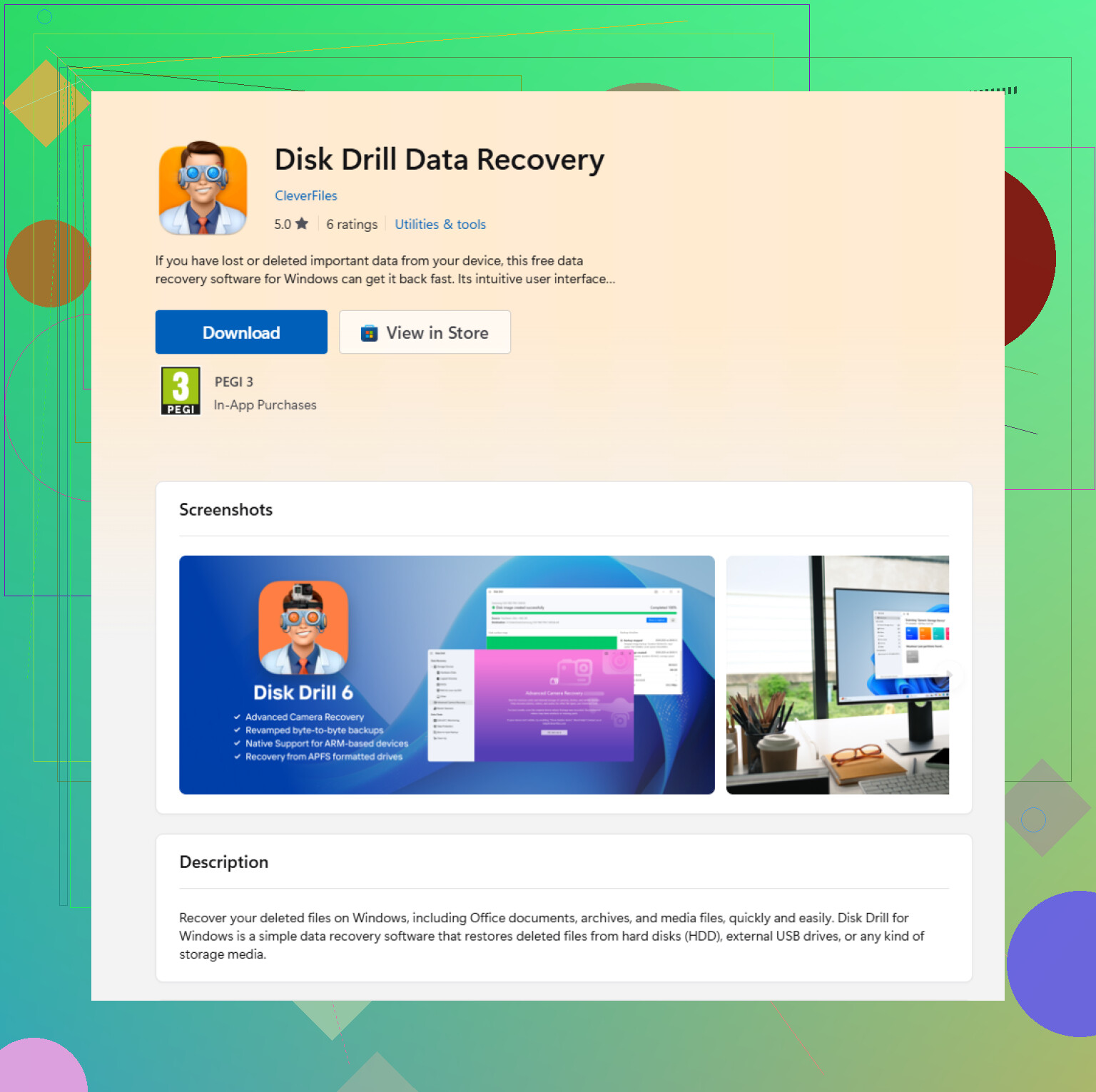
Disk Drill is fine to try if you want a normal interface and previews, but don’t recover back to the same drive. If you install it from the Microsoft Store listing for Disk Drill, remember that the install still lands on your Windows system drive. That matters if the lost files were deleted from C:. In that case, use a different PC or different drive for the install, then save recovered files to an external disk. If the scan finds files with weird names, check by file size, date, and preview rather than relying only on the original filename, since Shift+Delete recovery does not always preserve the folder structure cleanly.
Do not boot back into that Windows install just to “check one more thing” if the deleted files were on the same SSD. Every login, browser launch, update, thumbnail cache, search index update, and temp file can reduce your odds.
Shift+Delete is not really “Recycle Bin recovery” anymore. It is deleted-file recovery. That difference matters because the Recycle Bin keeps a normal restore record, while Shift+Delete removes the easy restore path and leaves you depending on backups, cloud history, file system records, or raw file carving.
Before running recovery software, I’d check the places that do not touch the damaged drive much:
Open the web version of OneDrive, Google Drive, Dropbox, etc. if the folder was synced. A Shift+Delete in Windows may still leave something in the cloud service’s online recycle bin or version history. People forget this because the local Recycle Bin is empty, but the cloud account may have its own deleted-items area.
Check whether the file was attached in email, uploaded somewhere, copied to a USB stick, saved in a chat app, or included in an old ZIP/export. That sounds obvious, but it is often safer than scanning the original disk for hours.
If it was an Office file, check Office’s recent files and AutoRecover locations, but be careful not to save anything back onto the same drive. Sometimes you find a temp or autosaved copy rather than the exact deleted file.
I agree with @andarilhonoturno on making an image first if the files are valuable. That is the boring answer, but it is the right one when the data matters. Scanning an image is less stressful because if the first tool gives messy results, you can try another tool against the image instead of repeatedly poking the original disk.
The catch is that imaging requires another drive at least as large as the used source area, and ideally as large as the whole disk. If you do not have that, then the next safest compromise is:
- Stop using the affected drive.
- Put the recovery tool on another computer or another drive.
- Scan the deleted-file drive as read-only.
- Save recovered files only to a different disk.
- Verify the recovered copies before assuming the job is done.
Disk Drill is fine for a more user-friendly scan and preview, especially if you are trying to identify photos, documents, videos, or archives without dealing with command-line tools. The preview is important. A filename showing up in scan results does not always mean the file is intact. If the preview fails, the recovered file may still be corrupt or only partly recovered.
A slightly cheaper route is to try Microsoft’s Windows File Recovery, but it is less friendly and can be confusing if you are not comfortable with command-line syntax. The same rule applies there too: do not install it onto the drive you are trying to recover from, and do not recover back to that drive.
For SSDs, keep expectations low. TRIM can make Shift+Deleted files disappear from recovery tools very quickly. It is not about the recovery app being bad. The drive may have already been told those blocks are no longer needed. On a hard drive, the odds are usually better if you stopped writing to it right away.
If you want a visual walkthrough before touching anything, this file recovery video may help, but watch it from another device if the deleted files were on your system drive.
Biggest mistake to avoid: finding the lost files in scan results and then recovering them to the same drive because it is the default or most convenient option. That can overwrite other deleted files during the recovery itself. Use an external drive, another internal drive, or a network location. Once you have the recovered copies safely elsewhere, then you can sort through the duplicates, renamed files, and damaged ones without risking the original drive further.

Do not run chkdsk, defrag, “drive cleanup,” or any repair tool on that disk first. Those can change the file system enough to make a recoverable Shift+Deleted file harder to piece back together, even before you try Disk Drill or any other scanner.
If you need to test something, test recovery to a spare USB or external drive, never back onto the same partition.