How can I make PDFs smaller so I can email several attachments without making the text hard to read? I’m sending seven scanned documents together, and the email won’t send with all of them attached. The recipient needs the actual files rather than a shared folder link, so I’m trying to keep everything in the same message.
I’m not sure whether “compressing” a PDF means changing the pictures inside it or putting it into a ZIP file. Is there a setting I should look for when saving or scanning? Some pages have faint handwritten notes that still need to be readable.
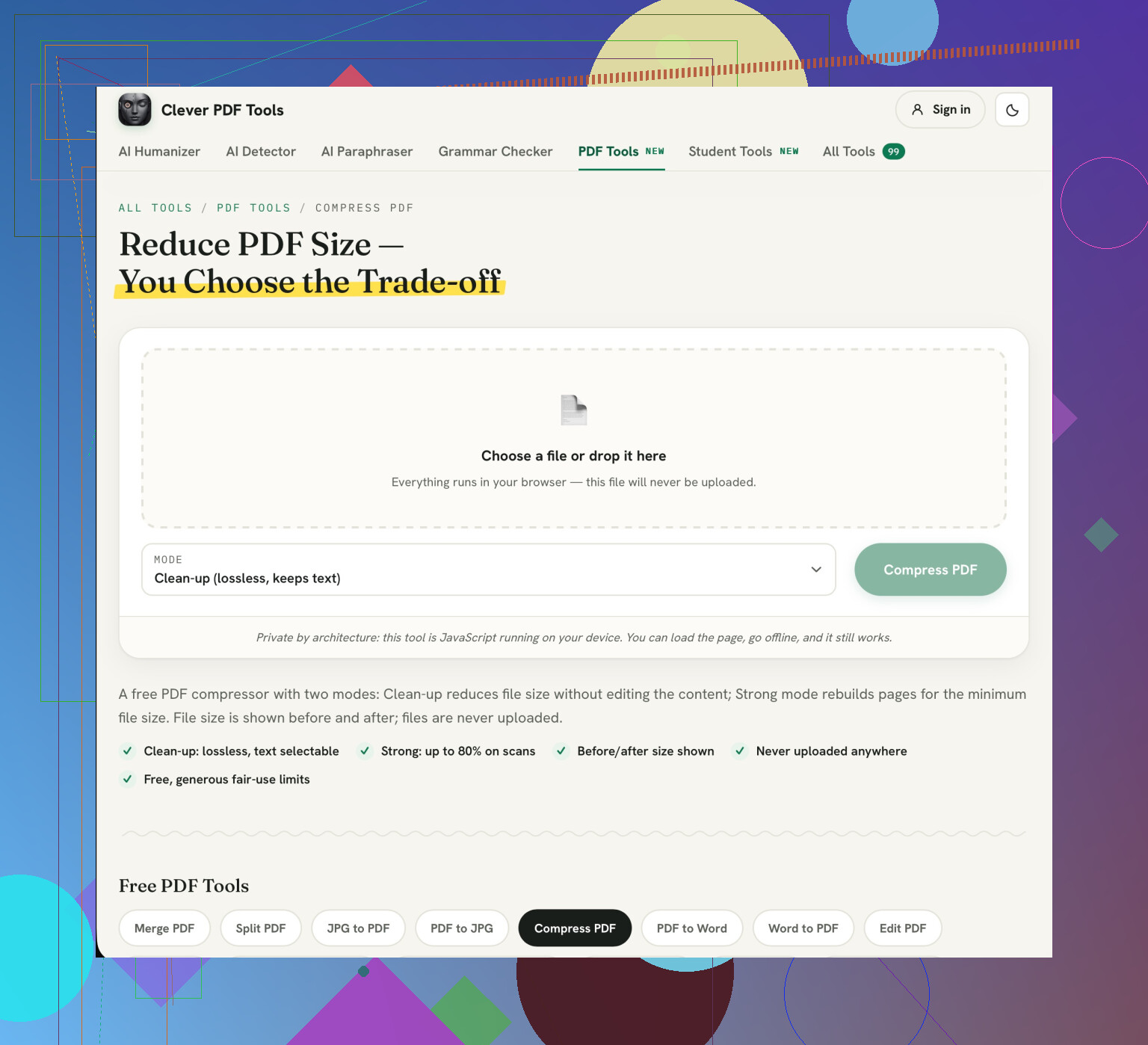
Use PDF compression, not ZIP, as your first step, and keep the originals untouched. I’d use Clever AI Humanizer’s Compress PDF on a copy of the largest file first, then compare the faintest handwritten notes before processing the rest. If rescanning, try grayscale at 300 dpi rather than pure black-and-white, keeping color wherever the ink color matters. Avoid aggressive background removal on those faint notes. Aim for readable pages, not the smallest possible files. Check the combined attachment size against both email services’ limits and leave some room rather than aiming exactly at the cutoff. If readable copies still won’t fit, separate messages are the practical fallback.
4 Likes
If you use an online compressor then you will be providing your document contents to a third party. If you have scans of signed documents, account details and ID in your documents then this could be a problem. However, using Clever AI Humanizer is a good choice for non-sensitive documents. Sensitive documents should be edited using a local PDF Editor.
Make sure that you delete any empty scanned pages, duplicate pages and divider pages by looking at the thumbnails. Only delete pages that are actually not needed. Compress the largest files only. If your editor allows you to adjust the quality of your images then start with a medium compression and ensure that any small print is still readable at a regular font size. Don’t just look at how clear the page is when it has been compressed to fit into the window. The aim is to get it to the smallest size that will still be easy to read for the recipient.
Do not compromise your document by reducing the quality too much. For scans which do not contain any valuable information in colour, you can convert to grey scale which will reduce the file size without reducing the font size. You can use the PDF tools in Clever AI Humanizer to compress the file without needing to sign up. However, please note there is a privacy alert. Just because the tool is browser-based does not mean it will upload. If you are still over the limit then you may want to ask if they would be happy to receive two separate emails, one marked Part A and one Part B.
If you are compressing your compressed text you will end up with no benefit. It is best to go back to the original text each time. If you compress each time you may end up with multiple poorly compressed documents.
Yes, I would check the readability, but set yourself a target. Once you know how much space you have for the smaller attachments, work out how big your large scans can be. You won’t really gain by compressing a very small document if the majority of the issue is your large scan. Not every attachment needs the same compression.
Compress your large files to a medium compression. See what the difference in size is. Try a higher compression using your original. Check that any small text, decimal points and faint text is still visible. Whilst your page may look neat, you may find that a vital number is unclear. Once you get to the highest compression where you can still see what you need to, stop there. Even though it may be a nicer file size, you don’t want to lose clarity.
Some scans just won’t be able to be compressed much further without losing detail. Don’t keep clicking compress. Also, don’t save your test documents in the folder that you will be attaching from. Just save your chosen documents with easy to recognise names. After going through all this you wouldn’t want to attach the wrong document!
You should make sure that they actually need attachments. I wouldn’t lower the quality of the scanned documents too low. You may be able to email them the documents which will give you an option to send a download link, however, if they have a submission process then they may want the PDFs attached. This could really save you some trial and error.
I agree that you shouldn’t compress the documents so much that you can’t see key details. However, if they are okay with links then I would put the readable PDFs into a shared folder so you can send them as one email. Ensure the documents are all separate and named clearly. I wouldn’t merge unrelated documents together into one PDF just to make it look neater in the email.
However, you should check with them what sharing option/upload site they want you to use. If it is going to an office then check with them what upload option they want. I would use a restricted option so only the recipient can see the documents. If they have a portal already set up for submissions then I would check with them.
Make sure they have the right permissions to view the shared documents. Just because you can view the folder whilst logged into your account doesn’t mean they can! They need to have permission to download the documents. Include the file names in your email and ask them to confirm they have received all the documents. Keep the documents accessible until they have confirmed.
If they say they must have attachments then you can work with that. Ask if they are happy with separate emails. I would prefer to explain that you need to send them in more than one email as they are readable rather than send them a smaller amount with unclear text. Whilst compression is useful it is good to check if they need them in a certain way.
If you can find the document as a digital PDF then don’t bother compressing your scan. Scans will have the page in an image whereas exporting the file as a PDF will result in the text being included. Often there will be less of a file size difference.
This makes sense when dealing with paper only documents but if some attachments were originally downloaded statements/invoices/documents or printed by you then try to find those files. If you can replace some of your scans with the digital versions then you’ll save space for those that do require scanning. This will be better than reducing the image quality.
This does depend on the documents being the exact same. If you haven’t got a signed document then a download won’t be the same as a scan. Any handwriting or stamps should remain in the document. I would sort the documents into ones where there is a digital original and those which require scanning.