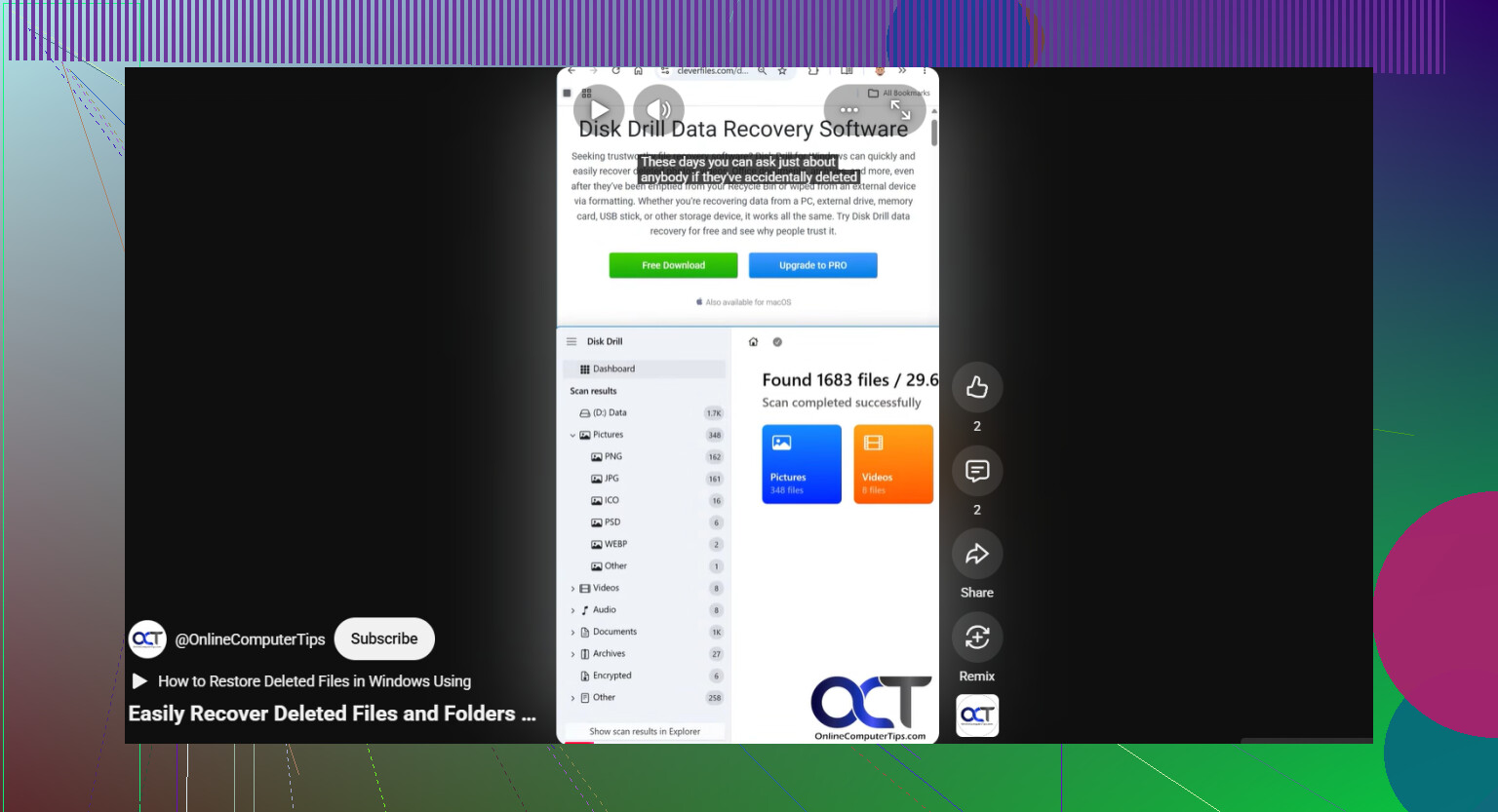
My external hard drive suddenly shows most of my files as missing, but the drive is still detected by my computer. I really need help recovering the data without formatting the drive because it has important photos, work documents, and backups I haven’t saved anywhere else. I’m looking for safe ways to restore missing files from an external hard drive before I make things worse.
I ran into this once with a USB drive, and the first symptom was creepy simple. The drive showed up in Windows. The folders did not. I thought I had wiped years of stuff by mistake. Turned out the file system was messed up, not the data itself. Most of it came back.
If your external drive still appears in Windows, I would not assume the files are gone for good. There is still a fair shot the data is sitting there and the directory info got scrambled. What matters now is what you do next. A few common ‘fixes’ tend to make recovery harder.
First thing, stop writing to the drive.
Do not copy new files onto it. Do not format it. Do not run CHKDSK yet. Do not hit random repair buttons. Those tools write changes to the file system, and if your missing files still exist, you want the drive left as untouched as possible.
A few basic checks are worth doing before recovery:
- In File Explorer, enable Hidden items. I have seen files look ‘gone’ when they were only hidden.
- Look at used space on the drive. If the folders look empty but the drive still shows a lot of used space, that is a good sign. It often means the files are still there and Windows is failing to show them properly.
- Swap the USB cable or try a different port. Sounds dumb. I did this once and it ruled out a flaky connection fast.
If none of those helps, and you do not have a backup, I would skip repair attempts and go straight to recovery software.
What I would use is Disk Drill. I liked it because it did not make me guess much, and it supports the file systems people usually have on external drives. The part I care about most is the disk imaging option.
That matters more than people think. If the drive is unstable, or it drops connection once in a while, scanning the physical drive over and over is risky. A disk image gives you a full copy of the drive’s contents, including damaged file system data and deleted entries. Then you work from the copy, not the original. I wish more people did this first.
This is the order I would follow:
- Install Disk Drill on your internal drive, or on some other healthy disk. Do not install it onto the external drive with the missing files.
- Plug in the external drive and open Disk Drill.
- If the drive disconnects, hangs, or acts weird, make a disk image first with Disk Drill’s built-in tool. Scan the image after, not the original device.
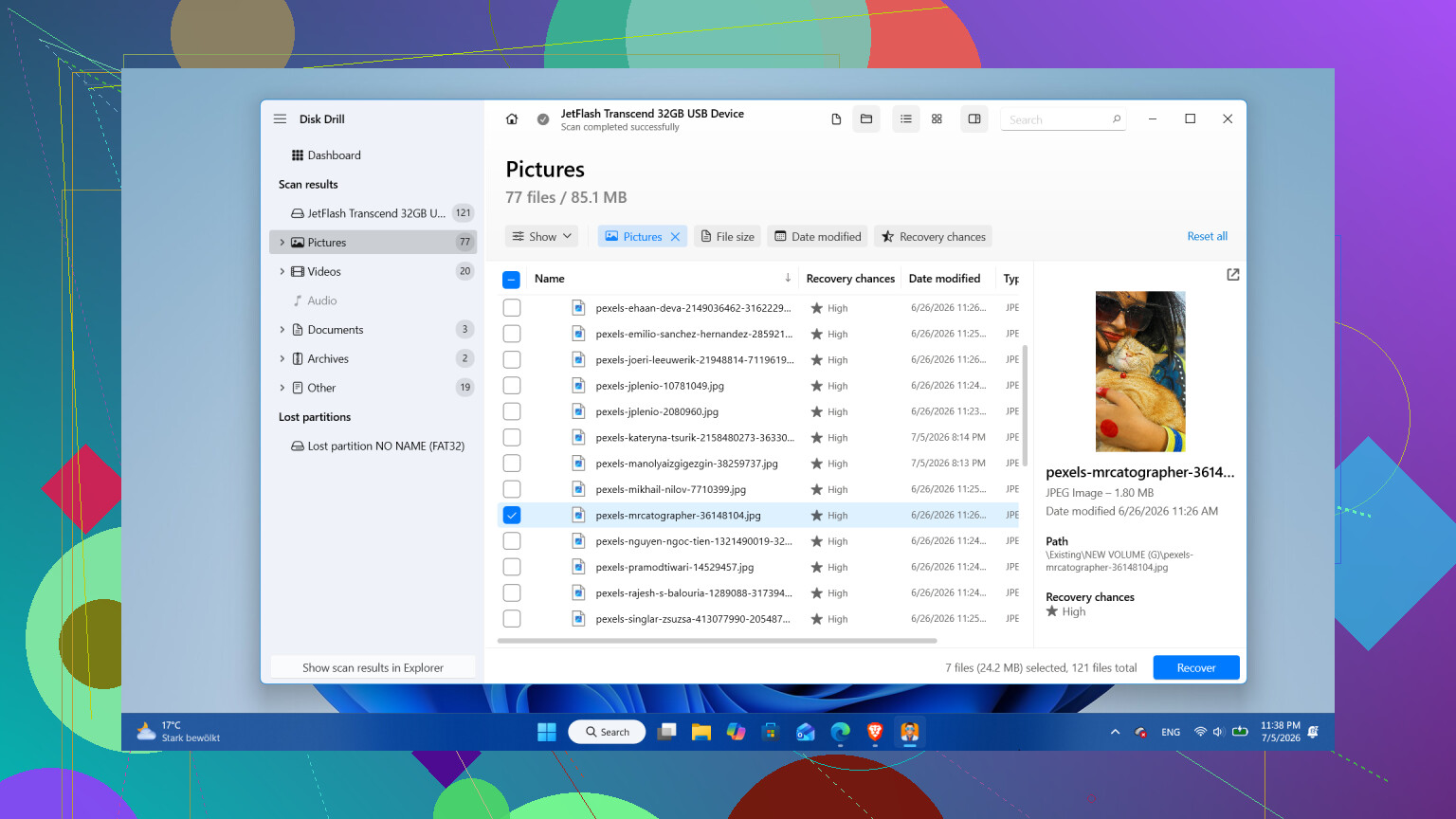
- If the drive seems stable, select it and start Search for lost data.
- When it asks for scan type, I would pick Universal Scan. That mode rolls multiple recovery methods into one pass. It checks for deleted files, missing partitions, damaged file system records, and file signatures. Less guesswork.
- Let the scan finish. On big drives it drags. I know. Still worth waiting, because more files often show up later in the scan.
- Go through the results, use filters if needed, and preview a few files you care about. I always test a couple photos and docs first so I know the results are not junk.
- Recover the files to a different drive. Never send recovered files back to the same external drive.
If you are on Windows, one useful detail is Disk Drill lets you recover up to 100 MB for free. That is not enough for a huge photo archive, no. But it is enough to test whether your files are recoverable before spending money.
Only after the important stuff is copied elsewhere would I mess with repairs or formatting.
One place I would stop and change course is physical failure. If the drive clicks, grinds, disconnects every few minutes, reads at a crawl, or vanishes from Windows randomly, I would quit using it. Those are bad signs. Powering it on again and again sometimes makes the damage worse. At that point I would look for a professional recovery lab instead of software.
And yeah, if you get your files back, I would think hard about retiring the drive. Drives do not start losing folders for fun. Sometimes it is a one-off file system issue from unsafe removal. Sometimes it is the start of a dying disk. If it keeps dropping out of Windows, shows bad sectors, or loses data again, I would not trust it with anything you care about.
I learned this the annoying way. The disk is replaceable. Your files are not. Recover first, replace the drive if it feels sketchy, and keep a second copy somewhere else after.
4 Likes
If the drive shows up and your files look missing, I would check for a file system issue before doing anything destructive. @mikeappsreviewer is right about avoiding format. I also would hold off on CHKDSK at first. It fixes structure by changing structure, and sometimes those changes make recovery worse.
A few things to inspect:
- Open Disk Management. See if the partition shows the right size and file system, like NTFS or exFAT. If it shows RAW, the data is often still there, but the file system record is damaged.
- Open Properties on the drive. Compare used space versus free space. If 800 GB is still used on a 1 TB drive, your files did not vanish into thin air.
- Check SMART health with CrystalDiskInfo or the drive maker’s tool. Reallocated sectors, pending sectors, and CRC errors matter. CRC errors often point to a bad cable or enclosure, not dead data.
- If this is an external HDD in a USB enclosure, test the enclosure. I have seen the SATA to USB bridge board cause missing folders and random read errors. Same disk, different enclosure, files came back.
If the drive health looks shaky, clone it first with a sector-by-sector tool. I lean toward ddrescue for failing disks more than app-based scanning, since it handles read errors better and keeps a log. Then scan the clone. If the drive is stable, Disk Drill is a solid choice for a non-format file recovery pass. Preview files before recovery. Save recovered data to another disk, not back onto the problem one.
One more thing people skip. Look for file system snapshots or previous versions if the drive was used with Windows File History or Mac Time Machine before. Low odds, but worth 2 minutes.
For a solid roundup of data recovery software discussions, this thread helps: best data recovery software recommendations from Reddit users
If the drive starts clicking, stalls Explorer, or drops offline, stop there. Software is the wrong move at taht point.
If the drive is still detected, I’d actually check for one stupid-simple thing before going full recovery mode: file path weirdness and user profile permissions. I’ve seen external drives look “empty” because the top-level folders got renamed, moved into a hidden “found” folder, or Windows suddenly decided the current account didn’t have proper access. Right click the drive, Properties, Security, and make sure your account can read it. Also use search from the root of the drive with a known filename or even just *.jpg / *.docx.
I agree with @mikeappsreviewer and @hoshikuzu on not formatting, but I’m a little less eager to run repair tools or scan immediately if the drive seems stable. First I’d check whether the files are showing in command line:
dir X:\ /a /s
That can reveal hidden/system files that Explorer skips.
If the directory structure is toast, then yeah, Disk Drill is a reasonable move. It’s one of the better data recovery software tools for external hard drives options for scanning missing files without formatting. Main thing is recover stuff to another disk, not back to the same one. If filenames/folders matter, prioritize scans that rebuild the original file system view first, then fall back to signature recovery only if needed.
Also check Recycle Bin on the external drive if it’s NTFS. Sounds silly, but yeah… it happens.