My iPhone storage is almost full, and I think downloaded files, photos, and app content are taking up too much space. I’m not sure where to find all my downloads or how to remove them safely without deleting something important. I need help figuring out the quickest way to clear downloads and free up storage on my iPhone.
I ran into this on my iPhone a while back. I thought “downloads” meant one folder, one cleanup, done. Nope. iOS scatters stuff around, so deleting one pile leaves the rest sitting there.
Where your downloaded stuff ends up
There isn’t one master Downloads location for the whole phone. What I found looked more like this:
- Safari saves downloads into the Files app
- Downloaded songs stay inside the Music app
- Offline stuff from apps like Netflix or Spotify stays inside those apps
- Chrome and Firefox keep their own folders inside Files
So if your storage barely moves after deleting something, this is ususally why.
Clearing downloads from the Files app
This is the spot most people need first, since Safari dumps files here.
- Open Files and tap Browse
- Under On My iPhone, open Downloads
- Check browser folders too, like Chrome or Firefox, if you use them
- Tap the three-dot menu, hit Select, pick the files, then delete them
The part I missed the first time, and it matters. Deleting there only moves files into Recently Deleted. They still take up space until you empty that too.
So after deleting:
- Go back to Browse
- Open Recently Deleted
- Remove everything from there
If you skip that step, storage often stays almost the same.
Removing Safari’s download list
This one fooled me for a minute. Clearing the Safari download list does not erase the files.
Go to Safari, tap the Downloads icon, then tap Clear.
That wipes the history list only. The files still need to be removed from the Files app.
Deleting downloaded music without tapping forever
If your storage is packed with offline music, there’s a faster route.
Go to Settings > Music > Downloaded Music. Tap Edit, then use the red minus next to All Songs.
This removes the local copies from your phone. Your library stays in place for streaming later.
Finding downloads trapped inside apps
This is where the big chunks hide. Netflix, Spotify, YouTube, and similar apps keep downloaded content inside the app. You won’t see those files in Files at all.
The easiest check I found:
Settings > General > iPhone Storage
Wait for the storage bar to load, then scroll through the app list. It sorts by size, so the fattest apps float near the top. If one app is eating 20GB, there’s a good shot offline downloads are the reason.
Open the app itself and look for a section named Downloads, Offline, or something close to it. Delete from there.
Why this cleanup helps when the phone feels slow
When iPhone storage gets squeezed too hard, the whole thing starts acting rough. I saw app crashes, laggy camera startup, and random stutter switching screens. Clearing downloads helps because iOS needs free space for temp files.
Still, on my phone, downloads were only part of the mess. Photos and videos were the bigger problem by far.
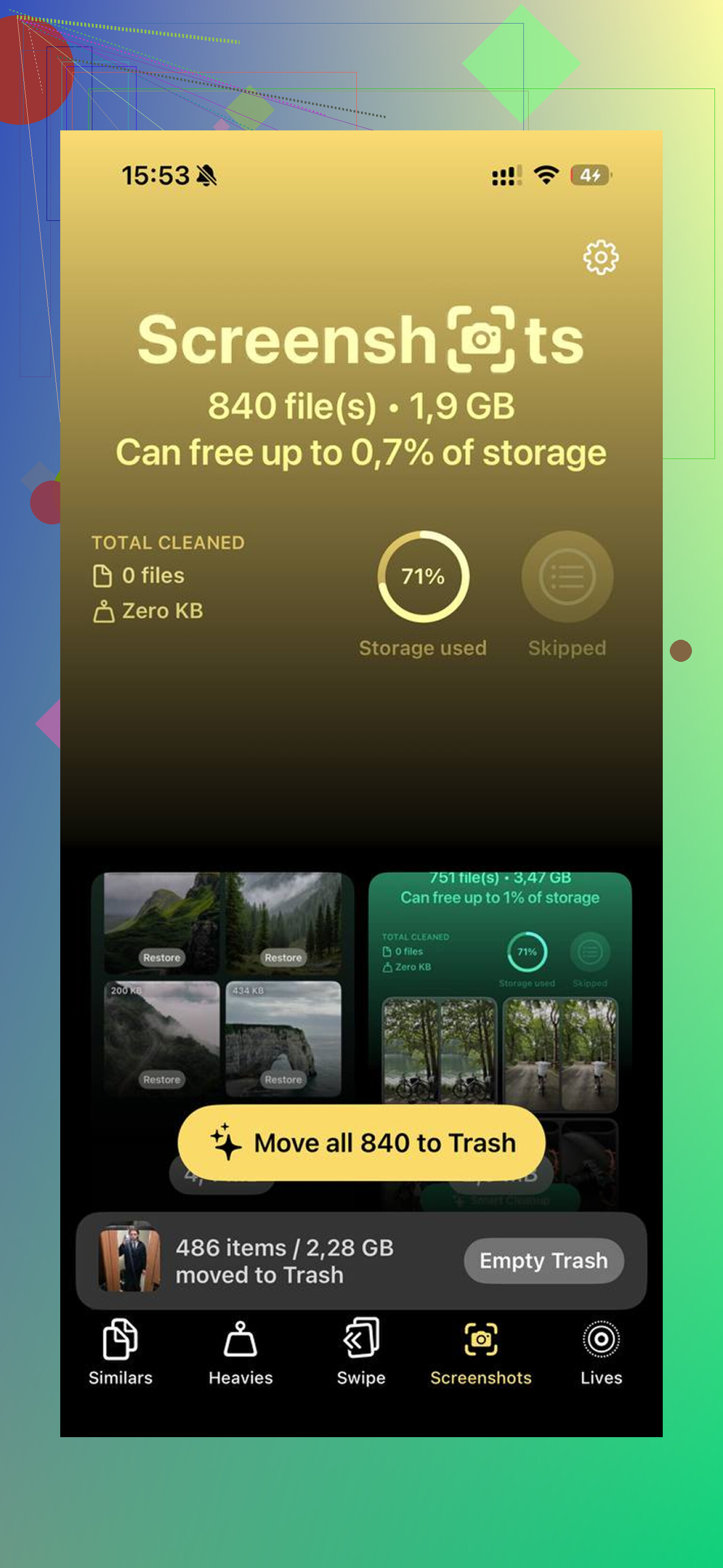
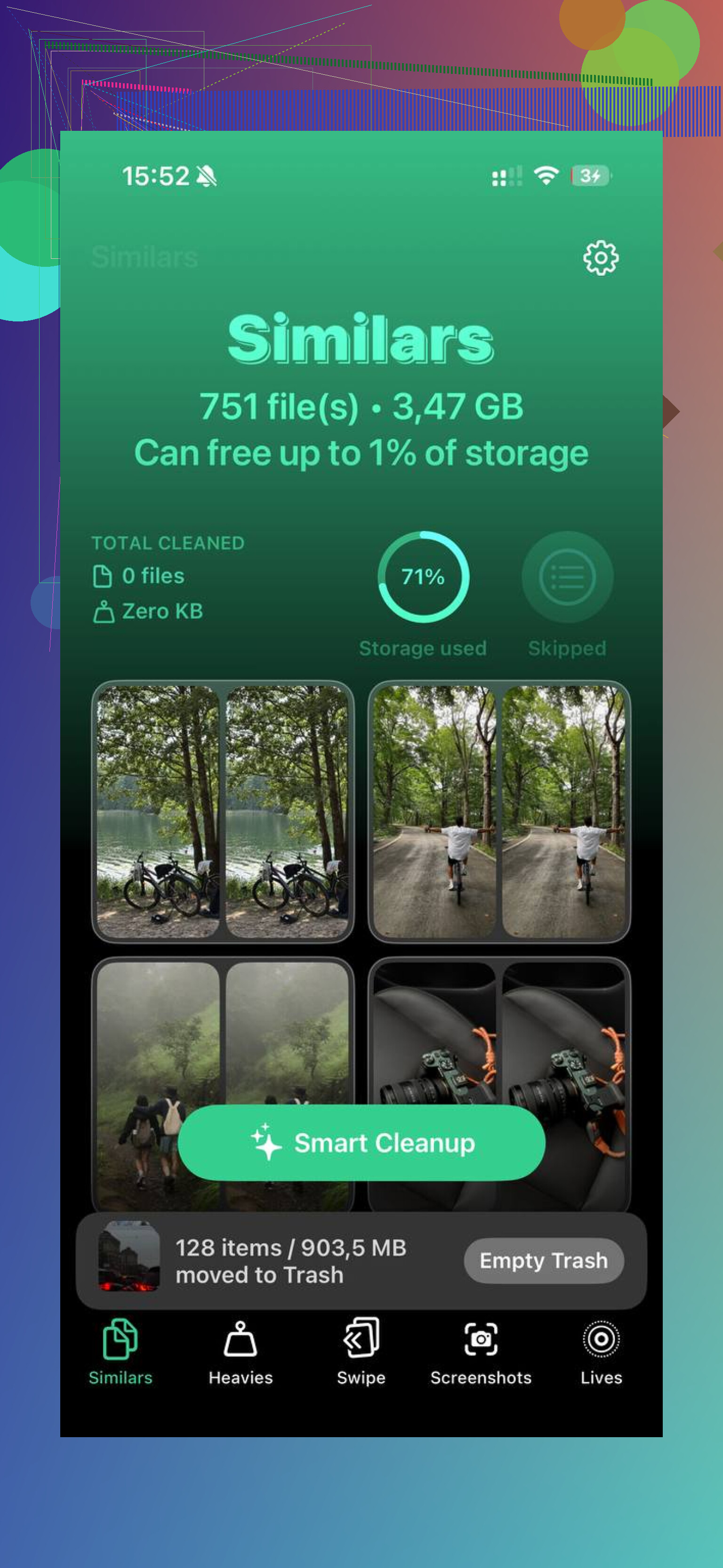
Clever Cleaner handles the media side of the cleanup and is completely free with no ads and no subscription. The Heavies tab sorts every file from largest to smallest with exact sizes shown. The forgotten 4K videos doing the most damage are easy to spot there. The Similars tab uses AI to find near-identical photos and picks a Best Shot from each group, so burst photos go fast. Everything processes on the device with nothing uploaded externally.
After I cleared the manual downloads and ran Clever Cleaner on the photo library, I got back around 40GB. The lag was gone after tht.
2 Likes
One thing I’d add to what @mikeappsreviewer said, check Messages. A lot of people miss it, and it eats storage fast.
Go to Settings > General > iPhone Storage > Messages. You’ll see categories like Photos, Videos, GIFs, and Stickers. Delete the big stuff there first. Old group chats are storage hogs.
Also check Mail. The Apple Mail app keeps downloaded attachments and cached message data. If Mail is huge, remove and re-add the account. Crude fix, but it works more often than people admit.
For app cleanup, I don’t always agree with deleting whole apps first. Offload App is safer. Go to Settings > General > iPhone Storage, tap an app, then choose Offload App. This removes the app but keeps its documents and settings. Good for apps you rarely use.
For photos, use iPhone Storage recommendations like Review Large Attachments and Review Downloaded Videos if they appear. If your library is the main problem, Clever Cleaner is worth a look. It helps free up iPhone storage by finding large videos, duplicate shots, and extra screenshots fast. This see how Clever Cleaner clears iPhone storage fast clip shows what it does.
Small tip, restart the phone after a big cleanup. Storage totals sometiems lag behind for a bit.
One thing I’d do that neither @mikeappsreviewer nor @espritlibre really leaned on enough is checking what is actually removable before deleting stuff blindly.
Go to Settings > General > iPhone Storage and wait a minute. Look at the color bar. If System Data or iOS is the giant chunk, your problem may not really be “downloads” at all. People start deleting random files and then wonder why they only got back 800MB. Kinda annoying, tbh.
A few extra spots worth checking:
- Podcasts app: downloaded episodes pile up fast
- Books app: PDFs and audiobooks can sit there forever
- Voice Memos: sneaky storage hog if you record a lot
- WhatsApp/Telegram: media downloads and cached videos can get massive
- Safari Reading List offline cache: small individually, but it adds up
Also, I slightly disagree with the “just offload apps” approach if storage is critically low. Offloading keeps documents/data, so if the app’s junk is in its data container, you may not free much. Sometimes deleting and reinstalling the app is the only thing that clears bloated cache properley.
If photos are the real issue, use Optimize iPhone Storage under Settings > Photos before mass deleting. Much safer if you use iCloud Photos.
And yeah, if your camera roll is chaos, Clever Cleaner is one of the better ways to clear duplicates, large videos, and screenshots without spending all night swiping. This article gives a solid breakdown of what it does: full Clever Cleaner for iPhone review and feature breakdown.
Last thing: after cleanup, open Recently Deleted in Photos and Files. That part gets missed almsot every time.
One thing I’d add to what @espritlibre, @cacadordeestrelas, and @mikeappsreviewer covered: check your browser cache and downloaded website data, not just actual files.
Go to Settings > Safari > Clear History and Website Data. That can free space if Safari has been hoarding cached pages, video fragments, and logins. Slight disagreement with the “downloads are usually the main issue” angle though. On a lot of iPhones, the bigger waste is app cache, not true downloads.
Also worth checking:
- Settings > Accessibility > Spoken Content > Voices for downloaded Siri/voice files
- Settings > General > iPhone Storage > TV for downloaded movies/episodes
- Maps app if you saved offline maps
- GarageBand/iMovie if you ever made projects. Those files get huge
For photos, I’d avoid mass deleting before checking if a cleaner can sort the junk first. Clever Cleaner is decent for that.
Pros of Clever Cleaner
- fast at finding duplicates and big videos
- good for screenshot clutter
- easier than hunting manually
Cons of Clever Cleaner
- less useful if your storage issue is mostly app cache
- you still need to review results so you do not remove wanted photos
- won’t fix bloated System Data
Biggest overlooked move: after cleanup, leave the phone charging and connected to Wi-Fi for a while. iOS sometimes recalculates storage later, not instantly.