I accidentally deleted a partition on my Windows PC while managing drives, and now the data I need is no longer accessible. I’m trying to restore the deleted partition without formatting the drive or losing important files. What’s the safest way to recover a deleted Windows partition and protect my data?
I went through this once, and the first thing I learned was simple. Don’t write anything else to that drive.
When a partition gets deleted, Windows often removes the partition record first. Your files might still be sitting there untouched. The danger starts when you create a new partition, format the empty space, or copy fresh data onto the same disk. That is where recovery starts falling apart.
So here’s what I’d do.
Open Disk Management and check how the drive shows up. If the partition still appears but has no drive letter, adding a letter might fix the whole thing in two clicks. If the area shows as Unallocated, I’d skip the guesswork and recover the files first.
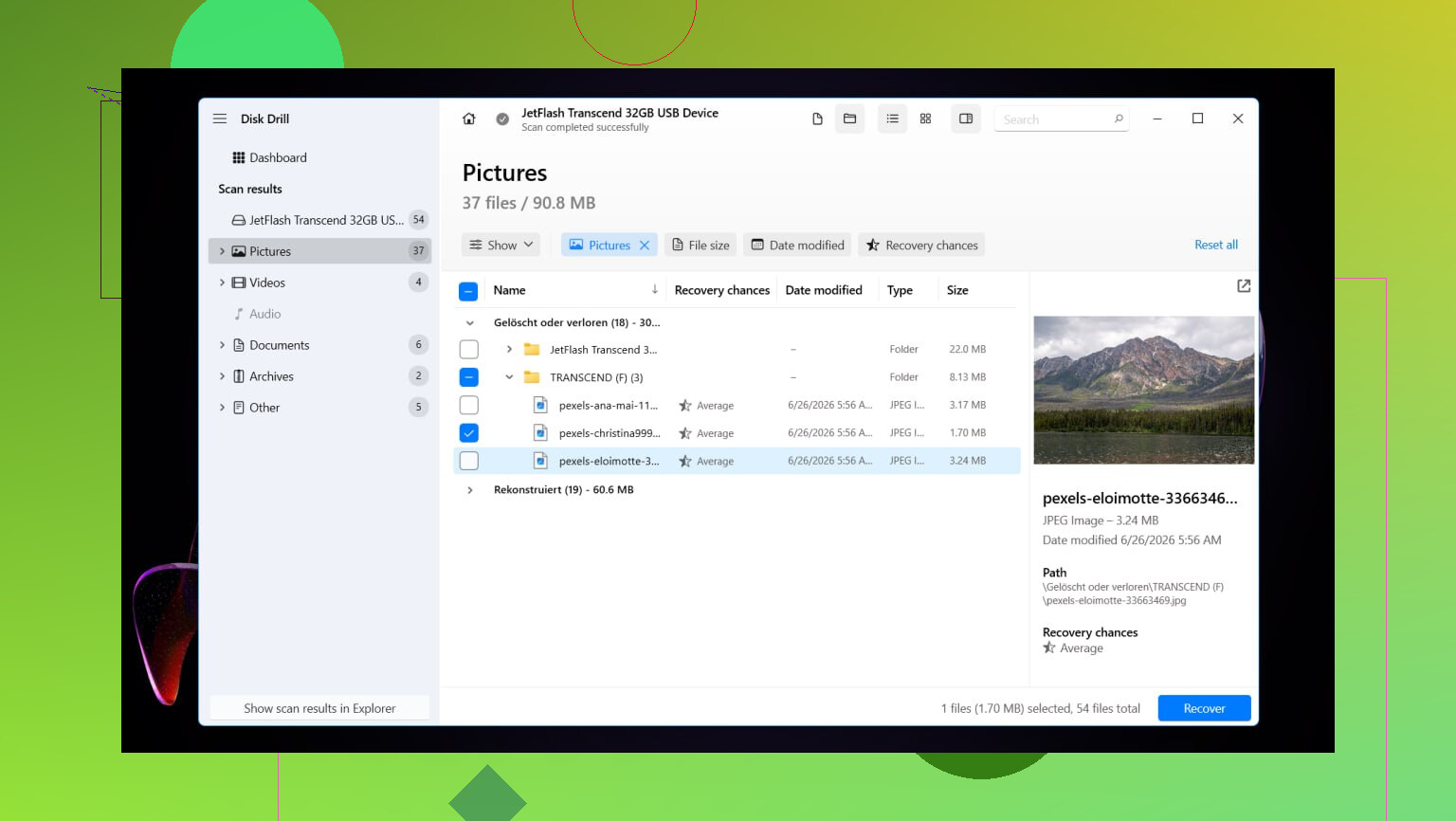
I had decent results with Disk Drill. What I liked was how it picked up deleted partitions and, in my case, kept folder names and filenames mostly intact. That saved me from sorting a pile of random recovered stuff later.
Here’s the basic recovery flow I used:
Install Disk Drill on a different drive. Don’t put it on the disk you’re trying to recover.
Open it and pick the physical drive where the deleted partition used to live.
Hit Search for Lost Data. On external drives, it might ask for a scan type. I’d pick Universal Scan for normal cases. If the source was a camera card or drone footage, use Advanced Camera Recovery.
Let the scan finish. If it finds the deleted partition, open it and look through the contents.
Preview a few files. I always do this before recovering anything.
Select the files you want and click Recover.
Save everything to another drive, not back to the same one.
After your files are safe, you’ve got two paths. You can try to restore the old partition layout with TestDisk, or you can make a fresh partition in Disk Management, do a quick format, and copy the recovered files back. If your goal is getting back to work fast, the second route is usually less annoying.
I did this on Windows 11. Windows 10 is close enough here. A few menus look different, but the steps are the same.
Restore the old partition with TestDisk
If you want the original partition back instead of only pulling files off the drive, TestDisk is worth a shot. It’s free, and when the partition table isn’t too messed up, it works surprsingly well.
Download TestDisk, extract it, and run testdisk_win.
Choose Create so it makes a log file.
Select the physical drive where the deleted partition was.
Accept the partition table type it detects.
Pick Analyse, then run Quick Search.
If nothing useful appears, run Deeper Search.
When the missing partition shows up, highlight it and choose Write.
Confirm the change and restart the PC.
If the partition table wasn’t overwritten too badly, the partition should come back after reboot.
Make a new partition instead
If you already recovered the important files and only want the drive usable again, this is the quicker route.
Press Win + X and open Disk Management.
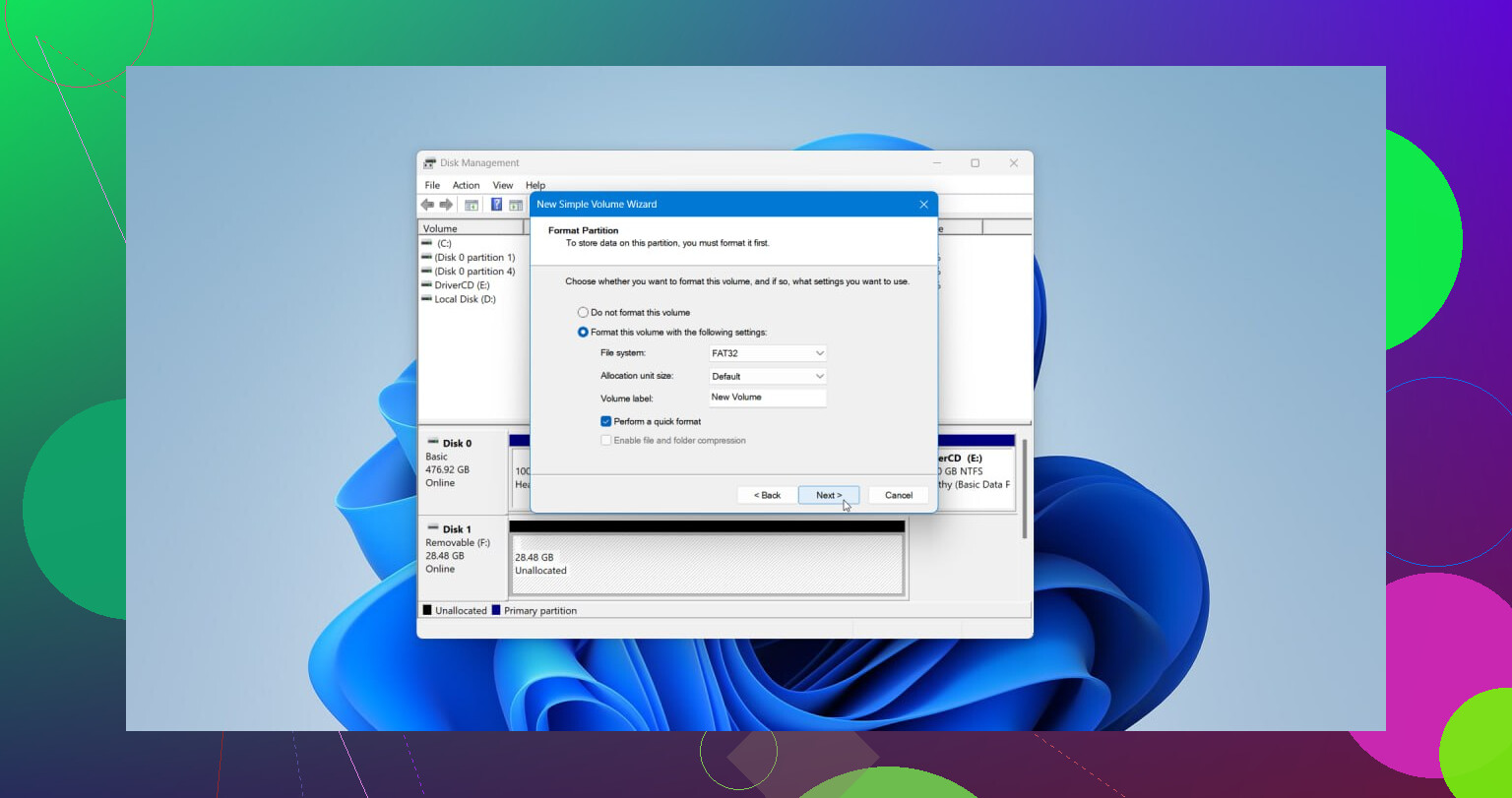
Right-click the Unallocated space and choose New Simple Volume.
Go through the wizard, set the size if needed, assign a drive letter, and pick NTFS or whatever file system fits your setup.
Keep Perform a quick format checked, then finish.
Once the new partition is ready, copy your recovered files back over and you should be good.
8 Likes
Stop using the drive first. Every write lowers your odds.
I agree with @mikeappsreviewer on one part, recover your files before you try to rebuild anything. Where I disagree a bit is jumping straight into rewriting the partition table. If you pick the wrong entry in TestDisk, things get messy fast. I’ve seen people turn one deleted partition into two broken ones.
What I’d do first:
- Check SMART health with CrystalDiskInfo. If the drive shows Caution or Bad, clone it first with HDD Raw Copy Tool or ddrescue.
- Open Windows Event Viewer and look for disk errors. If you see I/O or bad block events, stop working on the original disk.
- Use Disk Drill to scan the whole physical drive, not the empty space. It’s one of the better options for deleted partition recovery on Windows because it often reconstructs the lost volume structure and keeps filenames intact.
- Export the scan session if the tool allows it. On big drives, rescanning wastes hours.
- Recover the most important files first to a different disk.
If the partition was deleted only minutes ago and nothing got written after, partition restore success is often high. Once new data lands on the same sectors, recovery rates drop hard. That’s why speed matters.
If you want a quick visual, this Windows data recovery video guide covers the basics in a simple way.
After your files are safe, then fix the partition layout or recreate it. Files first, repair second. Safer path, less pain, fewer ‘oops’ moments.
Big thing nobody mentions enough: sometimes the partition is ‘deleted’ but the file system is still fully there, and Windows just lost the map. In that case, I would not rush to rebuild the partition first, even though @mikeappsreviewer and @yozora are right about stopping all writes and recovering to another drive.
My take is a little different: try a read-only partition inspection before either file recovery or table repair.
What I’d check:
- DiskPart
- Open admin CMD
diskpartlist diskselect disk Xlist volumelist partition
If the partition still shows in some form, don’t create anything new.
-
Boot sector / file system visibility
- Tools like DMDE can sometimes detect the lost volume structure without writing changes right away.
- That gives you a better idea whether the old partition can be mounted or whether you should just extract files.
-
If you mainly care about files
- Disk Drill is still a solid call because it’s easier for most people than messing with raw structures.
- Scan the whole physical disk, preview files, and recover to another drive only.
-
If the partition contained important folder structure
- Preserve that first.
- Raw recovery is nice until all your files come back as
file000123.jpgand you wanna throw the PC out the window.
Also, tiny disagreement with the usual advice: TestDisk is great, but only if you’re comfortable reading partition sizes, start sectors, and file system types. If not, it gets sketchy real fast.
For extra reading, this thread has decent deleted partition recovery tips for Windows users: best ways to recover a deleted partition without losing files
Short version:
Do not format. Do not make a new volume. Check if the old structure is still detectable. Recover files first if you’re unsure. That’s the safer play, even if it’s a bit slower.