My iPhone storage is almost full, and I think downloaded videos, photos, or attachments are taking up most of the space. I need help figuring out how to review downloaded media on iPhone and actually see which files are the largest so I can delete the right ones without removing everything.
I kept running into the same thing on iPhone. The Storage page would show this giant “Media” chunk eating space, and tapping around got me nowhere. No file list. No breakdown. Nothing useful. I spent way too long in Settings trying to figure out why free space kept dropping when I had not shot many photos and did not think I had downloaded much.
What Apple puts inside “Media”
It is a dump bucket. More stuff lands there than most people expect. Saved songs from Apple Music or Spotify, offline podcast episodes, movies from the TV app, voice memos, old custom ringtones, all of it ends up folded into one label.
On newer iOS builds, you might also see “Synced Media.” That usually means files pushed from a Mac or PC through iTunes or Finder. Old music libraries. Home videos. Random files you moved over ages ago and forgot. Apple changed how some of this gets reported, so instead of showing under separate apps, it gets merged into one fat Media or Synced Media section. If your storage looked normal before and then suddenly didn’t, I’d look there first.
Another thing I noticed, streaming apps add to this even when you are not trying to save anything. YouTube stores Smart Downloads. Podcast apps pull new episodes in the background. Apps stash artwork, previews, and thumbnails so feeds load faster later. Small pieces pile up. You do not see them clearly, but the storage graph does.
Why the built-in iPhone view is bad at this
Settings gives you the total and then kind of shrugs. You might see 40GB or 50GB under Media, but it does not tell you which file is the problem. So you end up checking apps one by one, Music, TV, Podcasts, Spotify, Netflix, whatever you use. Even then, you often get an app total, not a list of files with sizes.
I found this part the most annoying. If 20GB showed up out of nowhere, it might be two giant videos. Or twenty smaller downloads spread across six apps. iPhone does not sort it for you. It does not point at the worst offender. You have to poke around and hope.
What worked better for me
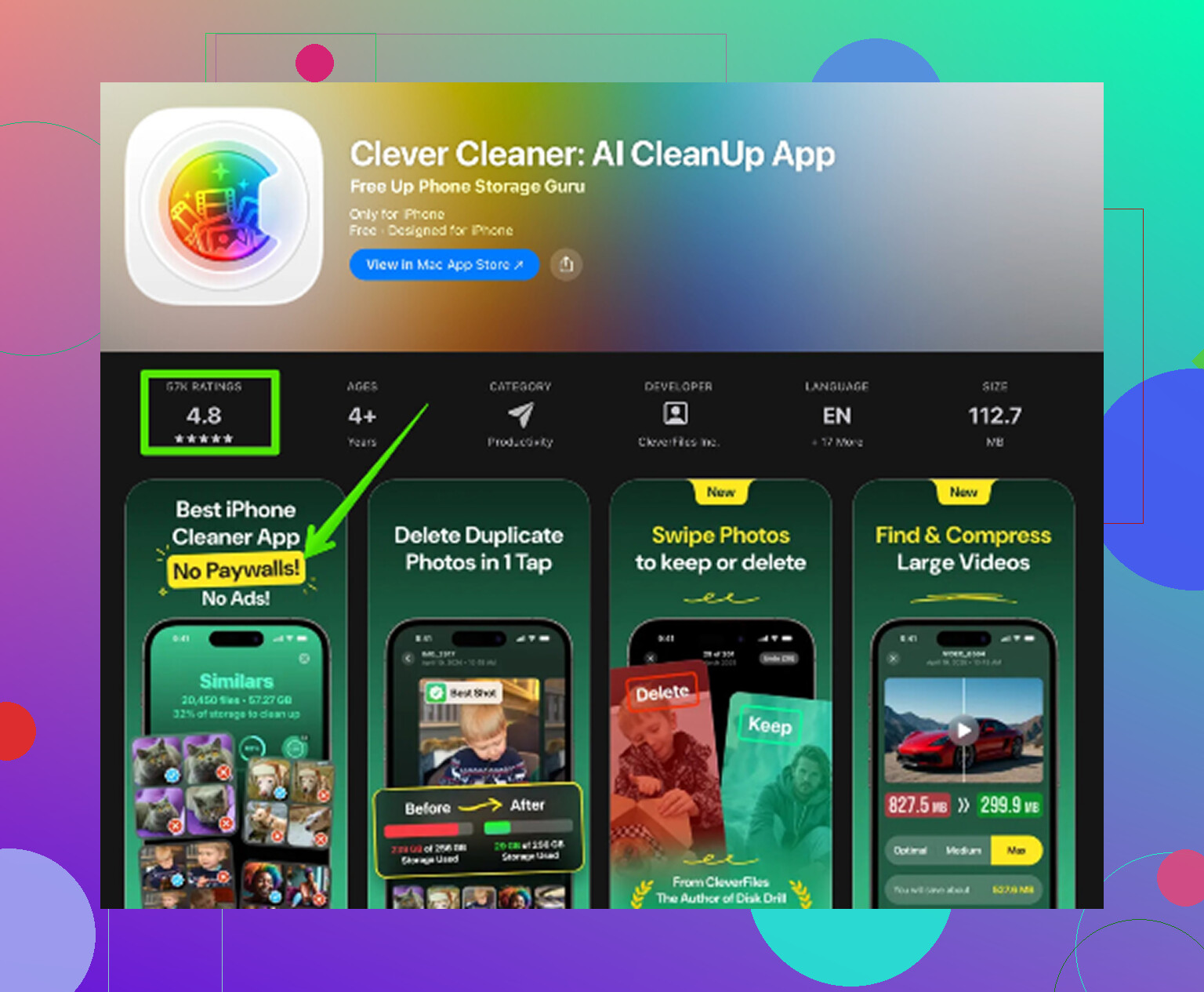
I tried the usual cleanup stuff first. Offload apps. Clear Safari data. Go through message attachments. It barely helped. Then I started testing cleanup apps, and most of them pulled the same stunt, free install, then a paywall the second you try to remove anything. Clever Cleaner stood out because it did not do that. No ads when I used it. No paid tier shoved in my face. Kinda rare for this category.
The main reason it helped more than Settings is simple. It scans your library and shows details Apple hides. This is how I went through it:
Heavies tab
This was the big one for me. It lays out large videos and files from biggest to smallest, with the file size right there on each item. Apple Photos does not give you a clean view like this. I found old screen recordings in 4K I had forgotten about, each one taking up gigabytes. Once I saw the numbers, deleting them was easy.Similars tab
It groups near-duplicate photos. Stuff like five shots of the same receipt, ten tries at the same angle, burst photos where only one image matters. Instead of scrolling forever, you pick the one worth keeping and dump the rest fast. This saved me more time than I expected.Screenshots tab
Screenshots build up like dust. Boarding passes, login codes, random memes, order confirmations, bug reports, all the junk you needed for one hour and then forgot. This section separates them from regular photos, and it shows file sizes too. Nice if you want to clean up without touching your camera roll.On-device processing
This mattered to me. The scan runs on the phone, so your photos and videos are not getting uploaded somewhere else for analysis. If your library has personal stuff, banking screenshots, family videos, whatever, you probably care about this more than app developers seem to think.
Quick stuff worth checking first
Before doing a bigger sweep, I would open YouTube, Netflix, Spotify, and any podcast app you use. Check offline downloads manually. In my case, those were some of the biggest storage hogs. Also go into Settings > Messages > Keep Messages and switch it to 30 Days or 1 Year. If you leave it forever, old video attachments keep stacking up.
The part people miss
This tripped me up once. Deleting files does not always free space right away because they move to Recently Deleted first. They sit there for up to 30 days, still counting against storage. If you want the number to drop now, go to Albums > Recently Deleted > Delete All. Until you do that, the cleanup is only half done. A lot of people think the app or the phone failed, but nope, it is this.
17 Likes
If you want the biggest files first, iPhone itself is only half useful.
Start here.
Settings > General > iPhone Storage
This shows which apps use the most space. Tap the biggest ones first. Photos, Messages, Music, TV, Files, Podcasts, WhatsApp, Instagram, YouTube. Ignore tiny apps.
Then check these places one by one.
Photos app:
Albums > Videos
Albums > Screen Recordings
Albums > Recently Deleted
Apple still does not sort cleanly by file size in Photos, which is the annoyng part. You sort by date, not size. So if your library is huge, this gets slow fast.
Messages:
Settings > General > iPhone Storage > Messages
This part is better than people think. It often breaks data into Photos, Videos, GIFs, Stickers, Top Conversations. Videos in Messages are often the hidden storage hog.
Files app:
Browse > On My iPhone
Browse > iCloud Drive > Downloads
Tap the three dots, switch to List view, then sort by Size if the folder supports it. This is one of the few native places where you get a size-based view.
Mail and Safari:
Safari downloads often land in Files > Downloads.
Mail attachments stay buried inside Mail, so the app total in iPhone Storage matters more than hunting file by file.
I disagree a bit with @mikeappsreviewer on one point. Settings is bad for file-level detail, yes, but it is still the fastest way to identify which app deserves your time first. Don’t skip it.
If Photos is the main problem, Clever Cleaner helps because it surfaces large videos faster than Apple does. That is where a lot of people save time. If you want a visual walkthrough, this iPhone storage cleanup video guide covers the process clearly.
Biggest space wins I see most often:
- Message videos
- Screen recordings
- Downloaded streaming media
- Files app downloads
- Duplicate photos
Check those first. That usually gets you unstuck prety fast.
Honestly, the part I’d add to what @mikeappsreviewer and @caminantenocturno said is this: if you want to see the actual biggest files, the best native trick is often to get off the iPhone screen for a minute.
If you have a Mac, plug the phone in and use Image Capture or Photos import view. You can usually spot giant videos way faster there than inside iOS, which still hides file size info in too many places. On Windows, the DCIM folders can help too, although Apple makes that more annoying than it should be.
A few spots people forget:
- Voice Memos app, especially long recordings
- GarageBand, iMovie, CapCut, VN, or editing apps with exported drafts
- WhatsApp/Telegram media inside each app’s storage manager
- Books app for downloaded PDFs/audiobooks
- Podcast apps other than Apple Podcasts
One small disagreement with the others: I wouldn’t spend too long chasing “System Data” right away. People obsess over it, but usuallly the easier win is hidden app downloads and giant videos.
If you want a faster visual scan, Clever Cleaner is useful mostly for surfacing large videos and photo clutter in one place instead of hunting across apps. Also worth a read: see this Clever Cleaner for iPhone review and cleanup guide.
My order would be:
- Editing apps
- Messaging apps
- Files downloads
- Offline streaming apps
- Voice Memos
That’s where the sneaky storage gets you. Apple’s storage menu is… let’s say “philosophically helpful,” not actually helpful.
One angle the others barely touched: use Search inside Photos. Try screen recording, video, movie, imported, and even app names like CapCut or Instagram. It is not true size sorting, so I disagree a little with the “just use native tools” camp. Native tools are decent for totals, weak for hunting monsters.
Also check app-specific trash bins:
- Photos Recently Deleted
- Files Recently Deleted
- Notes with scanned PDFs
- Voice Memos Recently Deleted
And look for edited copies. iPhone apps love keeping the original plus exported version.
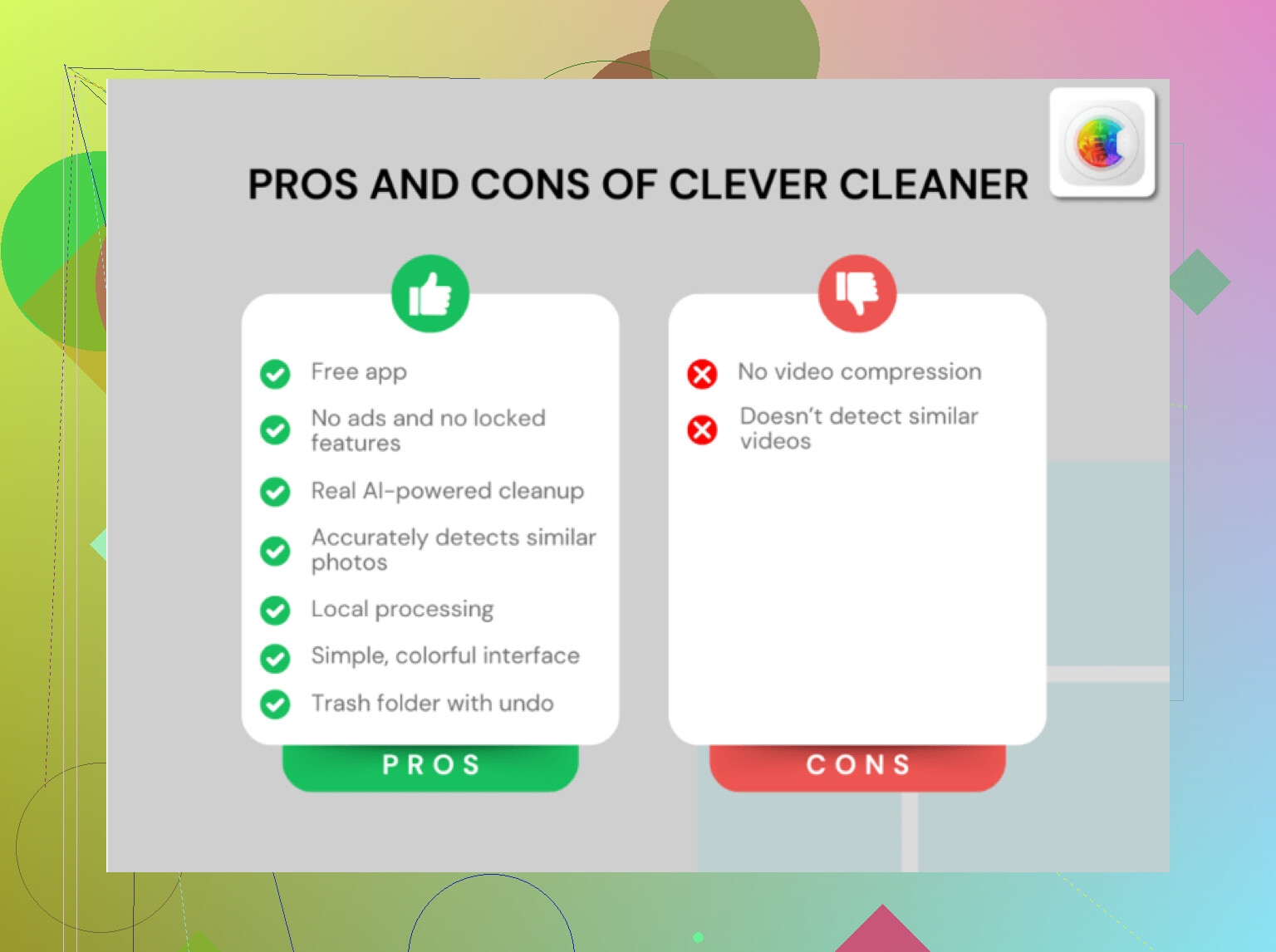
On Clever Cleaner, the useful part is seeing large media grouped fast.
Pros
- surfaces heavy videos quickly
- easier than bouncing between apps
- helpful for duplicate/similar clutter
Cons
- mostly focused on photo/video cleanup, not every app cache
- still won’t expose everything hidden inside third-party apps
@caminantenocturno, @sonhadordobosque, and @mikeappsreviewer covered the usual storage map well. I’d just add this: if storage won’t drop after deleting, restart the phone. iOS sometimes updates the free-space number late.