I’m having trouble transferring files with WebDAV and some files aren’t uploading or downloading as expected. I need to securely move a set of files between my local device and a server but keep getting errors or incomplete transfers. Has anyone dealt with similar problems or can offer steps to ensure safe and successful file transfers with WebDAV?
Thinking of Using WebDAV for File Sharing? Here’s the Real Deal
So, you’re curious about WebDAV for moving files around? Let me throw in my two cents, having both wrangled with it at home and seen how it trips up colleagues who just wanted to share one folder for the team.
The First Hurdle: Getting WebDAV Off the Ground
Alright, let’s not sugarcoat it—WebDAV isn’t just “set and forget.” To get rolling, you gotta set up a server that supports it. Maybe your web hosting platform hands you access on a silver platter (rare) or—like me—you’re stubborn and want to do everything yourself, in which case: buckle up, you’re in for some config file spelunking.
User Setup – The “Fun” Part
Server’s alive? Nice. Next up: making user accounts. Your hosting provider might wrap this up in some nice web dashboard. If it’s DIY, be prepared to manually add users, fiddle with permissions, test, and likely Google error codes when something inevitably breaks.
Connecting: A Different Kind of Adventure on Each OS
Accessing the shared folder is where things get spicy. You basically need a WebDAV client, but honestly, the tools are as different as socks after laundry day.
On Windows:
Pop open File Explorer. Hit up “This PC,” click “Add a network location,” then paste your WebDAV URL and credentials. Congratulations, you’re halfway to success (unless permissions bite).
On macOS:
Finder time. Up top, click “Go” > “Connect to Server.” Paste in your fancy WebDAV URL and, you guessed it, enter your login. With luck, your folder should pop up like a USB drive you actually remembered to eject safely last time.
Everyday Usage: Welcome to Manual Labor
Once you’re hooked in, you get basic file operations—upload, download, edit—right through your system’s file manager. Want to toss a file to your team? Shove it in the WebDAV folder; it shows up for everyone. Simple in theory.
But real talk? Here’s where reality smacks you:
- On Mac especially, you’ll have to reconnect every time. Is it a simple button? Sometimes! Mostly it’s not, and you’ll spend a few minutes cursing.
- Not all clients auto-mount the drive. Even when they do, network gremlins creep in.
Weird Issues Nobody Warned Me About
SSL certificates. Yes, you need them if you don’t want error popups, and Finder basically throws a fit if your certificate is expired or self-signed. Cue me, muttering at my screen, digging into Apple support pages, realizing I should’ve used a tool with built-in cert management.
Wish Someone Had Showed Me This Trick Sooner
Enter CloudMounter. Look, it’s not magic, but it does let you work right inside Finder like your cloud stuff is just another folder. WebDAV mounts up, files fly around, and your blood pressure doesn’t spike when you reboot. I only found it after way too many Finder reconnects and errors for my taste.
TL;DR - Sharing Files with WebDAV: My Results
- Install your WebDAV server, either via web host or yourself
- Create user accounts, probably by hand
- On Windows: “Add a Network Location” in File Explorer, provide your URL and creds
- On Mac: “Go > Connect to Server” in Finder, drop in WebDAV URL, sign in
- Transferring files works—but expect manual mounting, certificate hassles, and the need for a third-party tool if you value your time or sanity
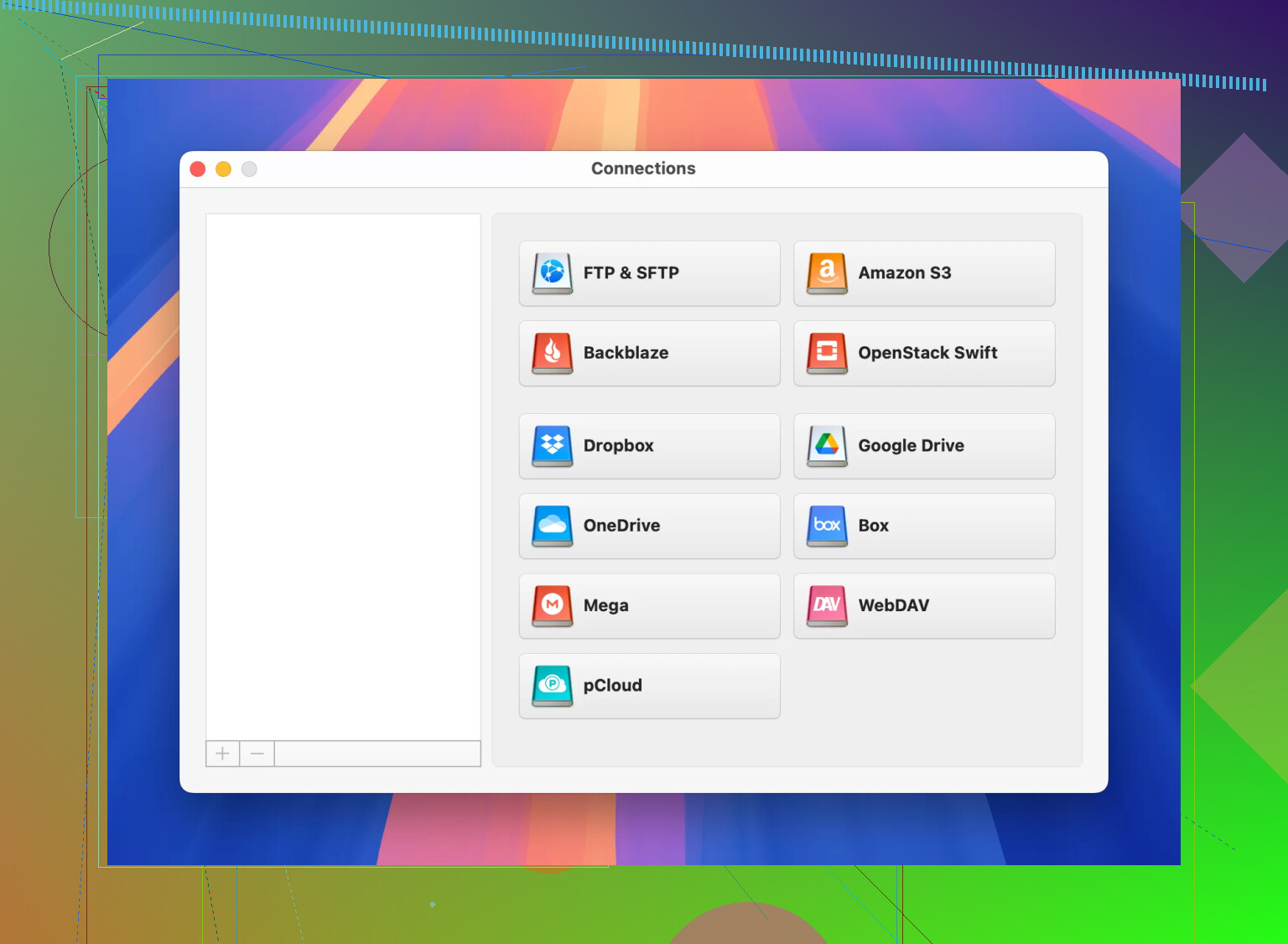
Bottom line: WebDAV is totally doable, but don’t expect it to feel like magic cloud-sync until you add the right helper app. Your future self will thank you.
10 Likes
Short answer? WebDAV is way more finicky than it should be, and some of the advice in @mikeappsreviewer’s write-up is solid—especially that part about SSL certs being a pain. But honestly, if ‘securely’ is your end goal, make sure you’re actually using HTTPS and not the plain old HTTP flavor. So many folks set up WebDAV, forget to configure SSL, and wind up lobbing files into the digital wind. That’s why some transfers fail or time out: any flaky cert or HTTP fallback and your data’s in the wild.
Also, just using the Windows or MacOS built-in stuff can be sketchy, especially for big transfers—those built-in clients are notorious for half-uploading large files or choking on weird filenames. For secure, reliable moving, try a dedicated client: Cyberduck or Mountain Duck (not free, but solid for large jobs and they handle SSL better). I know @mikeappsreviewer loves CloudMounter, and for once I’ll agree—it does a great job at behaving like a ‘normal’ drive, and it’s less crashy than Finder’s built-in mess. If you keep seeing incomplete files, scan your logs on BOTH client and server; lots of times it’s a permissions error, or your server’s killing the session because of timeouts.
And one thing I almost never see mentioned: WebDAV is ancient by today’s standards. If you have ANY other option (SFTP, rsync, whatever), use that instead. Seriously, WebDAV is like emailing yourself a thumb drive—there’s always a chance it’ll randomly explode.
Last tip—run your transfers in smaller batches, especially for uploads. Massive drag-and-drops will almost always bork something. Test with a tiny file, scale up after confirming it sticks. And for peace of mind: verify, verify, verify hashes/checksums. WebDAV won’t do that for you.
TL;DR: Double-check you’re using HTTPS, try a dedicated app like CloudMounter, never trust giant file dumps, and keep your WebDAV server up to date. Or…just use SFTP like it’s 2024.
Honestly, I’m gonna be that person and say if moving files with WebDAV feels like wrestling a greased pig, you’re not alone—half the time it’s finickier than it has any right to be. Yeah, the suggestions from @mikeappsreviewer and @kakeru nail a lot of the usual gotchas (SSL, permissions, OS weirdness, yada yada), BUT not everyone wants to add more tools or dig around in logs for fun. Here’s the thing: WebDAV is old, slightly crusty tech that was never really made for heavy, reliable file moves, especially not over sketchy home networks or the open internet.
But since you sound stuck with it: FIRST—triple check your server timeouts and PHP/Apache/Nginx upload limits. Tiny files work, chonky files bork? That’s server config. Second, before throwing money at third-party apps, try a CLI WebDAV tool (like cadaver or rclone) for batch jobs—they’re less likely to wig out like Finder or Explorer. CLI isn’t sexy but at least you see why stuff fails (permissions bomb, handshake biff, whatever).
Everyone’s pushing CloudMounter (can’t blame ’em, it is easier than Finder’s default misery), but if you care about checking if the files actually survived intact, verify hashes before deleting anything on your source side. WebDAV won’t magically check for you!
And a mild disagreement here: if you can’t use SFTP or rsync or ANYTHING else, at least make sure your server shoves all traffic over HTTPS, and don’t use self-signed certs unless everyone accessing the share is OK with constant alerts (or knows how to accept the cert). That’s one reason you get so many failed/incomplete transfers, the SSL handshake craps out, clients flip out, you get partial files.
If it’s gotta be WebDAV, do small uploads, restart connections if big ones choke, double-check perms, and seriously, read the logs. Or just skip any file transfer that needs to be reliable and fast. WebDAV: it’s like a lawnmower from 1998—works, just with a LOT of TLC.
If you’re this deep into WebDAV drama, here’s the skinny nobody likes admitting: even with every right-click “map network drive” ritual, errors love to show up. The workaround? Bite the bullet and go purpose-built—apps like CloudMounter do what Finder/Explorer never quite nailed: stable mounting, actual reconnect attempts, easier certificate handling.
CloudMounter pros? It really does make WebDAV look like just another disk—drag, drop, less frustration, genuinely less Finder tantrum on Mac. Big win is you don’t lose your mind after a sleep/hibernate cycle. Cons? It’s paid (you knew this was coming), and for the CLI crowd, it feels a little “GUI-ified”—some power features are missing compared to a tool like rclone or Cyberduck (love or hate the duck). But for sheer “I just want my folder to show up and stay up,” it delivers.
Versus the tips suggested by others: they’re right about watching server timeouts and SSL quirks, but where I’d differ—sometimes simpler is better. Instead of layering tools like cadaver on top of a janky server, CloudMounter smooths over 80% of rough edges for everyday transfers, especially for people not thrilled about troubleshooting error logs at midnight.
Stay mindful though: whichever flavor you pick (third-party app, CLI, native OS), trust nothing until hashes on both sides match, and keep one paranoid eye on incomplete uploads (WebDAV, bless it, is notorious for splits). And for the love of bandwidth, use HTTPS only, never plain HTTP, unless your nostalgia for the ’90s outweighs your need for security.
Competitor tools mentioned by others are fine for power users or batch scripting, but if you want plug-and-play with as little swearing as possible, CloudMounter might actually not drive you nuts. Just, y’know, check for updates and be aware you’re putting trust in a middleman rather than fiddling bit-by-bit. That’s the tradeoff!