My iPhone storage is filling up because synced music, videos, and other media from my computer are taking up a lot of space. I already removed some files, but the synced media storage still seems too high, and I’m not sure how to clear it without losing anything important. I need help figuring out how to free up iPhone storage from synced media safely.
Synced Media is one of those iPhone storage labels Apple tossed in there with almost no plain explanation. I ran into it after an iOS update, saw a huge block of storage gone, and spent way too long figuring out why deleting stuff on the phone did almost nothing.
What Synced Media means
It usually refers to media copied over from a computer through Finder, iTunes, or the Apple Devices app. Music, movies, TV shows, podcasts, audiobooks, photos, stuff like that. If you moved it from a Mac or PC to the phone by cable or Wi Fi sync, iOS often counts it under Synced Media.
Before the newer iOS versions, this stuff blended in more cleanly with the app categories. A bunch of synced songs looked like normal Music storage. Now Apple splits it out. So a track downloaded on the phone stays tied to the app, but the same track synced from your computer lands in this separate local category.
It is not iCloud storage. Different thing. iCloud is your cloud copy. Synced Media is space taken on the phone itself by files managed through computer sync.
Why deleting files on the iPhone does not fix it
This part got me. I deleted photos and music I could see, then checked Storage again. Barely moved.
The reason seems simple once you spot it. Synced files are often controlled by the computer they came from, not by the phone. On some of those items, the delete option on iPhone is blocked or greyed out. So you think the content is gone, but the storage category stays put.
How I cleared it
I had to connect the iPhone back to the computer.
On Mac:
Open Finder.
On Windows:
Open iTunes or Apple Devices.
Then go into the media sections, usually Music, Photos, Movies, or whatever was synced before. Remove the checkmarks for the content you no longer want, then sync again.
If the Photos part is stuck, this trick worked for me:
- Make a new empty folder on your computer.
- In sync settings, point photo sync to that empty folder.
- Sync the phone again.
What this did on my end was overwrite the old synced photo set with nothing. Kind of dumb, but it forced the storage block to clear. Felt janky. Worked anyway.
Does Synced Media slow the phone down
From what I saw, yes. My phone got sluggish when storage was nearly full. Typing lagged. Apps froze. Camera felt delayed. Once free space gets low, iOS starts struggling with temp files, caching, updates, all the routine background junk it needs room for.
I try to leave at least a few gigabytes open now. Around 5 to 6 GB free made a difference for me.
What I used after clearing the big stuff
After I got the synced content sorted, I still had a pile of random junk, mostly screenshots, duplicate photos, old videos. I tried a few cleanup apps and most were bad. Too many ads, weird scans, paywalls after two taps.
I ended up using Clever Cleaner. The original link was a YouTube URL, so here it is as plain text:
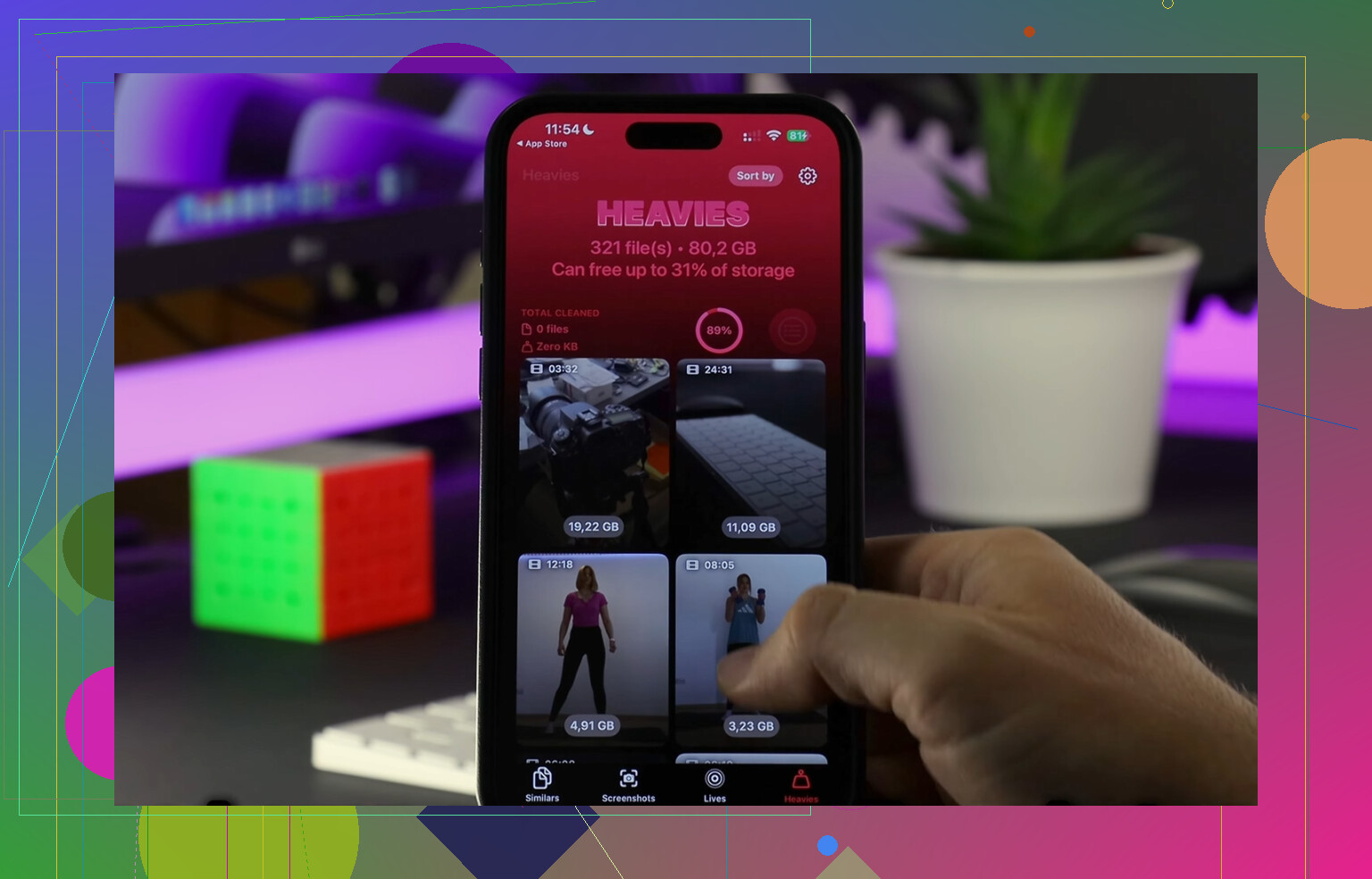
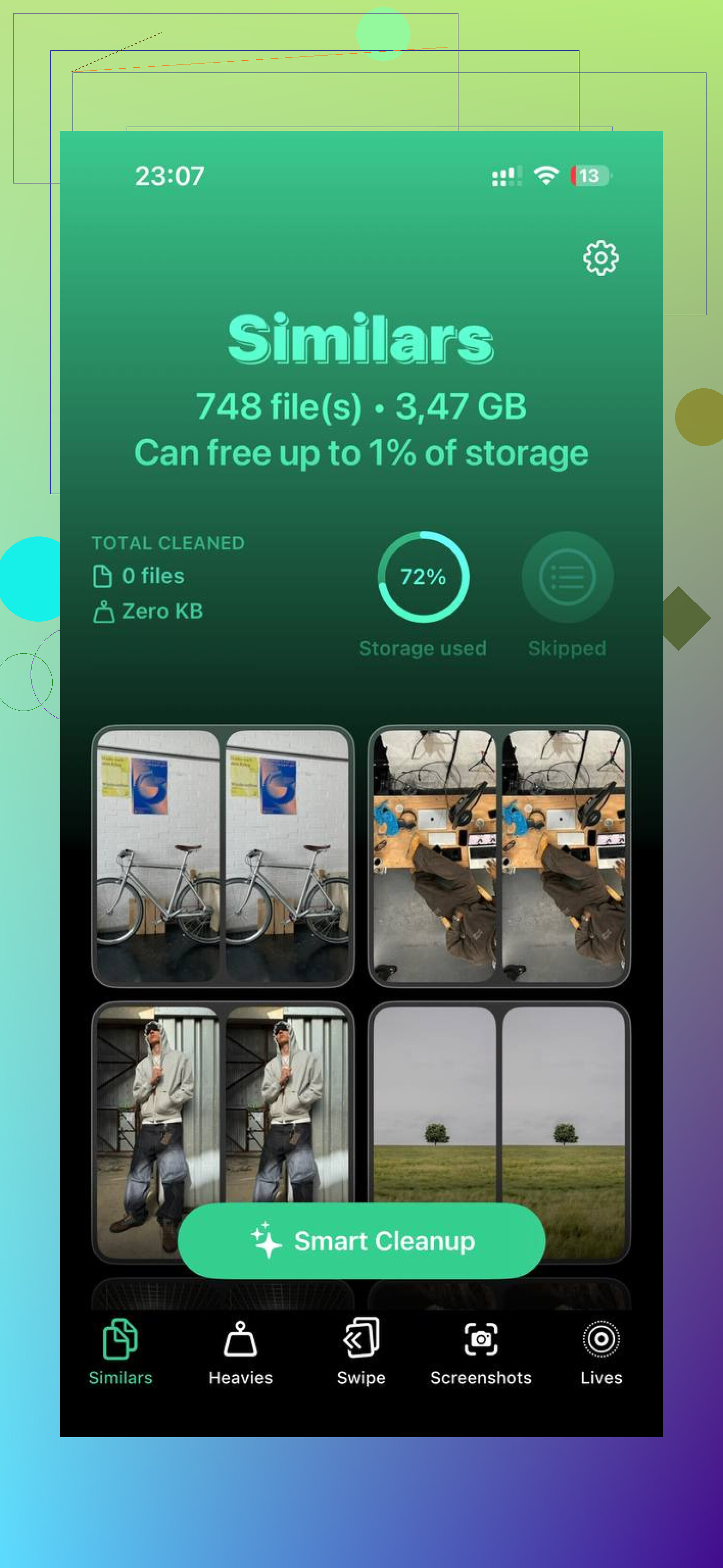
What I liked was the file size view. I could see which screenshots and videos were taking up space instead of guessing. The large files section helped me find a couple old videos eating gigabytes for no good reason. The similar photos section was useful too. I had sets of near identical shots and got rid of the extras fast.
The privacy part mattered to me more than I expected. It said processing stayed on the device, which was enough for me to try it.
What fixed my phone
For me, it was two steps:
- Clear Synced Media through the computer sync settings.
- Clean up leftover storage hogs like screenshots, duplicate photos, and large videos.
I freed up around 15 GB total and the phone stopped feeling clogged up. If your storage page shows Synced Media taking a huge bite, start with the computer. Deleting things on the phone alone often won’t touch it. After that, clean the leftovers and check how much free space you have. That was the part I missed the first time.
12 Likes
If “Synced Media” stays high after you removed files, I’d check for stale storage indexing too. @mikeappsreviewer is right about computer-managed media, but I don’t fully agree that every case needs a full resync first. Sometimes iOS storage stats lag behind by hours, or even a restart or update cycle.
Try this order.
- Restart the iPhone.
- Check Settings, General, iPhone Storage again after 10 to 15 mins.
- Install any pending iOS update.
- Turn off Sync Library for Music if you no longer want local synced tracks.
- For the TV app, remove big offline files from inside the app, not from Storage screen.
If the number still looks wrong, make a backup, then do a sync session with only one media type enabled. Music first. Then movies. This helps you find the real hog fast. I found one old concert video eating 4.2 GB by itself. iPhone Storage didn’t show it cleanly, wich was annoyng.
Also check Apple Music, Podcasts, and VLC or Infuse. People blame “Synced Media” when the space is split across app caches too.
After you fix the sync issue, clean the leftovers. Clever Cleaner is decent for this. It helps you find duplicate photos, large videos, and screenshots fast. If you want a quick look, watch this fast iPhone storage cleanup with Clever Cleaner. Simple pitch, more free iPhone storage in seconds.
If storage still won’t drop, backup the phone, erase it, restore, then recheck. Annoying fix, yep. Sometimes it’s the only one taht clears ghost storage.
If “Synced Media” won’t shrink, I’d look at one thing the others barely touched: whether the sync relationship itself is still active.
Sometimes the iPhone is still set to manually manage music/videos from an old computer library, so even after you remove files, iOS keeps reserving/reporting space weirdly. In Finder or iTunes, check the device summary page and see if options like Manually manage music, movies, and TV shows or old sync boxes are still enabled. Turning those off, then applying changes, can clear out leftover cruft without doing a full scorched-earth reset.
I slightly disagree with @mikeappsreviewer on one part though. It’s not always the actual media still sitting there in full. Sometimes it’s just bad storage reporting tied to a stale sync profile. Annoyng, but very Apple.
A couple extra checks:
- Settings > Music > Downloaded Music and verify there isn’t old device-only stuff hanging around
- Settings > Photos and make sure you’re not mixing old Finder photo sync with iCloud Photos
- If you use Books or Voice Memos synced from Mac, those can also pad storage and not show up clearly
Also, if you no longer want any computer-synced media, the cleanest long-term fix is to stop using cable sync for media entirely and switch to streaming/cloud where possible. Less headache, fewer ghost files later.
After that, clean up the non-sync junk. That’s where Clever Cleaner actually makes sense, since Synced Media is only half the battle. It’s useful for finding duplicate pics, giant videos, and screenshot piles that still eat storage after the sync mess is fixed. If you want real user feedback, this thread is decent: see how iPhone users are freeing up storage with Clever Cleaner.
If none of that changes the number, then yeah, @viajantedoceu is probly right that you’re down to backup, restore, and let iOS rebuild the storage index from scratch. Dumb fix, but it works more often than Apple would ever admit.
One angle I’d add that @viajantedoceu, @sonhadordobosque, and @mikeappsreviewer only partly touched: check device backups on your computer, not just the live sync library.
Old local backups and media databases on Mac/PC can make Finder or iTunes keep trying to “reconcile” phantom synced items. That can leave the phone showing bloated Synced Media even after the obvious files are gone. I don’t totally buy that a restore should be the next move in every stubborn case. Sometimes deleting the old device backup on the computer, then reconnecting and doing a clean sync preference pass, is enough.
Also worth checking:
- Settings > Screen Time > Content & Privacy Restrictions. Weirdly, restrictions can block deleting some media cleanly.
- Free up 8 to 10 GB temporarily before rechecking. iOS storage recategorization gets flaky when nearly full.
- If you use third-party players like VLC, Infuse, Plex downloads, or offline Spotify, some of that “feels” like Synced Media even when it is not.
My take: if you want synced content gone for good, break the old computer sync setup first, then let storage settle overnight while charging.
After that, use Clever Cleaner for the unrelated junk that usually hides underneath.
Pros
- fast at spotting duplicates and large videos
- easy screenshot cleanup
- useful after sync cleanup, not instead of it
Cons
- won’t directly remove computer-managed Synced Media
- less helpful if your issue is pure storage misreporting
- cleanup apps in general still need manual review so you do not delete wanted photos
So yeah, fix the sync relationship first. Then use Clever Cleaner only for the leftovers.