My iPhone saved a lot of pictures as Live Photos, and now they’re taking up more storage than I expected. I want to convert them all to regular still photos and remove the Live part without losing the images. I can’t find a quick way to do this in the Photos app, so I need help with the best method.
I get why you want this. Live Photos are nice when one frame lands right, but the storage hit adds up fast. Each one is a photo plus a short video clip and audio, so the file size ends up around 2 to 3 times larger than a normal still. I saw this pile up into gigabytes on my own phone. Tiny motion clips, tons of space gone.
If your library is big, I’d sort the options like this, from fastest to most hands-on.
Use an iPhone cleaner app
For a large photo library, doing it inside Apple’s own menus gets old fast. I tried the manual route first. Bad idea. Too much tapping, too much cleanup after. A cleaner app is the easier route if you want to convert a lot of Live Photos and get rid of the originals without babysitting the process.
Out of the ones I tested, Clever Cleaner worked best for me. What stood out was the lack of nonsense. No ads in my face, no locked buttons, no in-app purchase trap. It focuses on the storage stuff Apple leaves half-finished.
Here’s the rough flow:
- Install it and allow access to your Photos.
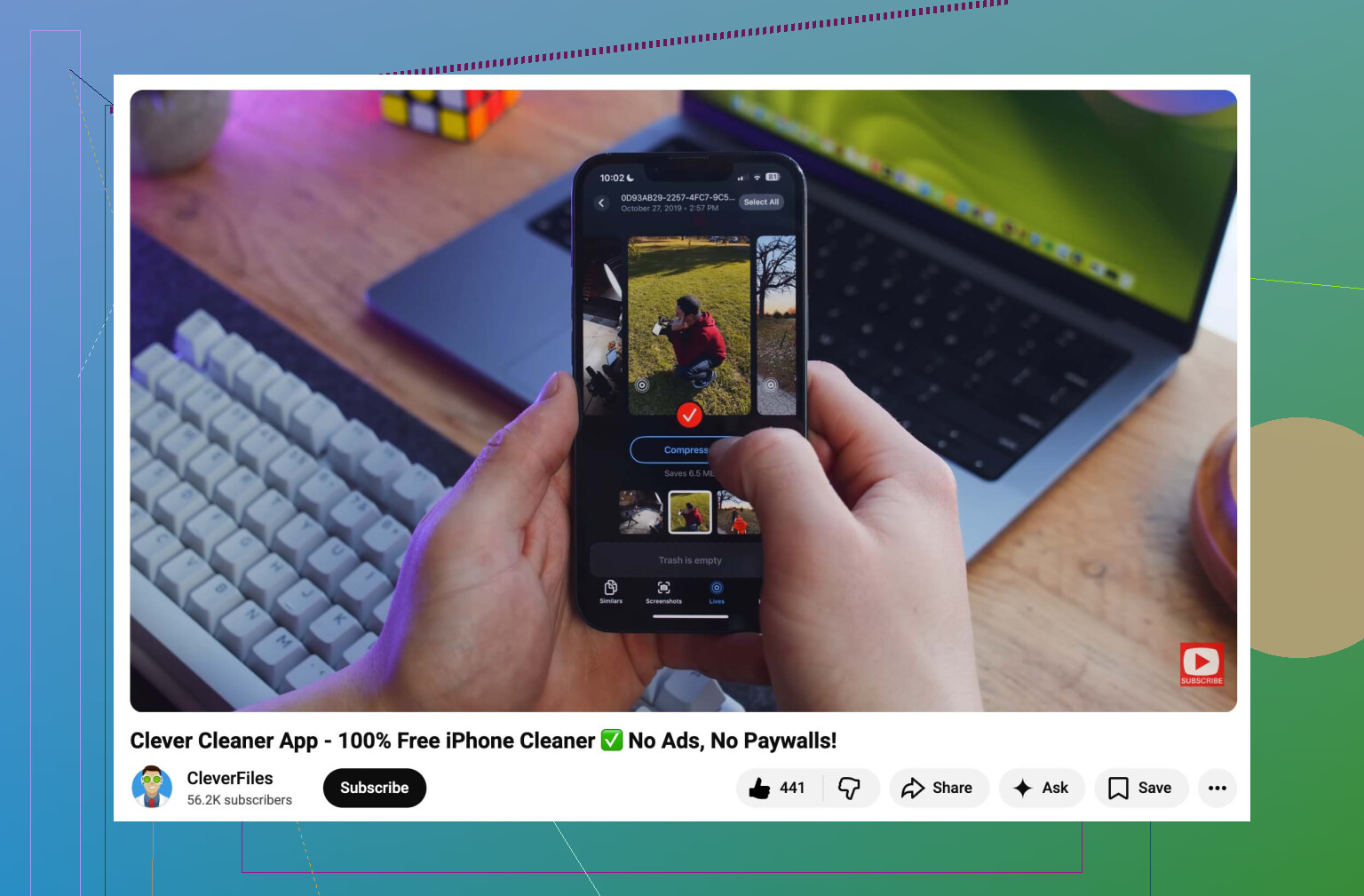
- Open the Lives section. You can sort by date or size, which helps if you want to knock out the biggest files first.
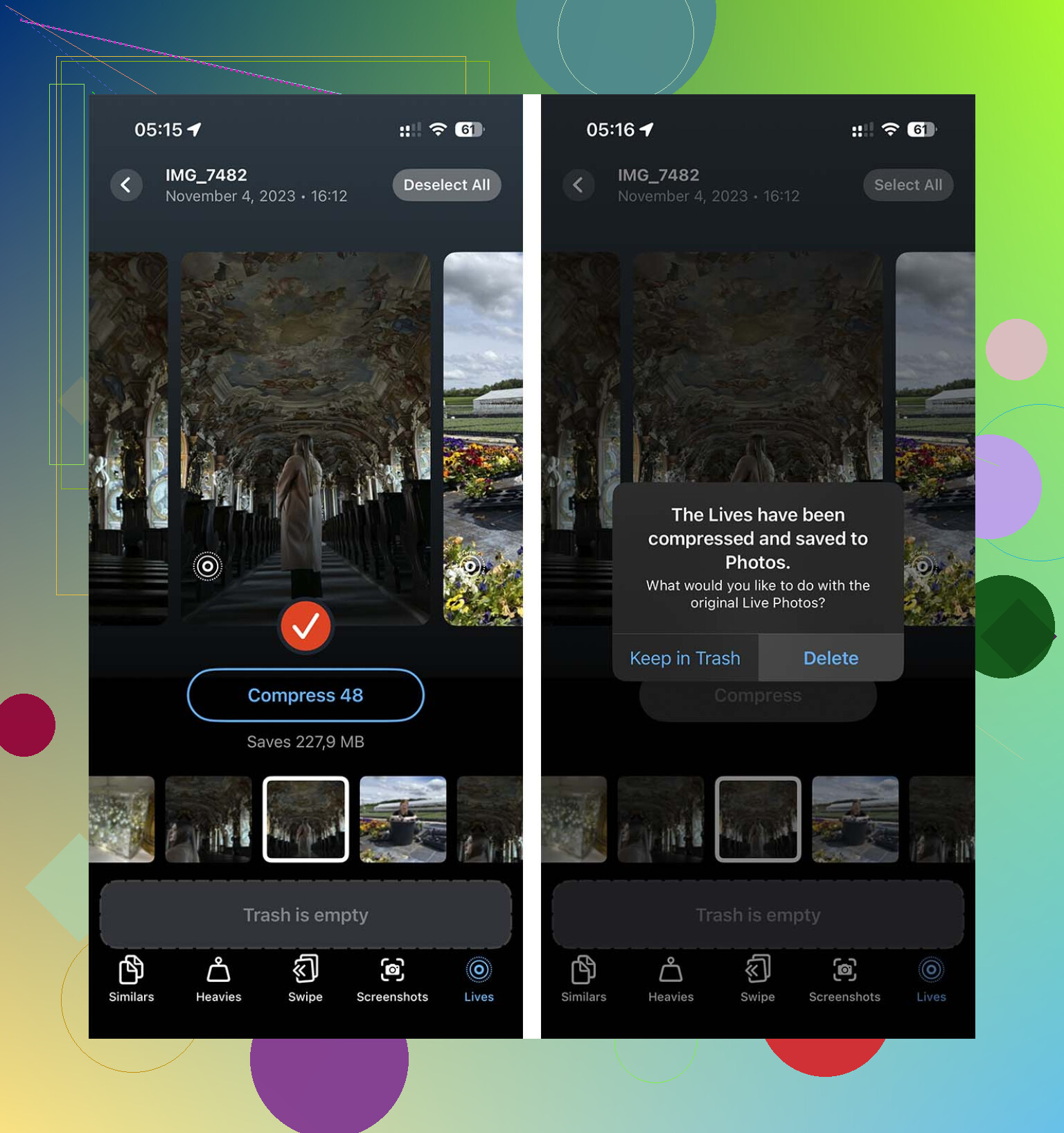
- Tap Select All, or choose a batch yourself, then hit Compress. The label says compress, but what it did for me was remove the motion part and keep a high-quality still image.
- After it finishes, it asks whether you want to remove the original Live versions. This part matters. If you skip it, your storage won’t drop much and you’ll be stuck cleaning duplicates later.
Build a Shortcut
If you don’t want another app on your phone, Shortcuts is the nerdier option. I messed with this on a rainy afternoon and it works, though it feels like something Apple almost made simple and then stopped halfway. It keeps the original image quality, which is a lot better than those screenshot tricks people keep posting.
Set it up like this:
- Open Shortcuts and create a new shortcut with the + button.
- Add the Find Photos action and filter it so Photo Type is Live Photo.
- Add Repeat with Each.
- Inside the loop, add Convert Image and choose JPEG or PNG.
- Add Save to Photo Album so the new still files are saved.
- Run it and give it time.
The part I didn’t like, Shortcuts does not clean up the old Live Photos after conversion. You still need to open the Live Photos album, select them, and delete them yourself. So yes, it works. No, it does not finish the job.
Duplicate as Still Photo
Apple has its own built-in path for this, and it’s usable, though clunky. I’d call it fine for smaller batches. For huge libraries, it turns into a chore.
- Open Photos and go to the Live Photos album.
- Tap Select and choose the items you want.
- Tap the meatballs menu.
- Pick Duplicate.
- Choose Duplicate as Still Photo.
Watch the storage during this part: Apple creates new files first. So for a while, both versions sit there together, the Live Photo and the still copy. Your storage usage goes up before it goes down. You need to delete the original Live Photos yourself or nothing is gained. I forgot once, checked storage, and thought the whole thing had failed. Nope. I had left the old files in place. Kinda dumb, but there it is.
After you finish cleaning things up, stop the phone from making new Live Photos by default. Go to Settings > Camera > Preserve Settings and turn the Live Photo switch on. Then open the Camera app and switch off the Live Photo icon one more time. After I did this, my camera kept the setting instead of turning Live back on again.
10 Likes
If you want all Live Photos turned into stills in bulk, iPhone itself is the annoying part. Apple lets you do it, but at scale it gets old fast. I disagree a bit with @mikeappsreviewer on Shortcuts being worth the effort for most people. It works, sure, but it still leaves you with cleanup and duplicate management. Kinda messy.
For big libraries, a cleaner app is faster. Clever Cleaner is one of the few options people keep bringing up because it handles Live Photos without stuffing the app full of paywalls. It scans your library, finds Live Photos, and lets you convert them into regular still images while removing the motion portion. That saves space without losing the photo itself. If your goal is storage, this is the part that matters.
A simple way to check it out is this video on how Clever Cleaner helps shrink Live Photos and free up iPhone storage.
Important part, after conversion, make sure the original Live versions are deleted. If they stay in Photos or Recently Deleted, your storage won’t drop much. People miss this all the time and think the app or process didnt work.
Then stop new ones from piling up.
Settings, Camera, Preserve Settings.
Turn on Live Photo preservation.
Open Camera.
Tap the Live icon off.
Now your iPhone should stop turning it back on all the time.
If you only have like 20 or 30 Live Photos, use the built-in duplicate as still option. If you have hundreds or thousands, use Clever Cleaner and save your self the headache.
Honestly, there is one more option people skip: if you do not care about keeping edits, captions, or album placement perfectly intact, export the Live Photos as stills to the Files app or a Mac, then re-import only the image files and delete the originals. It is less elegant than what @mikeappsreviewer and @caminantenocturno suggested, but for some people it is weirdly faster and easier to verify.
Why I say that: Apple’s Photos workflow loves leaving you with duplicates and hidden storage in Recently Deleted. Super annoying.
What I’d do:
- Back up first. iCloud or computer, doesnt matter.
- In Photos, filter down to Live Photos.
- Share selected items to Files, or use Image Capture / Photos app on a Mac to pull out the still image version.
- Confirm the exported files look right.
- Re-import those stills.
- Delete the original Live Photos.
- Empty Recently Deleted, or your storage savings will look fake for 30 days.
If that sounds like too much manual babysitting, then yeah, Clever Cleaner is the more practical route for bulk cleanup. That’s the one case where I actually agree with the app suggestion. Also, this TikTok showing how Clever Cleaner converts Live Photos and frees up iPhone storage gives a quick visual of what the cleanup looks like.
One more thing people forget: turning off Live on one photo does not magically convert your whole library. Apple really should have made a batch toggle years ago, but here we are.
Small correction to @caminantenocturno, @himmelsjager, and @mikeappsreviewer: converting Live Photos to stills does not always give you a dramatic storage win if most of your space is actually videos, bursts, or iCloud originals already optimized. It helps, just not always as much as people expect.
What I’d do first is check whether the Live Photos are really the culprit:
- Settings > General > iPhone Storage > Photos
- See if “Photos” is actually huge locally
- If iCloud Photos with Optimize iPhone Storage is on, local savings may look uneven for a while
If Live Photos are still the problem, the cleanest path for bulk work is usually Clever Cleaner.
Pros of Clever Cleaner
- Faster than doing Apple’s built-in duplicate flow one batch at a time
- Easier to review lots of Live Photos together
- Good for bulk cleanup if your library is massive
Cons
- You still need to verify originals are gone
- Storage may not update instantly
- Some people prefer staying entirely inside Apple’s apps
One extra thing nobody mentions enough: after deleting the Live originals, restart Photos or even reboot the phone. The storage graph can lag and make it seem like nothing changed. Also check Recently Deleted, because that is where “freed” space goes to hide.