I need help creating a full WordPress backup using FTP after my site started acting up following a plugin update. I can still access my files, but I’m not sure which folders and database steps I need to save everything correctly before anything gets worse. Looking for the safest way to back up a WordPress site with FTP.
Hey everyone, I wanted to share a quick guide on how to manually back up your WordPress site using FTP. While there are plenty of plugins that do this, knowing how to do it yourself is a solid skill to have if you ever lose access to your dashboard.
Step 1: Get an FTP Client
Most people use FileZilla because it is free and easy to find. You can just grab it from their website, choose the client version for your OS (Windows, Mac, or Linux), and install the standard version.
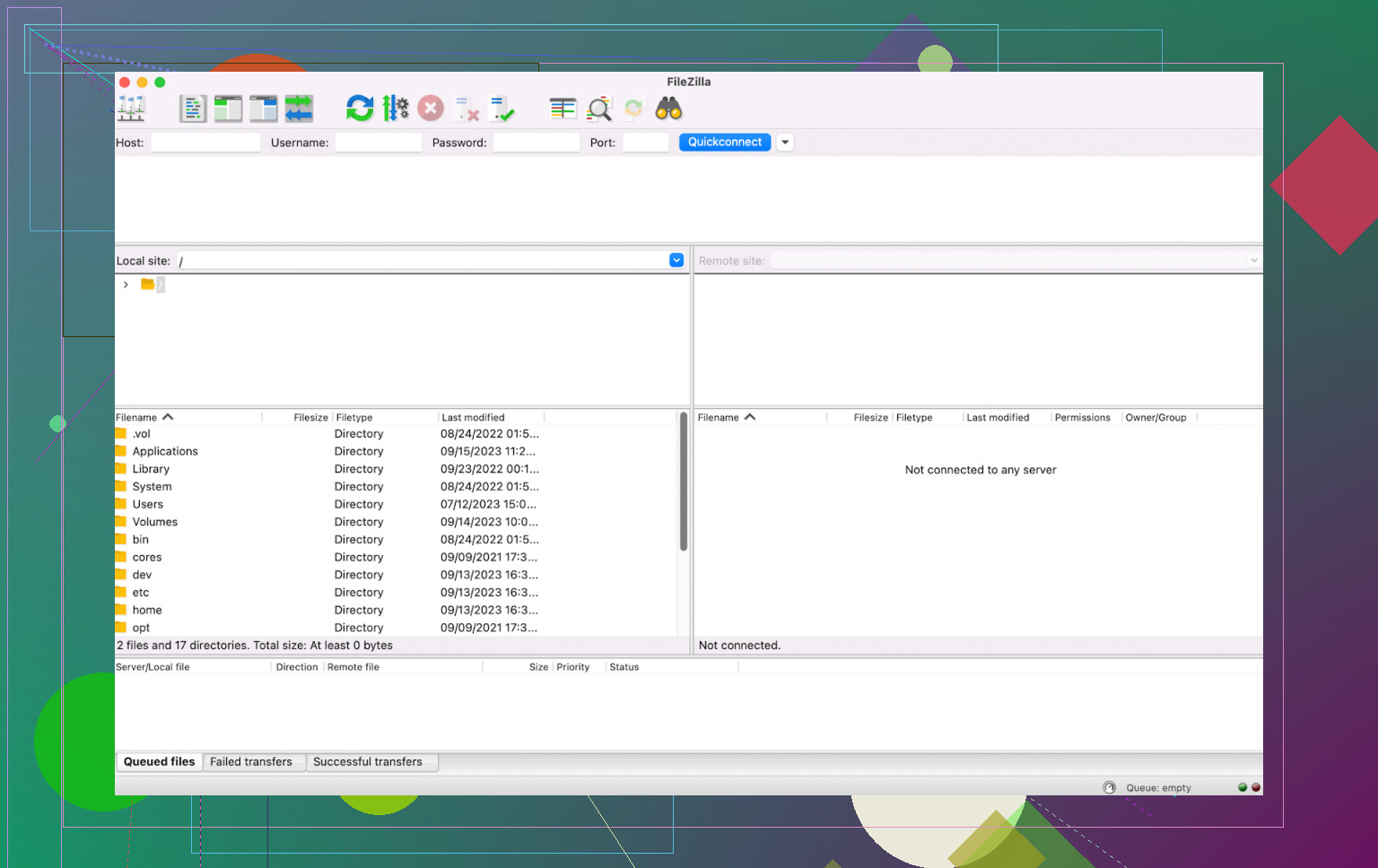
One thing to keep in mind: FileZilla is the go-to for many, but it can get pretty sluggish or even glitchy if you are moving a massive amount of small files or really large databases. It works, but it might require some patience during the transfer.
Step 2: Connect to Your Server
Once you open your FTP client, you will see your local computer files on the left and a blank space on the right. To see your website files, you need to connect using your credentials.
You will need four pieces of info:
- Host: Usually your site’s IP address.
- Username and Password: Your FTP-specific login.
- Port: Usually 21 for FTP or 22 for SFTP.
If you don’t have these handy, log into your hosting control panel (like cPanel) and look for “FTP Accounts.” Often, the password is the same one you use to log into your hosting account itself.
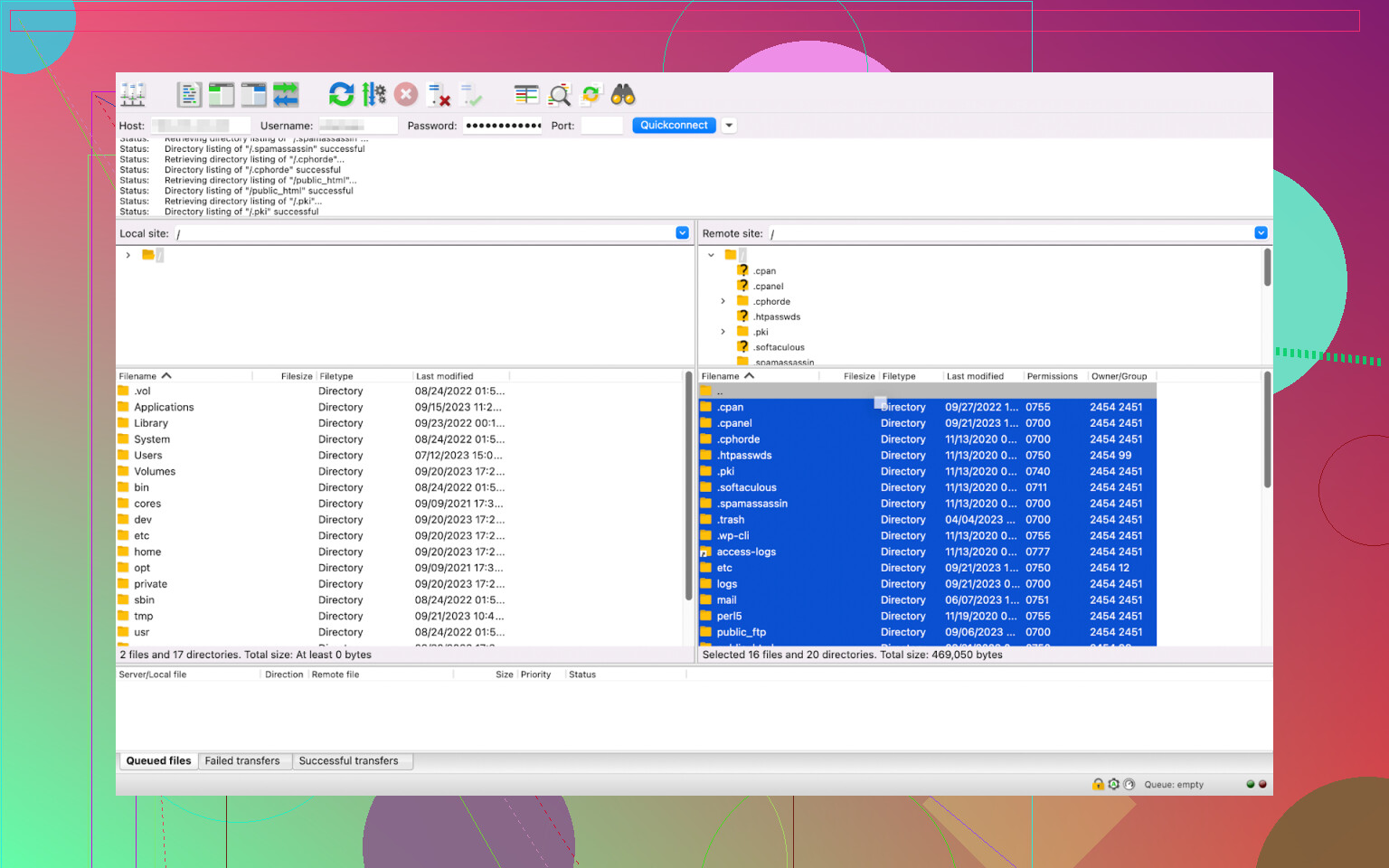
Enter those into the top bar of FileZilla and hit Quickconnect. If a security certificate warning pops up, just confirm it to move forward. Once connected, your site files will appear on the right side under “Remote site.”
Step 3: Download Your Files
To make the backup, you need to move everything from the right side (server) to the left side (your computer).
- On your computer, create a new folder and name it something like “WP Backup” with today’s date.
- In the FTP client, go to the remote side, select all files (Command+A on Mac or Ctrl+A on Windows).
- Drag and drop those files into your new local folder.
Now you just wait for the transfer to finish. Once it is done, I’d recommend moving that folder to a cloud drive or an external hard drive just to be safe.
Alternative methods for bulk uploading files to WordPress
If FileZilla isn’t cutting it for you or you want something a bit more robust, here are a few other options:
Commander One
This is a great choice for Mac users. Commander One is a dual-pane file manager, which makes it a favorite for power users and developers. It handles FTP and SFTP connections very smoothly, but the real advantage is how it manages archives. You can basically treat a ZIP file like a regular folder, which is a huge time-saver when you’re trying to move a compressed backup to or from a server. It is a paid app, but it is much more powerful for SFTP connections. It handles archives really well, which is a lifesaver if you are a developer moving compressed files back and forth.
CloudMounter
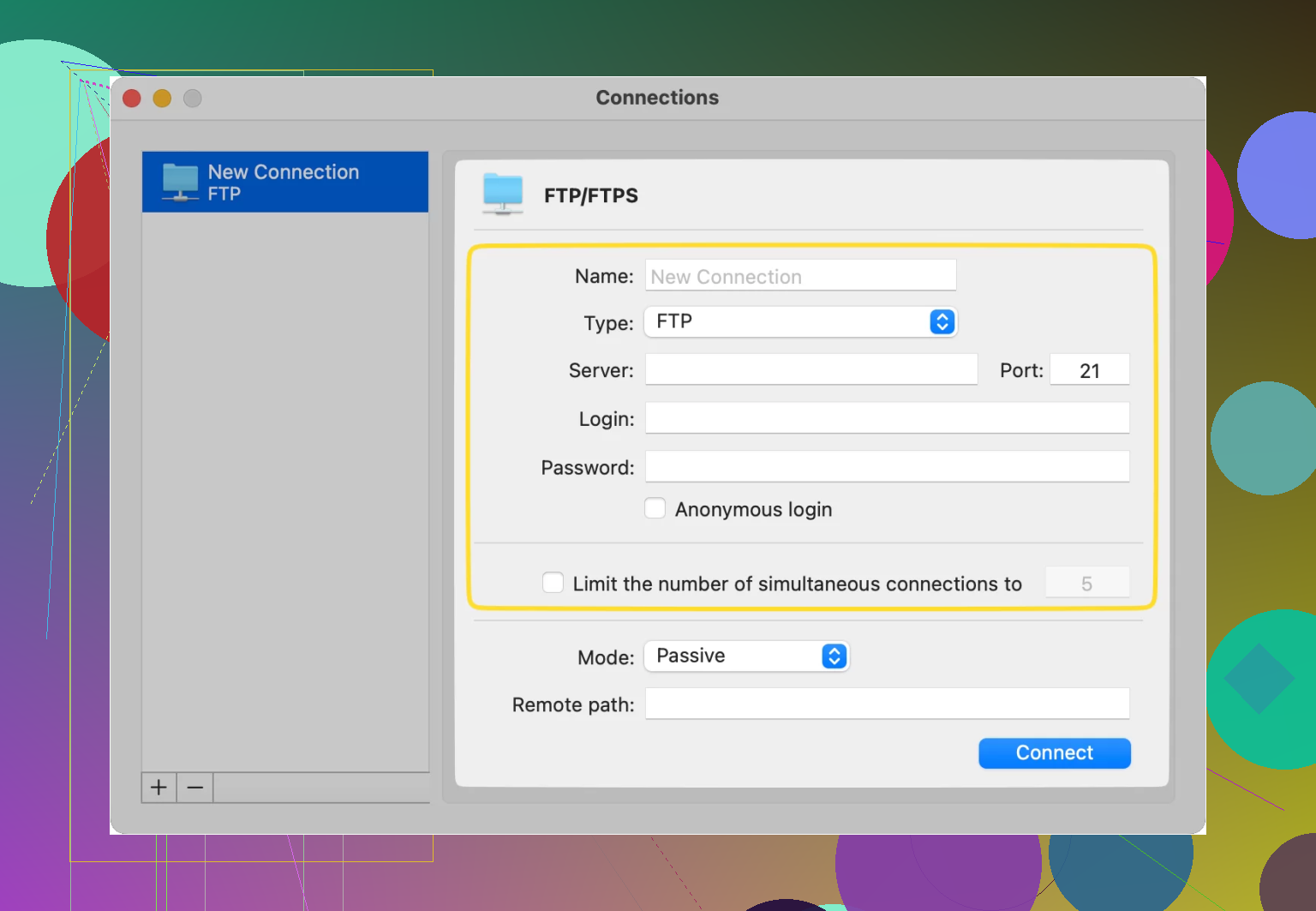
Instead of opening a separate app with two panels, CloudMounter “mounts” your website’s server as if it were just another hard drive or USB stick plugged into your computer. You can copy-paste or drag files directly within your regular File Explorer or Finder. It also lets you manage your cloud storage (like Google Drive or Dropbox) in the same way, keeping everything in one place.
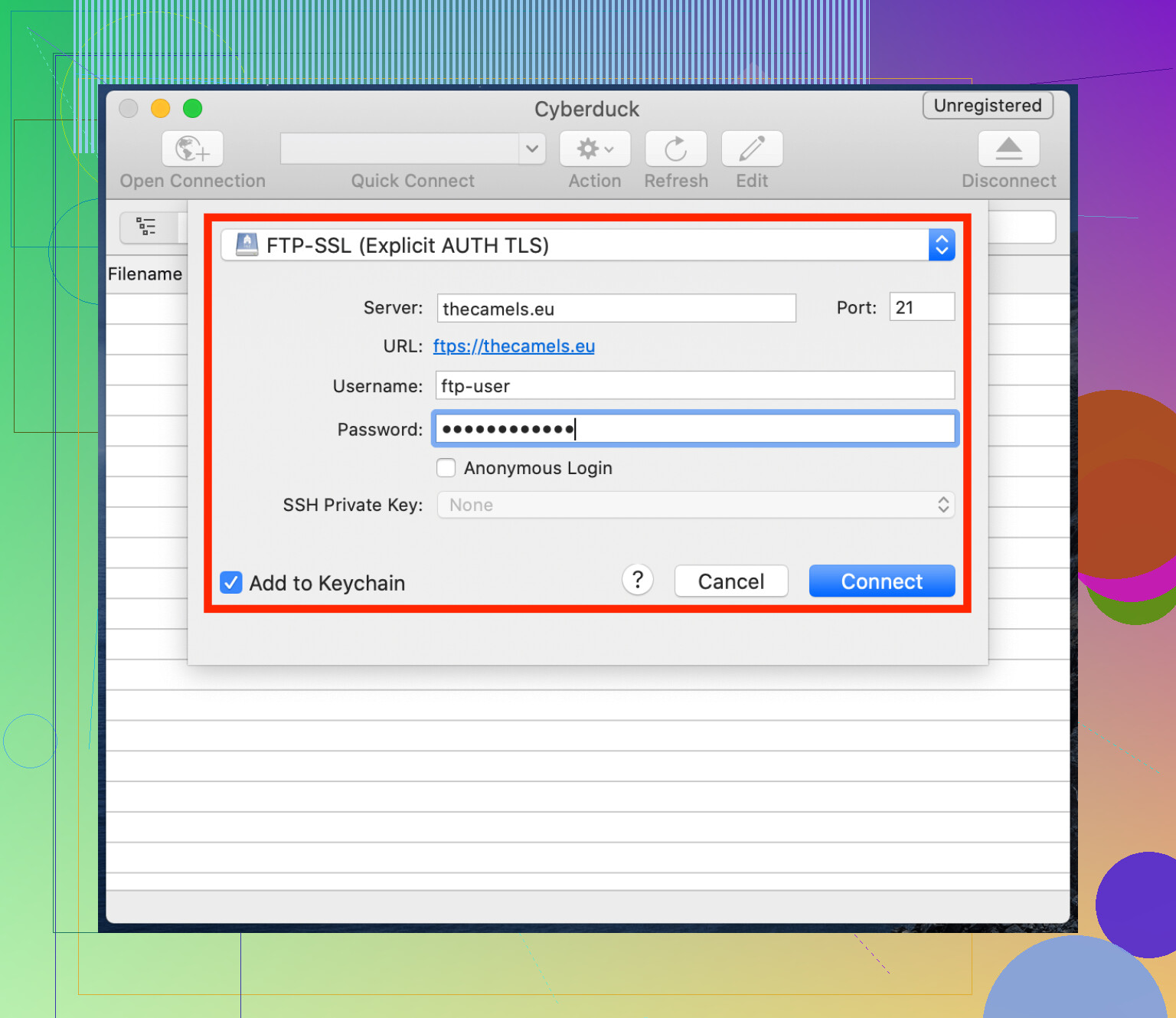
Cyberduck
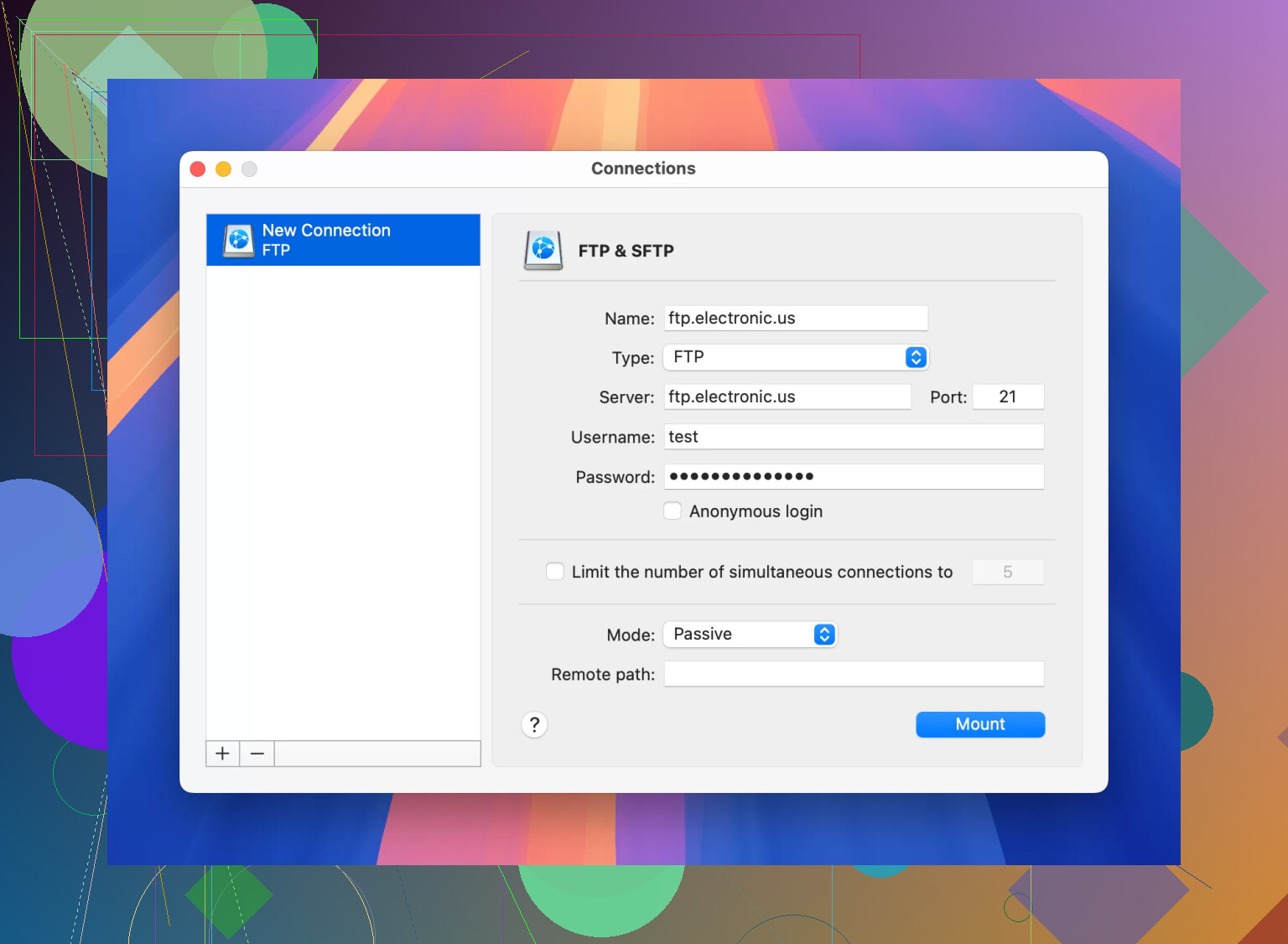
This is another free, open-source option. Cyberduck has a very clean, simple interface compared to FileZilla. It’s great for quick, one-off uploads and integrates well with almost every cloud service you can think of. Some users find it a bit clunky for complex file structures. It doesn’t use the dual-pane view (local on left, remote on right), which can make moving things between specific folders a little more confusing. It can also be a bit of a memory hog if you leave it running for long periods.
5 Likes
FTP gives you only the file side. For a full WordPress backup, you need two parts.
- Files
Download the whole WordPress root. Important items:
wp-content, this is the big one
wp-config.php
.htaccess if present
wp-admin and wp-includes, I save them too, even if core files are replaceable
I slightly disagree with @mikeappsreviewer on one point. I would not treat all files as equal. If time is tight, grab wp-content plus wp-config.php first. Those hold your themes, plugins, uploads, and DB settings. That is your fastest safety copy.
- Database
Open phpMyAdmin in your host panel.
Select the WordPress database.
Click Export.
Pick Quick and SQL for a fast dump, or Custom if you want compression.
Save the .sql file in the same backup folder.
Not sure which database is yours. Open wp-config.php and find DB_NAME.
- Verify
Check file count after download.
Open the SQL file and see if it has table data.
Zip the backup folder.
Store a second copy off your computer.
If you are on Mac, Commander One is decent for SFTP backups because the dual-pane view makes bulk file copying less messy. I prefer SFTP over plain FTP every time. It avoids dumb credential leaks.
If the plugin update broke the site, also save a copy of wp-content/plugins before you touch anything else. That part matters most rn.
I’d do this in two separate backups, not one giant “download everything and hope” session.
@boswandelaar is right about grabbing wp-content fast if things are unstable, but I kinda disagree with treating wp-admin and wp-includes as must-save in every emergency. Those are mostly core files and can usually be replaced. Your critical stuff is:
wp-content/uploadswp-content/themeswp-content/pluginswp-content/mu-pluginsif it existswp-config.php.htaccess- any custom files in root like
robots.txt, custom PHP scripts, etc.
If the plugin update broke the site, make a copy of the specific plugin folder first, before you deactivate/delete anything. That gives you the exact broken version for rollback or diff checking later.
For the database, FTP won’t help. You still need:
- Open
wp-config.php - Find
DB_NAME - Go into phpMyAdmin in your host panel
- Select that database
- Export as SQL, preferably compressed if it’s big
One more thing people skip: check for offsite media paths or cache folders. Sometimes image plugins/store systems write outside the normal uploads path. Same for backup plugins that stash archives in weird folders.
If you’re on Mac, Commander One is actually handy for a WordPress FTP backup because the dual-pane view makes it easier to compare local vs server files without getting lost. Less clunky than some old FTP apps imo.
Afterward, zip the files + SQL together and test the SQL file size. If it’s like 2 KB, something went wrong. Happens more than poeple admit.
I’d add one thing the others only touched lightly: take a snapshot of the broken state before you “fix” anything. @boswandelaar, @caminantenocturno, and @mikeappsreviewer are right about files + database, but for plugin-update disasters I would also save:
- the exact plugin folder that was updated
wp-content/debug.logif it exists- your server error logs from hosting
- current plugin list and versions, even as screenshots
That matters because sometimes the fastest recovery is not a full restore. It’s rolling back one plugin or comparing changed files.
Also, slight disagreement with the “download the whole root first” approach if the site is unstable and you want speed. I’d prioritize in this order:
wp-content/pluginswp-content/themeswp-content/uploadswp-config.php- database export
- everything else
Why? Because if the transfer dies halfway through, at least you’ve preserved the irreplaceable parts.
Another thing people forget: if your host has File Manager compress, use that before FTP. Zipping wp-content on the server can be much faster and avoids thousands of tiny-file transfer failures. Then download the zip via FTP/SFTP. Not every host allows it, but when it does, it’s cleaner.
For Mac, Commander One is actually useful here.
Pros
- dual-pane view is easier for comparing local and server folders
- supports SFTP, which is safer than plain FTP
- bulk copying feels less clumsy for WordPress directories
Cons
- not free if you need the fuller feature set
- mostly a Mac-centric recommendation
- still won’t back up the database by itself
So yes, use FTP or better SFTP for files, but pair it with phpMyAdmin for SQL, and grab logs before changing anything. That gives you a backup and a trail to diagnose what the plugin update actually broke.