My iPad has gotten really slow lately, especially when opening apps, switching screens, and browsing the web. I’m trying to clean it up and improve performance without deleting photos, apps, or other important files. I need help with safe ways to speed up an iPad, free up system resources, and fix lag without losing any data.
If your iPad stutters in every app, hangs when you bounce between screens, or feels weirdly slow for no clear reason, I’d start with the boring stuff first. In my case, the fix was not magic. It was a few settings and some storage cleanup.
If the slowdown started right after an update
I would wait a bit before changing a bunch of things. After a big iPadOS update, the system spends time reindexing files in the background. That eats CPU for a while. On mine, it took about a day before it stopped feeling sluggish. Give it 24 to 48 hours. If day two passes and it still crawls, then I’d assume something else is off.
Changes worth trying first
- Disable Background App Refresh. Go to Settings, General, Background App Refresh. Turn it off fully, or leave it on only for apps you care about. I saw the biggest instant improvement here. A bunch of apps keep pinging servers when you are not even using them, and older iPads seem to hate it.
- Check Low Power Mode. If the battery icon is yellow, performance is being held back on purpose. Turn it off if you want full speed.
- Turn on Reduce Motion. Go to Settings, Accessibility, Motion, then enable Reduce Motion. This cuts down the flashy zooming animations and swaps them for simpler transitions. On older hardware, the interface often feels snappier right away.
- Stop force-closing everything. I used to do this all the time, thinking I was cleaning house. It made things worse. Suspended apps sit there in a low-power state. If you swipe them away, the iPad has to load them all over again next time.
Why free storage matters more than people think
Once your storage gets past roughly 80 percent used, performance tends to drop. iPadOS needs open space for temporary files, caches, and swap during multitasking. When the drive is packed, apps lose breathing room. The lag is not only from old files sitting there, it is from the system running short on working space.
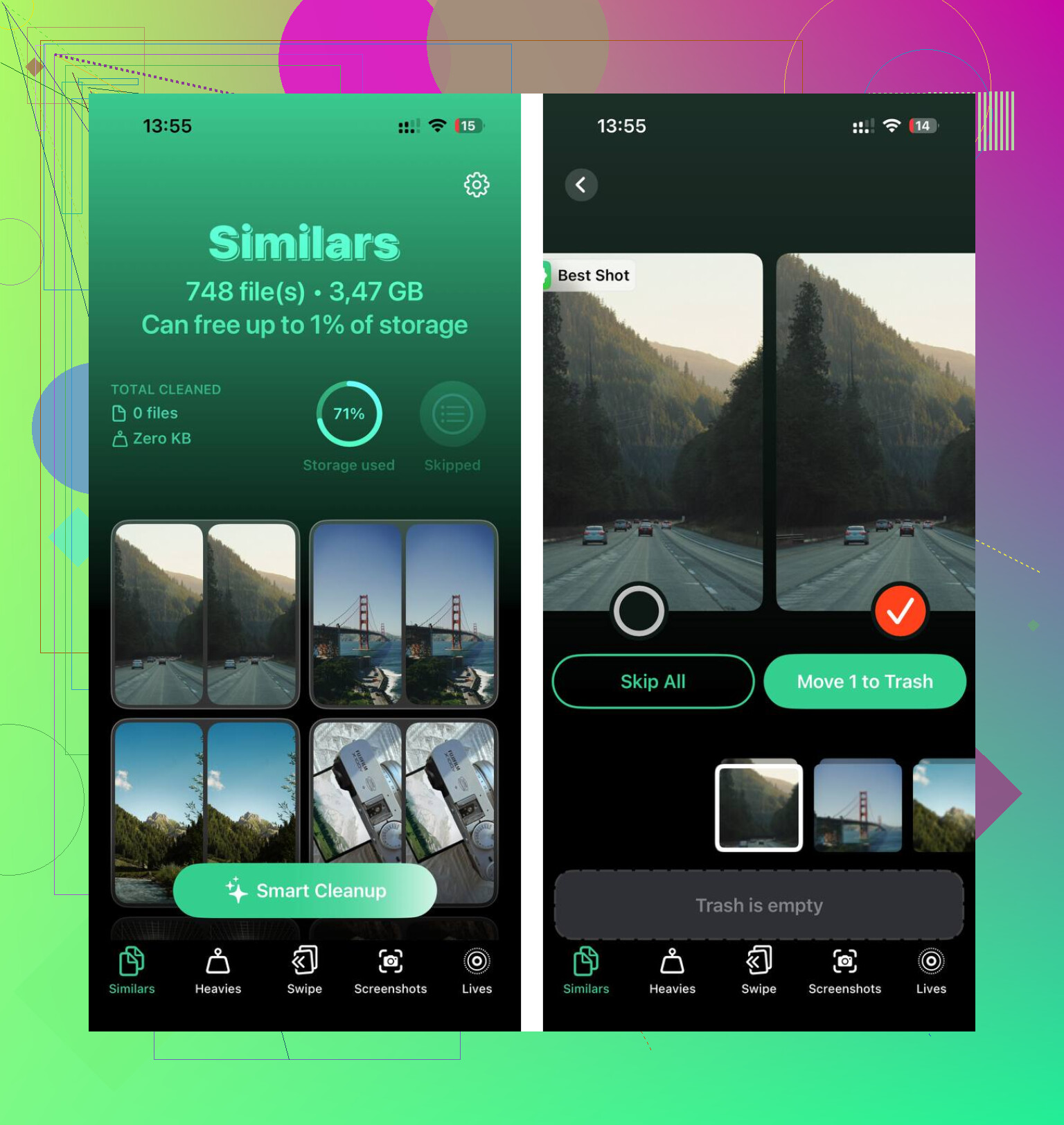
Clever Cleaner helped with media cleanup in a way manual deleting never did for me, and it is free, with no ads or subscription.
- Open the Heavies tab. It lists the biggest files first, with exact sizes. Old videos and screen recordings usually float right to the top, which saves you from digging through years of clutter.
- Move to the Similars tab. It groups near-duplicate photos and picks a Best Shot for each set. If your library has bursts, repeated tries, or five versions of the same picture from slightly different angles, this cuts the cleanup time hard.
- Look through the Screenshots tab. Every screenshot shows its file size before deletion. I found this weirdly useful because it made bulk cleanup less blind.
- Everything stays on-device. Nothing gets sent off to some outside server.
After I cleared about 15GB, the speed change was immediate. Apps opened faster, switching felt smoother, and the whole thing stopped acting clogged.
If you do not want to delete apps
Use Offload App instead. Go to Settings, General, iPad Storage, tap an app, then choose Offload App. This removes the app itself but keeps your documents and saved data. The icon stays on the Home Screen. When you tap it later, it downloads again and picks up where you left off. I think this is the safest way to free space without losing your stuff.
If Safari is the only thing acting slow
Go to Settings, Safari, Clear History and Website Data. Safari builds up a lot of cached site junk over time. On one iPad I used, browsing was the only laggy part, and clearing this fixed it fast.
2 Likes
Start with the stuff people skip.
Restart the iPad. Not sleep, full restart. If uptime has been weeks, memory gets messy. This fixes random lag more often than people admit.
Then check battery health behavior. iPads do not show the same detailed battery stats as iPhones, but old batteries still drag performance down. If your iPad gets warm fast, drains fast, or lags more below 30 percent, battery wear is part of it. No cleanup app fixes worn hardware.
I partly disagree with @mikeappsreviewer on waiting too long after updates. If it feels bad for more than a few hours, I start checking settings right away.
Things I’d change without deleting your files:
- Turn off widget overload. Too many Home Screen widgets keep pulling data.
- Remove extra Safari tabs. Dozens of live tabs eat RAM.
- Disable unnecessary Location Services. Settings, Privacy, Location Services.
- Cut notification spam. Constant banners wake apps up all day.
- Review Mail settings. Push mail drains resources. Set Fetch manually or hourly.
- Update apps. Old app builds often stutter on newer iPadOS.
- Clear app caches where apps allow it, Chrome, Spotify, Teams, etc.
If storage is tight, Clever Cleaner is worth a look for finding junk fast, even if you want to be careful with what gets removed later. This video is a decent guide to speeding up your iPad and cleaning storage safely.
One more thing, if web browsing is the worst part, disable Safari extensions you forgot about. Those slow stuff down a ton on older iPads. Small change, big diffrenece.
I’d actually go a little different from @mikeappsreviewer and @andarilhonoturno on one point: if you want it faster without deleting anything, stop thinking “cleanup” first and think load reduction.
A few things that helped my older iPad a lot:
-
Turn off Spotlight indexing for junk you never search
Settings > Siri & Search. Disable search for apps you do not need indexed. Also scroll down app by app and turn off “Show in Search” for stuff that has no reason to appear there. Search indexing can get weirdly heavy. -
Reset Safari without wiping your device
Instead of only clearing history, also check Safari > Extensions and disable the ones you forgot were there. Content blockers, coupon finders, grammar tools, all that stuff can make browsing feel slooow. -
Reset network settings
Settings > General > Transfer or Reset iPad > Reset > Reset Network Settings. If web browsing is the main problem, this can fix buggy Wi-Fi behavior. Annoying because you re-enter Wi-Fi passwords, but it sometimes works better than any “cleaner” trick. -
Check per-app storage bloat
Some apps cache tons of junk but let you clear it inside the app itself, so you are not deleting your important files. Streaming, messaging, and browser apps are usual offenders. -
Hard restart
Basic, yes. Still works more often than people admit.
Also, if your storage is packed and you eventually decide you can trim duplicate pics or giant old videos, Clever Cleaner is probly the easiest way to spot what is eating space fast. And this write-up on a truly free iPhone cleaner app from Cult of Mac is worth a skim.
If none of this changes much, the boring truth is your iPad may just be hitting hardware limits. No setting can fully fix old RAM and an aging battery.

One thing I’d add that @andarilhonoturno, @sonhadordobosque, and @mikeappsreviewer did not really hit is accessibility and display tuning. On older iPads, the GPU gets bogged down more than people expect.
Try this:
- Settings > Accessibility > Display & Text Size
- turn Reduce Transparency on
- turn Increase Contrast on if you do not mind the look
- Settings > Wallpaper
- use a static wallpaper, not Perspective Zoom
- Settings > Accessibility > Touch
- disable anything you do not use like Tap to Wake if available
These do not delete a single file, but they reduce visual overhead. I actually disagree a bit with the “just clear Safari stuff first” approach if the whole iPad feels slow. If lag shows up on the Home Screen too, it is more likely system load than browser junk.
Another overlooked fix: check Analytics logs.
Settings > Privacy & Security > Analytics & Improvements > Analytics Data
If you see the same app name or process crashing over and over, that app may be dragging the system down in the background. Updating or reinstalling just that one app later can help more than broad cleanup.
For storage inspection without blindly deleting things, Clever Cleaner is fine if you eventually want to review large files or duplicates.
Pros:
- easy way to spot space hogs
- useful for duplicate photos and screenshots
- can help if near-full storage is the real slowdown
Cons:
- not a magic speed booster by itself
- still requires you to review what gets removed
- less useful if your iPad is slow because of age, RAM limits, or battery wear
My order would be: restart, disable visual effects, check free space, inspect crash logs, then use Clever Cleaner only if storage is tight. If you have under about 10GB free, that is usually the bigger issue.