I imported a large batch of photos from my iPhone to my Mac, but they’re still taking up space on the phone. I need a safe way to delete all imported iPhone photos at once without removing them from my Mac or iCloud by mistake.
The main thing to watch here is iCloud Photos. Apple treats syncing and backing up as two different things, and that’s where people get burned.
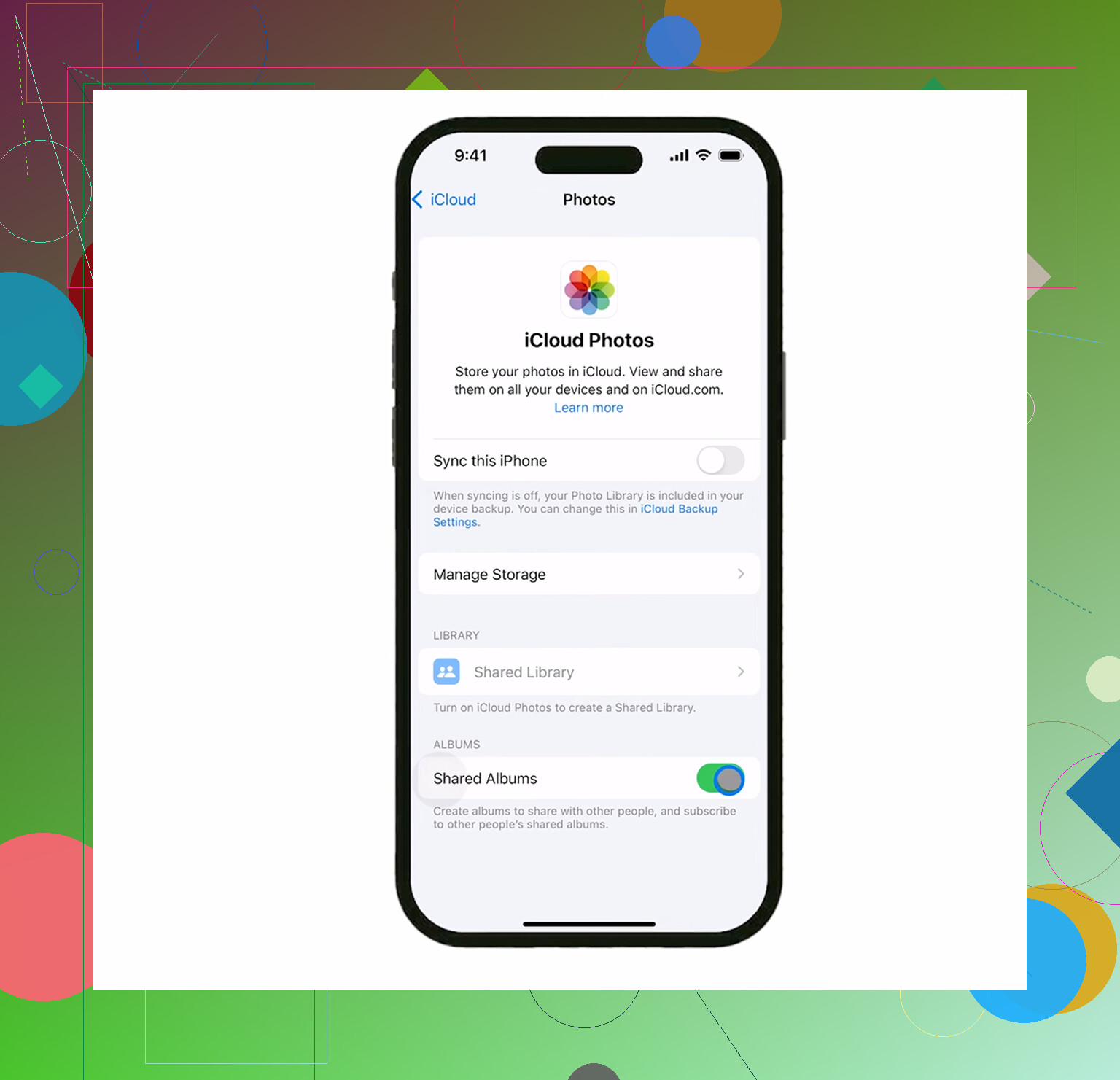
If iCloud Photos is turned on, your iPhone, Mac, and iCloud are basically sharing the same photo library. So if you delete a photo from the iPhone, it also disappears from iCloud and any other device using that same synced library. That’s also why the “Delete items after import” option can vanish in the Mac Photos app. Apple doesn’t want you deleting from one synced device and expecting the other one to stay untouched.
If your goal is “keep these on my Mac, remove them from my phone,” turn off iCloud Photos on the iPhone first: Settings > Photos > iCloud Photos. Once that’s off, the phone is acting more like its own separate library, so deleting from it won’t also wipe the Mac copy.
For deleting a bunch of stuff from the Mac side, I’d use Image Capture instead of Photos. It’s already on every Mac, but a lot of people forget it exists. Plug in the iPhone, open Image Capture, pick your phone from the sidebar, press Command+A if you want to select everything, then use the red delete button at the bottom. It’s much more direct than trying to do this through Photos.
If you already imported everything and just want to clean up on the phone, go to the Imports album under Utilities in the Albums tab. That view is way easier than scrolling through your entire library because it groups imported items by date. To select a lot quickly, tap “Select,” tap one photo, then drag your finger across and upward. You can grab a ton of photos without tapping each one.
One annoying detail: deleting photos doesn’t free the space right away. They sit in Recently Deleted for 30 days and still take up storage. Go to Albums > Recently Deleted and hit “Delete All” if you actually want the space back. After that, check Settings > General > iPhone Storage. If the number still looks wrong, restart the phone and give iOS a minute to recalculate.
I ran into this because my iPhone started feeling ancient. Keyboard lag, camera taking forever to open, apps crashing for no obvious reason. I thought the phone was dying, but it only had around 800MB free. Once storage gets that low, iOS really does start acting weird because it doesn’t have enough room for temporary files.
Even after clearing the imported photos, my library still had a bunch of garbage in it: near-duplicate shots, old 4K screen recordings, random screenshots, all of that. Cleaning it manually was miserable, so I tried Clever Cleaner.
I’m usually suspicious of cleaner apps because a lot of them are ad-heavy or push subscriptions, but this one was actually useful. It’s free, with no paywalls, ads, or subscriptions. The cleanup also happens on the device, so you’re not sending your private photo library off to some server.
The Heavies tab was the most useful part for me because it sorted media by file size. That’s how I found a few 2GB videos that were eating most of the space. The Similars tab grouped near-identical photos and suggested the best one to keep. It also showed file sizes for screenshots and duplicates before deleting. I ended up clearing another 12GB I didn’t even realize was there, and the lag went away right after.
So I’d do it in this order: make sure the Mac import actually completed, check the iCloud Photos setting before deleting anything, empty Recently Deleted, then look for the big hidden junk if the phone still feels slow.
13 Likes
If the photos only exist inside the Mac Photos app right now, I would not treat them as “safe” until you have a backup of that Photos Library. Deleting from the iPhone is fine after import, but if the Mac drive dies tomorrow and there is no Time Machine backup or other copy, the phone copy was your backup.
The cleanest way depends on what you mean by “imported.” If they were imported into Photos on the Mac and iCloud Photos is off on the iPhone, then deleting them from the iPhone should not remove the Mac copies. If iCloud Photos is on, don’t bulk delete from the phone unless you actually want them removed from iCloud too. That part is not a backup system, it is a sync system.
For a big cleanup, I’d do a boring verification step first: open Photos on the Mac, check that the import is complete, open a few recent videos and Live Photos, then make sure the Photos Library is included in Time Machine or copied somewhere else. After that, use Image Capture to select the iPhone photos and delete them in bulk, or delete from the phone and then clear Recently Deleted. The step people skip is checking videos, since a failed or partial video import is easier to miss than a missing photo.
Clever Cleaner is more for the “I still need more space after deleting the imported batch” situation. It can help find huge videos or duplicate-looking shots, but I wouldn’t use any cleaner app as the first move until the import and backup are confirmed. Bulk delete first, cleanup app second.
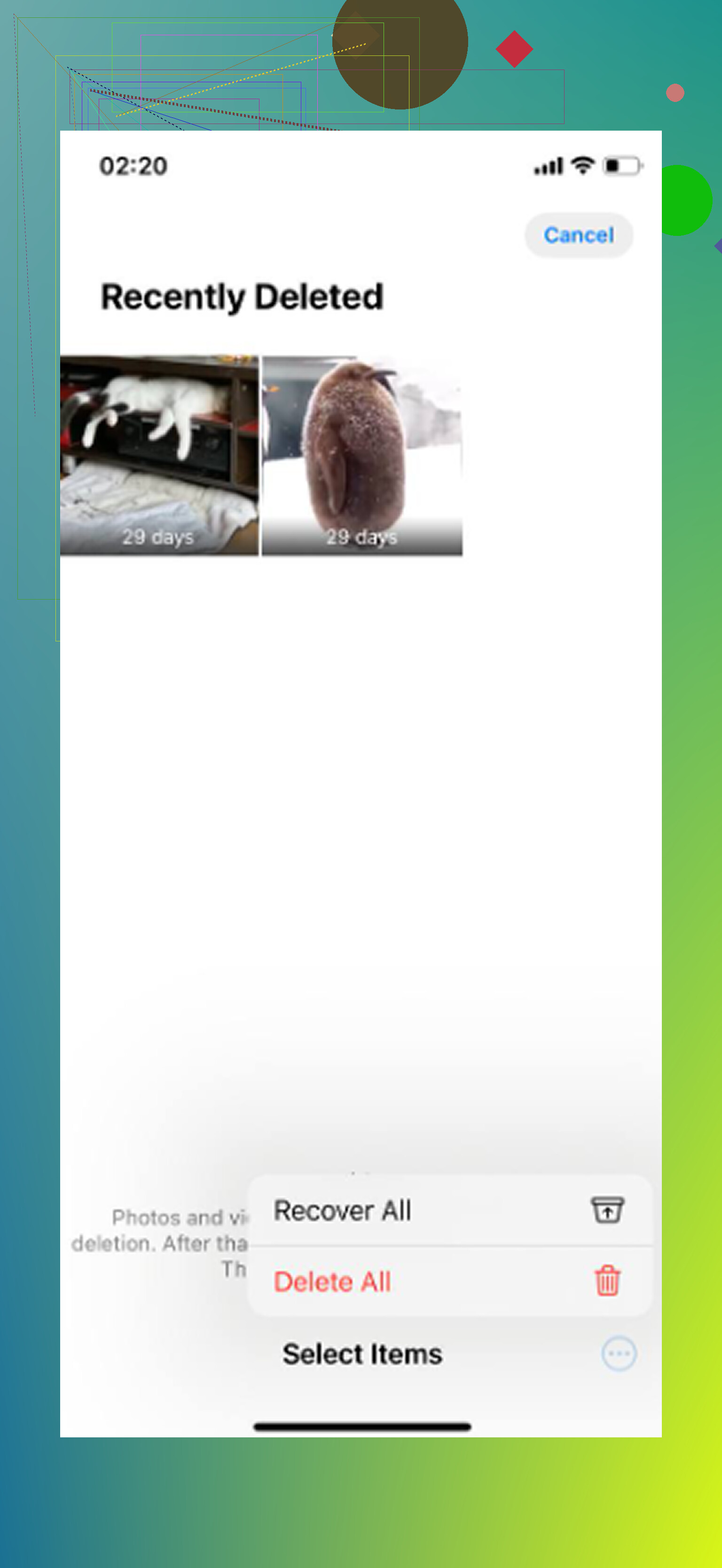
Don’t hit Command+A in Image Capture unless you really mean everything on the phone, not just the batch you imported. Image Capture is fast, but it is dumb in that sense: it does not know which photos you personally consider “already safely imported.” If you took more pictures after the Mac import, those can get swept up too. I’d sort by date in Image Capture or Photos first, delete only the date range you know was imported, then empty Recently Deleted on the iPhone. And if iCloud Photos is on, the better answer is still “don’t delete,” use Optimize iPhone Storage instead, because deleting is a synced delete, not a local-only cleanup.