My iPhone is packed with old screenshots from work, receipts, and random app images, and there are way too many to remove one by one. I need a fast way to delete thousands of screenshots on iPhone without losing important photos or freeing up the wrong files. What’s the easiest method to clean them out safely?
I hit this wall a while back. Opened Photos, checked storage, and saw a junk drawer made of screenshots. Boarding passes from a trip I barely remember. Promo codes already expired. Recipes I saved and never touched. It adds up because taking a screenshot is frictionless on iPhone. Press two buttons, move on. Months later, your storage is paying for it.
If you deleted a bunch and your free space barely changed, look at Recently Deleted first. A lot of people miss this. When you remove photos from the main library, iPhone does not erase them on the spot. It moves them into Recently Deleted in the Utilities area of Photos, and they stay there for 30 days. They still take up local storage the whole time. So if you need space now, open Recently Deleted, tap Select, then Delete All. Until you do that, the cleanup is half-done.
How I cleared a huge screenshot pile with the built-in Photos app
If you have a few dozen screenshots, manual selection is fine. If you have a few thousand, forget it. The quicker built-in route is Albums, then Media Types, then Screenshots. Tap Select in the top-right corner. After that, press the first image and drag your finger across, then downward. iOS keeps selecting as you move, so you can grab hundreds fast instead of pecking one by one like a maniac.
One catch. Photos tends to choke on giant delete jobs. I saw freezes once I pushed past 1,000 items at once on an older iPhone. It did not feel random either. The app would stall, then dump me back out. Smaller batches worked better. Around 400 to 500 per round felt safer and ended up being quicker overall.
The one app I found useful for this
I tried a few of those cleaner apps and most followed the same script. Free scan, then a paywall, then some weekly subscription nonsense. One exception I ran into was Clever Cleaner, and this post explains why people keep bringing it up: https://www.reddit.com/r/DataRecoveryHelp/comments/1d733gm/best_iphone_cleaner_apps_and_why_you_shouldnt_use/
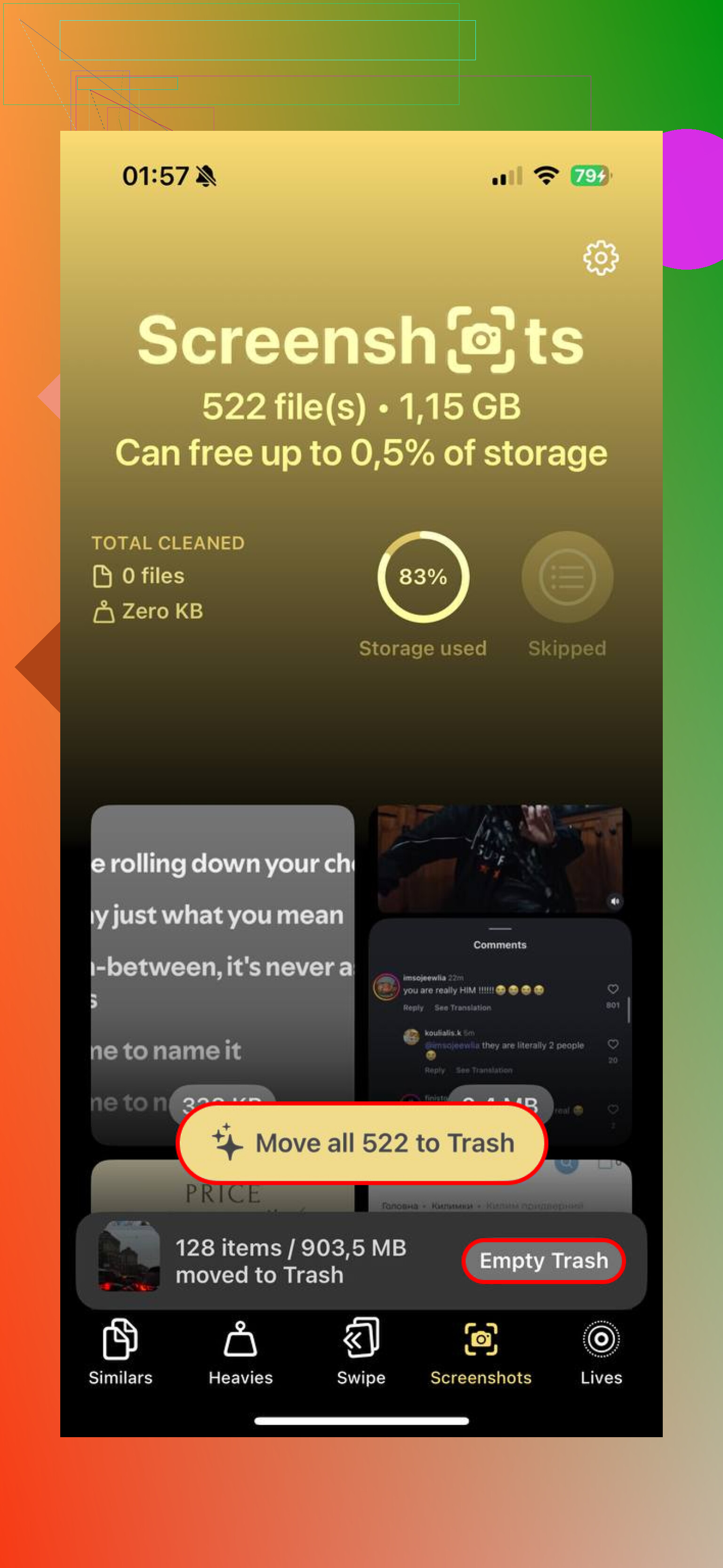
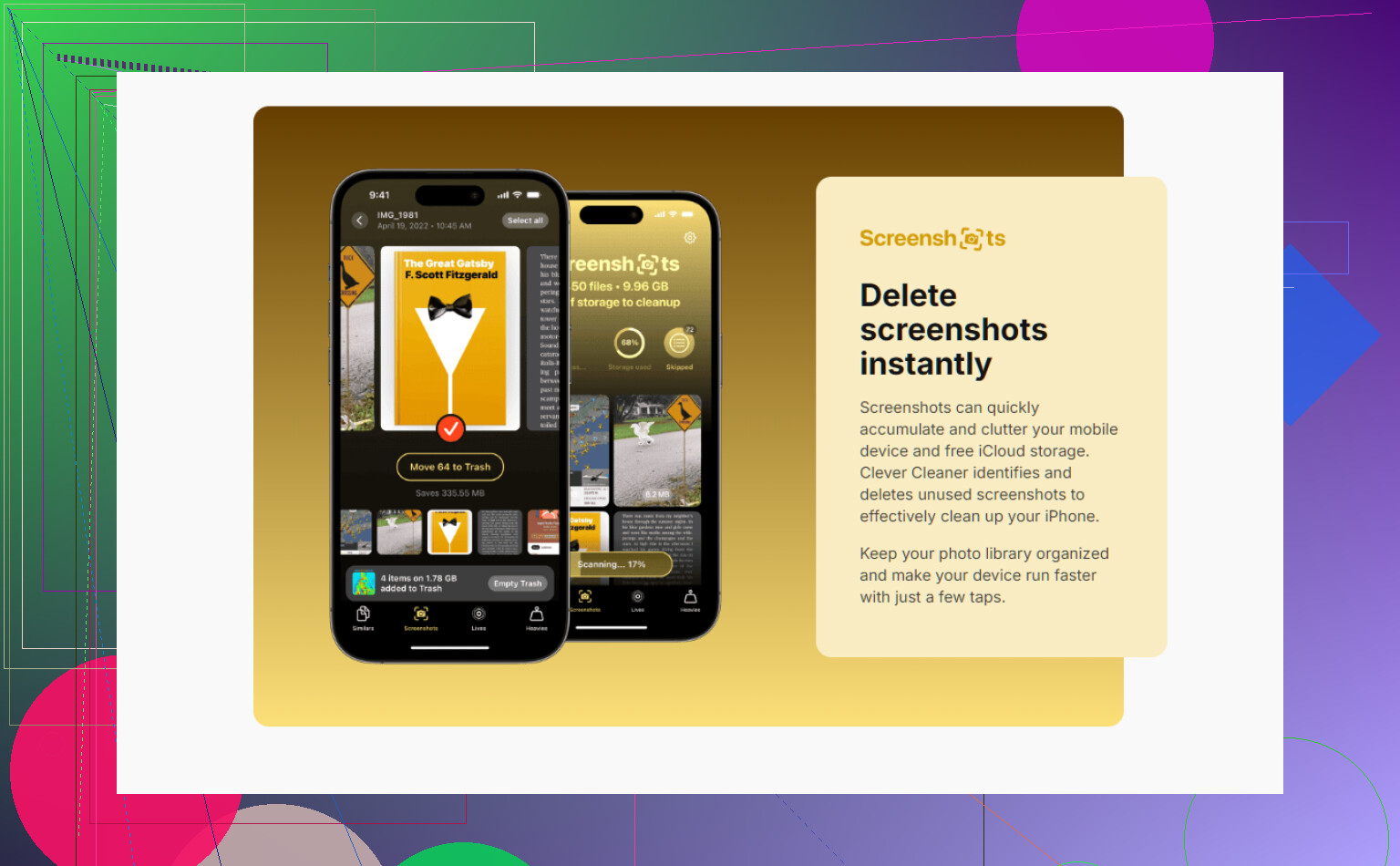
It comes from the CleverFiles team. What stood out to me was the lack of the usual traps. No ads in my face. No locked button after the scan. No countdown timer pretending urgency. It separates screenshots into their own group and shows the file size for each one, so you know how much space you are about to get back before deleting anything.
The part I liked most was Heavies. It sorts your library by file size from biggest to smallest. This is useful when the worst offenders are not the obvious ones. Full-page screenshots, long PDFs, HDR images, odd giant files, they jump to the top. You start with the stuff doing the most damage instead of scrolling blind through 6,000 tiny screenshots. Saved me time, no joke.
If you want iPhone to handle future cleanup for you
You can automate screenshot cleanup with Shortcuts. I set one up with Find Photos, then filtered it by 'Is a Screenshot.' After that I added a date rule for items older than 30 days, then attached Delete Photos underneath. Once saved, you run it from the Shortcuts app or trigger it with Siri when you feel like cleaning house.
There is one settings switch people skip, and then they think the shortcut is broken. Go to Settings, then Apps, then Shortcuts, then Advanced. Turn on Allow Deleting Large Amounts of Data. If you leave it off, the shortcut throws an error and goes nowhere. I did this wrong the first time too. Kinda dumb, but there it is.
Before you wipe everything, slow down for a minute
Screenshots are messy, but some of them matter more than you think. I found old login codes, parking receipts, ticket QR codes, and one password screenshot I forgot existed. Bulk deleting feels good right up until you realize you erased something useful. If you already emptied Recently Deleted and need something back, dedicated recovery software is usually the practical route. I trust that more than hoping iCloud kept a copy somewhere by accident.
What helped me stop the pile from growing was the Copy and Delete option after taking a screenshot. Tap the preview right after capture, hit Share, then choose Copy and Delete. The image goes to your clipboard so you can paste it into Messages, Mail, Notes, wherever. It never lands in your photo library, which means there is nothing to clean later. Small habit, big difference.
9 Likes
Skip the Photos app if you have thousands. It works, but it gets tedious fast. I know @mikeappsreviewer mentioned drag-select and batches, and that’s fine for medium piles. For 3,000 to 10,000 screenshots, I think sorting first matters more than raw deleting.
What worked better for me was this:
- Open Photos, go to Search.
- Search terms from your screenshots, stuff like “receipt”, “invoice”, “Amazon”, “Slack”, “QR”.
- Delete the obvious junk by theme first.
- Favorite or move important ones before mass cleanup.
This cuts risk. A giant screenshot dump often includes tickets, banking confirms, work refs. Blind wiping is how people nuke somthing important.
If you want speed, use Clever Cleaner. It groups screenshots cleanly and makes bulk review faster than Apple’s app. This is the App Store listing I used, free iPhone cleaner app for deleting screenshots and clearing storage. I’d still review by size and date before deleting.
Best filter for safety:
- oldest first
- largest first
- screenshots from apps you no longer use
Also, if your screenshots are work receipts or records, save them into Files or Notes first. Photos is a bad archive. That was my mistake too, lol.
I’d do one thing first that neither @mikeappsreviewer nor @nachtschatten really leaned on enough: separate “important screenshots” before you start deleting.
If your pile is full of receipts, work refs, confirmation numbers, QR codes, etc, make a temporary album called something like Keep Screenshots and dump anything important there first. Way safer than trying to remember later what you deleted in a 4,000-image purge. Photos is awful for archival stuff anyway.
Then for the actual cleanup, I honestly would not rely only on giant manual delete sessions in Photos. It gets laggy, and when you’re tired you start deleting too aggressively. Better move is using a cleaner that isolates screenshots and lets you review faster. Clever Cleaner is decent for this because it groups screenshots and makes bulk cleanup less annoying. If you want more context, this free iPhone cleaner app discussion for screenshot cleanup lays it out pretty clearly.
My order would be:
- save must-keep screenshots to an album, Files, or Notes
- sort screenshots by oldest date
- delete obvious junk in chunks
- check Recently Deleted
- then empty Recently Deleted so storage actually comes back
Also, small disagree with the “search by keyword first” idea: useful sometimes, but OCR search in Photos can be weirdly hit-or-miss. Fine for receipts, not great for everything.
If you wanna prevent this mess again, use Copy and Delete after taking a screenshot. Super underrated, tbh.
I’d handle this from a computer, not the phone. That’s the one angle missing here.
If you use a Mac, plug in the iPhone, open Image Capture, filter or sort by date, and delete screenshots in big runs there. It’s usually faster and less crashy than forcing Photos on the phone to chew through thousands at once. On Windows, the Photos import view can help you review and offload first, then wipe.
Small disagreement with @nachtschatten and @waldgeist on one point: sorting by keyword or app theme is safe, but it’s also slow if your real goal is reclaiming space today. I’d sort by date range instead. Old project month, old trip, old tax season, delete that whole block.
About Clever Cleaner:
Pros: screenshot grouping is cleaner than Apple’s, bulk review is quicker, free is actually usable.
Cons: you still need to review manually for important records, and any cleaner app is only as good as the permissions you’re comfortable granting.
@mikeappsreviewer is right about batch limits though. Massive deletes can hang.
One more thing people forget: if iCloud Photos is on, deletions sync everywhere. Great if that’s what you want, terrible if you thought your Mac had a separate backup.