My iPhone storage is almost full, and now I can’t update apps, install iOS updates, or save new videos. I really don’t want to delete photos or remove any apps because I use them all the time. I need help with safe ways to get more storage on an iPhone without losing pictures, apps, or important data.
My phone hit 127.9 GB used out of 128 GB, and it turned unusable fast. Apps froze. Camera failed at the worst time. Even opening Photos felt slow. I thought I was down to two bad choices, delete stuff I cared about or keep dealing with a clogged phone. Turned out a lot of the space wasn’t my own files.
A chunk of it came from junk iOS builds up over time, cache files, temp data, logs, old message attachments, all the stuff you never saved on purpose. I cleared around 15 GB without wiping my photo library or removing the apps I still use.
Start here.
Go to Settings > General > iPhone Storage. Let it sit for a bit if your storage is packed. On a nearly full phone, this screen takes longer than usual to calculate. Check Apple’s recommendations first. If you see Offload Unused Apps, I’d take it. It removes the app itself but keeps its documents, settings, and login data. The icon stays on your Home Screen with the cloud symbol. If you need it later, tap once and it comes back. I liked this more than deleting apps outright.
If your iCloud storage is full too, photo optimization won’t help much. When iCloud has no room left, your phone stops pushing full-size photo versions off the device, so local storage stays bloated. While still in iPhone Storage, open Messages. Mine had a dumb amount of space tied up in group chats. Old videos, memes, random attachments from years back. Use Review Large Attachments and cut the biggest stuff first. I found clips in there I forgot existed.
The slowdown part usually came from app cache on my phone. TikTok, Instagram, Spotify, those were the worst offenders for me. They keep local data around so scrolling and playback feel faster, but iOS gives you no single cache wipe button for all apps. Annoying, yeah. What worked was deleting the app, then reinstalling it. I did this with TikTok and got about 3 GB back in one go. My account was fine after reinstalling. The trash was what disappeared.
Photos were another mess. Not duplicates in the strict sense. More like near-duplicates, bursts, Live Photos, five shots of the same thing because my hand moved a little. Those stack up harder than people think. Live Photos in particular eat more room than a normal still.
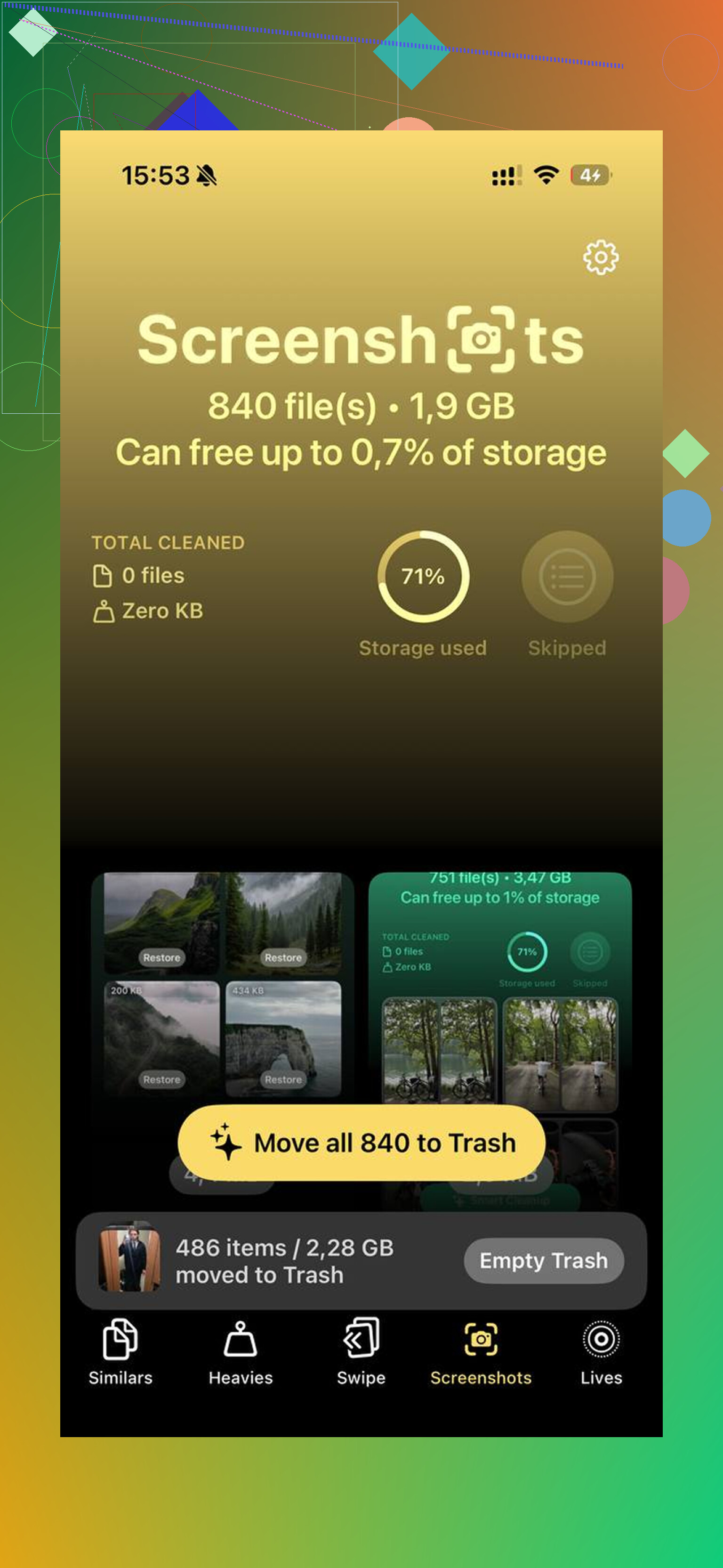
I ended up trying an app after getting tired of sorting manually. The one I used was https://www.youtube.com/shorts/qUVkfQqrwsk
I’m usually skeptical of cleaner apps because most of them feel shady, loaded with ads, or locked behind a subscription five seconds in. This one felt different when I used it. No ads popping up. No paywall nonsense right away. What helped me most was the tool for similar photos. It grouped shots which looked almost the same and picked a best shot, so I only had to review and dump the extras. If you’ve got ten versions of the same sunset, same pet pose, same receipt photo, this saves time.
The other useful part was finding the largest files first. Apple’s Photos app still makes this harder than it should be. I wanted the biggest space hogs up front, mostly long videos. This app showed me those fast, and I cleared the worst offenders first instead of poking around album by album.
One reason I kept using it was privacy. From what I saw, the processing stayed on the device. My photos weren’t getting pushed somewhere else for analysis. I cared about tht more than the cleanup itself, honestly. It also had a way to convert Live Photos into stills, which trimmed space without deleting the image I wanted to keep.
After a cleanup, don’t skip the part almost everyone forgets. Empty Recently Deleted in Photos. Until you do, those files still take up storage for 30 days. Open Photos > Albums > Recently Deleted, then remove everything there. I missed this the first time and wondered why my free space barely moved.
Once I got usage down to around 85 percent, the lag stopped. My phone felt normal again. iPhones seem to need some free room, around 10 to 15 percent from what I saw, or they start acting rough. If the storage number still looks wrong after cleanup, restart the phone. Mine didn’t fully update the free space count until after a reboot.
So yeah, if your phone is full, I wouldn’t start by deleting random photos one by one. Check storage recommendations. Offload unused apps. Clean message attachments. Reinstall cache-heavy apps. Deal with similar photos and Live Photos. Empty Recently Deleted. Do those first. It fixed mine without me losing anything important.
2 Likes
I’d skip one part of @mikeappsreviewer’s approach. Reinstalling apps to clear cache works, but it’s a pain, and some apps re-download a ton of data right away. You end up chasing space twice.
Try the lower-risk stuff first.
-
Clear Safari data.
Settings > Safari > Clear History and Website Data.
If you browse a lot, this frees more than people expect. On my phone it was close to 1 GB. -
Remove downloaded media, not the app.
Open Spotify, Netflix, YouTube, Podcasts, Audible, Disney+, Prime Video. Delete offline downloads inside each app.
This keeps the app, your account, and your setup. Downloaded shows and playlists are often the hidden storage hog. -
Change Messages retention.
Settings > Apps > Messages > Keep Messages > 1 Year, or 30 Days if you dont need old threads forever.
This does not remove the app. It trims old message history over time. -
Delete old iOS update files.
Settings > General > iPhone Storage.
If you see an iOS update listed, remove it. Failed or old update packages sit there and eat space. -
Mail app cleanup.
If you use Apple Mail, large attachments stay cached. Remove and re-add the mail account. This often clears local mail data without losing the account itself. -
Turn on photo optimization if you use iCloud Photos and still have cloud space.
Settings > Photos > Optimize iPhone Storage.
This keeps smaller device versions.
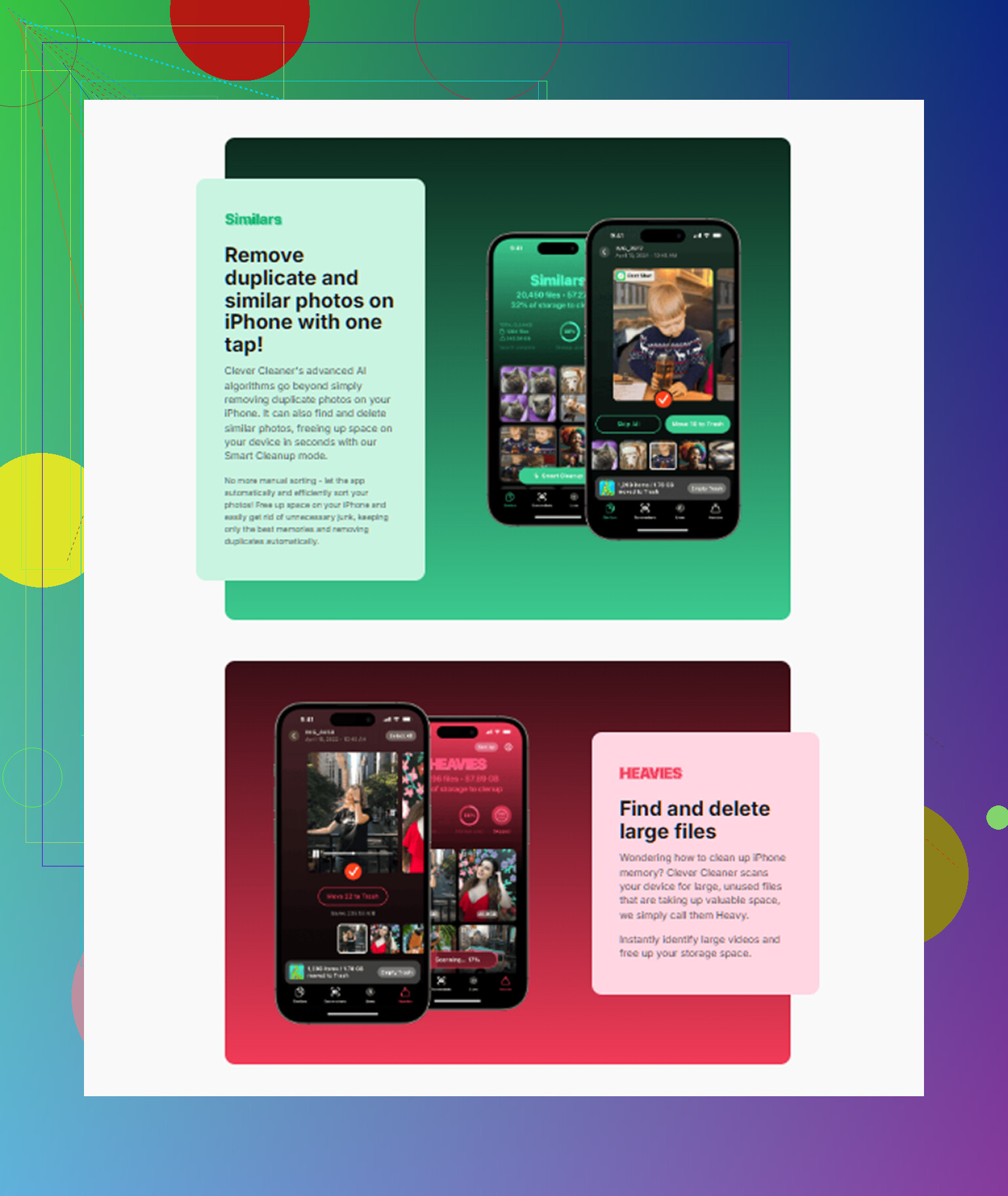
If your photo library itself is the problem, use Clever Cleaner to sort large videos, screenshots, duplicates, and similar shots faster, then review before deleting. This is the part Apple still makes annoyng. If you want a quick demo, check see how Clever Cleaner frees up iPhone storage.
Aim to free at least 8 to 15 GB. iOS updates fail a lot when you run too close to full.
I’d do a couple things that @mikeappsreviewer and @jeff didn’t really stress enough.
First, check Files app and On My iPhone storage. A lot of people forget this exists. Old ZIPs, PDFs, downloaded docs, GarageBand files, screen recordings, edited video exports, random stuff from Safari or Chrome downloads can sit there forever. Open Files > Browse > On My iPhone and also check Downloads. I found several GB there once, no joke.
Second, if you use WhatsApp, Telegram, Messenger, or Discord, those apps can hoard media like crazy without it being obvious in Photos. Go into each app’s own storage manager and remove large videos/docs from chats. That keeps the app installed and usable. Same idea for Slack too, if it’s a work phone.
Third, restart after cleanup. Sounds dumb, but iOS sometimes holds onto “System Data” weirdly until a reboot. I don’t totally agree with the “just reinstall a bunch of apps” route unless you know exactly which ones are bloated. It’s effective, sure, but also annoying as hell and sometimes logs you out of stuff you need fast.
If System Data is the big mystery chunk, the least painful fix is usually:
- sync anything important
- make an iCloud or computer backup
- update iOS if possible
- if storage stats still look broken, backup + restore can shrink that category a lot
Also check Voice Memos, Books, and Podcasts. People forget downloaded episodes and recordings are still there.
If photos are the main culprit but you don’t want to manually sort forever, Clever Cleaner is honestly one of the more practical options for finding similar shots, large videos, screenshots, and other space wasters without deleting your actual apps. If you want a solid overview, this article on the best AI cleaner apps for iPhone storage is easier to read than most.
Biggest thing: try to get at least 10 GB free. Under that, iPhones start acting janky real fast.