I need help recovering files from a failing hard drive as soon as possible. My computer started freezing, some folders vanished, and now important photos and work documents are missing or won’t open. I’m worried the drive is dying and I need the safest way to recover data before it gets worse.
Losing files off an HDD feels bad fast. I’ve had it happen, and the worst move was keeping the drive in use while hoping it would sort itself out. If your hard drive starts behaving weird or files vanish, stop writing anything to it right away.
Do not copy new files to it. Do not install apps on it. Do not move folders around. Every write raises the odds of overwriting data you still might get back.
Before running recovery tools, look at the drive’s behavior. I’d pay attention to stuff like:
- clicking or grinding sounds
- random disconnects
- the drive showing up, then vanishing
- painfully slow folder opening
- read errors or bad sectors in S.M.A.R.T. info
If you want a quick health check, pull the S.M.A.R.T. status with a disk utility. If the report shows bad sectors piling up or read failures, I’d treat the drive gently and keep the session short.
If the HDD still opens, start with the obvious stuff first. People skip this and waste an hour scanning for files sitting in the trash.
Check these first:
- Recycle Bin on Windows
- Trash on Mac
- File History on Windows
- Previous Versions on Windows
- Time Machine on Mac
- OneDrive
- Google Drive
- Dropbox
- iCloud
Cloud drives often keep deleted files in their own trash area for 30 days, sometimes longer. I’ve seen people recover a week’s worth of panic from there in two minutes.
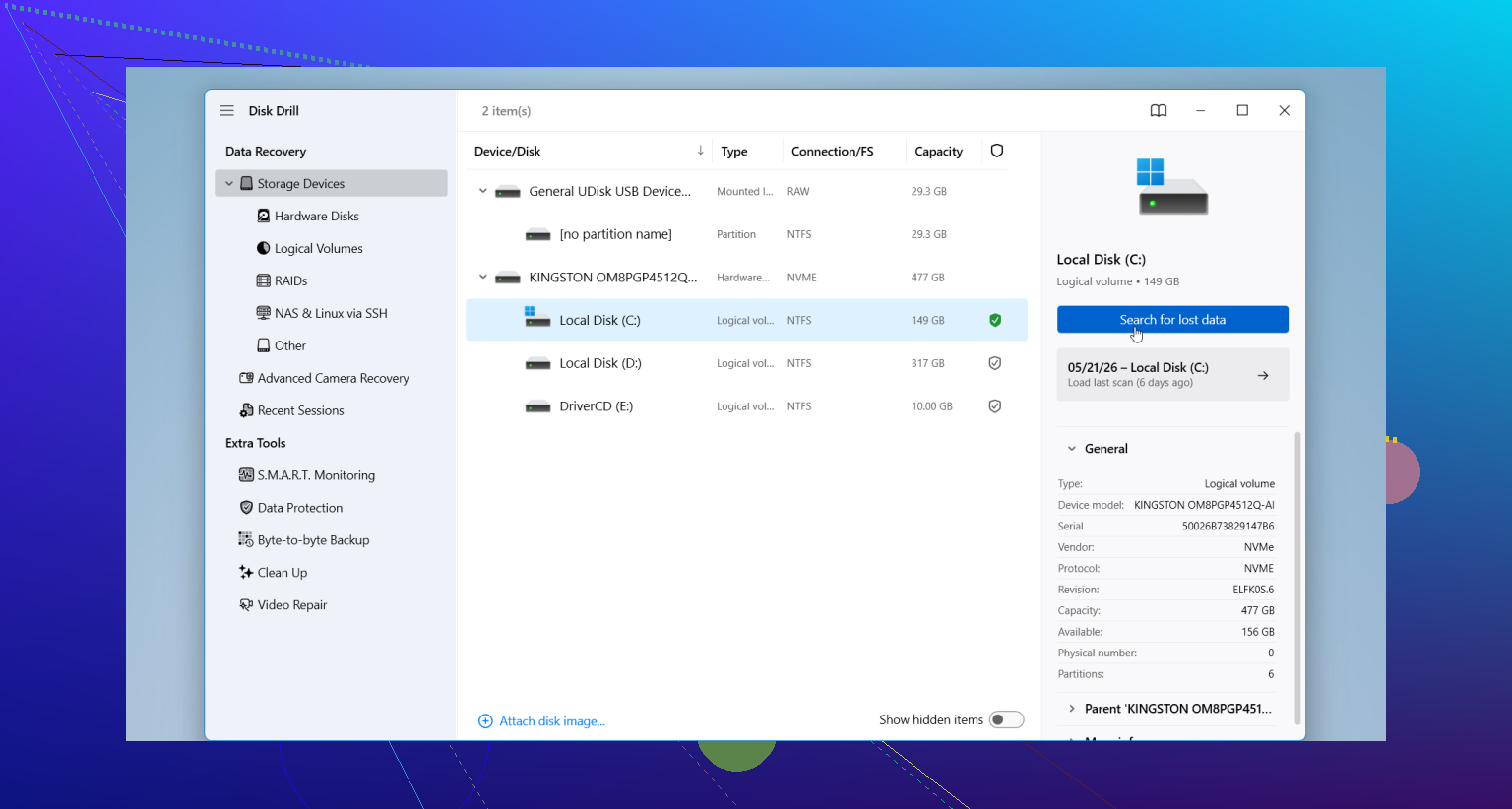
If backups come up empty, move to recovery software. A lot of folks start with Disk Drill because it’s easy to get moving with, and it handles deleted files, formatted HDDs, damaged partitions, and RAW volumes without a ton of setup. File preview helps too. If you can preview a file, you’ve got a better shot at recovering something usable.
The basic recovery flow is simple:
- Plug the HDD into your computer.
- Install the recovery app on a different drive.
- Launch it and pick the problem HDD.
- Run the scan.
- Preview what it finds.
- Restore files to another drive, never back onto the same HDD.
One thing I would not ignore. If the drive gets louder while scanning, starts dropping connection over and over, or locks up the whole system, stop. Unplug it. Those are bad signs. At that point, pushing a DIY recovery attempt harder sometimes turns a recoverable mess into a dead drive. Bit harsh, but true.
2 Likes
Stop using the drive. That part from @mikeappsreviewer is dead on. My only small disagreement is scanning the failing disk first. If the drive is degrading fast, your first move should be a sector-by-sector image or clone to a healthy drive with equal or larger size. Work from the copy, not the original. That saves wear, and it gives you more than one shot.
Best order I’d use:
- Power it down.
- Connect it as a secondary drive, or with a USB dock if needed.
- Clone it with a read-first tool like ddrescue on Linux, or any imaging tool that skips bad areas and loops back later.
- Run file recovery on the clone.
- Save recovered files to a different disk.
Why clone first. A weak HDD often gets worse under long scans. Read retries pile up. Heat rises. Heads keep seeking. I’ve seen drives go from “opens folders slowly” to “not detected” in one evening. Not fun.
If the missing files were photos and office docs, recover those file types first. Prioritize by value. Family photos, tax docs, client work. Large media archives come later.
Disk Drill is fine for the recovery stage, esp if you want previews and a simple UI. Install Disk Drill on another drive, scan the cloned image or clone disk, then recover to a third drive. If previews fail for JPG, DOCX, PDF, odds drop a lot.
If the drive clicks, spins down, or disappears in BIOS, skip DIY. That’s lab territory. Every extra power cycle hurts your chances.
Also, this video is a decent quick watch on hard drive file recovery steps:
watch this hard drive file recovery guide
If you post whether it’s an HDD or SSD, and whether BIOS still sees it, people here can narrow the next move fast.
Power it off and stop ‘checking if the files are still there.’ That part kills recoveries fast.
I agree with @vrijheidsvogel on cloning first, but I’ll disagree a bit on one thing people oversell: not every flaky drive survives a full image attempt. If it’s hanging hard on bad spots, sometimes you pivot and grab the most important folders first while it still sorta reads. Triage matters.
What I’d do:
- Test with a different SATA/USB cable and different port first. Sounds dumb, fixes more than people admit.
- Check if the drive is visible in BIOS/UEFI.
- If visible and mostly stable, copy irreplaceable stuff first in small batches.
- If reads are failing all over, make an image/clone and work from that.
- Recover to another disk only.
Also, if files are suddenly “there but won’t open,” that can be filesystem corruption, not just deletion. On Windows, I would not run chkdsk yet. People love suggesting it, but on a failing drive it can make a bad day worse. Same idea with First Aid/fsck if the disk is physically dying.
For the recovery stage, Disk Drill is a reasonable pick because it’s fast to sort by file type and preview photos/docs. I’d use it on the clone if possible, not the original. If previews are busted, temper expectations a bit.
If the drive is clicking, disappears randomly, or freezes the PC the second you access it, stop DIY. That’s lab time, no joke.
Also worth a read if you want more hard drive data recovery software recommendations that are actually useful.
Post whether it’s an HDD or SSD and whether BIOS still sees it. That changes the next move alot.