My iPad photo library has a lot of near-duplicate pictures from burst shots, edits, screenshots, and synced images, but they aren’t exact copies so the Photos app doesn’t always catch them. I’m trying to free up storage and clean up my gallery without deleting the wrong photos. What’s the safest way to find and remove similar duplicate photos on an iPad?
I’d handle this in two passes, because “duplicates” on an iPad usually means two different things.
Apple’s Photos app is mostly looking for true duplicates. That helps if you saved or imported the same file more than once. But a lot of the clutter in a real photo library is stuff that only looks duplicated: several selfies from the same moment, five shots of the same view, edited copies, images saved again from Messages, or photos taken one second apart.
For that kind of mess, I’d start with Clever Cleaner, especially if the library is big. Its Similars section groups photos that are visually close, even when they are not the exact same file. That is the part Apple’s built-in duplicate tool often misses.
It also picks a Best Shot in each group, but I would not just delete everything blindly based on that. Open the group, compare the photos, and keep the one you actually like. It is still much quicker than going through the Photos app one image at a time and zooming in on every tiny difference.
Clever Cleaner can find exact duplicates too, so it works well as a first cleanup pass when you have years of photos and no clear idea how much junk is in there. The useful bit is that it catches both exact copies and near-copies.
After that, check Apple’s Duplicates album too. On iPadOS 16 or newer, open Photos, scroll to Utilities, then tap Duplicates. Apple will group matching items and show a Merge button. When you merge them, it keeps the best-quality version with the useful metadata and sends the extras to Recently Deleted.
Just know that Apple is pretty strict here. If one photo was cropped, edited, compressed, or taken a moment later, it may not show up as a duplicate even if it looks basically identical to you. That is why some people see only a handful of results in Duplicates while their library still feels packed with repeats.
If you do not see the Duplicates album, it may not be ready yet. The iPad can take time to scan everything, especially after a large import, a software update, or a big iCloud Photos sync. Leave it locked and plugged in for a while. With a large library, it can take a day or two. Also, the feature is not available on iPadOS 15 or older.
If your library is small and you mostly copied the same files a few times, Apple’s tool may be enough. If you have thousands of photos, a cleaner that checks for similar images will usually find a lot more.
You can also do it manually if you do not want to install anything. Search in Photos for things like “screenshots,” “dog,” “beach,” or a city name. Browsing by Months or Years can help too, especially for trips, events, or places where you probably took several versions of the same shot. It is slower, but it works.
One last thing: merged or deleted photos sit in Recently Deleted for up to 30 days, and they still use storage until they are removed from there. Check that album before emptying it, especially if you are deleting a lot at once.
And if iCloud Photos is turned on, deleting from the iPad also affects your iPhone, Mac, and other synced Apple devices. Make sure you are fine with losing those copies everywhere before you permanently delete them.
11 Likes
Some “duplicates” won’t be removable from the iPad itself if they were synced over from a computer rather than stored normally in Photos. If the trash/delete option is missing or grayed out, check Finder/iTunes sync settings on the computer and remove that folder or album there, then sync again.
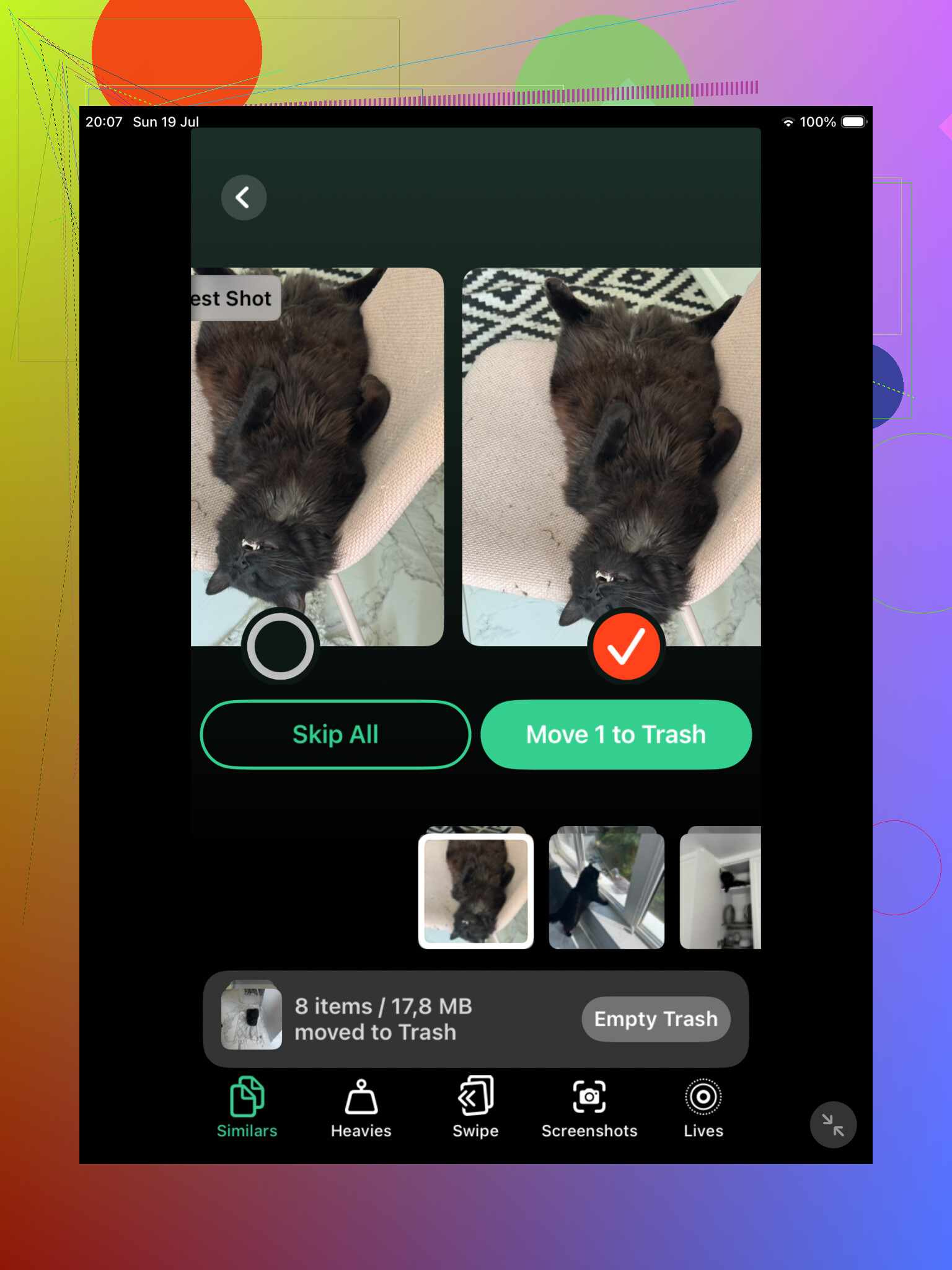
If iCloud Photos is turned on, treat the iPad as a remote control for the whole library, not a separate cleanup space. Before using any similar-photo cleaner or mass deleting from Photos, make a small safety pass first: favorite the shots you know you want, then delete in batches instead of approving hundreds at once. Near-duplicates are risky because the “worse” one may be the only uncropped original, the only Live Photo, or the version with better metadata. Clever Cleaner or similar tools can speed up finding the groups, but I’d still use them as a sorting aid, not an auto-delete button.
Don’t clean burst shots from the main photo grid, because it’s too easy to delete the sharp frame and keep the blink. Go to Photos > Albums > Bursts, open each burst, tap Select, mark the keepers, then choose Keep Only Favorites; it’s boring, but it removes a lot of near-duplicates without needing an app to guess.