I accidentally formatted my USB flash drive and lost important photos, work documents, and personal files that I still need. I’m looking for help with the best way to recover data from a formatted flash drive before anything gets overwritten. If anyone knows reliable USB data recovery steps or software, I’d really appreciate the advice.
I did this once with a thumb drive full of photos, and yeah, the drop in your stomach hits fast. Still, a format does not always wipe the file data right away. A lot depends on what kind of format happened and whether you kept using the drive after it.
First step, stop touching the USB.
Do not copy new files to it. Do not format it again. Do not run CHKDSK. Do not try random “fixes” from search results. Every write to the drive raises the odds of old data getting overwritten, and once that space is reused, recovery usually ends there.
One thing people mix up all the time, you do not reverse a format. There is no true “unformat” button. The file system got rebuilt. Recovery tools work around that by scanning the raw storage for leftover file data and piecing things back together. So the format stays, but the files still might be sitting there.
Your odds change a lot based on the format type:
- Quick Format
This is the better case. It usually finishes fast, often in seconds. On Windows, it often rebuilds the file system tables without wiping the old file contents right then. If you stopped using the drive fast enough, recovery rates are often decent. - Full Format
This takes longer. On newer Windows systems, a full format writes across the drive. If that happened, software recovery tends to go badly, or nowhere. - Format done by another device
Cameras, TVs, game consoles, dashcams, and similar gear often do something closer to a quick format. In those cases, I’d still try recovery software first.
If you do not have a backup, the practical move is recovery software. I’ve had decent results with Disk Drill. It reads common USB file systems like FAT32, exFAT, and NTFS, and it tends to find a wide range of file types instead of only documents or photos.
This is the way I’d handle it:
- Install Disk Drill on your computer’s internal drive, not on the formatted USB.
- Plug in the flash drive and open the program.
- Pick the USB drive from the device list.
- Start Search for Lost Data, then pick Universal Scan if it asks. For formatted drives, this tends to be the right scan mode since it checks in more than one way.
- Let the scan finish. You can peek early, sure, but I’ve seen extra files show up near the end.
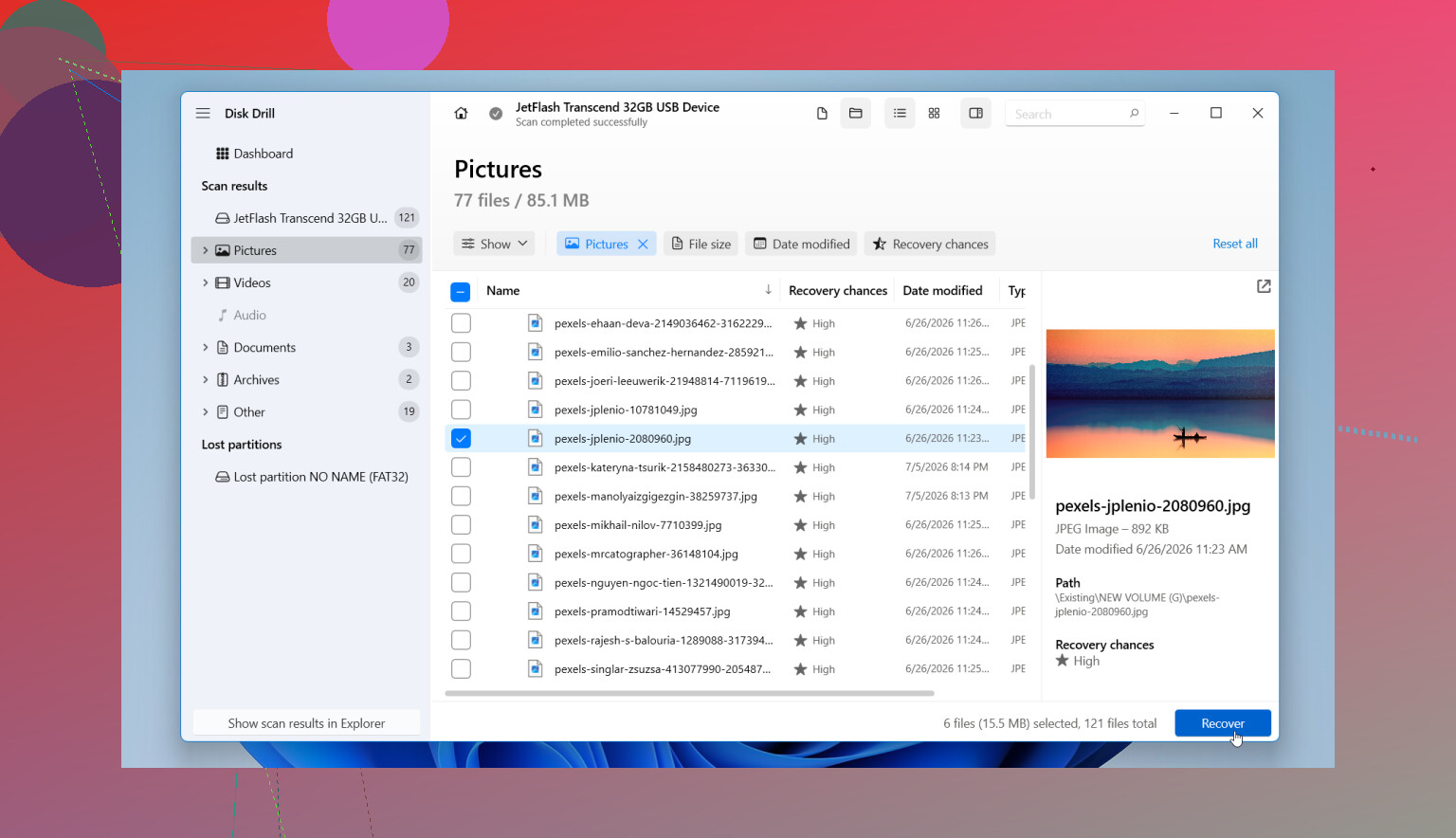
- Go through the results. The files are usually grouped into things like pictures, video, audio, documents, and archives. Filters help if the list gets ugly.
- Preview the files you care about. If a photo opens, or a document renders fine in preview, that is a decent sign the recovered copy will work.
- Save recovered files somewhere else. Use your PC drive or another external drive. Do not restore them back onto the same USB.
If the flash drive is acting flaky, read errors, random disconnects, weird pauses, make an image first if the software offers it. Scan the image, not the original stick. I’ve had better luck doing that on unstable drives because you reduce extra stress on failing hardware.
You’ll also see people suggest Command Prompt fixes like CHKDSK and ATTRIB. I would not start there after a format.
- CHKDSK tries to repair file system problems. It is not a recovery tool for formatted data. Worse, it writes changes to the drive, which is the last thing you want early on.
- ATTRIB helps when files were hidden, often by file attribute changes or malware. It does not restore files removed by formatting.
I’d only mess with those if the format never finished and the drive ended up in some half-broken state. If the format completed, recover first. Repairs come later.
One more thing, if the USB is not detected at all, keeps disconnecting, shows the wrong size, or has physical damage, this might be a hardware problem instead of a simple format issue. In that case, repeated scan attempts are risky. If the files matter, a recovery shop is the safer route.
So, yeah, there is still a shot. Quick format plus no further use is the combo you want. If that matches your case, I’d move fast, keep the drive untouched, and scan it from another system. Thats usually where you still have options.
7 Likes
If it was a quick format, your files still have a shot. If it was a full format on a newer Windows system, odds drop hard. First thing, leave the USB alone. On this part, @mikeappsreviewer is right.
Where I differ a bit, I would start by making a byte-for-byte image of the flash drive if the files matter a lot. USB sticks fail without much warning, and rescanning the same stick over and over is how people make a bad day worse. Use USB Image Tool or similar, save the image to your PC, then run recovery on the image.
For the recovery side, Disk Drill is a solid pick for formatted flash drive recovery, esp if the USB was FAT32 or exFAT. PhotoRec is another option if you want a free tool, but it dumps files with generic names, so sorting the mess is annoying as hell.
A few practical checks:
- Look at how long the format took. A few seconds usually means quick format.
- Check if TRIM was active. Rare on many USB sticks, more common on SSDs. If TRIM fired, recovery gets ugly fast.
- Recover to a different drive, not back to the thumb drive. People still do this, which is wild.
If the stick shows 0 bytes, wrong capacity, or disconnects, stop software attempts and go to a lab.
If you want a short visual guide, this formatted or corrupted pen drive recovery video guide covers the basics pretty well.

There’s one thing I’d add to what @mikeappsreviewer and @mike34 said: check whether the stuff you want back had very specific folder names or original filenames you care about.
That matters because some tools recover by file signature only. You get the photo or doc back, but the name turns into something useless like FILE000923.jpg. If you need project structure, old filenames, or timestamps, try a scan mode that looks for file system records first, not just deep carving. That’s where Disk Drill usually does better than the super-basic free options on formatted USB drives.
Also, I slightly disagree with the “always image first” advice. If the flash drive is stable and detected normally, going straight into a read-only scan is sometimes faster and simpler for non-tech ppl. Imaging is smart, yeah, but a lot of users mess that part up and run out of storage halfway through.
A couple things not mentioned enough:
- If BitLocker or any USB encryption was enabled before format, recovery without the key is rough.
- If the files were tiny Office docs, recovery can be less forgiving than with big photos/videos because fragments get overwritten easier.
- If Windows asked to “format before use” and you did it, sometimes the original data is still there underneath the new file system.
If you want a plain-language guide on how to recover formatted USB drive files, this is decent: how to recover data from a formatted USB drive
Big rule is still the same: recover to another drive, not the same stick. That mistake cooks recoverable data realy fast. If the USB is making things weird with disconnects or freezing Explorer, stop DIY attempts before it gets worse.
One angle not covered enough by @mike34, @caminantenocturno, and @mikeappsreviewer is file system mismatch. If the USB was originally exFAT and got reformatted to NTFS or FAT32, recovery can get messier because the new metadata layout may stomp on parts of the old directory structure even if the actual file contents survive. That is why sometimes you recover the photos fine, but the document tree is toast.
I slightly disagree with the idea that speed matters most here. Yes, acting fast helps, but what matters more is whether anything wrote to the stick after the format. A flash drive that sat untouched for a week is often in better shape than one that got reformatted and immediately reused for 2 GB of new files.
My practical take:
- Check recovered files by type, not just count.
- Photos and videos often come back easier than Office docs.
- If you only need a few critical files, target those first instead of trying to restore everything.
- If the drive was encrypted by software or hardware, recovery may be useless without the key material.
About Disk Drill specifically:
Pros:
- good at mixed file types
- easier previewing than many tools
- decent at finding partition and file system traces after formatting
Cons:
- free recovery limits depend on platform
- deep scans can return lots of junk names
- not the cheapest option if you only need one small job
If you want something less chaotic than raw carving tools, Disk Drill is a reasonable middle ground. Just judge success by whether the important files actually open, not by how many hits the scan reports.