I sent a message with attachments and now I need to remove just the files without losing the conversation. I’m worried that deleting the attachments might delete the entire message too. Can someone explain what happens and the safest way to remove attachments without deleting the message?
I hit this same mess a while back. My iPhone got slow, Messages was bloated, and storage warnings kept popping up when I was trying to do normal stuff like take a photo. I ended up digging through iPhone Storage and the Messages menus for way too long, so here’s the plain version.
Where Apple puts the attachment cleanup tools
Start here:
Settings > General > iPhone Storage
If iOS thinks message attachments are eating enough space, you should see Review Large Attachments. Open it and you’ll get a size-sorted list.
Here’s the part I hated. There is no bulk delete button. No Select All either. You tap Edit, then you tap each item one at a time. If your threads are full of videos, screenshots, memes, and random clips, it gets old fast.
If Review Large Attachments does not show up, stay in iPhone Storage and open Messages. Scroll down and you’ll usually see categories like Photos, Videos, GIFs, and other chunks of stored media. You can remove items from there too. Same problem though, it’s still manual.
What gets deleted, and what does not
Deleting an attachment from a message does not remove the text conversation itself. The chat stays there. You lose the photo, video, or file, and the thread keeps going.
One thing tripped me up at first. If you saved a photo from Messages into the Photos app, deleting it from Messages does not remove the copy in Photos. Those are separate copies. So if something matters, save it first, then clean up the message version.
If you use Messages in iCloud
This part matters.
If Messages in iCloud is turned on, removing an attachment on your iPhone also removes it from iCloud and from your other Apple devices tied to the same message sync. I learned this the annoying way after cleaning up on my phone and seeing the same stuff gone on my iPad.
So before you start deleting in bulk, make sure anything important has been saved to Photos or somewhere else you trust.
Why your free space does not move right away
I thought my phone was lying to me, but there are usually two reasons for this.
First, deleted message attachments often sit in Recently Deleted for 30 days. You need to clear that too:
Open Messages > tap Edit or Filters near the top left > Recently Deleted > delete them from there
If you skip this step, the storage stays tied up.
Second, iPhone Storage updates slowly. Sometimes it lags behind what you already removed. After a bigger cleanup, I restarted my phone and the free space number finally changed to something closer to reality.
About message retention settings
There is a separate setting here:
Settings > Messages > Keep Messages
If you switch this from Forever to 1 Year or 30 Days, iPhone starts auto-removing older messages and attachments based on age. This is the blunt-force option. It does not target large files only. It wipes old chat history too. I would not use it unless you do not care about old conversations.
Why a full phone starts feeling slow
On mine, lag got bad when storage was near the cap. Apps stalled, camera launches were delayed, and random crashes started showing up. After I cleared space, the phone settled down. So if your iPhone feels sluggish and you’re close to full storage, message attachments are one of the first places I’d check.
If you’re tired of tapping through Apple’s menus
I got fed up with the one-by-one cleanup and tried Clever Cleaner after seeing it here:
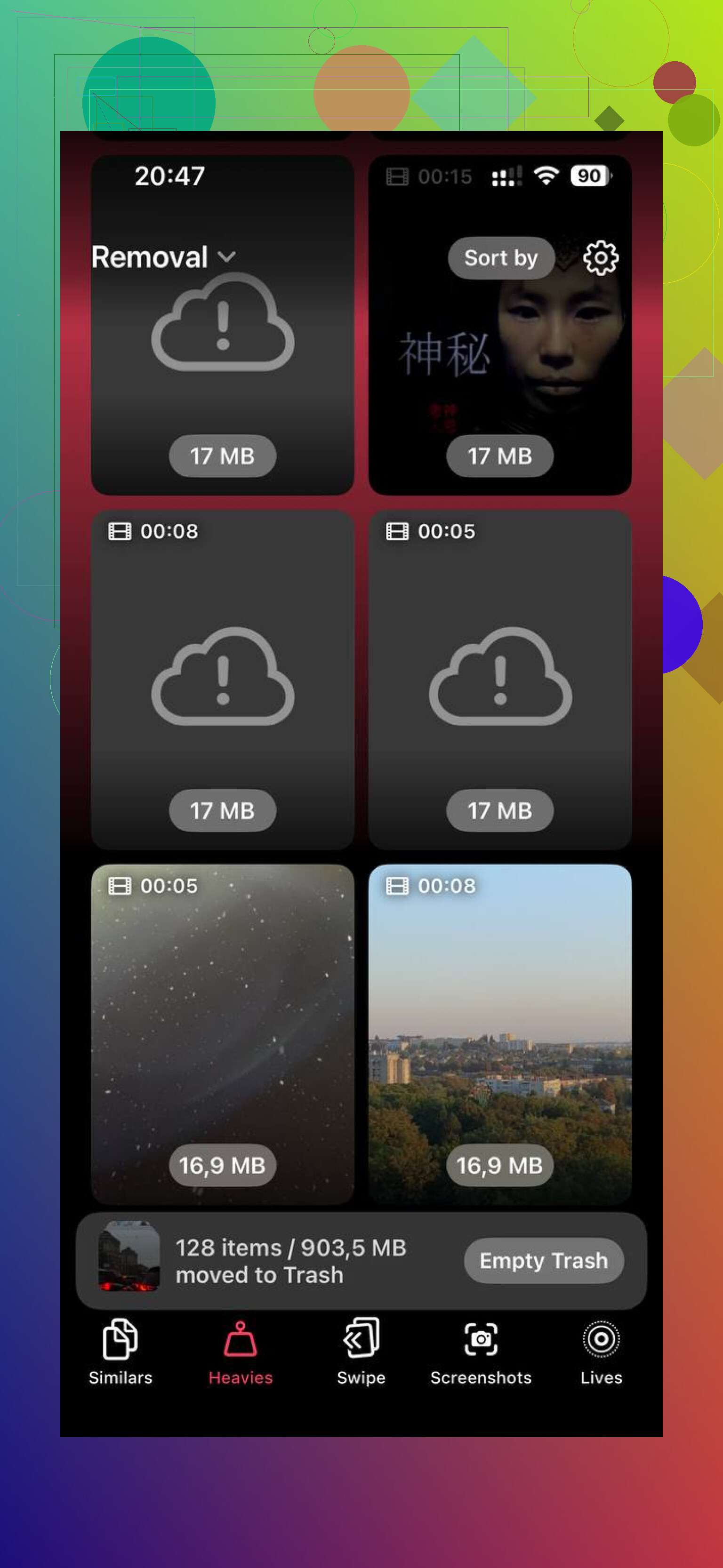
What stood out to me was the Heavies section. It sorts big photos and videos by size, which made it easier to spot giant clips sitting in my library. There’s also a Similars section for near-duplicate shots, which helped with the usual burst of five almost-identical pics I forgot to delete.
The privacy side looked better than the usual junk cleaner apps. From what I saw, it processes on-device, not by pushing your whole library to some server. I cleared around 20 GB and my phone stopped dragging after that.
Short version
If you want to clear message attachments through Settings:
Settings > General > iPhone Storage > Review Large Attachments
Or:
Settings > General > iPhone Storage > Messages
You still have to delete items manually. No Select All.
If storage does not come back, empty Recently Deleted in Messages and restart the phone.
If Messages in iCloud is on, deletions sync across your Apple devices.
If you saved an attachment into Photos first, deleting it from Messages does not remove the Photos copy.
18 Likes
Deleting the attachment does not delete the text thread. Your message stays. The photo, video, or file goes away.
The one catch is the message bubble might look different after removal, or show less preview data, depending on iOS version. The conversation itself stays in place. I tested this on my iPhone a while back after sending a huge video and panicing a bit.
I do disagree a little with @mikeappsreviewer on one point. For most people, the bigger space hog is often the Photos app, not Messages. If your goal is storage, check both. Messages cleanup helps, but it is not alwyas the main culprit.
If you want less manual cleanup, Clever Cleaner is worth a look for clearing large media in your library. This review covers it well: see why Clever Cleaner for iPhone is a truly free iOS cleaner.
Short answer, delete attachment, keep conversation. Save important files first, obviosuly.

No, deleting the attachment does not usually delete the whole message thread. The conversation stays, the file goes away.
The only thing I’d add to what @mikeappsreviewer and @waldgeist said is this: sometimes iOS makes it look like the message itself changed because the preview thumbnail disappears or the bubble looks emptier. That can make people think the message got deleted too, but nope, it’s just the media part being removed.
Also, small distinction people miss:
- deleting an attachment from the thread = removes that photo/video/file
- deleting the actual message bubble = removes that specific message
- deleting the conversation = wipes the whole chat
Those are 3 different actions, and Apple does a pretty meh job making that obvious.
I’d slightly disagree with the idea that Messages cleanup is always the best place to focus. If you only sent a few files, the space savings may be tiny compared to your camera roll. If storage is the real issue, checking Photos is often faster. That’s where something like Clever Cleaner can help, since it’s better for finding big media and duplicate junk in your library without messing with the text convo itself. If you want a solid overview, this explains why Clever Cleaner is one of the best iPhone cleanup apps for freeing up storage.
So yeah, short version:
- remove attachment = convo stays
- remove message bubble = that message goes
- remove thread = everything goes
Just save anything important first, becuase once the attachment is gone, it’s gone from Messages.
Deleting the attachment and deleting the message are usually not the same thing. I agree with @waldgeist and @sterrenkijker on that part. The text part of the convo generally stays, while the media gets removed.
Where I slightly differ from @mikeappsreviewer is this: people sometimes assume the remaining message will still look exactly the same. Not always. In some chats, especially after sync catches up, you may end up with a blanker-looking bubble or a reduced placeholder, which makes it feel like more was deleted than actually was.
One practical thing not mentioned enough: if the attachment was part of an older iMessage that failed to fully download on another device, deleting it can create mismatched history between devices for a bit. Usually it resolves, but it can look messy temporarily.
If your real goal is storage, I would treat Messages cleanup as surgical cleanup, not full-on phone optimization. For broader media cleanup, Clever Cleaner makes more sense than digging through every thread.
Pros for Clever Cleaner:
- good for finding large media fast
- useful for duplicate or similar photos
- easier than manually hunting through chats
Cons:
- it will not manage your message history for you
- cleanup suggestions still need review
- if your problem is only one message attachment, it may be overkill
So yes, remove attachment = keep conversation, in most cases. Just save the file first if it matters.