After installing the latest iOS update, my iPhone became really slow and laggy when opening apps, typing, and even swiping between screens. It was working fine before the update, so I’m worried something went wrong or I changed a setting without realizing it. Can anyone suggest reliable fixes or settings to tweak to speed it up again without losing my data?
iOS updates often slow things down for a bit, but if it stays laggy, something is off. Here is what usually helps, step by step.
-
Give it time for background tasks
After a big iOS update, the system reindexes photos, files, Spotlight, etc.
This can take a few hours, sometimes up to a day on older devices.
Keep the phone plugged in and on Wi‑Fi for a while.
If performance improves after a night, it was indexing. -
Check storage
iPhones start to lag when storage drops under 5–10 percent free.
Go to Settings > General > iPhone Storage.
If you see red in the bar or under 10 GB free, clean it up.
Delete old videos, large chats, and unused apps.
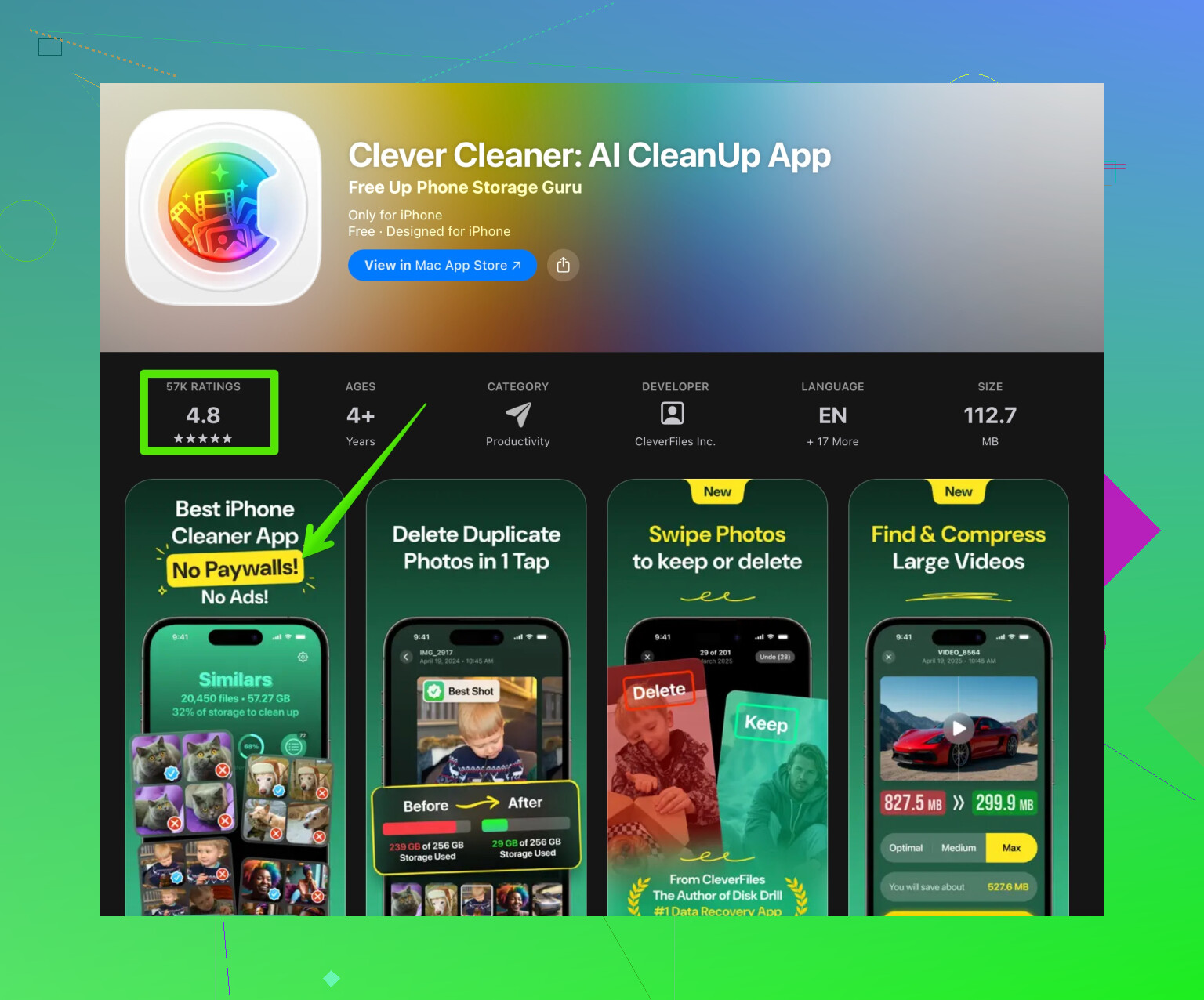
A tool like the Clever Cleaner App helps a lot here, it finds duplicate photos, large files, and junk.
You can get it here:
smart cleanup for your iPhone storage
People report smoother app launches after clearing 5–20 GB. -
Restart and force restart
Do a normal restart first.
If it still lags, try a force restart:
• iPhone with Face ID: Volume Up, Volume Down, then hold Side button until logo.
• iPhone with Home button: Hold Home and Power until logo.
This clears some system caches and stuck processes. -
Check battery health and performance management
Go to Settings > Battery > Battery Health & Charging.
If Maximum Capacity is low or it says performance management applied, the system slows the CPU to avoid shutdowns.
On older devices this feels like lag after updates because newer iOS versions stress the hardware more.
If performance is bad and health is under roughly 80 percent, a battery replacement often fixes lag. -
Disable heavy background features
Turn off or reduce:
• Background App Refresh: Settings > General > Background App Refresh > Off or Wi‑Fi only
• Location Services: Settings > Privacy & Security > Location Services, limit apps to While Using
• Motion and animations: Settings > Accessibility > Motion > Reduce Motion ON
• Widgets you do not use on Home and Lock Screen
This lightens the workload when you swipe and open apps. -
Reset settings without wiping data
Sometimes stale settings from older iOS versions cause lag.
Go to Settings > General > Transfer or Reset iPhone > Reset > Reset All Settings.
This keeps your data but resets Wi‑Fi, layout, and some preferences.
You will need to re‑enter Wi‑Fi passwords. -
Update apps
Open App Store, tap your profile, update all.
Outdated apps sometimes fight with the new iOS version and feel slow or buggy. -
Check for a minor iOS update
Apple often pushes a .1 or .2 update that targets performance and bugs.
Go to Settings > General > Software Update and install if you see a newer build. -
If nothing helps, try a clean install
Backup first with iCloud or Finder.
Then Settings > General > Transfer or Reset iPhone > Erase All Content and Settings.
Set up as New iPhone, test performance before restoring backup.
If it runs smooth as new, the old backup likely has junk or corrupted settings.
If it still lags on a clean setup, it is more likely hardware limits or a battery issue.
Quick SEO‑friendly tip text for the topic:
If your iPhone feels slow and laggy after an iOS update, start with storage, background tasks, and battery health. Free up space using a smart cleaner such as the Clever Cleaner App, reduce background activity, and keep your system updated. For persistent lag, a clean install or battery replacement helps restore smoother performance.
38 Likes
Happens to a lot of us after big iOS jumps, so you’re not crazy. Since @techchizkid already covered the usual “wait, restart, free storage” stuff, I’ll hit the angles that often get missed.
1. First figure out where it’s lagging
Don’t just look at “it feels slow,” try to isolate it:
- Is it only when typing (keyboard lag)?
- Only when unlocking or swiping between Home Screens?
- Only in certain apps (Instagram, games, camera)?
- Only when using Wi‑Fi or data?
Each of those points to a different culprit.
2. Check keyboard & system input lag
After updates, the keyboard and text input can bug out:
- Go to Settings > General > Keyboard
- Turn off: “Suggest Emoji,” “Auto‑Correct,” “Smart Punctuation” temporarily
- If you use third‑party keyboards, disable them and test Apple’s default keyboard only
- Also try: Settings > General > Transfer or Reset iPhone > Reset > Reset Keyboard Dictionary
If typing suddenly feels normal again, you’ve found one of the main causes.
3. Kill weird stuff running in the background without wiping everything
I slightly disagree with the idea that you always need to go straight to a full erase if nothing helps. Before that nuclear option, try this combo:
- Sign out of iCloud:
- Settings > [your name] > Sign Out
- Choose to keep a copy of data on your phone
- Restart the iPhone
- Sign back into iCloud
Corrupted iCloud sync states (Notes, Messages in iCloud, Keychain) can make things stutter, especially in Messages, Photos, and when swiping around.
4. Check focus on the Home Screen & Spotlight performance
If the lag is mostly when you swipe between pages or pull down to search:
- Clear overloaded Home Screen:
- Remove live widgets you barely use (especially weather, news, and heavy third‑party widgets)
- Turn off search for stuff you don’t need:
- Settings > Siri & Search
- Under “Content From Apple” and “Suggestions From Apple,” turn off what you don’t use
- Scroll down and disable search for bloated apps (some social apps)
That reduces how much Spotlight is trying to index or suggest with every swipe.
5. Network & iCloud sync lag masquerading as “slow phone”
Sometimes what feels like “lag” is actually the phone constantly fighting Wi‑Fi / iCloud:
- Settings > Wi‑Fi > [your network] > Forget This Network
Rejoin and re‑enter the password. - If you use iCloud Photos:
- Settings > Photos > iCloud Photos
If your phone is older and storage is tight, turn on Optimize iPhone Storage.
- Settings > Photos > iCloud Photos
- In Settings > [your name] > iCloud, turn off sync for apps you really never use.
When the network is flaky, apps can hang on launch while checking for updates or syncing.
6. Turn off Apple’s “fancy” extras that quietly slow stuff
These are different from the obvious motion/animation settings:
- Settings > Accessibility > Display & Text Size
- Turn off “Increase Contrast” and “Smart Invert” if you had them on; they sometimes affect rendering.
- Settings > Privacy & Security > Analytics & Improvements
- Turn off “Share iPhone Analytics,” “Improve Siri & Dictation,” etc.
Small, but it cuts background tasks.
- Turn off “Share iPhone Analytics,” “Improve Siri & Dictation,” etc.
- Settings > App Store
- Turn off “App Updates” and “Automatic Downloads” just for testing.
If the phone suddenly feels snappier, the auto update process might’ve been hammering it.
- Turn off “App Updates” and “Automatic Downloads” just for testing.
7. Do a repair install instead of a full wipe
If you’re near a computer, this is honestly one of the most effective but underrated fixes.
- Backup first (iCloud or Finder).
- On a Mac with Finder or a PC with iTunes:
- Connect the iPhone with a cable.
- Click your iPhone, choose Update (not Restore) to reinstall the same iOS version over the top.
- This rebuilds the system files without erasing your data.
It often fixes weird post‑update lag that a normal reset or restart won’t touch.
8. Use storage cleanup as a tool, not just “delete some photos”
I know @techchizkid already mentioned this, but I’ll add a twist: don’t just nuke random pictures. Target the stuff that’s actually stressing your phone:
- Massive WhatsApp / iMessage threads with years of photos and videos
- Old downloaded Netflix/Prime/YouTube videos
- Offline maps / music / podcasts from multiple apps
If digging through all that manually is a pain, something like the Clever Cleaner App helps a ton for this specific scenario. It’s handy for finding duplicate photos, giant video files, and old junk you forgot about. Here’s a direct link if you want to try tidying things up quickly:
smart storage cleanup for smoother iPhone performance
Once you free serious space (10–20 GB if you can), then judge the lag again.
9. If your device is older, accept the harsh truth
Brutal part: if you’re on an older iPhone (6s, 7, 8, X, even XR/XS in some cases) and you jumped to a recent iOS, performance may never feel like it did two or three versions ago.
Signs it’s mostly hardware limits now:
- Fresh install still lags
- Battery health is low and CPU throttling is active
- Animations are choppy all over, even in Settings
At that point, you can try:
- Turn off all fancy visuals (Reduce Motion, Reduce Transparency, no widgets, dark static wallpaper).
- Replace the battery if it’s under ~80% health and you want to squeeze another year out of it.
10. Quick, readable summary for what to do next
- Check where the lag happens most: keyboard, home screen, certain apps.
- Reset keyboard settings and try default keyboard only.
- Reduce widgets and Spotlight / Siri suggestions.
- Re‑sign into iCloud and fix any Wi‑Fi weirdness.
- Disable auto app updates and heavy background features.
- If still bad, do a repair install via computer.
- Deep‑clean storage with something like Clever Cleaner App and remove huge chats / downloads.
- If the phone is old and battery health is low, consider a battery swap or staying on lighter settings.
If you post which iPhone model and exact iOS version you’re on, plus where the lag hits hardest (typing vs swiping vs specific apps), people can usually narrow it down even more.
First thing I’d do is not factory reset yet. That is often overkill and can mask what actually went wrong.
Here’s how I’d attack it from a more “deep-dive” angle that complements what @techchizkid and the other reply already covered.
1. Check if the update actually finished its “background work”
After any major iOS update, the system does:
- Spotlight reindexing
- Photo analysis (faces, text in images)
- App library & Files indexing
For 24–48 hours, this can make everything feel laggy, especially when:
- The phone is charging
- On Wi‑Fi
- Screen is off
To verify:
- Connect to Wi‑Fi, plug it in, leave it locked for an hour or two.
- Then go to Settings > Battery. Look at the graph.
- If you see heavy “Background Activity” from Photos, Files, or similar, it is probably still doing its thing.
If performance improves significantly after a day or two, it was just post‑update indexing. If it is still bad after 3 days, assume something else is broken.
2. Profile the lag like a “mini performance test”
You already know it’s slow when opening apps, typing, and swiping, but try this quick structured test:
- Turn on Reduce Motion: Settings > Accessibility > Motion > Reduce Motion.
- Turn off Background App Refresh: Settings > General > Background App Refresh > Off.
- Disable cellular data temporarily.
Now test:
- Swiping between Home Screens
- Opening Settings (usually a very light app)
- Opening 1 social app and 1 system app (e.g., Photos)
- Typing in Messages
If it suddenly feels smoother:
- Then animations or background refresh were amplifying the issue. You can keep some of these off permanently on older devices.
If it is still choppy even with the system “de‑loaded,” that points more to:
- Corrupt system files
- Failing storage
- Aggressive thermal throttling
At that point, the “repair install” mentioned earlier is a strong next move.
3. Disagree slightly on iCloud sign‑out as a casual step
Signing out of iCloud can help, but it is not risk free. I would only do it if:
- You have a recent iCloud backup
- You confirm that important data (Photos, Notes, Messages in iCloud) is fully synced
Before signing out:
- Check Photos on iCloud.com to confirm all your recent pictures are there.
- In Settings > [your name] > iCloud > iCloud Backup, confirm last backup time.
- For Notes and Messages, open them on another Apple device if you have one.
If all looks synced, then yes, sign‑out / reboot / sign‑in can clear some nasty sync issues. If you are unsure about your backups, I would not start there.
4. Weaponize battery health info
Lag after an update is often blamed on “bad software,” but iOS also tightens power management on older batteries after major updates.
Go to Settings > Battery > Battery Health & Charging:
- If Maximum Capacity is under roughly 82–83% and Peak Performance Capability mentions that performance management might be applied, iOS can throttle your CPU to avoid shutdowns.
- If so, that would explain why everything feels slower after the update, because the new version might be more aggressive about protecting a weak battery.
Options:
- If the phone is 2–3+ years old, a battery replacement can sometimes make it feel like a new device on the same iOS version.
- Until then, keep Low Power Mode on as a test. Oddly, on some devices, Low Power Mode actually smooths things out by cutting background noise.
5. Dig into actual storage health, not just free space
People keep saying “free up storage,” but the pattern of usage matters too.
If your storage is:
- Over 90% full for long periods
- Filled with thousands of tiny files (stickers, cached social media assets, old app data)
it can stress the internal storage controller and slow things like:
- App launches
- Swiping through home screens
- Spotlight searches
What I’d recommend:
- Open Settings > General > iPhone Storage and let it fully load.
- Scroll through the app list and check:
- Any app over 1–2 GB that you barely use (clear / offload it).
- Messaging apps with huge caches (WhatsApp, Telegram, etc.).
To speed this up, a utility like the Clever Cleaner App can be handy for a deep, targeted cleanup instead of poking through each app manually.
Pros of Clever Cleaner App:
- Finds large and duplicate photos and videos fast, which is usually where the real bloat hides.
- Offers quick filters (screenshots, similar photos, etc.), so you can reclaim several GB in minutes.
- Easier for non‑technical users than digging through each app’s settings manually.
- Can help you reach that “10–20 GB free” range that often makes iOS breathe again.
Cons of Clever Cleaner App:
- You still need to review what you delete so you do not accidentally remove important memories.
- Some advanced features may require in‑app purchases or subscriptions.
- It does not fix system bugs; it only handles user data and clutter.
- If you are extremely privacy‑sensitive, you may prefer doing everything by hand, even though it is slower.
Once your storage is cleaned and you have at least 10 GB free, reassess the lag.
6. Cross‑check specific apps that misbehave after updates
Sometimes the “lag” is actually 2 or 3 badly optimized apps that got worse after the new iOS version.
Try this:
- Update all apps from the App Store. Some devs push patches to match the new iOS right after release.
- If one app is especially bad:
- Delete that app.
- Restart the phone.
- Reinstall it from the App Store.
This is often enough to fix weird stutter in certain social or banking apps without touching the rest of your system.
7. When a “Restore from backup” is worse than a clean setup
I slightly disagree with the idea that you should always keep restoring the same backup after a repair install. If you have been restoring the same backup for years, corrupt settings or old junk can follow you forever.
If you go the computer route:
- Make a full backup first so you do not lose anything.
- Try that “Update / repair install” first as suggested in the other answer.
- If it fails and you decide to “Restore iPhone,” consider:
- Setting it up as New iPhone once, installing only a few key apps, and testing performance.
- If performance is suddenly perfect, the issue was with the old backup data, not the hardware.
- Then selectively reinstall apps and avoid restoring super old settings.
It is more work, but for persistent lag, this often reveals the real cause.
8. Brief note on advice already given
- @techchizkid covered the classic checks like storage, restarts, and basic optimizations.
- The other long reply hit smart angles like keyboard resets, Spotlight tweaks, and iCloud quirks.
Where I diverge a bit:
- I would prioritize checking battery health and post‑update indexing before doing iCloud sign‑outs.
- I’d be cautious about immediately restoring old backups after a full wipe, because you can reimport the same performance problem.
9. Practical order of operations
If this were my phone, I would:
- Give it 24–48 hours on Wi‑Fi and power to finish background indexing.
- Check Battery Health and iPhone Storage for obvious red flags.
- Do a focused cleanup, preferably with something like the Clever Cleaner App, to free at least 10 GB.
- Turn on Reduce Motion and disable Background App Refresh to see if performance changes.
- Update all apps, reinstall any especially laggy app.
- If still bad, connect to a computer and do a repair install of iOS.
- If a clean install still stutters and battery health is weak, strongly consider a battery replacement or eventually upgrading.
If you share your exact iPhone model, battery health percentage, storage usage, and iOS version, you can usually get very specific advice about whether this is “fixable lag” or simply that the hardware is being pushed too hard by the new software.
Try Reset All Settings before reinstalling iOS.
Open Settings, General, Transfer or Reset iPhone, Reset, then Reset All Settings. Enter your passcode and confirm.
This keeps your photos, apps, messages, and files. It resets Wi-Fi passwords, keyboard settings, permissions, notifications, and system preferences. Corrupt settings left after an update often cause lag.
Restart your iPhone afterward. Test typing, swiping, and opening Settings for 10 minutes before changing anything else. You’ll need to reconnect Wi-Fi and redo a few prefernces, but it’s far simpler than a full restore.
If the phone still feels warm sitting idle on the lock screen, stop tuning settings and just let it sit. A warm-but-idle iPhone almost always means something is still churning in the background, and no amount of toggling Reduce Motion will beat that until it finishes. Plug it in overnight and check again in the morning. If it’s cool and snappy the next day, you never had a real problem, just an update finishing its homework.
The part I’d push back on is how fast people here jump to iCloud sign-outs and repair installs. @waldgeist is right to be cautious there, and I’d go further. Those are last-resort moves, not step three. Before any of that, look at one boring thing everyone skips: whether you restored from an old backup during setup. If you did, a lot of the classic ‘post-update lag’ is actually years of accumulated junk and stale settings riding along, and chasing keyboard toggles won’t touch it. That’s the case where a cleaner setup genuinely helps.
On storage, the Clever Cleaner App that keeps coming up is fine for what it does, which is finding the fat photos and duplicate videos quickly so you don’t have to dig. Useful as a first pass, but don’t expect it to fix a stutter caused by throttling or a stuck sync. Storage and lag get lumped together and they’re not always the same problem. My honest take: give it the overnight test first, then check Battery Health, and only start poking at resets if it’s still bad after a full day. Most of the time you’re fighting the phone before it’s even done setting itself up.