I deleted some important files from an APFS drive on my Mac and realized too late that I still need them. I’m not sure if TRIM, snapshots, or recent disk use makes APFS file recovery impossible. What steps should I try before I risk overwriting anything?
user 1
You may still have a shot, but it mostly comes down to two things: whether anything has been written to that drive since the deletion, and whether it’s an SSD or a spinning hard drive.
The safest move is to stop using that drive right now. Don’t save anything to it, don’t install recovery tools on it, and I’d avoid running repair tools for the moment too. Deleted files often aren’t really “gone” right away, but new writes can overwrite the space they were using.
If you formatted it in Disk Utility, that also doesn’t automatically mean the data is destroyed. A quick format usually recreates the file system structure instead of wiping every bit of the old data. If you haven’t copied a bunch of new stuff onto it afterward, recovery can still be possible.
SSDs are the rougher case, especially internal Mac SSDs with TRIM enabled. Once TRIM clears those deleted blocks, normal recovery software can’t put them back. External SSDs are a little more hit or miss because TRIM depends on the enclosure and connection type. Some pass TRIM commands through, some don’t. So an external SSD can sometimes be more recoverable than you’d expect, but only if you stop using it quickly.
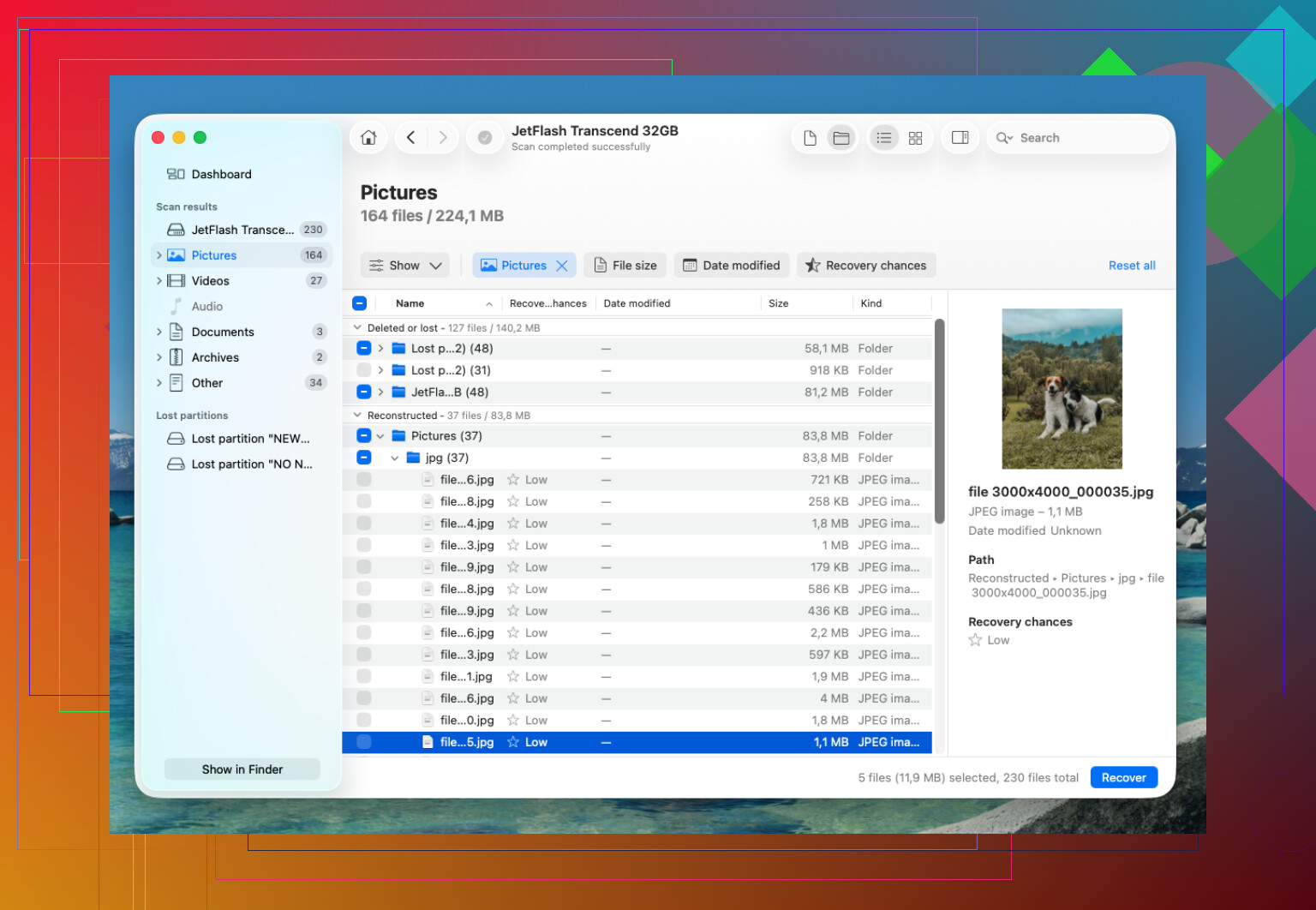
I’ve had the best luck with Disk Drill.
What worked for me was basically this:
- Install Disk Drill on a different drive, not the one you’re trying to recover from.
- Connect the APFS drive that lost the files.
- Give it Full Disk Access when macOS asks.
- Scan the whole APFS volume, not just a random folder.
- Let the full scan finish before grabbing files.
- Use previews to check that the recovered files actually open.
- Save the recovered files to another drive.
The big plus for me was that it kept a lot of the original folder and file names. That matters more than it sounds like, because sorting through thousands of randomly named files is miserable.
If you have a Time Machine backup, check that first. If you don’t, recovery software is probably the next reasonable step. Also check for APFS snapshots. macOS can sometimes keep local snapshots even when your Time Machine drive isn’t plugged in. They may not exist, but it’s worth looking before assuming the files are gone.
I’d avoid Disk Utility First Aid until after you’ve recovered anything important. My rule is recover first, repair later. Repairs can help with a damaged file system, but they can also change things on the disk, which is not what you want before recovery.
If the drive won’t mount, disconnects randomly, clicks, freezes during scans, or acts physically unstable, I’d stop messing with software and talk to a recovery lab. A lot of decent labs will evaluate it for free, and many are “no data, no fee.” It costs more, but if the drive is failing, it’s the safer route.
8 Likes
The missing detail is whether this was your startup disk and whether FileVault was on. If it was an internal Mac SSD with FileVault and you kept using the Mac after deleting the files, I’d set expectations pretty low. APFS plus SSD TRIM can turn “deleted” into “not practically recoverable” fast, and encryption means you are not going to be carving out useful leftovers the way people used to on old hard drives.
I agree with the “stop using it” advice, but I’d be stricter about it: shut the Mac down if the lost files are on the internal drive. Don’t download a recovery app, don’t update macOS, don’t let Photos or iCloud sync churn away in the background. If you have another Mac, target disk mode or an external boot can reduce the amount of new writing, though newer Apple silicon Macs make that less simple than it used to be.
Before scanning, I’d check the boring stuff that sometimes saves hours: Recently Deleted in the app that created the files, iCloud Drive web recovery, Time Machine, and local snapshots. If snapshots exist, that’s usually cleaner than recovery software because you get the real file back instead of a guessed reconstruction. Disk Drill or similar tools are worth trying after that, but I would treat the preview as the truth. If it can’t preview the file correctly, recovering a file with the right name may still give you junk.
Stop treating the drive as a place to experiment.
The TRIM point above is real, but the bigger mistake I see people make is running three different recovery apps directly against the original disk and then wondering which one made things worse. If the files matter, preserve the current state first. Even if the current state is bad, it is still better than a state you changed while poking around.
If this is an external drive, I would make a full disk image or clone to another drive before doing scans. Not a Finder copy of the visible files. A proper block-level image/clone of the whole device or APFS container. Then scan the image if your recovery tool supports it. That gives you a reset point if the first scan is useless, and it avoids hammering a possibly flaky drive for hours.
If this is the internal SSD in the Mac, that is where things get uglier. Booting normally is already writing logs, caches, Spotlight data, iCloud changes, browser junk, and who knows what else. “I only opened Safari to download a tool” is still disk activity. Shut it down and work from another Mac, Recovery, or an external boot if you know what you’re doing. If you don’t, this is the moment where paying a shop can be cheaper than learning by destroying the evidence.
Small caveat on snapshots: don’t assume they are there just because APFS supports them. APFS can have snapshots, but that does not mean your missing folder is safely sitting in one. Time Machine local snapshots are the common useful case. If they exist, use them first because that is restoration, not guessing. Recovery software is more like archaeology.
Disk Drill is fine to try, but I would use it as a scanner, not as proof that everything is recoverable. The preview matters more than the file list. A recovered filename with a broken preview is often just a comforting lie. This is especially true with larger files like videos, virtual machines, Photos libraries, databases, and project files where one missing chunk can make the whole thing useless.
People also forget that “deleted files” may not be normal files. If the thing you lost was in Photos, Notes, Mail, Lightroom, Final Cut, a sync folder, or a package file, the best recovery path might be inside that app’s own trash, backup, cache, version history, or cloud recovery page. File recovery tools may find fragments, while the app may still have a clean copy or a database record.
My order would be:
- Stop using the Mac or disconnect the external drive.
- Check app-specific Recently Deleted areas and cloud recovery.
- Check Time Machine and local snapshots.
- If no clean restore exists, image/clone the drive if practical.
- Scan the image or original only after that.
- Recover to a completely different disk.
- Open the recovered files before celebrating.
For a deleted file on an internal Apple SSD that has been used for a while afterward, I would keep expectations low. For an external APFS hard drive, or an external SSD that did not pass TRIM, the odds can be much better. Same file system, very different recovery situation.
Check the Trash from the same Mac user account before you scan anything, especially if the files were on an external drive. macOS makes Trash look like one place, but each volume can have its own hidden Trash folder. If you deleted from an external APFS disk and then plugged it into another Mac or another user account, it may look “gone” when it is really just not being shown in the Trash you are looking at.
The other replies are right about stopping writes, but I would separate “deleted” into a few cases because they are not equal. If you dragged files to Trash and have not emptied it, recovery is usually just restoring them. If you emptied Trash, used Command-Option-Delete, deleted from Terminal with rm, or an app cleaned them up, then you are into real recovery territory. If the drive is an internal SSD and the Mac has been running normally since then, the odds drop fast. Disk Drill, PhotoRec, R-Studio, etc. cannot recover blocks the SSD has already been told it can discard.
For snapshots, don’t only check the Time Machine app interface. You can open Terminal and run something like tmutil listlocalsnapshots / for the startup volume. For another mounted volume, the path matters. If snapshots exist, restoring from one is far better than carving files. If there are no snapshots, there is nothing magical for APFS to fall back to. APFS being modern does not mean it keeps a safety copy of every deleted file.
A small warning: don’t let a recovery program “fix” the folder structure or save recovered files back to the same APFS drive. Saving back to the same disk is how people overwrite the very data they are trying to rescue. Recover to a separate disk, then test the files there. With documents and photos, previewing is a decent sign. With libraries, virtual machines, video projects, databases, and app packages, opening the top-level file is not enough because part of the bundle may still be missing.
So no, it is not automatically too late. But if this was an internal Mac SSD with TRIM and normal use after deletion, treat software recovery as a low-probability attempt, not a plan. If it was an external hard drive, or an external SSD where TRIM was not passed through, you may still have a decent chance if you stop touching it now.