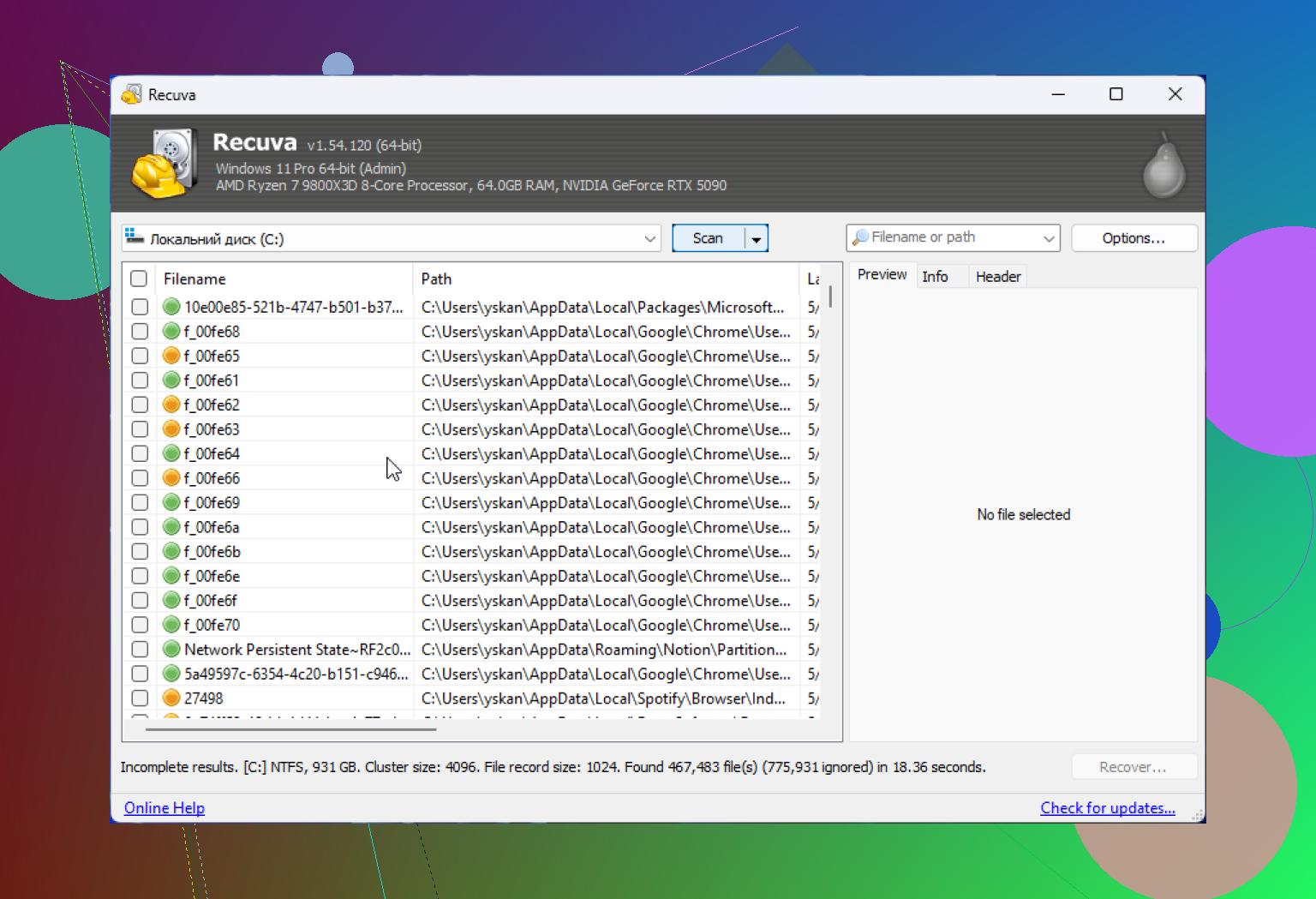
I have an older hard drive that started acting slow and making me worry about losing important files. I want to use Recuva for data recovery, but I’m afraid scanning the drive could make things worse or cause it to fail completely. I need advice on whether Recuva is safe for old hard drives and what steps I should take first to recover data safely.
People ask this a lot, and I get why. “Is Recuva safe?” sounds like a yes or no thing, but it isn’t that clean. My short answer is this: yes, Recuva is safe to run. It is not malware. It is not some fake recovery app waiting to trash your system. But “safe” splits into a few different parts, and those parts matter more than most people think.
I’ve tested a pile of recovery apps over the last while, and Recuva is one of those tools where the danger usually comes from how people use it, not from the app itself. If you’re about to install it because you deleted files ten minutes ago, slow down for a sec.
About the old malware scare
A lot of the worry traces back to the CCleaner mess in 2017. Same company family, same reputation hit. Piriform, who made Recuva, got dragged into that because an official CCleaner build was compromised in a supply chain attack. That was bad. Millions got exposed. People still bring it up, and I don’t blame them.
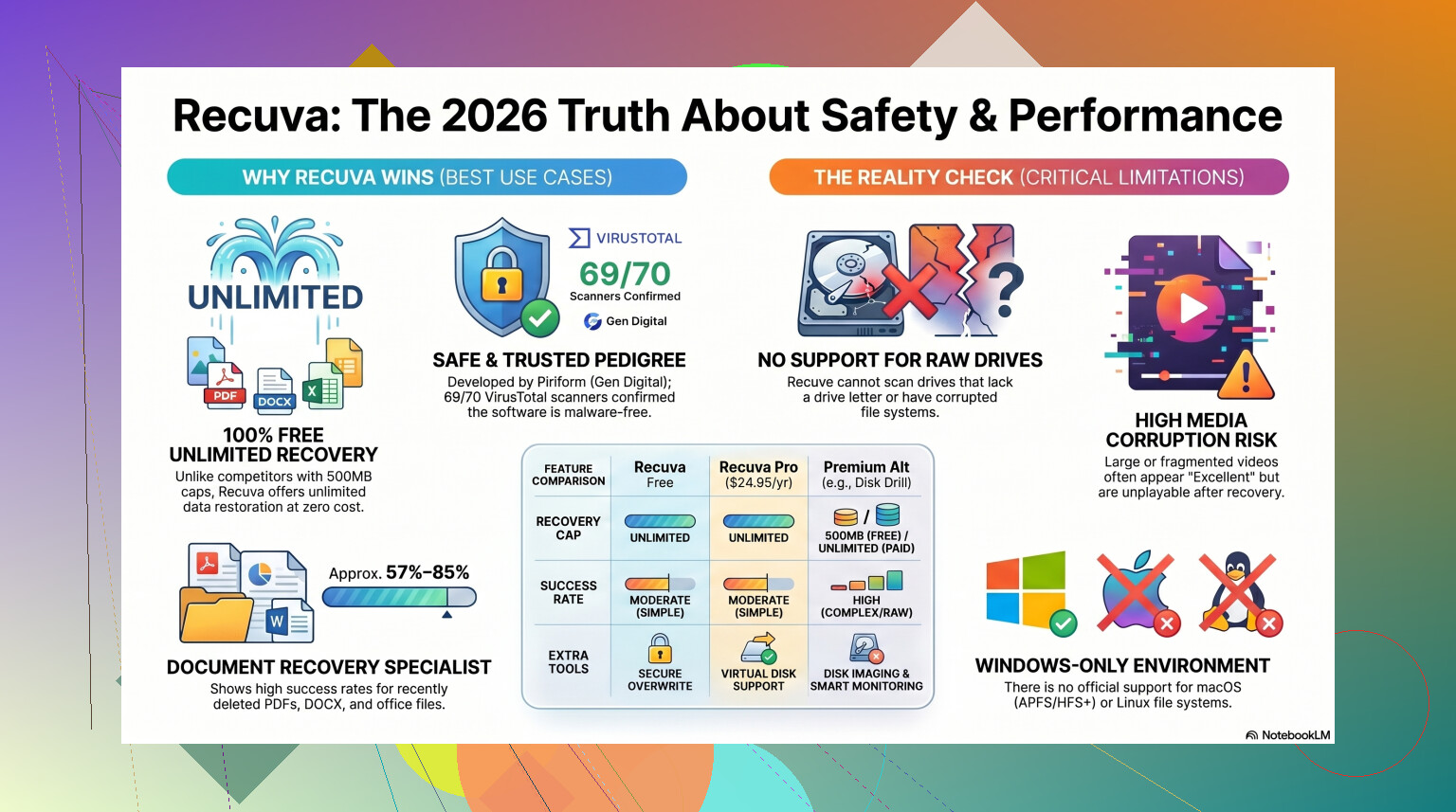
Still, 2026 is not 2017. The company changed hands, first to Avast, then under Gen Digital. Current Recuva installers from the official source are usually clean in normal scans. If you upload the installer to VirusTotal, you’ll often see either no hits or one oddball engine complaining. I saw one flag once from a tiny engine I’d never even heard of. That sort of hit is common with recovery software because it pokes around low-level disk structures and heuristic scanners don’t always like that.
If you download it from the official site, you’re fine on the malware side. Don’t pull it from some random “freeware archive” mirror. That’s where people make dumb mistakes.
Safe for your system, not private by default
This part gets skipped over too often. Recuva itself is not spying in some dramatic movie-villain way, but the company behind it does collect some device and usage data. Their privacy docs are more open than they used to be, which I guess is better than hiding it, but the collection still exists.
Things like your IP address, device ID, operating system details, and rough location data are part of the picture. They say it helps with fraud prevention and licensing. Maybe. Either way, if you don’t like extra telemetry, go turn it off after install.
What I did was open Options, go to Privacy, and disable the setting for sending usage data. I’d do that before running a scan. One detail people miss, they keep IP data for a long time, up to 36 months before anonymizing it. If your bar for privacy is high, that won’t feel great.
The part where people ruin their own recovery
This is the biggest one. Recuva is usually safe for your files. You are the risky part.
If the files you want are on drive D:, do not install Recuva onto drive D:. I know this sounds obvious, but people panic, click through the installer, and write new data right onto the same space where the deleted files were sitting.
Deleted files are often still there for a while. Windows usually removes the file table entry and marks the space as free. The data may still exist until something else overwrites it. So if you save the installer, logs, temp files, or recovered files onto the same drive, you raise the odds of wiping out what you wanted back.
The safer move is the portable version. Put it on a USB drive. Run it from there. Then recover the found files to another physical drive. Not the same one. Not the same partition if you can avoid it. A different destination.
I’ve seen people recover family photos and then save them back to the source drive. Bad move. A few worked, a bunch didn’t. Felt avoidable.
How well it works in 2026
Here’s where my opinion gets less friendly. Recuva still works, but it feels old. Because it is old. The core design hasn’t changed much in years. There were compatibility updates so it still behaves on newer Windows builds, sure, but under the hood it still acts like a classic undelete app more than a full recovery package.
For easy jobs, it’s decent. You emptied the Recycle Bin. You deleted a Word doc from a healthy SSD or HDD. The partition still shows up fine in Windows. Recuva has a shot, and it’s quick about it. No paywall for basic recovery limits either, which is rare now.
Once the case gets messy, things start falling apart.
If your drive shows as RAW, or Windows asks you to format it, Recuva often won’t help much. It usually wants a readable partition in place. On formatted USB tests, I’ve seen success rates land somewhere around 63% to 67%. That sounds usable until you look at file quality. Finding a file is not the same as recovering a file you can open.
I’ve had Recuva label images as “Excellent” and then the file opened as junk. Blank preview, corrupted data, dead file. Seen it with JPGs more than once. Folder structure is another weak point. You might end up staring at thousands of renamed files dumped into one directory. If your recovery depends on original names and folder layout, prepare for pain.
When I’d stop using it
If the lost files matter in any serious way, I wouldn’t spend too long forcing Recuva to be something it isn’t. If it works on the first pass, great. If it misses the files, or finds broken ones, I’d stop there.
Repeated scans are not free. They take time, and on a failing drive they add more wear. If the disk is making noises, disconnecting, slowing to a crawl, or throwing read errors, I wouldn’t keep hammering it with a lightweight tool and hoping for magic.
For tougher cases, I’ve had better luck moving to Disk Drill. It handles damaged partitions and RAW volumes better than Recuva did in my tests. Recovery rates on formatted media were also stronger, often more like 95% to 97% when the drive itself wasn’t physically dying. That’s a big gap.
One feature I wish more people paid attention to is Byte-to-Byte Disk Imaging. With that, you clone the failing drive first, then scan the clone. That matters a lot. If the original hardware gives up halfway through, you still have the image. Recuva doesn’t give you that kind of buffer.
Video people should keep this in mind too. Recuva tends to struggle with fragmented video and some camera RAW formats. If your missing files came from a Nikon, Canon, drone, or action cam, the results get shaky fast. I learned this one the annoying way with a damaged SD card. Photos came back mixed. Video was a mess.
For a side by side look, this review is worth a watch:
What I’d do, step by step
- Get Recuva only from the official site.
- Pick the portable build if you have the option.
- Run it from USB, not from the drive with deleted files.
- Turn off usage sharing in the privacy settings.
- Save recovered files to a different drive.
- If the first serious scan fails, stop pushing your luck.
My take
If you deleted something simple on a normal Windows machine, Recuva is a fair first try. It’s safe to install from the official source. It’s small, fast, and easy enough for people who don’t want to mess with advanced settings.
But I wouldn’t confuse “safe” with “best,” and I wouldn’t trust it for hard cases. If your drive is damaged, unreadable, formatted, or full of important media files, Recuva starts showing its age fast. At that point, I’d quit wasting time and move to something built for deeper recovery work, like Disk Drill.
So yeah, safe, yes. Enough for every recovery job, no. That’s the honest version.
3 Likes
Recuva itself is safe. Your old drive is the risky part.
If the HDD is slow, clicking, hanging Explorer, or dropping off the system, a full scan puts more read stress on it. Reads are safer than writes, but on a weak drive, long reads still push it harder. So I slightly disagree with @mikeappsreviewer on one point. I would not start with Recuva on a drive showing failure signs. I’d start with preserving the drive first.
What I’d do:
- Check SMART health with CrystalDiskInfo.
- If health looks bad, stop scanning the original disk.
- Clone or image the drive first.
- Scan the clone, not the source.
This is where Disk Drill makes more sense for many people. Its byte-level backup tool is useful on aging drives. You get one stable copy to work from. If the disk dies later, you still have the image. Recuva is more of an undelete tool. Fine for healthy disks, not my first pick for old, shaky hardware.
Also, if the files matter a lot, avoid chkdsk, defrag, and random “repair” tools. Those do more damage than Recuva in a lot of cases. Seen it happen too many times.
If you want a broader list, this guide on top data recovery software for damaged and deleted files is worth a look.
Short version, Recuva won’t infect your PC. But scanning a failing old hard drive for hours is not zero-risk. If the drive already feels unstable, image first. Then recover from the copy. Thas the safer play.
Recuva is software-safe, but not always drive-safe in the situation you described. That distinction matters.
If the old HDD is just old but basically stable, Recuva can be fine for a light first pass. If it is slow in a normal way, okay. If it is making weird noises, freezing folders, vanishing from Windows, or taking forever to read simple files, I would not treat it like a normal recovery job. That is where I differ a bit from @mikeappsreviewer. A scan is still work, and weak drives sometimes die during “read only” operations too.
Also, I’m a little less optimistic than @sterrenkijker about SMART being a useful comfort blanket. SMART can miss drives that are already on the way out. I’ve had disks report “good” right up until they became doorstops. So yeah, check it, but don’t trust it too much.
My take:
- Recuva is okay for accidental deletion on a healthy-ish drive
- Recuva is not the tool I’d trust first on a degrading mechanical HDD
- the real danger is prolonged stress on unstable hardware
What I’d do instead:
- stop using that drive for anything unnecessary
- copy off the most important files first, manually, if the drive still opens
- start with the irreplaceable stuff, not the easy stuff
- if it bogs down or starts clicking, stop
For actual recovery work on an aging disk, Disk Drill makes more sense to me because it gives you a better shot at working from a copy instead of poking the original until it croaks. That feature matters more than people think.
If you want background on the app itself, here’s a solid overview of Recuva data recovery software and how it works.
Short version: Recuva won’t “infect” anything, but scanning a sick old hard drive can absolutely be the thing that pushes it over the edge. If the files matter, be a little paranoid. In data recovery, paranoid is kinda the correct setting tbh.