I accidentally deleted important files from my Seagate external hard drive and haven’t saved anything new to it yet. I’m trying to figure out the safest Seagate drive recovery options before I make things worse. What tools or steps should I try first?
First thing: don’t do anything that writes to the Seagate drive. Don’t format it, don’t copy files to it, and don’t run Windows repair tools unless the data is already backed up somewhere else. When a drive suddenly looks empty or Windows says it needs to be formatted, the files may still be there. The problem is that any new write can overwrite data you’re trying to recover.
Before trying software, check whether the drive sounds healthy. Plug it in just long enough to listen. If you hear clicking, scraping, grinding, or anything unusual, stop messing with it. Repeated scans can make a failing hard drive worse. In that case, look into Seagate’s Rescue Data Recovery Services. Some Backup Plus models came with Rescue coverage, so it’s worth checking the serial number on Seagate’s site before paying for recovery yourself.
If the drive sounds normal and Windows still detects it somewhere, you may be dealing with file system or partition damage instead of a dead drive. That can look like an empty drive, a RAW partition, no drive letter in File Explorer, or the usual “you need to format this disk” message.
For a DIY attempt, recovery software is usually the next step. Disk Drill is one option that’s commonly used for external Seagate drives, especially when the partition is missing, the drive shows as RAW, or it was unplugged without ejecting.
A safer way to handle it would be:
- Install the recovery program on your computer’s internal drive or on a different external drive. Do not install it onto the Seagate drive you’re trying to recover.
- If the drive is acting slow, disconnecting, or seems unstable, make a byte-to-byte backup first. Disk Drill can create a full disk image, and scanning that image is safer than repeatedly scanning the original drive.
- Use a known-good USB cable. Try another cable or USB port if the drive keeps appearing and disappearing. Portable hard drives can be picky about this.
- Scan the Seagate drive, or preferably the disk image if you made one.
- Preview important files before recovering them. If previews work, that’s a good sign the files can actually be recovered.
- Save recovered files to a different drive. Never save them back onto the damaged Seagate drive, because that can overwrite files you haven’t recovered yet.
If the drive doesn’t show up in File Explorer, open Disk Management. If it appears there with the correct size, like 2TB or 5TB, recovery software may still be able to read it even if Windows can’t mount it normally.
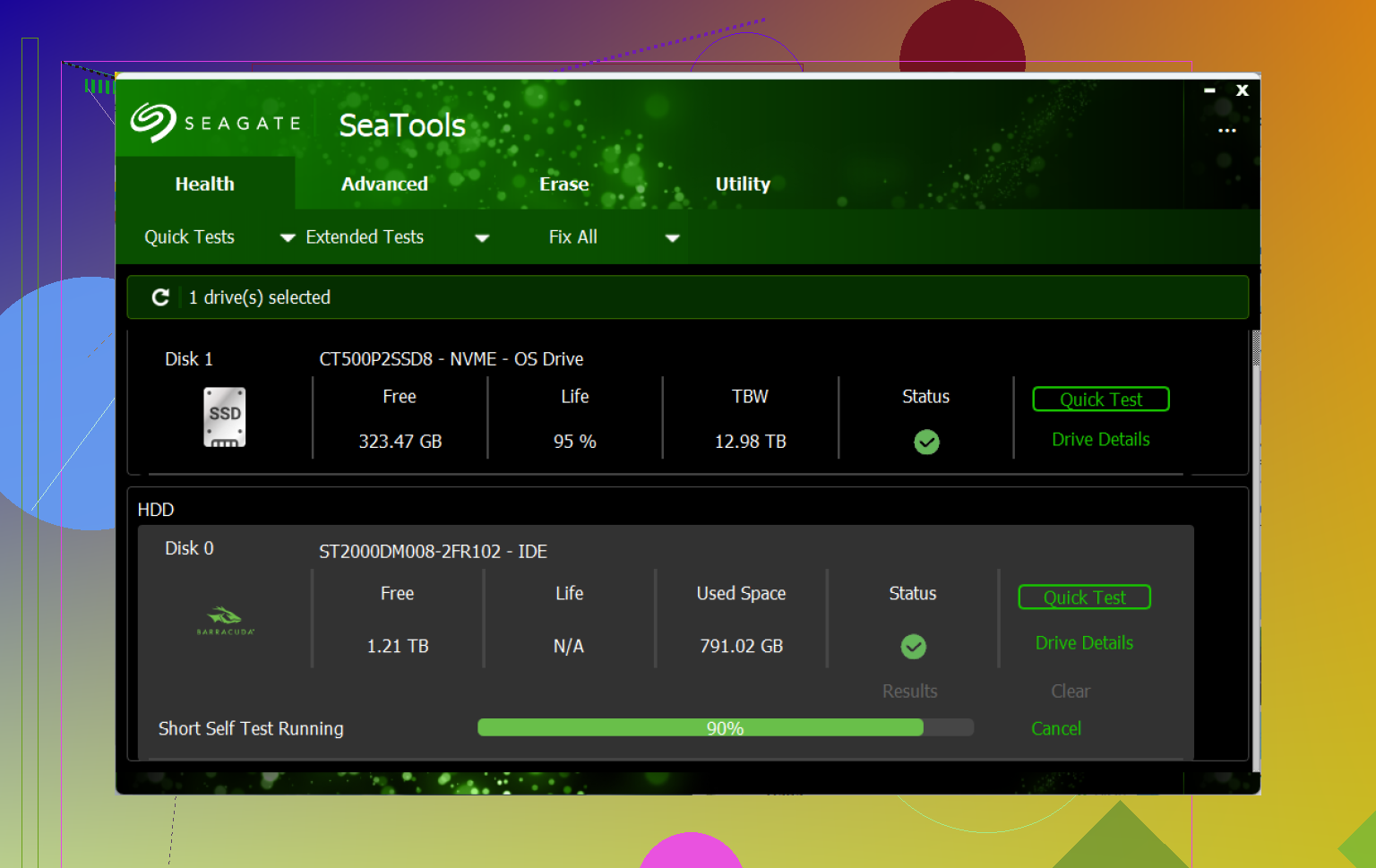
Once you get the files back, don’t assume the drive is safe to keep using. Download Seagate SeaTools and run the Long Generic Test. If it finds errors, replace the drive. If it passes, you can format it and reuse it, but I’d still keep another backup from now on. A drive that has already done this once is not something I’d trust as the only copy of important data.
Also, be patient with large drives. A full scan can take hours. If the drive powers on, sounds normal, and shows the correct capacity, there’s still a decent chance the files are recoverable.
7 Likes
Deleted files are often recoverable, but the odds depend on what happened after the delete and what file system the Seagate drive uses. Since you have not saved anything new to it, that is the best-case DIY situation. The main catch is that “deleted” does not always mean the same thing. A normal delete from an external HDD usually just removes the file records, while the actual data sits there until overwritten. If it was an SSD or a drive using TRIM-like behavior, the chances can drop fast, but most Seagate external hard drives are still regular spinning disks.
I agree with the warning about not writing to the drive, but I’d be even more strict about where you install and save things. Do not unzip recovery tools onto the Seagate drive, do not export recovered files there, and do not let Windows “fix errors” if it offers. If you use Disk Drill or any similar tool, install it on your main computer drive and recover to another disk with enough free space. Preview matters too. A program showing thousands of filenames is not the same as the files being usable.
A small thing people miss: check the Recycle Bin only if the drive was connected when the files were deleted, but don’t rely on it. External-drive deletes often bypass it depending on settings, file size, and how the delete happened. If these are irreplaceable files and the drive is acting weird at all, cloning first is smarter than scanning it over and over. If it sounds normal and appears with the right size, a careful software scan is reasonable. If it clicks, disappears, or reports the wrong capacity, stop and treat it like a hardware problem.
Don’t “test” the Seagate by creating a folder, copying a sample file, or letting any backup/sync app touch it. People often forget that Windows Search indexing, thumbnail generation, cloud sync tools, and antivirus quarantine actions can all cause little writes, so I’d disconnect the drive until you’re ready to scan it properly. If the deleted files were mostly photos/videos, even a raw scan can help, but if you need folder names and original filenames, use a tool that reads the file system records first, like Disk Drill or similar, before falling back to deep/raw recovery. And don’t judge success by file count. Recover a few important files to another drive and open them before spending hours pulling back a mountain of broken duplicates.
Your recovery target matters as much as the recovery tool.
People focus on the scan, but the dumb mistake is recovering files back onto the same Seagate drive because “there’s space there now.” Don’t do that. Have another drive ready first, preferably with more free space than the amount you expect to recover. If the Seagate is 2TB and you only need one folder, don’t hit recover-all and create a 900GB mess of duplicates, cache files, partial videos, and random old junk.
I’d treat this as two separate cases. If you simply deleted files and the drive still mounts normally, start with a normal file-system scan first. That gives you the best chance of getting folder structure and filenames back. If the partition is damaged, RAW, or missing, then a deeper scan makes sense, but expect uglier results: files grouped by type, generic names, and some that preview fine while others are broken.
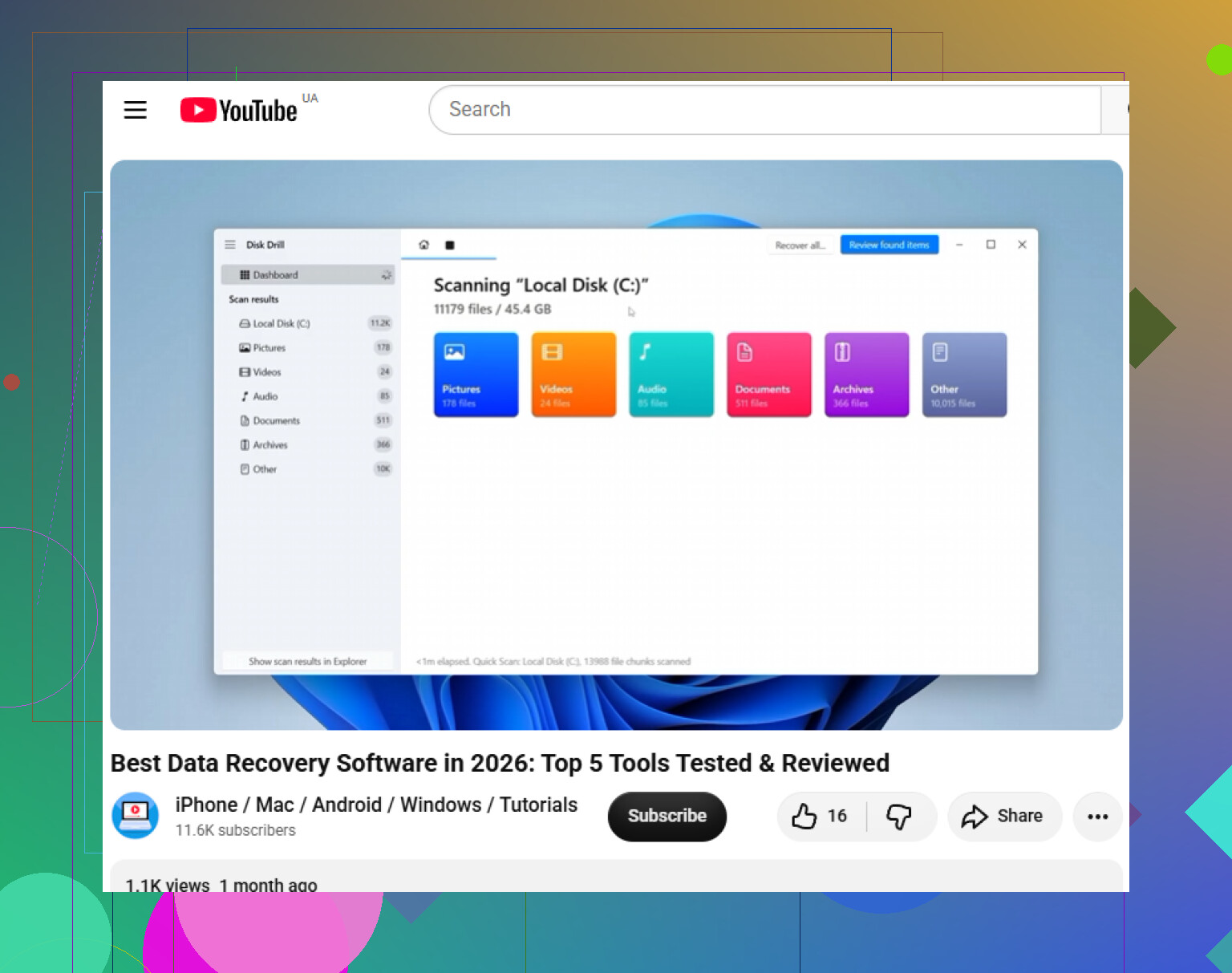
Disk Drill is fine for this kind of job if the drive is healthy, but don’t judge it by the big number it shows after scanning. Recovery programs love showing huge totals. The useful test is whether your actual important files preview and then open after being restored to another disk. Recover a small batch first: one document, one photo, one video, whatever matters most. If those work, then continue.
Small caveat that hasn’t been stressed enough: if this Seagate was used between Windows and Mac, check the file system and the delete method. exFAT, NTFS, APFS/HFS via drivers, and “cut/paste gone wrong” can all behave differently. A deleted folder from an exFAT external drive may be less neat to recover than a deleted folder from NTFS, especially if you care about original names.
So yes, Seagate drive recovery is possible after deletion, and your “haven’t saved anything new” detail is the best sign here. Keep it disconnected until you’re ready, scan from another system drive, recover to a separate disk, and verify the important files before doing a giant restore. If the drive starts clicking, dropping connection, or showing the wrong capacity, stop treating it like a deleted-file problem and move it into hardware-recovery territory.