My iPhone has started feeling slow when opening apps, typing, and switching between screens. I’ve heard changing certain iPhone settings can improve performance, but I’m not sure which ones are safe or worth trying first. What settings should I adjust to speed up my iPhone without causing problems?
You can usually make an older iPhone feel a lot less sluggish without doing a full wipe. The two big things are simple: stop wasting resources in the background, and get the storage back under control. Storage is the one people usually ignore until the phone is already crawling.
Start with the battery
Before messing with settings, check the battery first. Go to Settings > Battery > Battery Health and Charging. If the maximum capacity is under 80%, the phone may be limiting performance to avoid random shutdowns. At that point, no cleanup app or settings tweak is going to do more than a battery replacement.
If the battery looks fine, then the slowdown is probably coming from iOS settings, background activity, or a nearly full phone.
Settings that are actually worth changing
There are a few changes that can help older iPhones without deleting anything:
Turn off Background App Refresh. It’s under Settings > General > Background App Refresh. On newer phones it may not matter much, but older hardware can definitely feel it when apps are constantly doing little updates in the background.
Turn on Reduce Motion and Reduce Transparency. Reduce Motion is in Settings > Accessibility > Motion. Reduce Transparency is in Settings > Accessibility > Display and Text Size. These cut down on animations, blur, and other visual effects that make the interface look nicer but can drag on older graphics hardware.
Also check Low Power Mode. If you leave it on all the time, the phone is intentionally trading speed for battery life. Turn it off if performance matters more at the moment.
Safari is worth clearing too. Go to Settings > Safari > Clear History and Website Data. That mainly helps Safari and in-app browser windows, but it can make a noticeable difference if the cache has built up for years.
Storage is often the real problem
A nearly full iPhone does not just mean you have no room for new photos. iOS needs empty space for temporary files, indexing, and background work. Once an older phone gets around 85% to 90% full, things can get weird fast: the camera opens slowly, apps crash right after launch, and switching between apps starts to stutter.
That slowdown usually creeps in little by little, so it feels like the phone is just “old.” A lot of the time, it is really just packed storage.
The fastest cleanup is usually in Photos
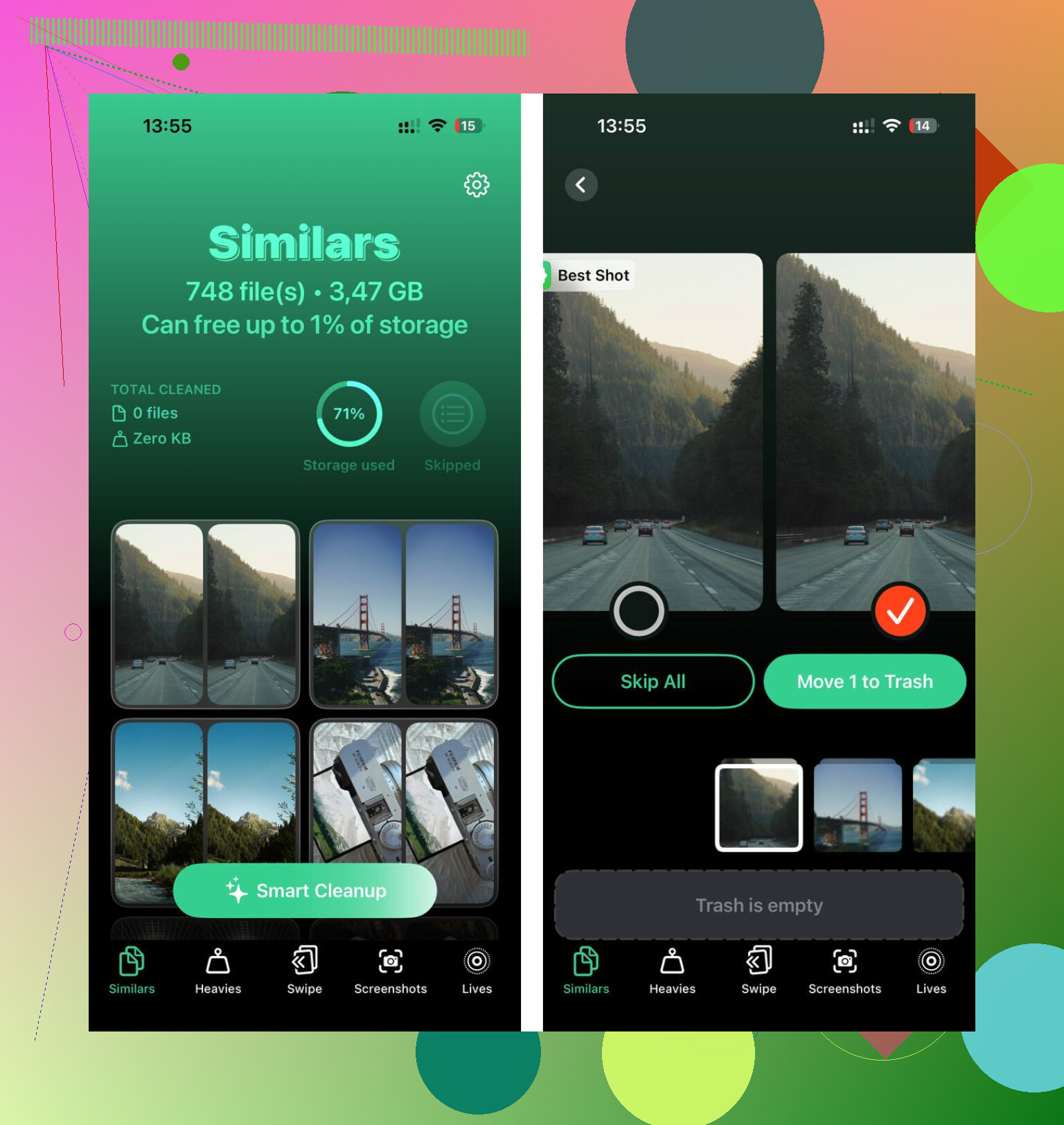
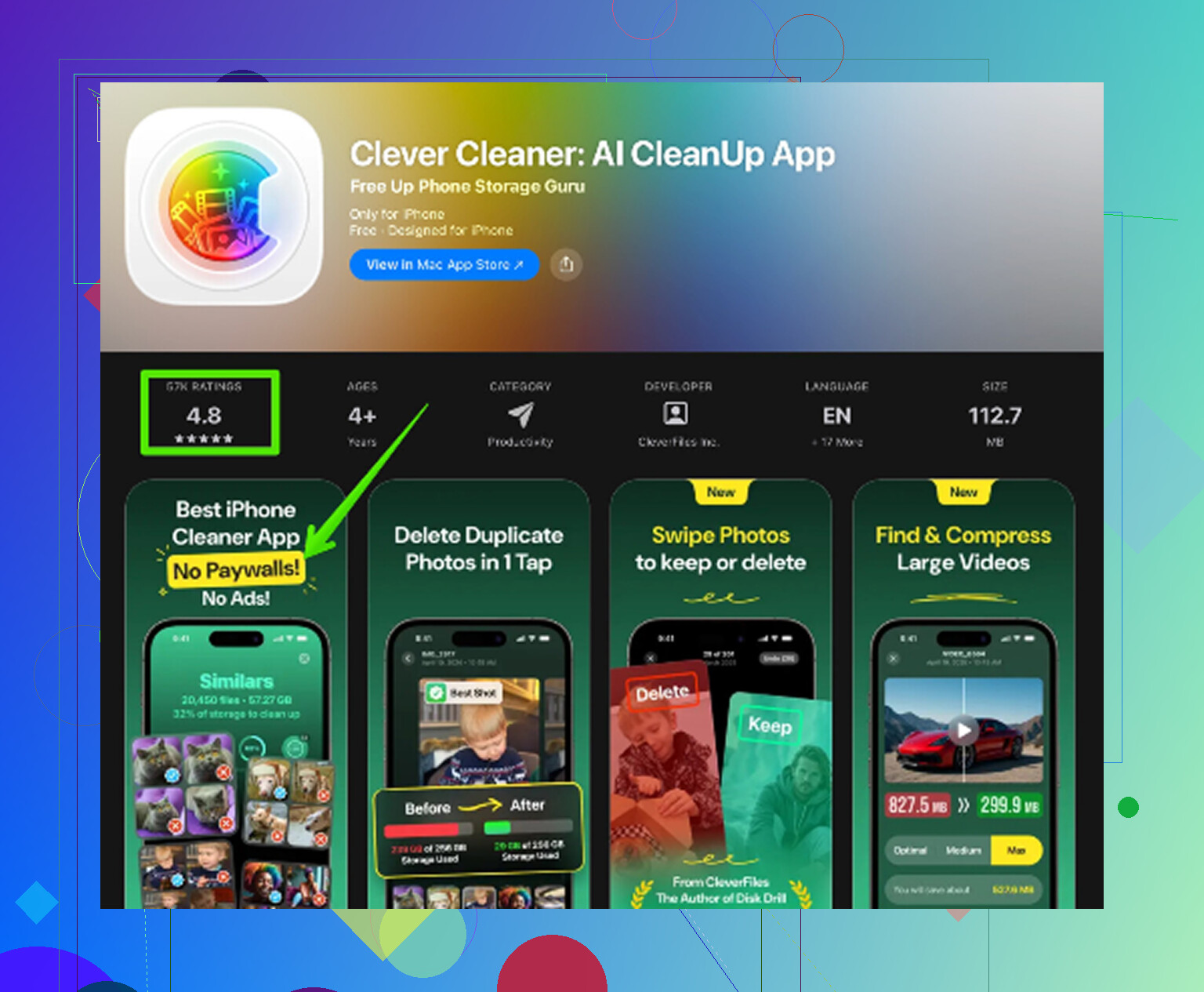
Going through the Photos app by hand is painful if you have a big library. Clever Cleaner makes that part easier, and it is free with no ads or subscription.
The cleanup order that makes the most sense:
- Start with the Heavies tab. It sorts files from biggest to smallest and shows the exact size of each one. Old screen recordings and 4K videos are usually the worst offenders, and deleting just a few can free up a surprising amount of space.
- Then check Similars. It groups near-duplicate photos and picks the sharpest one from each set. This is useful for burst shots, repeated angles, and all those “take ten and keep one” photos.
- Go through Screenshots too. The app shows the file size for each screenshot, and most screenshots stop being useful pretty quickly.
- All of this is processed on the phone itself, so the photos are not uploaded somewhere else.
After deleting things, open Photos and empty Recently Deleted. Otherwise the storage number will not really change yet, because iOS is still holding those files.
The best order is battery check first, settings second, storage cleanup third. The settings changes can help right away, but clearing a crowded photo library is usually where the bigger improvement comes from. Together, those steps can make an older iPhone feel much closer to normal without wiping the device.
13 Likes
If the lag is worst when reopening apps, don’t start by swiping everything closed. iOS usually handles suspended apps better than relaunching them, so change Background App Refresh per app instead of killing apps constantly. The battery and storage advice above still matters, but that “speed trick” often backfires.
If the phone only got slow right after an iOS update, I would wait a day or two before changing ten settings at once. iPhones can be busy re-indexing photos, search, messages, and other stuff in the background after an update, and messing with everything during that window makes it harder to tell what actually helped.
For settings I’d change first, I’d start with the low-risk ones that don’t break how you use the phone:
- Turn on Reduce Motion
Settings > Accessibility > Motion > Reduce Motion
This is usually the safest first change. It won’t make the processor faster, but it can make swiping, app switching, and opening folders feel less heavy because the phone is doing fewer visual effects.
- Turn on Reduce Transparency
Settings > Accessibility > Display & Text Size > Reduce Transparency
Same idea. Less blur and layering in the interface. On older phones this can help the “sticky” feeling when moving around iOS.
- Check iPhone Storage before deleting random apps
Settings > General > iPhone Storage
If you have only a few GB free, fix that before chasing tiny settings tweaks. I agree with the storage point above, but I’d be careful about deleting small apps first. A 90 MB app is not your problem if you have 35 GB of videos sitting in Photos or Messages. Look at the storage screen and start with whatever is actually huge.
- Offload unused apps instead of deleting everything
Settings > App Store > Offload Unused Apps
Or do it manually from iPhone Storage. This keeps the app data, so it’s less annoying if you need the app later. It’s a good middle option if you don’t want to wipe the phone or spend an afternoon sorting apps.
- Set Background App Refresh to Wi-Fi or turn it off per app
Settings > General > Background App Refresh
I’d follow @himmelsjager’s point here. Don’t turn this into a ritual of closing every app from the app switcher. That usually just makes apps reload from scratch. I’d disable background refresh for things like shopping apps, social apps you barely use, travel apps, food delivery apps, etc. Leave it on for stuff where background updates are useful.
For typing lag specifically, I’d look at different settings than the usual “make iPhone faster” lists. Go to Settings > General > Keyboard and try turning off Predictive Text for a while. If you use a third-party keyboard, switch back to the Apple keyboard and test it. Keyboard lag can come from text prediction, huge message threads, or a keyboard extension acting weird, not just general phone speed.
Another boring but useful check: widgets. If your Home Screen or Lock Screen is packed with weather, calendar, stocks, battery, news, fitness, and smart stack widgets, remove the ones you don’t care about. They are convenient, but on an older iPhone they can add little bits of background work and refresh activity. It’s not magic, but it’s easy to reverse.
I would not start by disabling Location Services completely, turning off every notification, or clearing Safari constantly. Those can help in certain cases, but they also make the phone more annoying. Same with Low Power Mode: good when you need battery, bad if you are judging performance, because it intentionally limits some activity.
The order I’d use is:
Reduce Motion
Reduce Transparency
Check free storage
Offload or delete the biggest unused stuff
Limit Background App Refresh by app
Remove unnecessary widgets
Test keyboard settings if typing is the main issue
Restart the phone after the changes
Clever Cleaner or the built-in Photos cleanup can make sense if your storage screen shows Photos is the monster, but don’t expect any cleaner app to fix a dying battery or a phone with almost no free space left until you actually delete the files and empty Recently Deleted.
If you want a longer walkthrough, this guide to making older iPhones feel faster covers the same general idea: reduce the stuff iOS has to animate, refresh, and store. Just change a couple things at a time. If you flip twenty switches in one sitting, you won’t know what helped and you’ll probably break some convenience feature you actually liked.
Restarting the phone before you touch a single setting saves you from chasing ghosts. Half the time the ‘slow typing and app switching’ is just iOS choking after weeks of uptime, and @byteguru’s whole careful list won’t tell you what actually helped if you skip that step first. Clean storage still matters, but reboot, then judge.