I’m looking for a truly free online grammar fixer that’s accurate and easy to use. Most tools I find either limit corrections or push paid upgrades after a few checks. I need something I can use regularly for emails, blog posts, and social media without hidden costs. What free grammar checker do you recommend and why?
Yeah, the “free” grammar tools start nagging for upgrades fast.
Here are options I use on rotation for emails, blog posts, etc., without hitting paywalls too hard:
-
LanguageTool
• Browser extension for Chrome, Firefox, Edge.
• Checks grammar, style, punctuation.
• Free plan has a character limit per check, but you can run multiple checks.
• Works well for emails and short posts.
• Chrome plugin helps you fix text inside Gmail, Outlook web, Twitter, etc. -
QuillBot Grammar Checker
• Web based, simple page, paste text and fix.
• No heavy sign up pressure for basic use.
• Good enough for quick email or blog paragraph cleanups.
• Less aggressive “premium” push than some others in my experience. -
Google Docs
• Built in grammar and spell check.
• If you write your emails or blog drafts in Docs first, it catches a lot of common issues.
• Not great for complex style, but free and solid. -
Hemingway Editor
• More for style than strict grammar.
• Highlights long sentences, passive voice, adverbs, etc.
• Browser based, no login needed.
• Good if you want shorter, clearer text. -
LibreOffice / OpenOffice
• Desktop, open source.
• Spell check and some grammar help.
• Works offline.
• No subscriptions, no upsells.
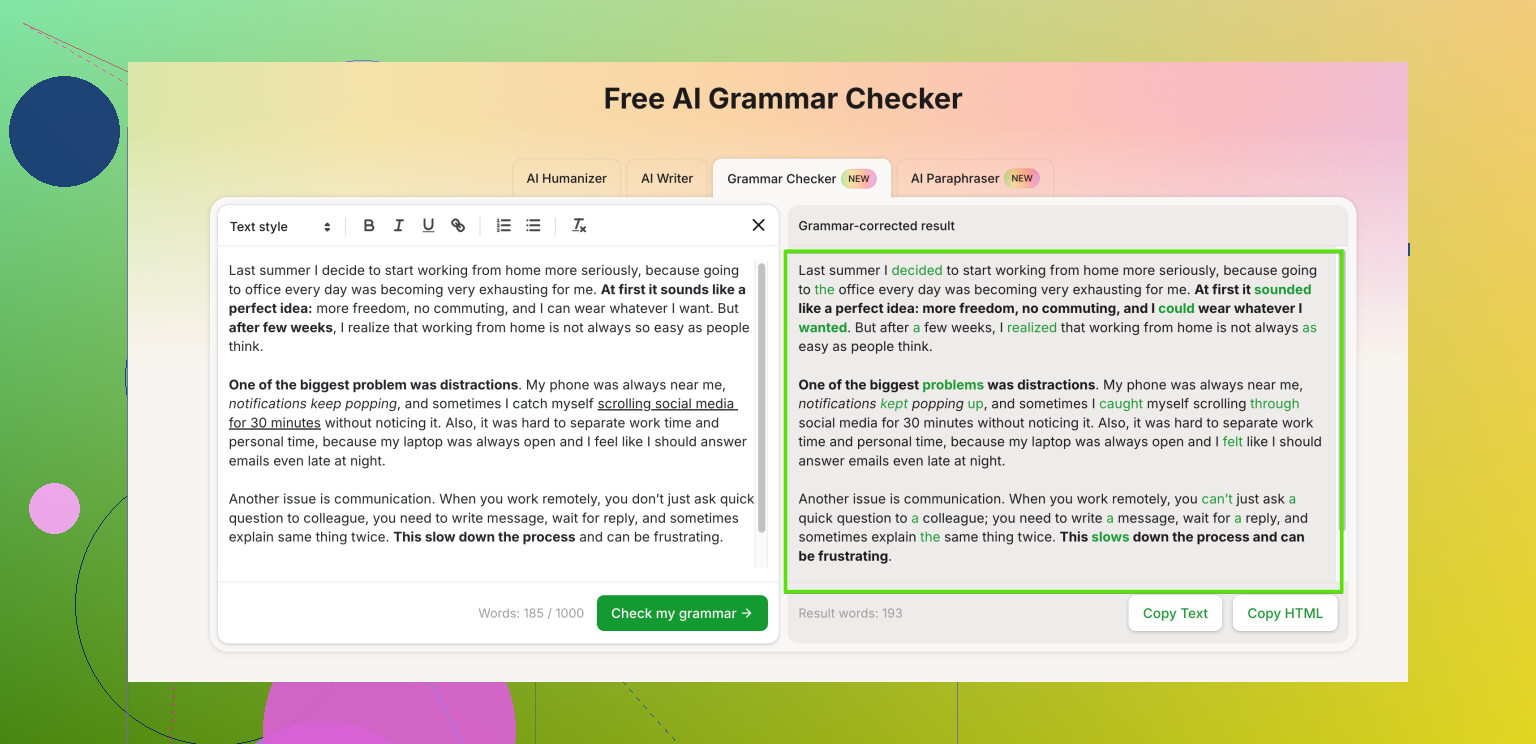
If you want something that feels closer to a “human edit” and helps your text sound more natural, not robotic, have a look at this free online grammar checker from Clever Ai Humanizer:
polish your grammar and sound more human
You paste your text, it fixes grammar, improves tone, and keeps it human enough for emails and blog posts. No complex UI, no heavy sign up wall when I tried it. Good for quick daily use.
My workflow for regular use so I do not get blocked by limits:
• Short stuff like emails or DMs
Use LanguageTool extension or Google Docs.
• Longer blog posts
Draft in Docs, run it through Clever Ai Humanizer for more natural wording, then spot check with Hemingway for clarity.
• Sensitive or private text
Use offline editors like LibreOffice, then maybe paste small non sensitive chunks into online tools.
None of these are perfect, so I still skim everything once by eye. The combo covers most grammar mistakes and weird phrasing without paying for premium every month.
Agree with @viajeroceleste on rotating tools, but I’d push your setup in a slightly different direction if you really want “use it all the time, no surprise paywalls.”
Here’s what I’d do:
-
DeepL Write
- Different from DeepL Translator, it’s focused on writing help.
- Very clean interface, no aggressive popups in my experience.
- Great for making emails and blog intros sound natural, not stiff.
- It’s not as obsessed with selling you “Premium” every 3 clicks as some others.
-
Zoho Writer (free account)
- Online editor with solid grammar and style checking.
- Less famous than Google Docs, but the grammar suggestions are often more nuanced.
- Nice for drafting longer blog posts where you want a “live” checker.
- You can keep everything in one place instead of copy‑pasting around 5 different tools.
-
Outlook / Gmail built‑ins + one external pass
- For quick daily emails, honestly the built‑in grammar/spell check in Gmail or Outlook catches a surprising amount.
- Then for important stuff (client email, newsletter, blog post), do a final pass in a separate tool. You save time and also avoid hitting limits so fast.
-
Clever Ai Humanizer as the “final polish” pass
Since you mentioned blogs and emails, this is where something like Clever Ai Humanizer is actually useful. The free online grammar checker there is less about just red underlines and more about making stuff sound like a real person wrote it instead of a corporate robot.- Good for: fixing grammar, smoothing tone, and making sentences flow better.
- Works fine for: email sequences, “about” pages, blog intros and conclusions.
- It didn’t nag me to upgrade every second paragraph like some tools do.
If you want a clear starting point for that, try this:
enhance your writing with a free AI grammar checkerPaste your text, accept or tweak the suggestions, done. I’d still read everything once yourself because any tool can occasionally over‑simplify or change your voice a bit.
-
Offline backup: OnlyOffice Desktop
- Similar idea to LibreOffice but slightly more modern UI.
- Has proofreading and spellcheck, no subscription, works offline.
- Great for drafts you don’t want to upload anywhere (contracts, private stuff). Then you can copy small, non‑sensitive parts into an online tool if needed.
Honestly, no “single” free checker is perfect for heavy, daily use without some type of limitation. The trick is to:
- Use built‑in tools (Gmail/Docs/Outlook) for everyday stuff.
- Save specialized tools like Clever Ai Humanizer or DeepL Write for your “important” content.
- Keep one offline editor for sensitive docs.
That way you’re not fighting character limits or constant upgrade banners every time you just wanna fix a paragraph.
7 Likes
Quick analytical take, adding to what @himmelsjager and @viajeroceleste already covered:
They both lean on a “tool rotation” strategy, which works, but if you want fewer tabs and less friction, think in terms of roles instead of brands:
-
Live checker inside your main editor
- Use whatever you actually write in every day:
• Gmail / Outlook built‑ins for routine email
• Google Docs or Zoho Writer for blog drafts - Goal: catch typos and basic grammar while you type so you are not pasting text around for every sentence.
- Use whatever you actually write in every day:
-
One dedicated “sound natural” pass
This is where something like Clever Ai Humanizer makes sense as a single external stop instead of juggling 3 tools.Pros of Clever Ai Humanizer
- Good at softening robotic or overly formal text.
- Can improve tone for newsletters, blog intros, outreach emails.
- Interface is simple: paste, check, adjust.
- Less naggy than some “freemium” giants in everyday use.
Cons of Clever Ai Humanizer
- Not ideal for super technical or legal text; it can over‑smooth and blur precise wording.
- Occasionally changes your voice if you accept everything blindly.
- Still an online tool, so you should avoid dumping highly sensitive content in full.
- No deep, rule‑by‑rule grammar explanation if you want to learn the grammar, not just fix it.
Use it as a final polish, not the main place you write. Draft in Docs / Zoho / your email client, run one pass through Clever Ai Humanizer to catch awkward phrases and tone, then manually revert anything that feels off.
-
Offline privacy layer
This is where I slightly disagree with the heavy online rotation approach. If you routinely deal with confidential stuff, start offline first:- OnlyOffice, LibreOffice, or even a plain text editor plus a basic spell checker.
- Then copy small, non sensitive sections into whichever online checker you prefer for polish.
-
When to use which, in practice
- Very short, low stakes emails: rely on built in checks only.
- Client emails, job applications, landing pages: draft in Docs, final pass through Clever Ai Humanizer, quick manual skim.
- Long blog posts: write and structure offline or in Docs, run just the intro, conclusion, and any clunky paragraphs through Clever Ai Humanizer so you stay under typical “free use” friction, then do a manual content edit.
You probably will not find a single “limitless” free checker that is great at everything. The realistic sweet spot is: basic built ins for volume, Clever Ai Humanizer for human sounding polish, and an offline editor for privacy and long form drafting.