I found an old drive with family photos that won’t open, and some files look corrupted or were accidentally deleted years ago. I’m trying to recover these old pictures before they’re gone for good and need advice on the best photo recovery software for old photos, especially something safe, easy to use, and good for damaged or aging storage devices.
I’ve been in this mess more than once. Deleted clips, missing photos, one SD card gone weird after a long day, and once I wiped the wrong thing because I was tired and rushing. The part people skip is the part that matters most. What you do in the first minute matters more than the app you install after.
If your files disappeared, stop using the card or drive right away. Don’t shoot more photos. Don’t paste anything onto it. Don’t format it again because you saw some random post saying it helps. On most storage, deleted data sits there until new data replaces it. I learned this the hard way. Every extra write cuts your odds.
After I pull the card and leave it alone, these are the tools I look at.
1. Disk Drill
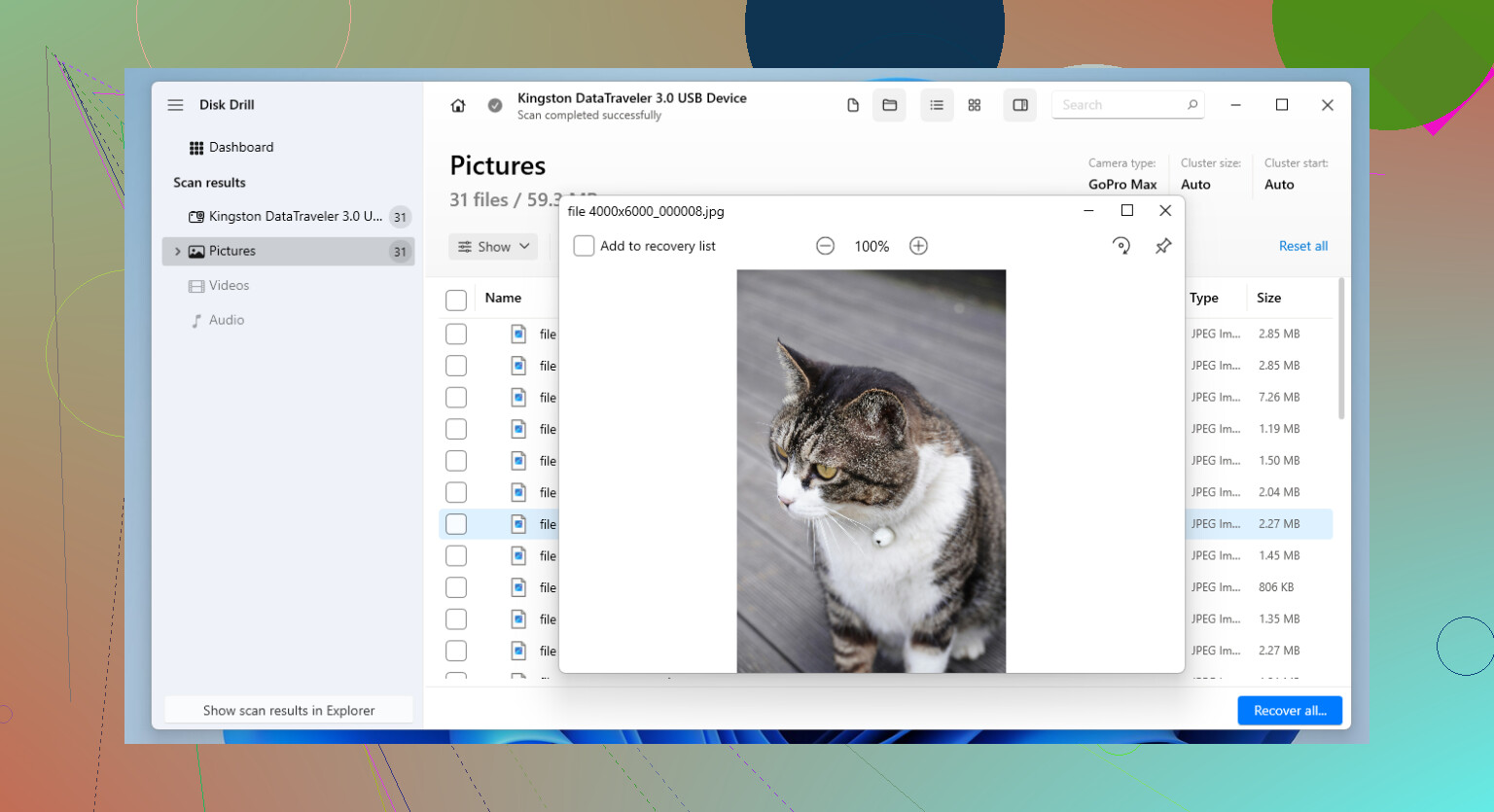
Disk Drill is the one I point most people to first. It sits in the middle in a good way. Strong recovery, low friction, not much setup pain. I’ve used it on SD cards, USB sticks, external drives, and SSDs without much fuss.
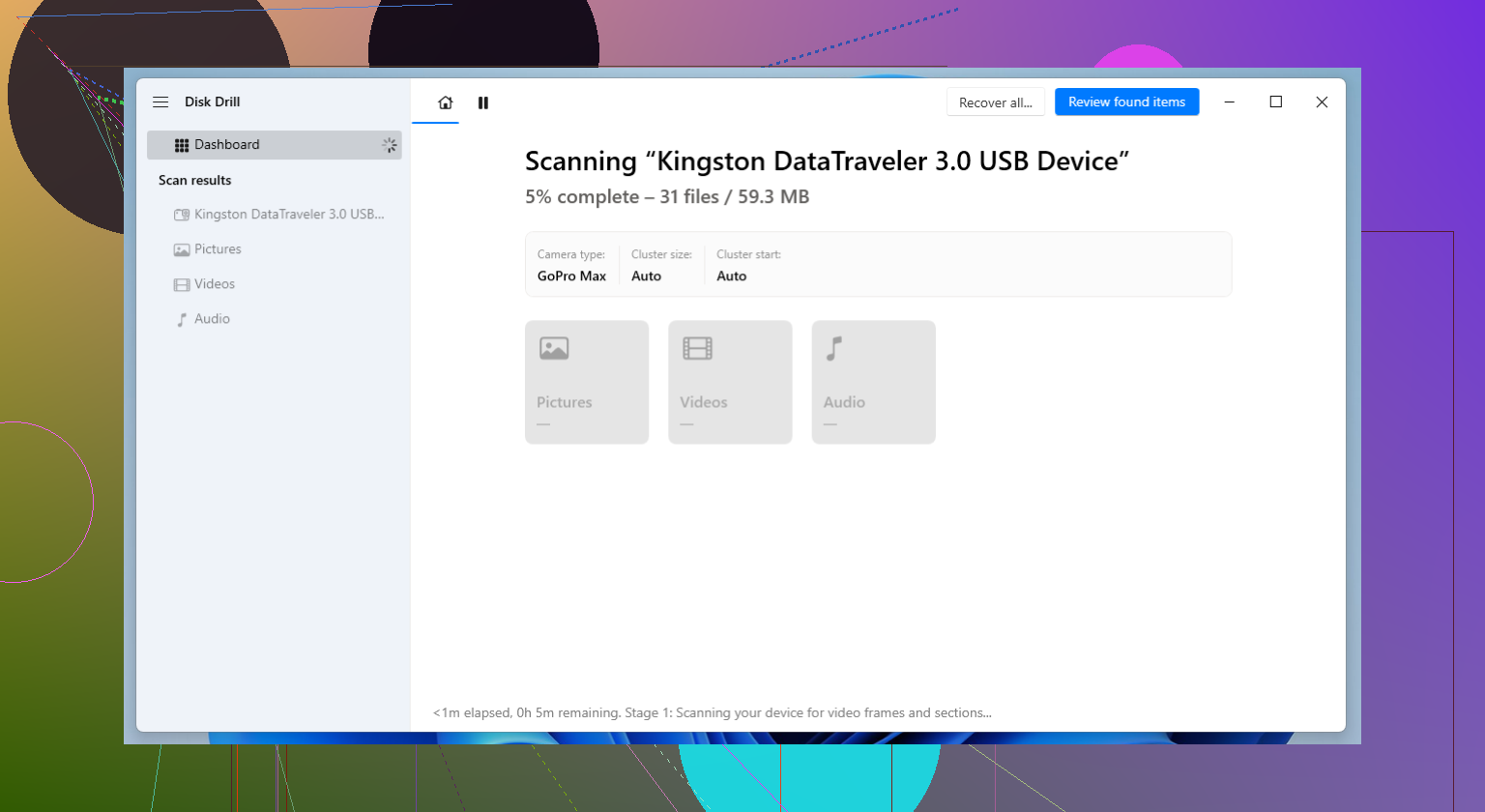
The part I kept coming back to was video recovery, mainly for broken-up camera files. If you’ve pulled footage off a drone or action cam, you’ve seen this before. A lot of tools find the clip, then hand you a file that won’t play right. Disk Drill does a better job with fragmented video through Advanced Camera Recovery, and it picks up a lot of RAW photo types too.
What went well:
- Simple layout, easy to figure out fast
- Reads most common photo and video formats
- Advanced Camera Recovery helps with split or fragmented video files
- Preview option before you save recovered files
- Runs on Windows and Mac
Where it annoyed me:
- You need the paid version for full recovery
- Deep scans drag on big cards, no way around it
2. R-Studio
R-Studio feels like it was built for people who don’t panic when they see technical menus. I wouldn’t hand it to somebody who wants one big Recover button and done. Still, when the card is badly damaged, the partition looks wrong, or the file system is half-dead, this one tends to hang in longer than the easier tools.
I used it on a corrupted SD card from a mirrorless camera after two other apps came back with scraps. R-Studio found more. Took longer to sort through, and the interface is a bit much at first, but the results were better on that job.
Why people stick with it:
- Strong recovery on rough cases
- Handles damaged file systems better than many simpler apps
- Gives you deeper scan and recovery control
- Works with a wide range of storage setups
Why some people bounce off it:
- It takes time to learn
- The interface feels dense
- Price is higher than a lot of alternatives
3. PhotoRec
PhotoRec is still the free option I mention first. No recovery cap, open-source, and it gets results. It doesn’t lean on the file system as much as other tools do. It hunts for file signatures directly on the device, which is why it still works when a card is formatted or badly damaged.
The tradeoff is cleanup. You often get the files back, but not the names you had, and not the folder structure either. So if you recover a giant batch from a full card, expect a sorting session. Put on coffee. It gets old.
Good stuff:
- Free, with no data limit
- Supports a huge pile of file types
- Works well on formatted or damaged cards
- Available on Windows, macOS, and Linux
Rough edges:
- Command-line interface trips people up
- Recovered files usually lose original names
- No original folder structure
- Sorting recovered output takes time, lots of it
What I’d do after recovery
Recovery software is one part of the fix. The other part is changing how you store stuff so you don’t end up here again next month.
If the files matter, keep backups on a routine. Not when you remember. A routine. If you shoot on SD cards, split jobs across multiple cards instead of dumping a full day onto one. I started doing this after one ugly card failure and it cut the risk a lot. Lose one card, you lose part of a shoot, not the whole thing.
So yeah, move fast, stop writing to the card, then scan it with the right tool. If the data hasn’t been overwritten, your odds are still decent. Not perfect. Better than most people think, though.
7 Likes
If the drive still shows up in Disk Management or Disk Utility, I’d start with Disk Drill for old family photos. It tends to do well with JPG, TIFF, PNG, RAW, and mixed folders from old cameras. The preview tool matters more than people think. You want to see the image before paying or exporting 20GB of junk.
I’ll disagree a bit with @mikeappsreviewer on one point. PhotoRec is great, but for family pics it often turns recovery into a sorting nightmare. If you have years of deleted files, losing names and folders is a pain in the ass. I only use it after easier tools fail.
My order would be:
- Disk Drill, best balance of ease and results
- R-Studio, if the drive looks damaged or partitions are messed up
- PhotoRec, if you want free and don’t mind a mess
If some files “won’t open,” try copying the whole drive to another disk first, if it still reads at all. Old drives die fast once they start acting weird. If the drive clicks, disappears, or runs slooow, stop and think about a pro service.
For reading up on photo recovery software for photographers and old camera drives, this guide is decent: best photo recovery tools for cameras, SD cards, and old drives.
Short version, start with Disk Drill. It’s the one I’d hand to a normal person.
If these are old family photos, I’d add one thing that @mikeappsreviewer and @sonhadordobosque only touched on briefly: make an image of the drive first if it’s physically aging but still readable. Not a file copy, a sector-by-sector clone/image. That way you do recovery attempts on the copy, not the original. Old drives can go from “kinda works” to dead real fast.
For software, I mostly agree with their ranking, but I’d split the problem like this:
- Disk Drill if you want the best photo recovery software for old photos with the least hassle
- R-Studio if the drive structure is messed up and you’re comfortable with more technical stuff
- PhotoRec only if budget matters more than organization
Where I slightly disagree: people push PhotoRec like it’s the heroic free answer, but for old family archives it can be a giant mess. You may get files back, sure, but then you’re sorting 8,000 renamed images with no folders. That’s not “free,” that’s paying in pain lol.
Also, if some photos “won’t open,” recovery software may not be enough. In that case try a repair tool after recovery, because some JPGs are found but still partially corrupted. Different problem, different fix.
If you want a decent roundup, this is useful: best data recovery software recommended by the Reddit data recovery community.
My honest pick for a normal person: Disk Drill first. If the drive is clicking, freezing, or disappearing, stop messing with it before you make it worse. That’s the point where DIY gets risky real quick.
I’d split this into recovery vs repair, because people mix those up.
If files were deleted, use recovery software. If the photos are there but won’t open, you may need a JPEG repair tool after recovery, not just another scanner. That’s the one part I think @sonhadordobosque, @boswandelaar, and @mikeappsreviewer didn’t stress enough.
My practical take:
- Disk Drill first for most people
- R-Studio if the drive structure is ugly
- PhotoRec if you’re broke and patient
Disk Drill pros
- Easy to use
- Good preview system
- Solid for old photo formats and mixed folders
- Less chaos than signature-only tools
Disk Drill cons
- Paid for full recovery
- Deep scans can be slow
- Not my first pick if the disk has serious hardware issues
One small disagreement with the “clone first” advice: yes, ideally. But if the drive is still stable and you’re non-technical, sometimes a read-only scan in Disk Drill is the safer move than fumbling through imaging tools and making mistakes. If the drive starts clicking, dropping offline, or crawling, then stop and clone or go pro.
Also, recover to a different drive only. Never back onto the old one. That mistake kills recoverable data fast.
So for a normal person trying to save old family photos, Disk Drill is probably the best starting point, then decide whether the remaining bad files need actual image repair instead of more recovery passes.