My iPhone storage is almost full and it’s slowing everything down. I’ve already deleted a bunch of photos and unused apps, but the storage bar still shows a lot of space taken by “system” and “other.” I’m not very tech-savvy and I’m worried I’ll lose important data if I just start deleting things. Can anyone explain the safest and most effective ways to free up storage on an iPhone, including what to do about that mysterious “other” storage?
iOS storage is confusing, esp the “System” and “Other” parts. Here is what usually works to shrink it and speed things up.
- Check what is really big
Settings > General > iPhone Storage.
Wait a minute for it to load.
Scroll and look for:
- Messages
- WhatsApp or Telegram
- Social apps like TikTok, Instagram, Facebook
These often cache tons of junk.
-
Clear Safari and app caches
Safari:
Settings > Safari > Clear History and Website Data.
This removes cookies and cached files.
If an app has a “Clear cache” or “Reset cache” option inside its own settings, use it. Some apps hide it under “Storage” or “Data”. -
Offload unused apps instead of deleting everything
Settings > General > iPhone Storage.
Tap an app you rarely use.
Tap “Offload App”.
iOS removes the app but keeps your data.
You free space without losing stuff. -
Clean up Messages
Messages grows huge over time.
Settings > Messages > Keep Messages.
Set to 1 Year or 30 Days instead of Forever.
In Messages, open big conversations, tap the contact at the top, then “Info” and remove:
- Large videos
- Photos you do not care about
- Old attachments
You see size for each.
-
Delete old iOS updates and backups
Settings > General > iPhone Storage.
Look for “iOS X installer” or similar.
Delete old installers if they show up.
Settings > Your Name > iCloud > iCloud Backup.
Check if you have old device backups.
Delete backups from devices you no longer use. -
Fix “Other” / “System Data” bloat
System Data often grows from:
- Corrupted caches
- Failed iOS updates
- Huge Mail cache
Try these steps in order.
a) Restart
Hold power and volume button, slide to power off.
Wait 20–30 seconds.
Turn it back on.
Sometimes the storage number updates and shrinks.
b) Toggle iCloud for Messages
Settings > Your Name > iCloud.
Turn Messages off. When asked, choose to keep data on your iPhone.
Restart iPhone.
Turn Messages in iCloud back on.
This forces some cleanup of message data.
c) Mail cache reset
If you use the built in Mail app and have huge accounts, remove and re-add the account.
Settings > Mail > Accounts.
Tap an email account > Delete Account.
Restart.
Add the account again.
The server will sync mail again, but the local cache resets.
-
Offload photos safely
You already deleted some, but check this.
Photos app > Albums > Recently Deleted.
Empty this folder to free the space.
Settings > Photos.
Turn on “iCloud Photos” and “Optimize iPhone Storage” if you pay for iCloud.
Your device keeps smaller versions, full ones stay in iCloud. -
Use a cleanup tool for duplicates and junk
If your main issue is photos, videos and ugly duplicates, an app helps a lot.
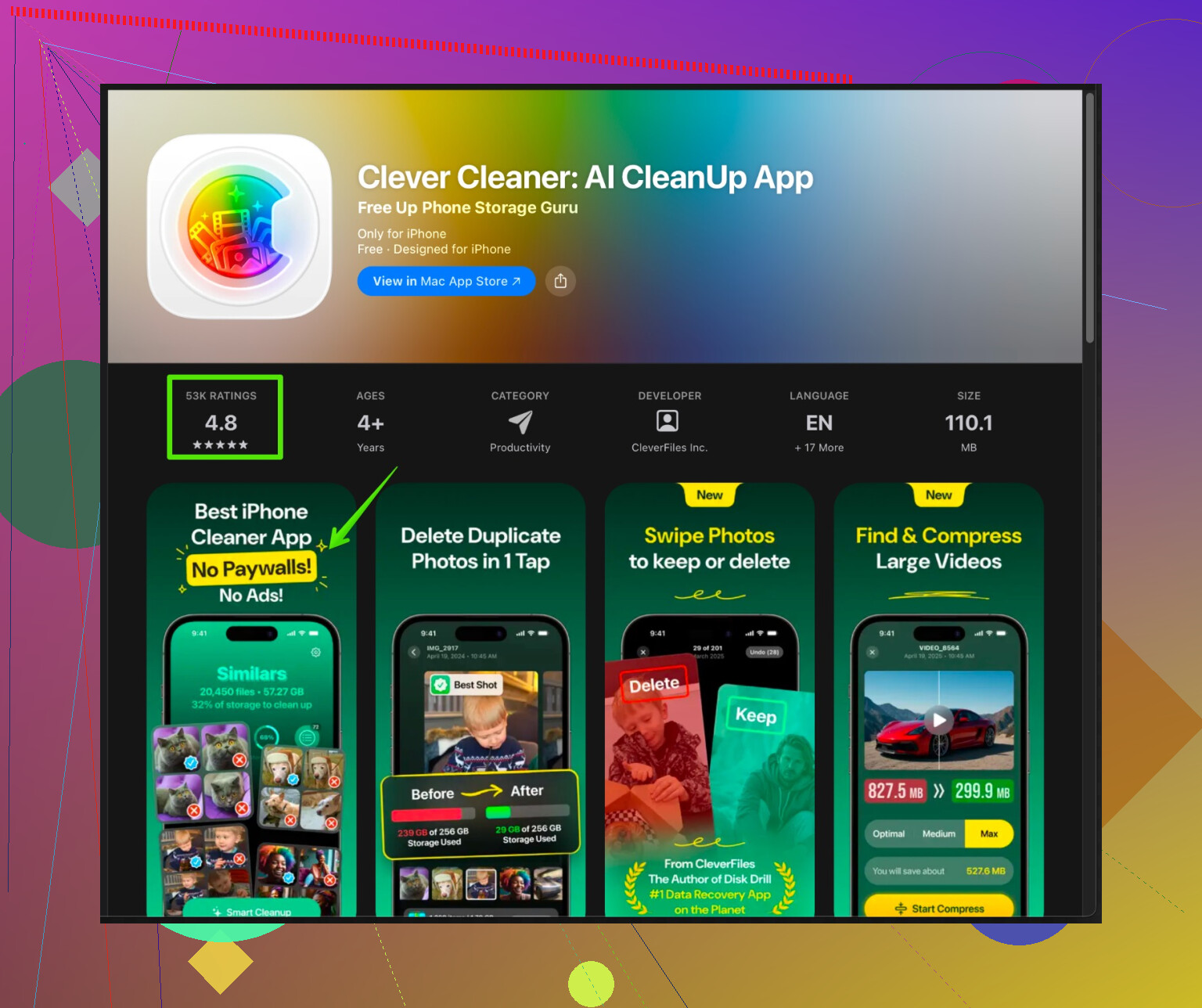
Clever Cleaner App for iPhone finds:
- Duplicate photos
- Similar shots
- Old screenshots
- Massive videos you forgot about
It also helps remove useless contacts and other leftover junk.
You can check it here: clean up iPhone storage with Clever Cleaner.
It focuses on the stuff that fills space fastest, so you do not have to dig through thousands of files by hand.
- Last resort: backup and restore
If “System” stays huge after all this and you still feel the phone slow, do a clean setup.
- Backup to iCloud or to a computer.
- On the iPhone, go to Settings > General > Transfer or Reset iPhone > Erase All Content and Settings.
- Set up the phone again from the backup.
This often drops “System Data” by several GB because it rebuilds all caches from scratch.
If you post your iPhone model, iOS version, and a screenshot of the iPhone Storage screen, people here can point to the worst offenders more precisely.
@cazadordeestrellas covered most of the “normal” stuff, so I’ll try not to repeat the same checklist and focus on what usually moves the needle when “System” and “Other” look ridiculous.
Couple of things that actually helped me when my System Data went nuts:
- Look at what’s synced, not just what’s stored
A lot of people nuke photos and apps, but their phone is still syncing tons of content in the background. That can inflate “System” and “Other.”
- If you use Spotify / Apple Music / Netflix / YouTube Music / Podcasts, open each one and look for “Downloads” or “Offline content.”
Remove old playlists, episodes, or movies. These often show up as “System Data” or “Other,” not nicely labeled as the app itself. - Same thing with Files app: check “On My iPhone” and iCloud Drive for old PDFs, ZIPs, videos.
- iCloud Drive & 3rd‑party cloud apps
I disagree a bit with relying only on Messages / Photos cleanup like many people suggest. Cloud apps can be worse.
If you use Google Drive, Dropbox, OneDrive, etc.:
- Open each app
- Find “Offline” or “Available offline”
- Turn that off for big folders or files
Those offline copies quietly balloon storage and are often lumped into Other.
- Huge local playlists and voice memos
The Voice Memos app in particular is sneaky.
- Open it and scroll to the bottom
- Delete old recordings
- Empty the Recently Deleted in Voice Memos too
Those long recordings are multi‑hundred‑MB files that iOS counts in a weird way.
- Turn off automatic downloads you don’t need
This doesn’t free space instantly, but it stops the bloat from coming back so fast.
Go to Settings > App Store:
- Turn off “App Updates” automatic downloads if you are comfortable updating manually
- Turn off “Automatic Downloads” for Apps and maybe for Music
Less background downloading means fewer half‑baked files and partially downloaded updates sitting in “Other.”
- Serious Instagram / TikTok / FB cleanup
Yes, @cazadordeestrellas already mentioned social apps, but here’s the part most ppl skip: just deleting & reinstalling them.
If an app has no real “Clear cache” button and it’s using multiple GB:
- Press and hold the icon
- Remove App
- Restart phone
- Reinstall from App Store
This resets its local data and often drops gigabytes that Settings never clearly attributes.
- Try a smarter photo cleanup instead of manual deleting
You already wiped “obvious” photos, but iOS Photos is brutal at dupes and useless stuff. Instead of tapping for an hour:
Use a cleaner app and let it find:
- Duplicate / near‑duplicate photos
- Old screenshots
- Long forgotten screen recordings
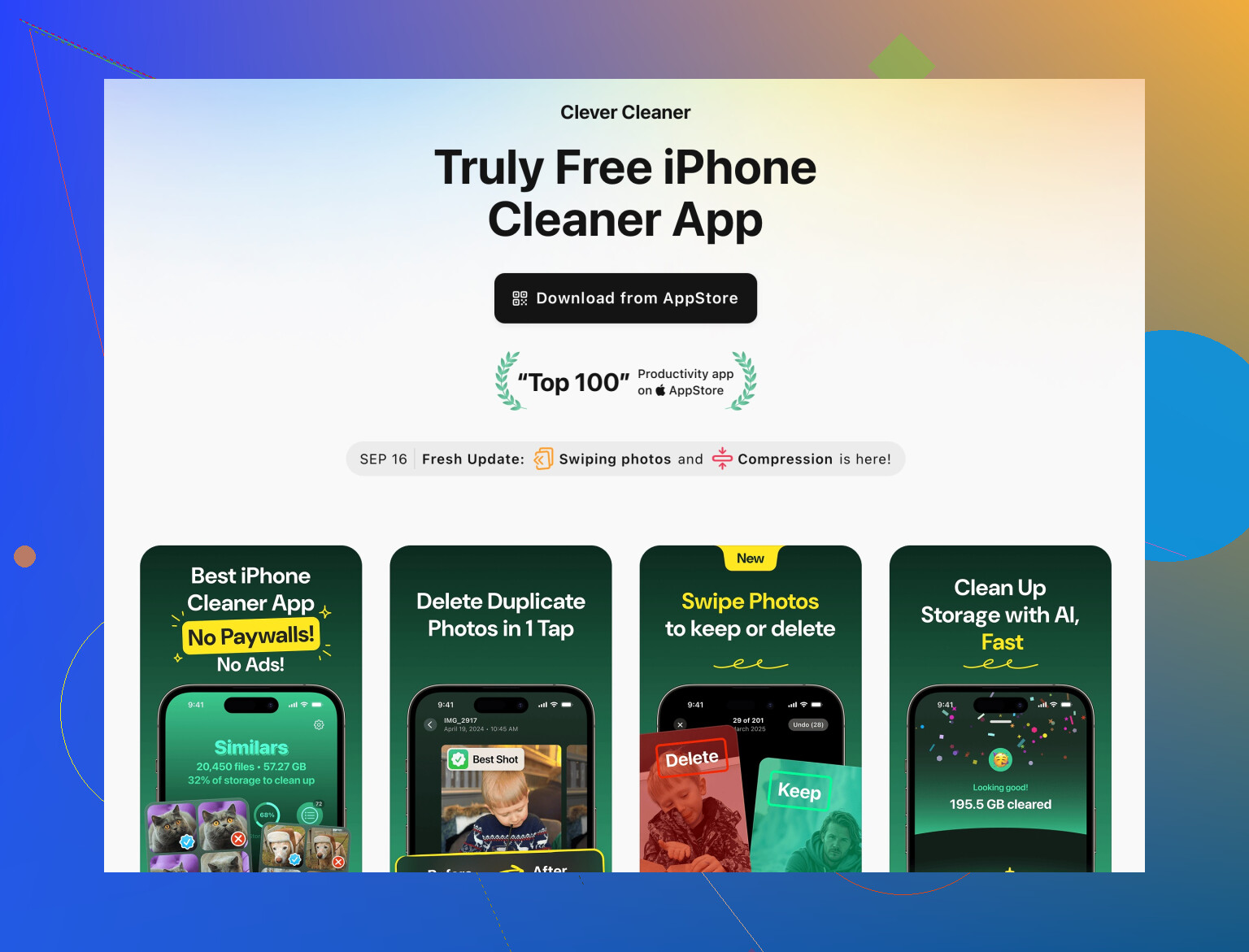
A solid one is the Clever Cleaner App. It’s basically for iPhone storage spring‑cleaning: junk photos, repeated selfies, huge videos, messy contacts. Instead of hunting files by hand, it surfaces the worst offenders in a few screens.
If you want something you can revisit later and that’s friendly for non‑techy folks, check this out:
smart iPhone cleanup with Clever Cleaner App
It’s tailored to free up space fast and make the device more responsive by cutting the stuff that actually fills storage, not random tiny files.
- Check if your iPhone is just too full in general
If your storage is at like 95% or higher, iOS will crawl no matter what. Try to keep at least 5–10 GB free if you can. That free space is used for:
- Temporary files when installing updates
- Unzipping and editing photos and videos
- Background system tasks
Once you clear some space using the above, power off the phone, leave it for ~30 seconds, then turn it back on and wait a few minutes. The “System” and “Other” numbers usually recalc after that and sometimes drop by themselves.
If you can post your total capacity and how many GB “System” and “Other” are showing, you’ll get more precise tips, but honestly, social & streaming apps + cloud/offline files + hidden media downloads are almost always the real culprits when Settings looks confusing.
16 Likes
Short version: when “System” and “Other” won’t budge after the usual tricks, you are mostly fighting invisible caches, sync leftovers, and how iOS estimates storage rather than actual files. Here is what I’d add on top of what @caminantenocturno and @cazadordeestrellas already covered.
1. Let iOS recalc storage properly
Sometimes the storage bar lies for a while.
- Plug the iPhone into power and Wi‑Fi.
- Go to Settings > General > iPhone Storage and leave that screen open for a few minutes.
- Lock the phone and leave it plugged in for 30–60 minutes.
iOS runs housekeeping tasks when charging and idle. A chunk of “System” and “Other” can simply shrink as it finishes indexing and deleting temp files. I have seen several GB disappear without touching anything else.
2. Be careful with “System” obsession
I slightly disagree with going too hard at “System Data.” Some amount of it is normal and useful. For example:
- Spotlight index
- Thumbnails for your photos
- Local language models and dictionaries
- iOS security & crash logs
Trying to get “System” unrealistically small can push you into constant deleting/re‑adding accounts, which just causes more re‑downloads and temporary files. Focus first on big obvious data (media, downloads, offline files), then treat “System” as a symptom: if it is outrageously large (like 20+ GB on a 64 GB phone) after cleanup, then consider more drastic options.
3. Calendar, Notes and hidden attachments
Two sneaky things almost no one mentions:
Calendar & Notes attachments
- In Notes, open big notes with lots of images/PDFs. Split them into separate notes or move large files to Files or Drive.
- In Calendar, recurring events with big attachments (presentations, PDFs) can silently accumulate. Clean old recurring series or remove attachments from past events.
These attachments are small individually but can add up, and they often get counted weirdly in storage.
4. iMessage in iCloud vs local
Both previous replies mention Messages, but there is a nuance:
- If you do not use Messages in iCloud, your device holds everything. “System” and “Other” can grow heavily due to message attachments and database bloat.
- If you do use Messages in iCloud, then iOS sometimes aggressively caches a ton of conversation history locally.
Try this variant:
- Settings > Messages > Message History
Temporarily set it to 1 Year instead of Forever. - In big group chats, manually delete large videos and “junk” media first.
- Only then, if you are comfortable, toggle Messages in iCloud off and on as described by @cazadordeestrellas.
The order matters so you do not simply re‑sync the same clutter back.
5. The nuclear but controlled option: partial “fresh start”
Instead of a full erase and restore (which can be overkill):
- Back up to iCloud or a computer.
- Delete only a few largest problem apps entirely (social, streaming, mail) and set them up again from scratch.
- If after that “System” is still huge, then consider the full reset that was already suggested.
This way you do not jump to the most time‑consuming solution before seeing what a targeted reset does.
6. About using tools like the Clever Cleaner App
Since you said you are “not very tech‑savvy,” an automated cleaner can be much less painful than hunting through menus.
What Clever Cleaner App is useful for
- Finds duplicate and near‑duplicate photos (burst shots, almost identical selfies).
- Spots old screenshots and screen recordings that you forgot about.
- Surfaces the heaviest videos taking up the most space.
- Can organize and remove useless or broken contacts.
Pros
- Saves a lot of manual effort compared to poking through albums one by one.
- Visual interface is more approachable for non‑technical users than deep iOS settings.
- Targets exactly what grows fastest: photos, videos, and junk media.
- Good for periodic “maintenance” so you do not end up back at full storage in a month.
Cons
- It cannot directly shrink “System” in the strict sense; it mostly works on user data that contributes to that bloat.
- Might require a paid upgrade for all features, which not everyone wants.
- Any cleaner app needs you to review what it wants to delete; if you just tap away, you could remove something you wanted to keep.
- Adds another app, so you should probably uninstall it when you are done to avoid permanent overhead.
If you like the more hands‑on, manual route that @caminantenocturno outlined, you may not need Clever Cleaner App at all. If that list feels overwhelming, a focused cleaning pass with it is often enough to reclaim several GB in minutes.
7. When to stop and live with it
If after:
- Cleaning media & offline downloads
- Resetting a couple of heavy apps
- Letting the phone sit on power to recalc
you are at least 5–10 GB free, then your iPhone should stop feeling painfully slow. At that point, chasing every last gigabyte of “System” is usually not worth the time or stress.
If you want more targeted advice, post:
- iPhone model & capacity (e.g., 64 / 128 GB)
- A screenshot of Settings > General > iPhone Storage, especially the System / Other values
Then it is easier to say whether you just need a bit more cleanup with something like Clever Cleaner App, or if a full reset is actually justified.