I accidentally formatted an external hard drive that has important family photos, work files, and old documents I never backed up. I’m trying to find the best way to recover data from a formatted hard drive at home without paying for a professional recovery lab. If anyone has advice on safe recovery steps, software, or what not to do next, I’d really appreciate the help.
I know this one too well. You format the wrong drive, then your stomach drops a second later. I’ve done it, and the first few minutes matter more than most people think.
The main thing is simple. Stop writing to the drive right now. If it’s external, unplug it. If it’s your main system disk, don’t install stuff, don’t copy files onto it, don’t keep using it like nothing happened. Every write lowers your odds.
Check backups before you do anything fancy
I’d start here because people forget what is already syncing in the background. A lot of files end up in cloud backup without much thought, then you remember only after panicking for an hour.
Look through these first:
- OneDrive, Google Drive, or iCloud Trash and Recently Deleted
- Time Machine on Mac
- File History on Windows
If your files are sitting in one of those places, you skip the whole recovery mess and move straight to restore.
Recovery software is usually the next move
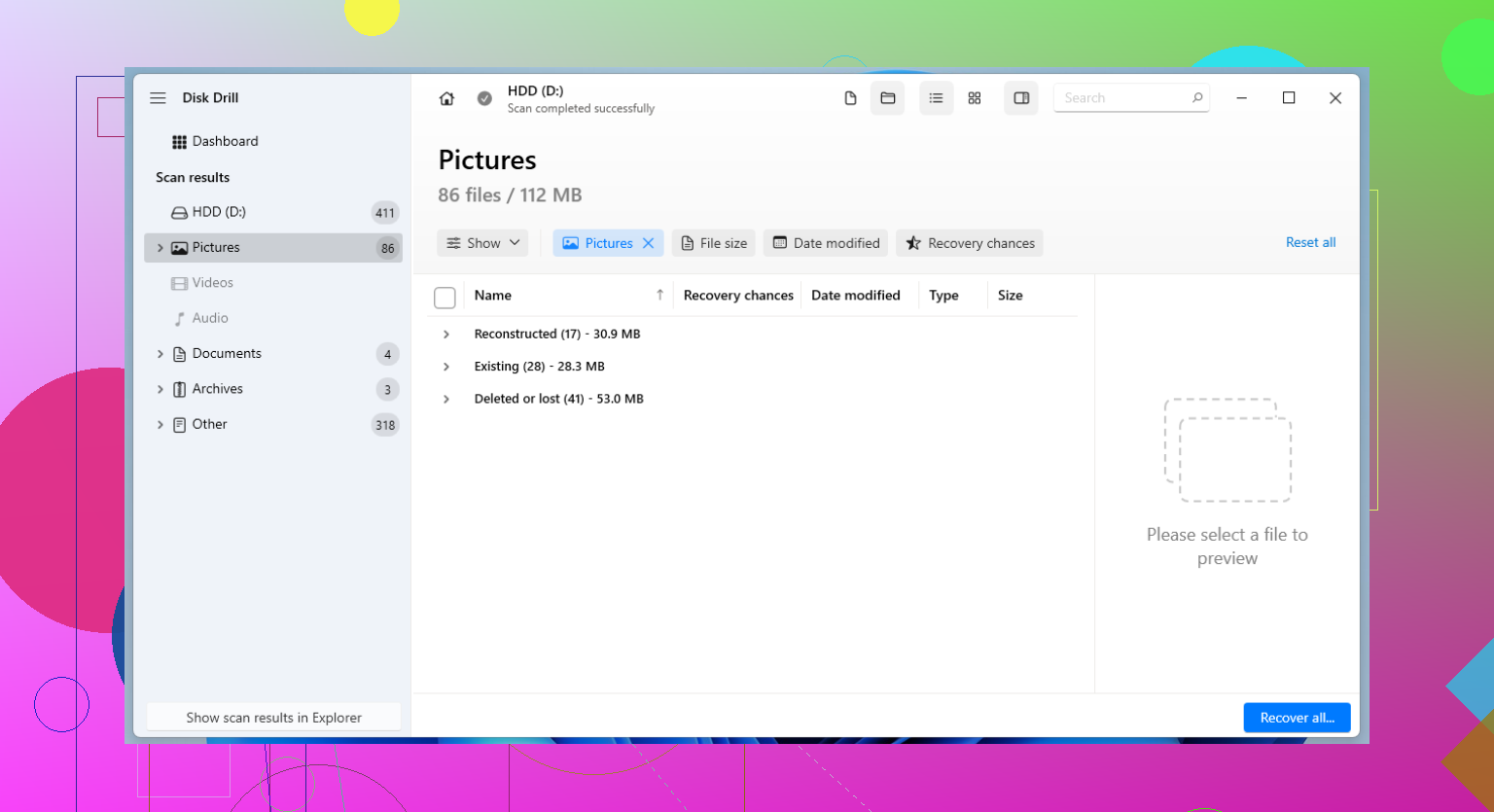
If no backup exists, I’d go with scanning software before thinking about a repair shop. In my use, Disk Drill did a better job than some of the easier free options. It works on Windows and Mac, and it handles formatted drives well enough for common file systems.
The process is plain:
- Install Disk Drill on a different drive.
- Run a scan on the formatted one.
- Save recovered files somewhere else, never back onto the same disk.
If you want free tools, PhotoRec finds a lot, though it feels rough and often strips files of their old names. Recuva is easier to deal with on Windows, but I’ve seen it miss more once partitions were changed or formatting got messy.
When software fails, labs are the last stop
If the files matter enough, family photos, tax records, work stuff you won’t rebuild, then a recovery lab is the serious option. It costs more. A lot more, sometimes. Still, those shops have tools and methods regular desktop software doesn’t.
One detail changes your odds a lot, the kind of format you ran.
- Quick Format usually removes the file system map. The data often still sits on the drive until something new replaces it.
- Full Format is worse. On newer Windows systems, it writes zeros across the disk and checks for errors. Once old data is overwritten, software recovery is done.
So if you wiped a drive by mistake, stop using it first. Then check backup services and system backups. If nothing turns up, scan it with a recovery tool and recover onto another device. The sooner you do it, the better the results tend to be.
7 Likes
If the drive still mounts and makes normal sounds, I’d do one extra step before scanning. Make a byte-for-byte image of it first. Clone the whole disk to another drive with something like HDD Raw Copy Tool on Windows or ddrescue on Linux. Then scan the clone, not the original. If a scan crashes or the disk starts degrading, you still have one clean shot left. A lot of people skip this and regret it.
I also disagree a bit with @mikeappsreviewer on Recuva. For a formatted external drive, it’s often too limited unless the format was mild and the file system stayed simple. Better for deleted files than format recovery.
What matters most is the drive type:
- HDD, better odds.
- SSD over USB, worse odds if TRIM got passed through.
- SMR portable HDD, scans get slooow.
If this was a quick format on an HDD, Disk Drill is a solid pick because it combines file system scanning with signature recovery and gives you a cleaner preview than many tools. If file names matter, test multiple scanners on the clone. R-Studio and UFS Explorer often recover folder structure better than photo-only tools, though they cost more.
Also check the file system you had before, NTFS, exFAT, APFS, HFS+. Matching the tool to the file system helps.
If you want a plain overview, this is a decent Disk Drill review and feature walkthrough, see how Disk Drill handles recovery and extra tools.
Big rule, recover files to a different disk. Not the same one. Mess this up once and your odds drop fast.
I’d add one thing neither @mikeappsreviewer nor @sternenwanderer really stressed enough: check whether the drive is actually formatted or just has a damaged partition table. Those are not always the same problem, and the fix path changes a lot.
If the external shows the wrong size, asks to be initialized, or suddenly looks unallocated in Disk Management, I’d test partition recovery before doing a giant file carve scan. Tools like TestDisk can sometimes rebuild the lost partition so the original folder structure comes back. It’s ugly software, yeah, but for this specific case it can beat a raw recovery pass. If the format truly completed, then yeah, Disk Drill is one of the easier home options because it can combine deeper scanning with previews, which matters if you’re sorting family photos from random junk files.
Also, slight pushback on the “scan it immediately” advice. If the drive is acting weird at all, slow reads, disconnects, clicking, freezing Explorer, don’t keep hammering it with repeated scans. That can make a bad drive worse real fast. In that case, one careful read attempt or image-first approach matters way more than trying 5 diff recovery apps back to back.
Another thing people miss: if the old docs were Office/PDF files, signature-based recovery may bring them back, but fragmented files can return corrupted even when photos look fine. So test recovery quality early, not just file count. “Recovered 80,000 files” sounds awesome until half of them won’t open.
For a cleaner summary on formatted-drive recovery, this thread has practical recovery tips for a recently formatted USB or external drive.
Short version:
- Stop using it.
- Check if it’s partition loss vs real format.
- If unstable, image first.
- Try partition recovery before full carving.
- If needed, run Disk Drill and restore to another disk only.
That order saves people a lot of pain tbh.