I accidentally formatted my WD My Passport Ultra external hard drive and lost important photos and work files. I stopped using it right away and need advice on the best data recovery methods or software that might still recover my files after formatting.
I’ve dealt with this mess more than once with WD My Passport drives. You plug it in, wait for the usual sound, and either nothing shows up or the folder you needed vanished. It sucks. The first move is simple, stop writing anything to the drive.
Do not copy new files onto it. Do not run cleanup tools. Do not try random repair steps from old forum posts. Pull it out and leave it alone for a minute. When a file gets deleted, the data is often still sitting on the disk. What disappears first is the file system entry pointing to it. New writes are what kill recovery, because they overwrite the old sectors. On older Passport hard drives, I usually had a decent recovery window. On newer SSD-based Passport models, time matters more because TRIM clears freed blocks in the background. Even so, if you move fast, you still might get something back.
Check Disk Management first
Before installing anything heavy, I’d look at what Windows says about the drive.
Right-click Start.
Open Disk Management.
Find the WD My Passport in the list.
This tells you more than File Explorer. If the drive appears with the correct capacity, like 1TB or 2TB, even if Windows labels it RAW or Unallocated, I’d still treat it as recoverable at home. In plain terms, the hardware is still answering, but the file system map is damaged or missing. If the drive does not appear there at all, even after a different cable and USB port, I’d start thinking hardware fault. At that point, a lab is often the safer path.
What I’d use for recovery
I tried a pile of recovery apps over the years. Some were slow, some found junk filenames, some looked nice and did almost nothing. For this kind of WD drive problem, Disk Drill gave me the best results often enough that I keep going back to it. It handled deleted files, damaged partitions, and drives I reformatted by mistake. On NTFS and exFAT, which a lot of My Passport units use, it did better for me than most of the stuff I tested.
How I’d do it, step by step
Install the recovery app on your PC, not on the WD drive. Writing recovery software onto the damaged drive is a bad move.
Connect the My Passport after the software is ready.
If the drive is slow, clicks, freezes, or disconnects, use the byte-to-byte backup feature first. I lean toward this any time a WD external starts acting sketchy. It clones the whole device into an image file, and then you scan the image instead of beating up the original disk.
Pick the drive, or the backup image, and start the lost data scan.
Run the full scan option. The quick modes missed too much in my tests.
While the scan runs, start checking the results. I usually go straight into deleted, lost, or reconstructed sections. Previews matter a lot here. If a photo opens in preview, or a document renders cleanly, I treat it as a good sign the file is intact.
Recover the files you want to a different destination. Your internal drive is fine. Another external is fine. Cloud storage is fine. Do not restore them back onto the same WD Passport during recovery.
A small thing people skip
If the drive keeps dropping offline, don’t keep rescanning it over and over. I did this once with an old Passport and made the situation worse. One careful clone attempt was smarter than ten hopeful scans. If the disk is unstable, reduce reads from the original as much as you can.
After you get the files back
I’d set up backups right away. Not later, not after you “sort the files first.” WD points people toward Acronis for scheduled backups, and it’s fine for routine use. The bigger point is having your data in more than one place. Every drive fails eventually. Brand stats help a little, but they don’t save your family photos when a controller dies on a Tuesday night.
If your Passport still appears in Disk Management with the right size, your odds are a lot better than they feel at first. If it’s missing there too, I’d stop pushing it and think about pro recovery before the damage gets worse.
7 Likes
If it was a quick format, your odds are still decent. Full format is worse. On newer Windows versions, a full format writes zeros, so recovery drops hard.
I slightly disagree with @mikeappsreviewer on one point. I would not spend much time poking around Windows tools once you already know it was formatted. Every extra read on a shaky drive adds stress. If the Passport mounts cleanly and stays stable, move straight to imaging or scanning.
Best path from here.
-
Figure out the format type.
Quick format, better odds.
Full format, lower odds. -
Check if the drive is HDD or SSD.
Most My Passport Ultra units are HDD. That helps.
If yours is SSD-based, deleted blocks get cleared faster. -
Make an image first if the drive is slow, drops, or clicks.
Use a sector-by-sector image. Scan the image, not the original. Safer. -
Try a file-system aware recovery tool first.
Disk Drill is a solid pick for formatted WD drives, esp for photos and office files.
R-Studio is stronger if you want more control and know what you are doing.
PhotoRec is free, but filenames and folder structure often come back as a mess. Great for photos, bad for orginization. -
Recover to another drive only.
Not back to the Passport. Ever.
Practical order I would use:
Disk Drill scan.
If results look weak, try R-Studio.
If both miss stuff, run PhotoRec for raw carving.
What matters in results:
Photo previews open.
DOCX, XLSX, PDF preview cleanly.
Original folder tree exists. If yes, that is a good sign.
If the drive disconnects, makes noise, or shows 0 bytes, stop. That is lab territory.
Also, if you want a fast walkthrough, this Disk Drill data recovery video guide for deleted and formatted drives is worth a look. It covers the setup without wasting time.
Biggest mistake now is rescanning the same unstable drive for hours. I did taht once. Lost more data than I recovered.
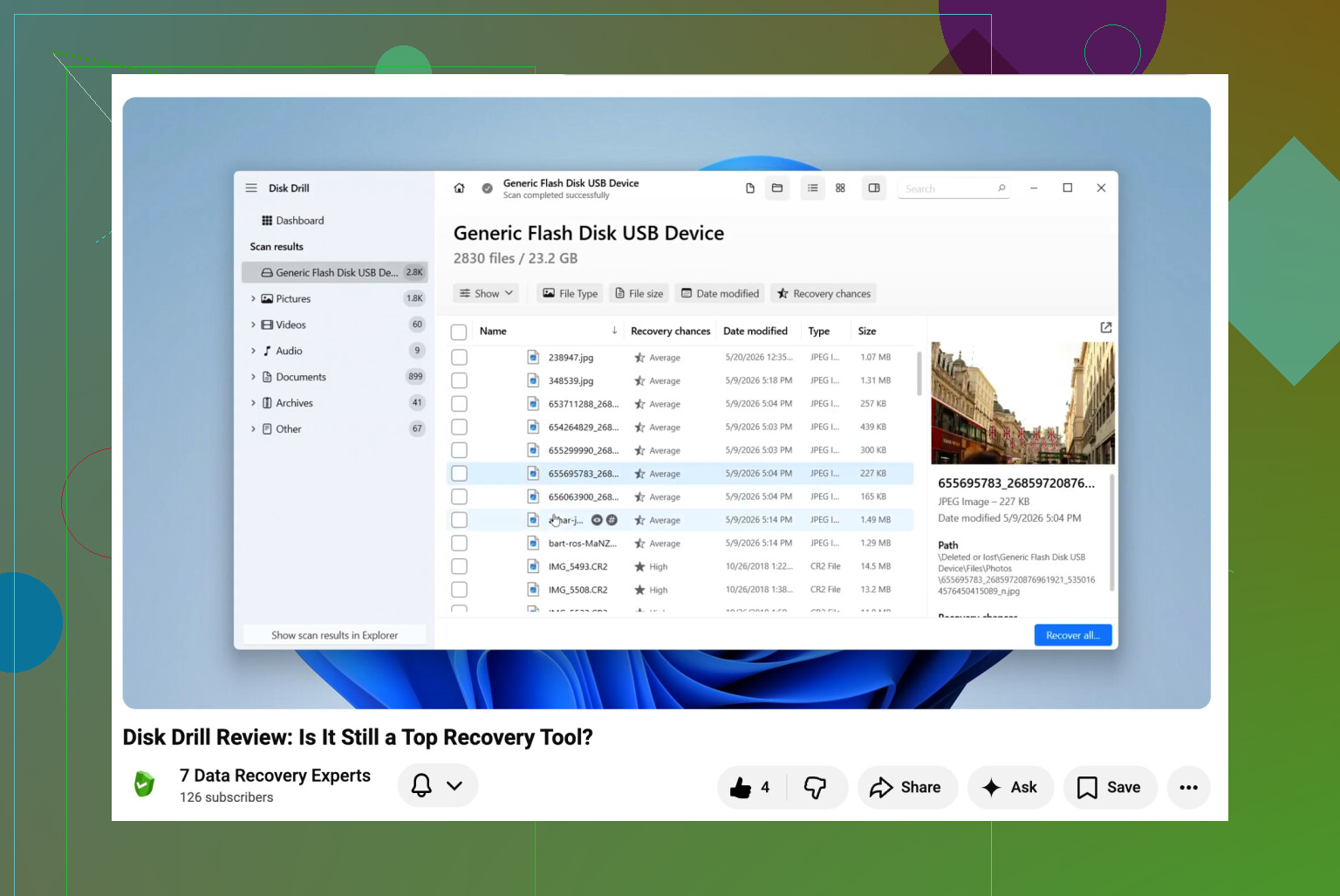
One thing I’d add to what @mikeappsreviewer and @sonhadordobosque said: don’t get tunnel vision on software only. If this WD My Passport Ultra was encrypted by WD Security before the format, recovery can get weird fast. You may still recover data, but filenames, structure, or even readable content can depend on whether the drive was unlocked properly first. People miss that all the time.
Also, slight disagreement with the “go straight to scanning” camp. If the drive is behaving perfectly fine, sure. But if your files are really important, making an image first is still the less dumb move, even on a stable HDD. It takes longer, but it gives you one clean shot instead of gambling on the original.
What I’d do in your case:
- Confirm if it was quick format or full format
- Check whether the drive used NTFS or exFAT before
- If you had WD password protection, unlock it first
- Recover from an image if possible
- Save recovered files somewhere else
For software, Disk Drill makes sense because it’s easy to sort photos and docs and preview stuff before restoring. That matters more than people think. If you need deeper filesystem work, UFS Explorer is another one worth looking at, though it’s less beginner-friendly and kinda ugly tbh.
For photos specifically, check recovered JPEGs and RAWs in preview before restoring thousands of them. A lot of tools “find” files that are actually half-broken.
If the drive was ever dropped, that changes everything. Then I’d read this real-world dropped WD external drive recovery case before doing more. Different problem, but same lesson: don’t keep poking a possibly damaged disk.
If it’s clicking, painfully slow, or disconnecting, stop messing with it. That’s the line where DIY starts getitng expensive.
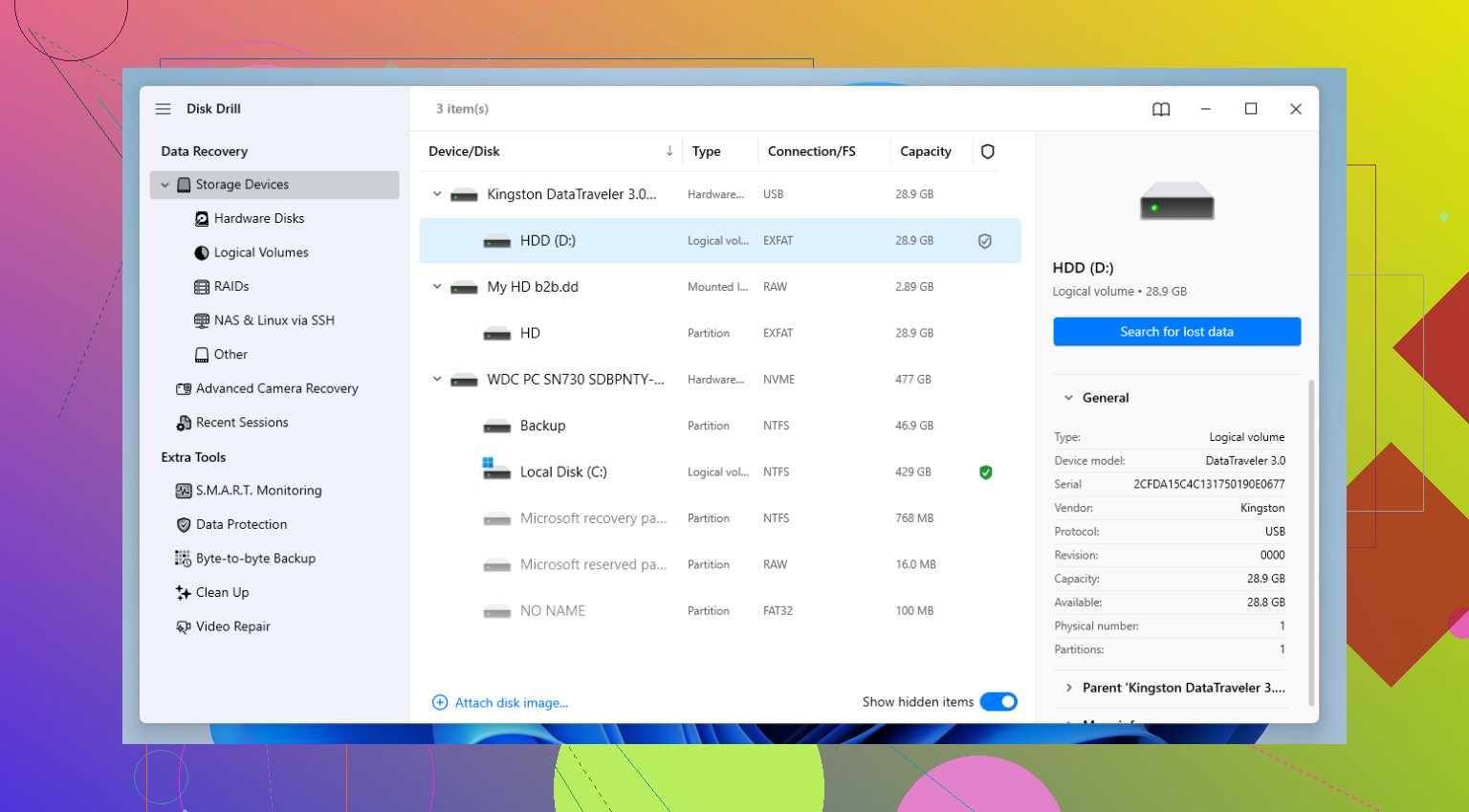
One angle the others only touched lightly: check the S.M.A.R.T. health before you commit to a long scan. If the Passport is throwing reallocated or pending sectors, a 6 hour recovery pass can snowball into a dead drive. In that case, image first, always.
I’ll slightly disagree with the “full format = almost hopeless” vibe. On an HDD My Passport Ultra, even after a full format, some raw carving can still pull photos and office files, just usually without names or folders. Bad odds, not zero odds.
About Disk Drill:
Pros
- easy previews for photos/docs
- beginner-friendly filtering
- decent at formatted NTFS/exFAT volumes
- can scan images instead of the live disk
Cons
- deeper metadata recovery is not its strongest point
- large scans can take a while
- raw recovery results can still be messy
- paid recovery if you need to restore lots of data
If I were prioritizing irreplaceable photos, I’d test a small sample first. Recover 20 to 30 files from different folders, open every one, zoom into images, check PDFs and DOCX files. Don’t assume “found” means “good.”
Also worth noting what @sonhadordobosque, @codecrafter, and @mikeappsreviewer hinted at in different ways: if WD encryption/password unlock was ever involved, make sure the drive is properly unlocked before judging scan quality.
My practical take:
- healthy stable HDD: Disk Drill first
- messy filesystem cases: R-Studio or UFS Explorer next
- last resort for photos only: PhotoRec
If the drive starts buzzing, disappearing, or hanging Explorer, stop DIY. That’s where home recovery gets expensive fast.