I’m trying to connect my Koofr account via WebDAV on desktop and mobile, but I keep getting connection or authentication errors with different apps. I’m not sure if I’m using the right server URL, username, or password format for Koofr WebDAV, and the official docs haven’t cleared it up for my setup. Can someone walk me through the correct WebDAV settings for Koofr and any common pitfalls I should check for?
Connecting Koofr with WebDAV: What Actually Works (And What Barely Does)
So I’ve been messing around with Koofr’s WebDAV support for a while, and honestly, it’s one of the more solid ones I’ve used. You grab the WebDAV URL from your Koofr account settings, plug it into your client, and you’re good for the usual stuff:
- Uploading and downloading files
- Dragging folders around
- Renaming, deleting, the everyday housekeeping
For that normal day‑to‑day file shuffling, it behaves pretty predictably.
Where things get interesting is performance. People love to blame the service when it crawls, but with WebDAV there are at least three suspects every time it chokes:
- Your connection (latency and upload speed matter more than you think)
- The WebDAV client you’re using
- The OS’s own WebDAV stack, which can be… fragile
Some clients do a much better job with big files or bulk transfers. Others look pretty but stall the second you try to push a 20 GB backup. Same server, totally different experience.
When Built‑In WebDAV Acts Like It’s From 2005
If you’re on macOS or Windows and you think “I’ll just use whatever WebDAV thing is built in, that should be fine,” prepare for some weirdness:
- Random disconnects
- Finder/Explorer freezing for a bit
- Operations that hang forever without any real error
This is not really Koofr’s fault. Both macOS and Windows treat WebDAV as some ancient network drive protocol that nobody bothered to modernize.
What helped a lot for me was skipping the built‑in stuff completely and using a dedicated tool to mount Koofr as a proper drive. On macOS, the one I’ve had decent luck with CloudMounter. It basically takes the WebDAV endpoint from Koofr and exposes it as a normal drive in Finder. Once it’s mounted, you can use it like any other disk: copy, move, preview, whatever. It feels more “local” and a lot less janky than the default macOS WebDAV implementation.
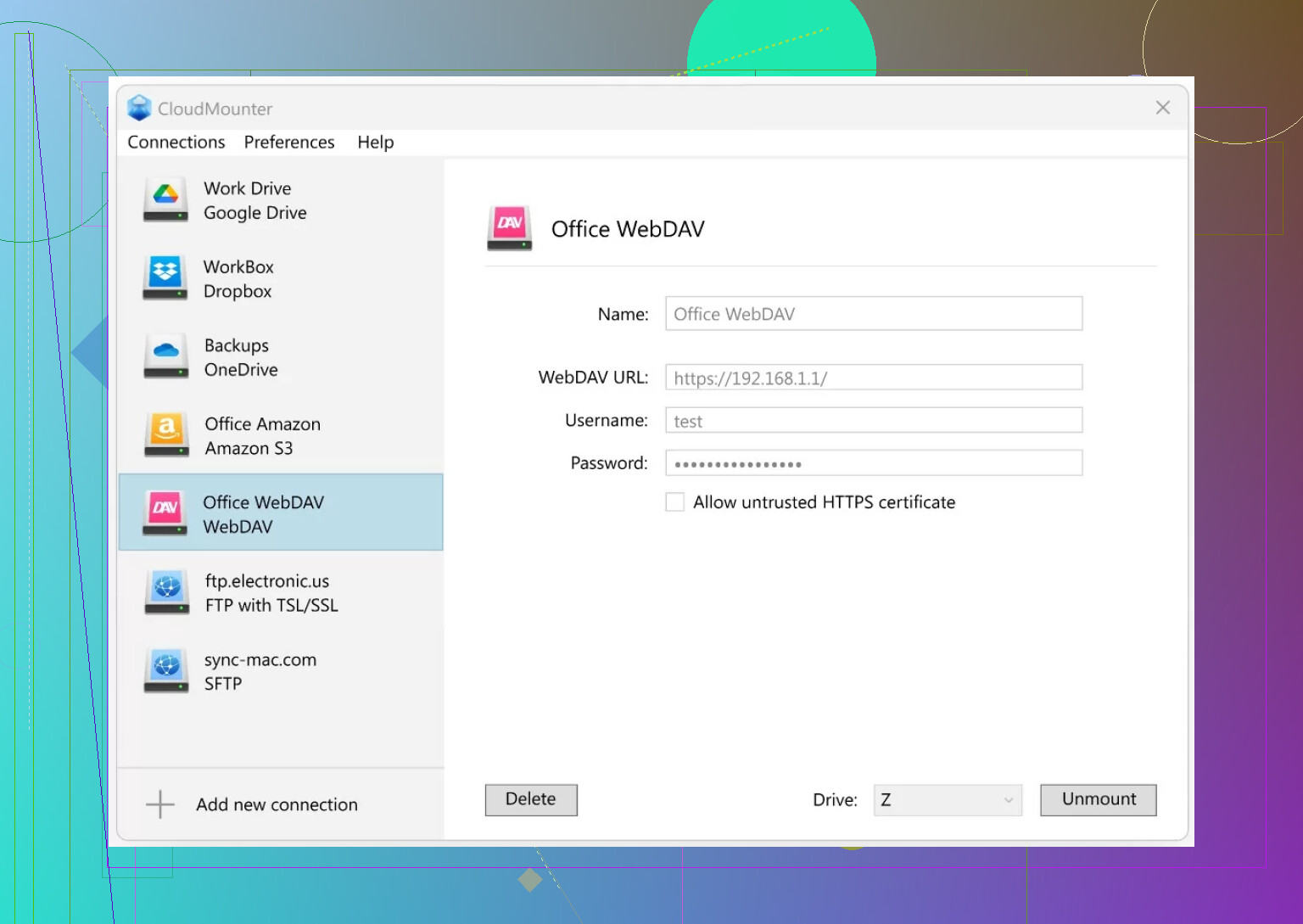
You don’t have to use something like CloudMounter; Koofr will work with standard WebDAV clients just fine. But if:
- You juggle multiple cloud accounts
- You want everything to look like drives instead of random network URLs
- You’re tired of Finder or Explorer pretending the WebDAV share doesn’t exist
then a dedicated mounting tool smooths out a lot of the rough edges.
45 Likes
Couple of the “gotchas” with Koofr + WebDAV that bite people over and over:
1. Use the correct WebDAV URL
Don’t guess the URL, grab it from Koofr itself:
- In Koofr web:
Settings → Password & sync → WebDAV
Copy the exact URL they show you.
Common mistake: using just https://app.koofr.net or https://dav.koofr.net instead of the full path Koofr gives you. If the app supports a “path” field, leave that empty and paste the full WebDAV URL as the server.
2. Username & password traps
Koofr is picky here:
- Username: usually your email, not a nickname
- Password: usually your Koofr password, unless you set an app‑specific password in that same WebDAV section
If you enabled app passwords, your normal login password may actually fail on WebDAV. In that case:
- Generate an app password for “WebDAV” in Koofr settings
- Use that as the password in all your WebDAV apps
Double‑check you’re not copy‑pasting a space at the end; some clients silently reject that and just say “auth failed.”
3. Desktop specifics
Windows
- Native Windows WebDAV is… unreliable.
- If you must use it, make sure:
- The URL starts with
https:// - WebClient service is running (Services → WebClient → Automatic + Start)
- The URL starts with
But honestly, similar to what @mikeappsreviewer said, I’d avoid the built‑in stack.
Use a dedicated client like:
- Cyberduck (good for manual transfers)
- A drive‑mount tool like CloudMounter to map Koofr as a network drive
CloudMounter + Koofr WebDAV is usually way more stable and behaves like a normal disk in Explorer.
macOS
Finder’s “Connect to Server” with WebDAV is slightly less awful than Windows, but still flaky.
For mac:
- Server address: paste the full Koofr WebDAV URL
- Username: your Koofr email
- Password: Koofr/app password
If Finder keeps dropping or freezing, CloudMounter on macOS gives a much cleaner experience and bypasses most of the Finder WebDAV weirdness.
4. Mobile specifics
This is where lots of auth errors pop up.
iOS
In something like the iOS Files app (Add WebDAV server):
- Server: full Koofr WebDAV URL
- User: Koofr email
- Pass: Koofr/app password
If Files refuses to connect, try a dedicated app like:
- Documents by Readdle (Add account → WebDAV)
- WebDAV Navigator
Some apps require the URL without trailing slash; others break unless you keep the slash. If connect fails, literally try the opposite once:
https://dav.koofr.net/your/path vs https://dav.koofr.net/your/path/
Stupid, but it actually fixes half the “auth” problems that are really URL parsing bugs.
Android
Popular WebDAV clients sometimes cache bad credentials. If you changed your Koofr password or app password:
- Remove the account from the app completely
- Add it again from scratch with the new password
On Android file managers, look carefully for a “use HTTPS” toggle. If you accidentally use HTTP instead of HTTPS, Koofr will just refuse the connection.
5. TLS / certificate & security quirks
If your client says something like:
- “Cannot establish secure connection”
- “SSL error”
- “Handshake failed”
then the issue is not your username/password. Make sure:
- The time and date on your device are correct
- You’re not behind some “corporate” firewall / antivirus that breaks TLS
Authentication errors in that situation are often fake; the real problem is SSL.
6. Test with one “known good” client
Before fighting three different apps at once, pick one:
- Desktop: Cyberduck or CloudMounter
- Mobile: Documents (iOS) or WebDAV Navigator
If that one works, your Koofr URL, username, and password are correct. Any other client failing after that is almost certainly the client’s issue, not Koofr’s.
If you post:
- The exact URL format you’re using (scrub personal info)
- Which device / OS
- Which app
it’s usually possible to spot the problem in one or two lines. Most of the time it’s one of: wrong URL path, email vs username mixup, or app‑specific password not used.
Couple of extra angles you can try that @mikeappsreviewer and @viajantedoceu didn’t fully dig into:
-
Triple‑check your Koofr WebDAV context
Koofr can expose multiple “roots” over WebDAV (Main storage, connected clouds, shared items). Some clients choke if you try to land directly inside a subfolder. If you copied a URL that ends in something like/dav/Koofr/and keep getting 401 or 403, try the “shorter” base link from Koofr’s settings first, then browse to the folder inside the client instead of hard‑coding the path. -
Watch out for “smart” clients rewriting the URL
Some apps auto‑prependhttps://or auto‑append/remote.php/webdavbecause they’re originally built for Nextcloud/ownCloud. If you see that in the connection log, kill that setting. The Koofr URL should be used as‑is, no extra path magic. -
Character set problems in passwords
WebDAV clients are all over the place with Unicode. If your Koofr or app‑specific password has spaces, quotes, or non‑ASCII symbols, try generating a new app password with just letters + numbers. Sounds dumb, but I’ve seen clients “URL‑encode” parts of the password and then report it as an auth failure. -
Two‑factor & SSO edge cases
If your Koofr account is tied to Google / Microsoft login or you enabled 2FA, do not use your usual sign‑in flow in your head. WebDAV has no idea about that. In that situation, always go with an app‑specific password from Koofr’s WebDAV section. Normal password sometimes works, sometimes doesn’t, depending on how your account was created. -
Try a mounting client vs a “sync/transfer” client
You tested “various apps,” but the category matters:- Sync apps (like backup tools) often do weird caching and retries.
- Mounting tools treat WebDAV like a plain disk.
On desktop, CloudMounter is usually the least painful route with Koofr: it mounts the Koofr WebDAV storage as a network drive and hides most of the OS WebDAV bugs. Especially on Windows, this often fixes the “works in one app, constant auth errors in another” issue.
-
Crank up logging in at least one client
Pick one WebDAV client that has a verbose log view (Cyberduck is good for this) and actually read the status codes:401or403: credentials / permission / URL scope issue404: definitely wrong path or client auto‑appending something405or500: client doing weird HTTP verbs Koofr does not like
Once you know the exact code, you’re not guessing between “bad password” and “broken URL.”
-
Mobile: check for auto “WebDAV over HTTP” toggles
On Android especially, there’s often a tiny checkbox for SSL / HTTPS. If it silently falls back to plain HTTP, Koofr will simply reject it and you get a vague “auth failed.” Make sure the final URL really starts withhttps://and that the app is not downgrading it. -
Time skew & cert chain
If you see an auth error on one device but the same credentials work elsewhere, check system time and date on that failing device. If TLS fails because the cert appears “not yet valid” or “expired,” some apps still show it as an authentication error.
If you want more specific help, post something like:
- Desktop or mobile
- OS version
- Exact app name
- Rough format of the URL you’re using (mask personal parts)
From there it’s usually a 2‑line fix, since at this point the remaining culprits are almost always: client mangling the URL, password charset, or a quirky OS WebDAV stack that a tool like CloudMounter neatly sidesteps.
Quick checklist that usually fixes Koofr + WebDAV flakes without redoing what @viajantedoceu, @techchizkid and @mikeappsreviewer already covered:
-
Use a fresh app password just for WebDAV
- Generate a new Koofr app password and use it only for WebDAV clients.
- Keep it simple: letters + numbers, no spaces or symbols.
- If one device works and another fails, create separate app passwords for each device. Some clients cache and corrupt creds in their own way.
-
Normalize the account name you feed into clients
- Some desktop/mobile apps prefer the Koofr login email.
- Others behave better with the Koofr username.
- If you always used email: try username + same app password.
- If you always used username: try the email.
A surprising number of “authentication” errors are actually “this client only matches one identifier format.”
-
Strip “clever features” in mobile apps
- In DAV-capable note/backup apps, disable options like:
- “Detect WebDAV server type”
- “Use Nextcloud compatibility”
- Force “Generic WebDAV” profile if the app offers that.
These autodetection routines love to silently rewrite the Koofr path.
- In DAV-capable note/backup apps, disable options like:
-
Do a “bare metal” sanity test with a boring client
Before debugging five apps at once, prove the account works:- On desktop: pick a plain WebDAV client like Cyberduck, set Koofr URL, simple app password, and try listing the root.
- If this fails, problem is URL / account side, not your fancier sync tool.
- Once Cyberduck (or equivalent) works, mirror those exact settings elsewhere.
-
Avoid mixing WebDAV sync and native Koofr sync on the same tree
If you run Koofr’s own desktop client on a folder and also point a WebDAV sync tool at that same structure, you invite conflicts and partial uploads. Choose one mechanism per folder tree: either WebDAV or native sync, not both. -
Using CloudMounter as a “WebDAV firewall” in front of flaky apps
Where I slightly disagree with the pure “just use client X” approach: I like using CloudMounter as a layer instead of an all-in-one solution.- Mount Koofr via WebDAV once in CloudMounter so your OS sees a normal drive.
- Point backup tools, editors, etc., at that mounted drive, not at WebDAV directly.
Pros of CloudMounter in this role:
- Hides weird HTTP quirks from apps that have bad WebDAV stacks.
- Central place to store and rotate Koofr app passwords.
- Smoother handling of reconnects and sleep/wake cycles than built-in OS WebDAV.
Cons:
- Extra software layer, so one more thing that can crash or need updates.
- Heavy bulk transfers can be slower than a well-implemented direct WebDAV client.
- Not ideal if you are allergic to background helper processes or want a purely open stack.
If you do not like that model, competitors mentioned by others (the tools @viajantedoceu, @techchizkid and @mikeappsreviewer rely on) are fine to keep using directly, just make sure only one app at a time is hammering Koofr via WebDAV.
-
Minimal test matrix that actually isolates your problem
To avoid chasing ghosts, try this sequence:-
- Desktop + “boring” client with new app password.
-
- Same desktop + CloudMounter, mount once, copy a small file.
-
- One mobile app with “Generic WebDAV” profile, same URL, its own app password.
If step 1 fails: fix URL / account.
If 1 works and 2 fails: CloudMounter settings.
If 1 and 2 work but 3 fails: mobile app is misdetecting or rewriting the server. -
Post the error code (401, 403, 404 etc.), your platform, and whether you are using email or username plus app password. From there it is usually one or two small tweaks rather than a full reconfiguration.
Simpler path, use rclone to expose Koofr as a local drive.
- Install rclone.
- Run rclone config. New remote, type webdav. Paste Koofr WebDAV URL from Settings. Vendor Other. Username your Koofr email. Password the app password.
- Mount.
Windows: rclone mount koofr: X: --vfs-cache-mode writes
macOS or Linux: rclone mount koofr: ~/Koofr
Point your apps at that drive. Fewer auth prompts, fewer URL quirks.
Quick test: rclone ls koofr:
CLI is simple tho. Keeps creds in one place. If things fail, rotate the app password and retry.